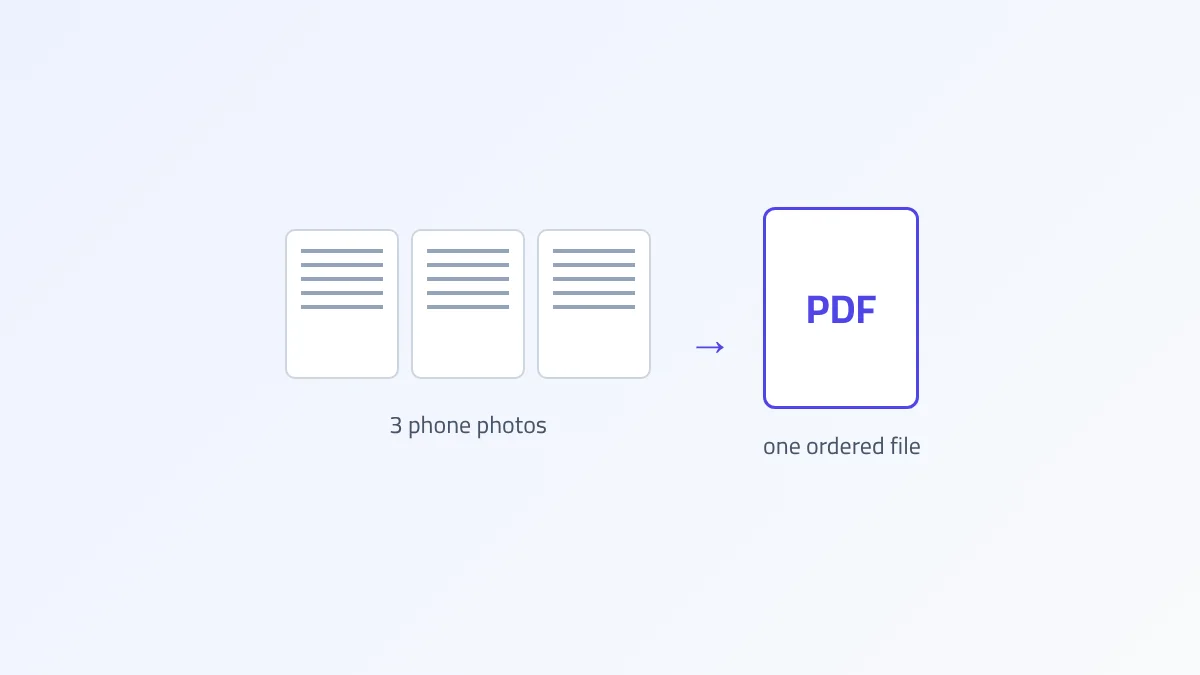
Many documents we send today start as photos on a phone: an ID card, a school certificate, a payment receipt, or the pages of a contract. Then the organization asks for "a single PDF". This guide walks through the whole process: how to photograph a document so it's legible, how to combine the photos into one file in the right order, and how to get it under the size limit of an online portal, without installing any app.
Quick answer
Photograph each page in daylight on a dark surface and crop the edges in your gallery. Then open JPG to PDF in your phone's browser, select the photos in order, and tap "Process now". If the file is over the size limit, run it through Compress PDF with "Strong" compression at 60% quality.
Step 1: a good photo saves you half the work
Most rejected documents fail because of the photo itself, not the conversion. The points that matter most:
- Light: daylight near a window beats any lamp. Avoid the flash; it leaves a glare spot that hides part of the text, especially on glossy paper and plastic cards.
- Background: put the white sheet on a dark surface, such as a wooden table or fabric. The contrast makes the paper's edges clear and cropping easier.
- Angle: shoot from directly above, with the phone parallel to the page. A tilted shot bends the lines and shrinks the text near the edges.
- Framing: get close enough that the page fills most of the frame. A page sitting small in the middle of a table means fewer pixels for the text.
- Steadiness: rest your elbows on the table and tap the screen to focus on the text before taking the shot.
Afterwards, open each photo in your gallery, crop the extra edges, and rotate it if needed. It takes seconds and gives a much cleaner result.
Step 2: sort before you combine
The tool places pages in the order you select the photos. The easiest ways to get the order right:
- Photograph the pages in the order you want them in the file (front then back, page 1 then 2…). Your gallery sorts them by capture time.
- In the phone's picker, tap the photos one by one in the order you need. Android and iPhone both show a number or check mark on each selected photo.
- If you make a mistake, remove the photo from the tool's list with ✕ and add it again; it moves to the end of the list.
Step 3: convert to PDF
- Open JPG to PDF in your phone's browser (Chrome or Safari). No app needed.
- Tap "Choose files" and select the photos in order.
- Check the list: the order of the rows is the order of the pages.
- Tap "Process now", then "Preview result" to check, then "Download result".
Each photo goes on its own A4 page, scaled to fit with a white margin, never cropped or stretched. The photo is embedded as is, so it doesn't lose quality. Processing happens in the browser on your phone, so photos of your ID or documents aren't uploaded to any server. If your images are PNG (screenshots, for example), use PNG to PDF the same way.
Step 4: get under the size limit
Photos from modern phones are large: one can easily exceed 3 or 4 MB. Five pages can quickly add up to more than 15 MB, while many portals accept 2 or 5 MB at most. The fix:
- Open Compress PDF and pick the file you just created.
- Choose "Strong". It redraws the pages as lower-quality images, which is exactly right for a file made of photos in the first place.
- Start at 60% quality. In our test on a 6-page scanned file of 7.33 MB, this setting produced a 798 KB file with clearly readable text.
- If it's still too big, try 40%. If small numbers become hard to read, raise it to 70%.
Always preview before sending, and zoom in on numbers and stamps: they are the first things compression affects.
Common situations and how to handle them
Front and back of a card on one page
Some organizations want both sides on a single page. The tool puts each photo on its own page, so the simplest way is to place the card and its flipped copy side by side on a white sheet and photograph both in one shot.
A page is upside down or sideways in the final file
No need to start over. Use Rotate PDF on the result.
Adding photos to an existing PDF
Convert the new photos to PDF, then combine the two files with Merge PDF in the order you want.
An extra or duplicate page
Remove it with Remove Pages by entering its number. The file gets smaller too.
Mistakes that get documents rejected
- Sending a screenshot of a photo instead of the photo: screenshots lower the resolution and add the status bar and icons.
- Compressing more than once: each strong compression redraws the image and adds noise. Compress once from the original, and if that's not enough, pick a lower quality starting from the original again.
- Cropping part of the document: some portals reject documents whose four edges aren't visible. Leave a small margin around the page.
- An unclear file name: rename the file to describe its content (for example "national-id-yourname.pdf") before uploading; it helps whoever reviews it.
Checklist before you hit "Submit"
Before uploading, open the file on your phone and go through these points. One minute here can save you a rejected application:
- Page count: are all pages there, with no duplicates?
- Order: is the front before the back, and the contract's first page at the start?
- Orientation: are all pages upright?
- Legibility: zoom in on the ID number, dates and stamp. If you have to guess, so will the reviewer.
- Size: compare the file size with the portal's limit. You can see it in your Files app or in the compression tool's result message.
- Format: make sure the file ends in
.pdf, not.zipor an image extension.
Should I convert the document to black and white?
If the document is black text on white paper, color adds nothing, and the file may get smaller after Grayscale PDF. But if it has a colored stamp or a signature in blue ink, keep the color: some organizations check the stamp color to tell an original from a copy.
Frequently asked questions
Do I need a scanner app?
Not necessarily. Scanner apps crop edges and fix the angle automatically, which helps. But a good camera photo with a quick crop in your gallery gives a perfectly acceptable result.
Will the text in the PDF be searchable?
No, the pages remain images. If you need editable text, you'll need OCR, which we explain in What Is OCR?.
How many photos can one PDF hold?
The tool sets no limit. On an older phone, though, dozens of full-resolution photos can slow processing down. Split them into two files, then merge them.

Related Articles
Explore more guides to master your PDF workflow:
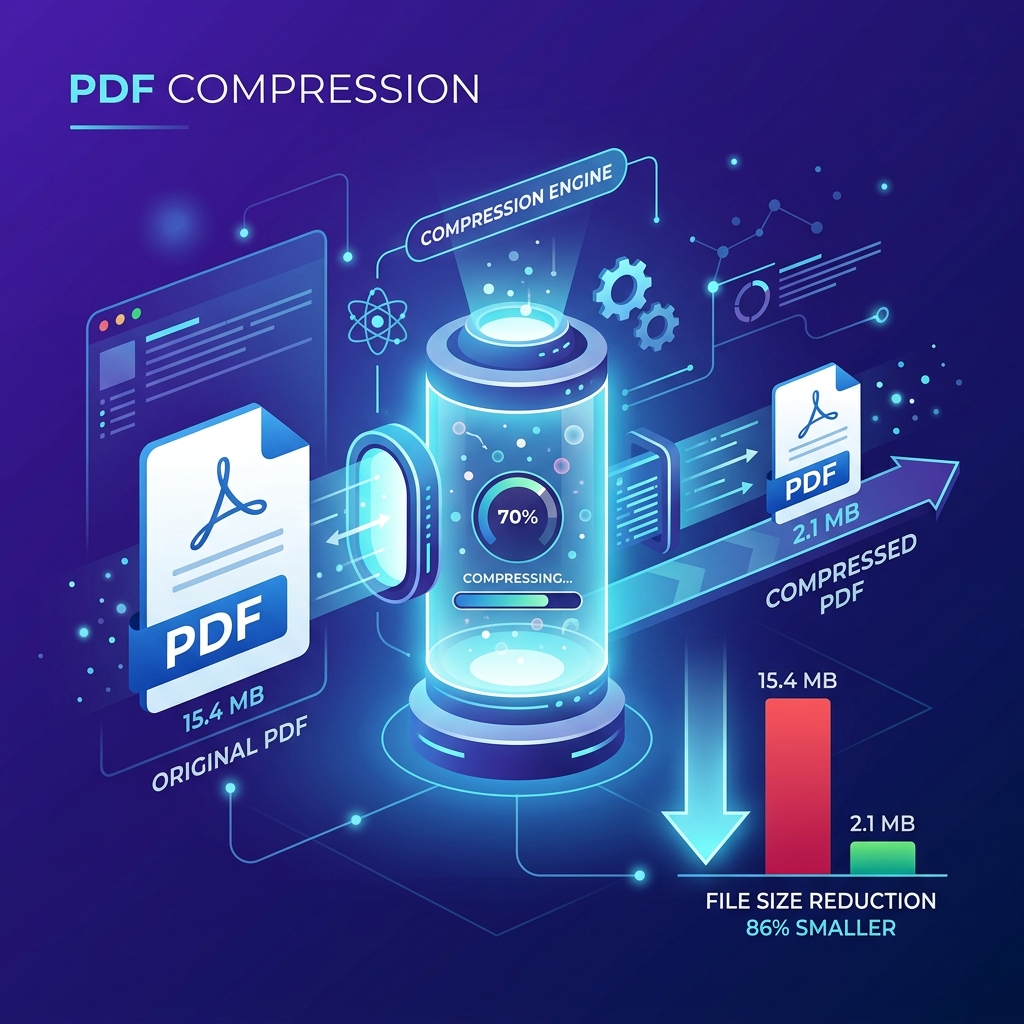
How to Compress a PDF Without Losing Quality
Learn how PDF compression works, the difference between lossy and lossless compression, best practices, and how to reduce file size without losing quality.
Read article →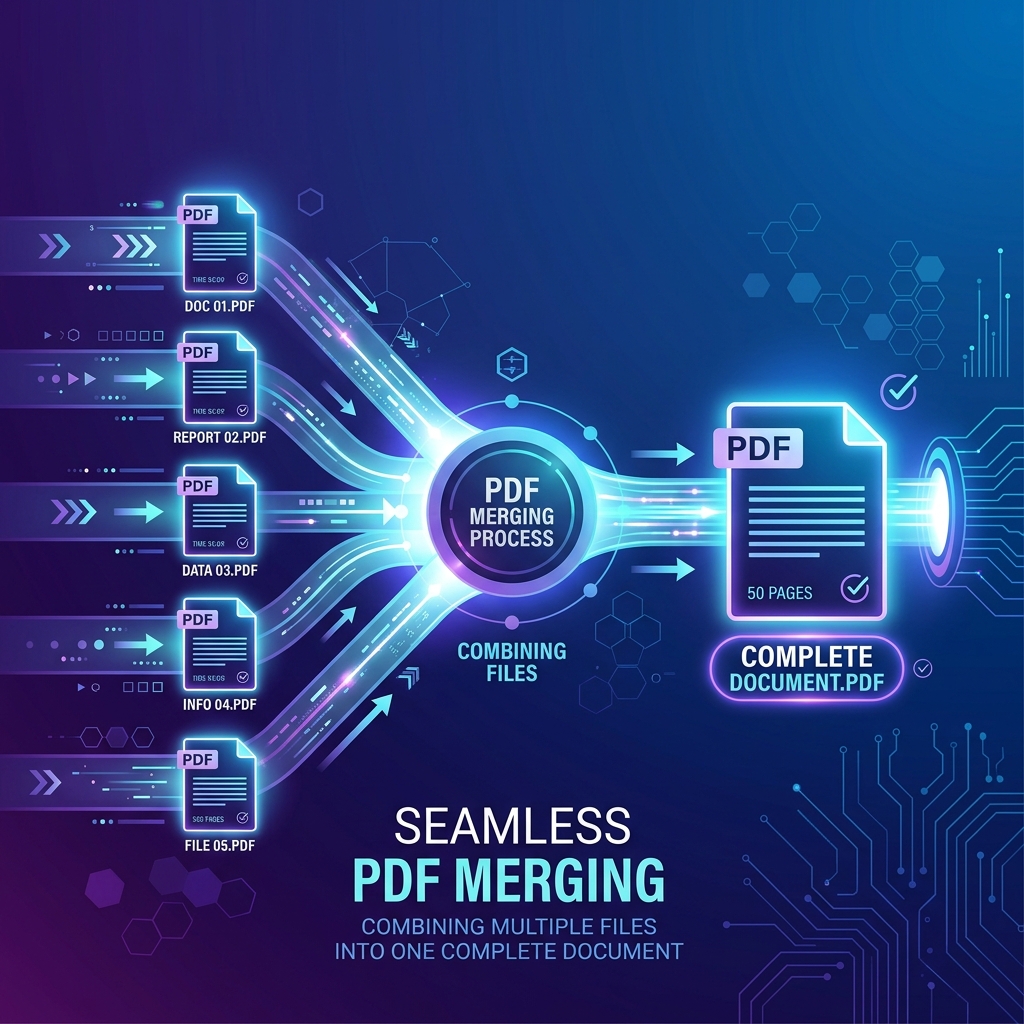
How to Merge PDF Files Online
Learn how to merge PDF files online easily. Complete guide covering PDF merging mechanics, best practices, quality preservation, and FAQs.
Read article →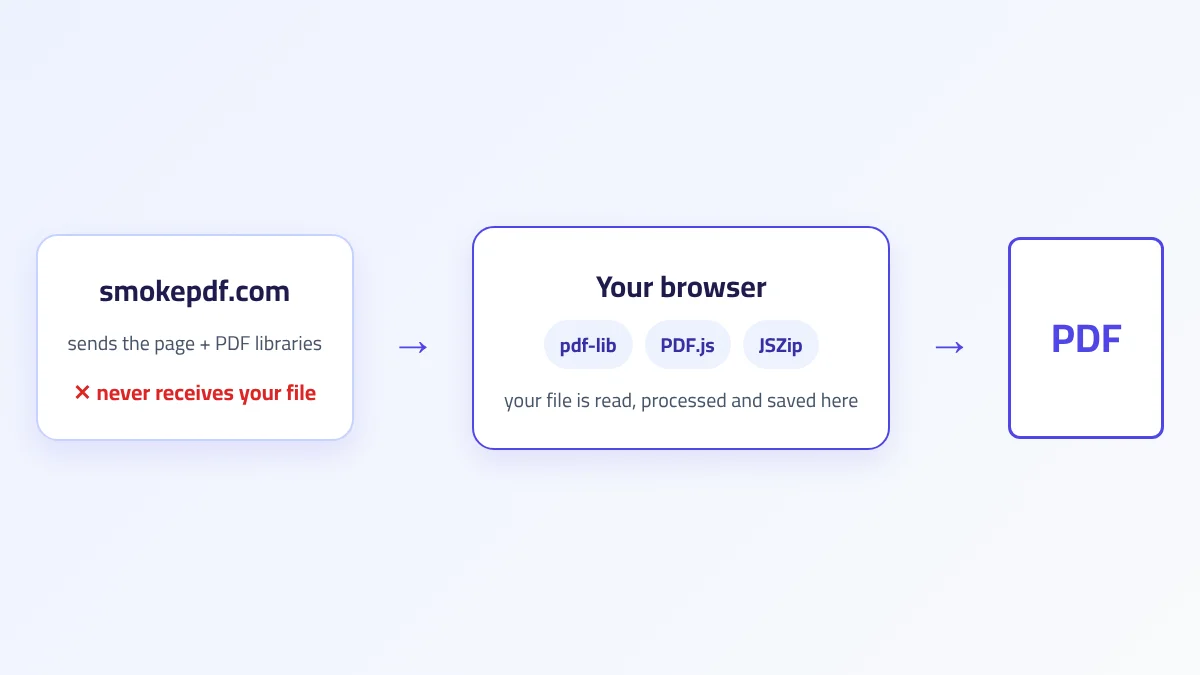
How In-Browser PDF Processing Works: A Plain-Language Technical Guide
What actually happens when a PDF is processed inside your browser: the libraries involved, each step, the limits of this approach, and how to verify your file is never uploaded.
Read article →Conclusion
Merging PDF files is one of the simplest ways to improve document organization and simplify your workflow. Instead of managing multiple separate files, you can create a single, well-structured document that is easier to share, archive, print, and collaborate on.
Whether you're preparing business reports, legal documentation, educational resources, or personal records, understanding how PDF merging works helps you maintain document quality while improving efficiency.
By organizing files carefully, reviewing page order, preserving important interactive elements, and performing a final quality check, you can produce professional PDF documents that are easy to manage and distribute.