Merging PDFs sounds like a one-click job, and most of the time it is. The trouble starts in the details: a portal that accepts one file under 2 MB, a diploma scan that comes out sideways, an ID card page that looks tiny next to an A4 certificate, or a signed contract that is no longer "signed" after you combine it with other papers. This guide covers those details, based on how the SmokePDF merge tool actually works, so you know what to expect before you upload anything anywhere.
Quick answer
Open Merge PDF, click "Select files", and add your PDFs in the order you want them to appear. Check the list, click "Process Now", look through the result with "Preview Result", then save it with "Download Result". The pages are copied unchanged, so quality stays the same, but bookmarks, form fields, the original document properties and digital signatures do not carry over to the new file.
What actually happens when you merge
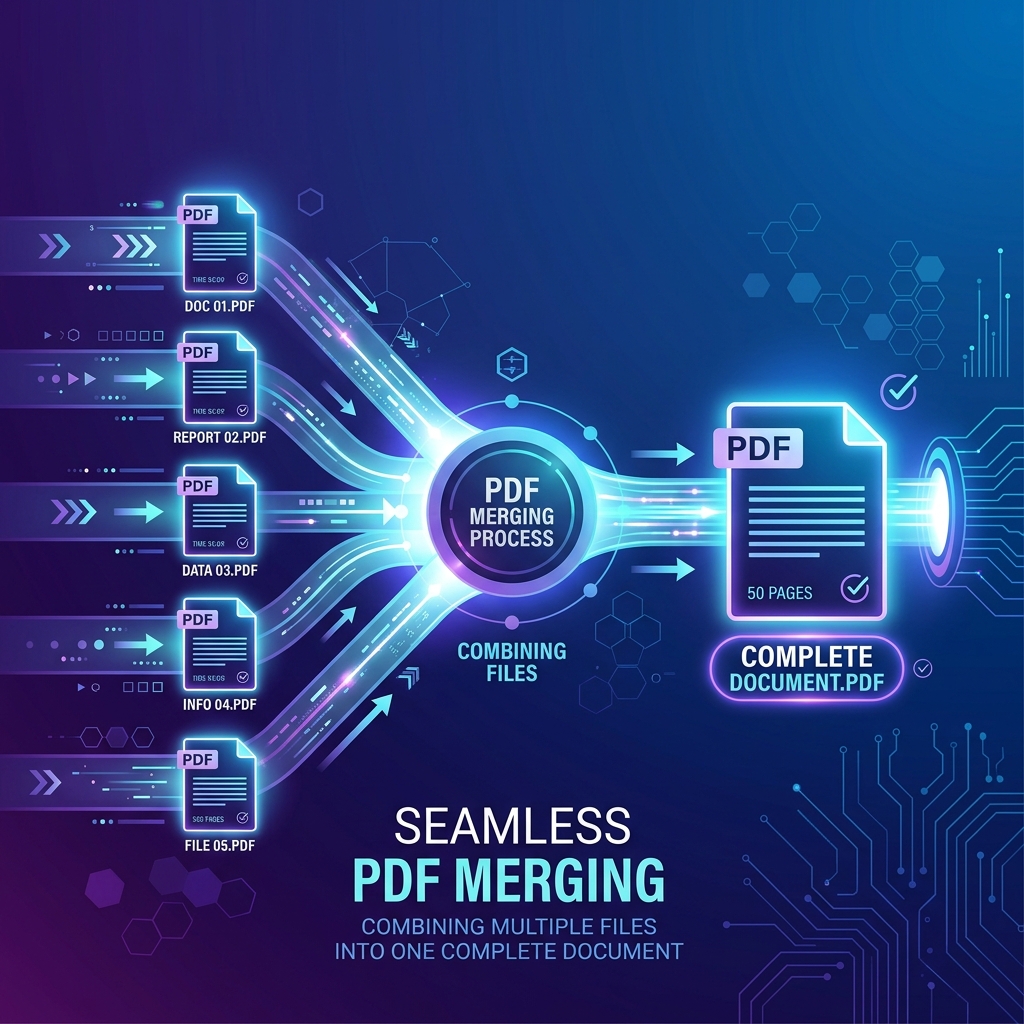
The tool does not glue one file onto the end of another. It creates a brand-new, empty PDF in your browser, then goes through your file list from top to bottom. For each file, it opens it with the pdf-lib library, copies every page, and appends those pages to the new document. When the last file is done, the new document is saved as merged.pdf.
Three practical consequences follow from this:
- Page content is copied, not redrawn. Text stays selectable, vector drawings stay sharp, and images are not recompressed. A page in the merged file looks the same as it did in the original.
- Only pages are copied. Anything that belongs to the document as a whole rather than to a page, such as the bookmark outline or the form structure, stays behind in the original file. More on this below.
- Every page from every file goes in. There is no option to pick a page range per file. If you only want some pages, trim the file before or after merging.
All of this runs locally in the browser. The files are read from your device into memory and are not uploaded to a server, which matters when you are combining things like ID cards, bank statements or medical reports.
Prepare your files before merging
Five minutes of preparation saves you from redoing the merge three times. Open each file on its own first and check the following.
Does it open without a password?
If a file asks for a password when you open it, or if it is restricted against editing, it is encrypted. The merge tool may still read it, but the copied pages can come out blank or garbled, because their content is still encrypted inside the new file. If you know the password, remove it first with Unlock PDF and merge the unlocked copy. If you don't know it, ask whoever sent the file for an unprotected version.
Is it actually a PDF?
The tool only accepts PDF files. Photos of documents taken on your phone are images (iPhones may save them as HEIC, which you should export as JPG), so they need to become PDFs first. Convert them with JPG to PDF, then add the resulting file to the merge list. If the photos are badly lit or crooked, the result will be too; our guide on turning phone photos into a clean PDF covers lighting, cropping and order for exactly this case.
Does it contain pages you don't need?
A bank statement with four pages of terms and conditions, or a scan with a blank back page, adds weight and clutter. You can remove those pages before merging or after. After is usually simpler, since you only deal with one file.
Is a form filled in?
If one of the files is a fillable form, fill it in and save it before merging. Better still, flatten it with the Flatten PDF tool so your answers become fixed page content. Otherwise, as explained below, the fields may stop working in the merged file.
Getting the order right
The order of the list under the upload box is the order of the pages in the final file. The first file's pages come first, then the second file's, and so on. The list currently has no drag-to-reorder, so you control the order in one of these ways:
- Add files one by one. Each new file goes to the end of the list. Select the cover letter, then the ID, then the diploma, and the list ends up in that order.
- Number the file names. Rename them
01-cover.pdf,02-id.pdf,03-diploma.pdfbefore you start. When you select them all at once, they usually arrive in name order, so the numbers decide the sequence. Use two digits (01, 02 … 10) so that file 10 doesn't sort before file 2. - Fix mistakes with ✕. If a file is in the wrong place, remove it with the ✕ button and add it again. It moves to the bottom of the list.
Two more behaviours worth knowing. If you add the same file twice (same name and same size), the second copy is ignored, which prevents accidental duplicates. If you really need the same document twice, save a copy under a different name. And if you need to reorder individual pages rather than whole files, merge first and then rearrange the pages with Organize PDF.
A real example: an application dossier
Here is the situation we see most often. A university, scholarship or job portal asks for "one PDF containing your ID, your diploma and your certificate", with a size limit, often somewhere between 2 and 5 MB. You have:
- A photo of your national ID card, front and back, taken on your phone.
- Your diploma, scanned at a print shop as a 1-page PDF of about 3 MB.
- A school certificate downloaded from an official website as a small text-based PDF.
A sensible workflow:
- Convert the ID photos. Put the front and back into one PDF with the JPG to PDF tool, front first. Each photo lands on its own A4 page. Name it
01-id.pdf. - Deal with the heavy scan now, not later. The diploma scan is the file that will push you over the limit. Compress it on its own with the "Strong" mode of Compress PDF, which turns pages into JPEG images. That is fine for a scan, which is already an image. Name the result
02-diploma.pdf. - Leave the text document alone. The downloaded certificate is small and its text is selectable. Name it
03-certificate.pdfand don't compress it. - Merge in order. Select the three files, check that the list reads 01, 02, 03, click "Process Now", and preview the result.
- Check the size. If it is still above the limit, run the merged file through Compress PDF again.
Why compress the scan separately instead of compressing everything at the end? The strong mode applies to every page of the file it gets. Applied to the merged dossier, it would also turn the certificate's crisp, searchable text into an image. Compressing only the heavy scan keeps the light pages intact.
Mixing page sizes and orientations
Each copied page keeps its own dimensions and rotation. The merge does not resize anything to A4 or force everything to portrait. In practice this means:
- A4 and US Letter pages sit side by side without problems. The difference is small and most readers won't notice it.
- A landscape page stays landscape. A spreadsheet printout or a wide chart will appear sideways compared to its neighbours, which is correct. If a page shows up rotated the wrong way, it was already like that in its source file; fix the rotation and merge again.
- Small pages stay small. Some scanner apps produce a PDF page exactly the size of an ID card. Next to A4 pages it looks tiny on screen and prints at card size. SmokePDF's JPG to PDF avoids this by placing each photo on its own A4 portrait page, so if a card-sized PDF causes trouble, convert the original photo with it instead.
- Very large scans stay large. A page scanned as a big poster-sized image keeps those dimensions. Viewers scale it to fit the screen, but it can feel inconsistent when scrolling.
The rule of thumb: get each source file looking right on its own, and the merged file will look right too.
What survives a merge and what doesn't
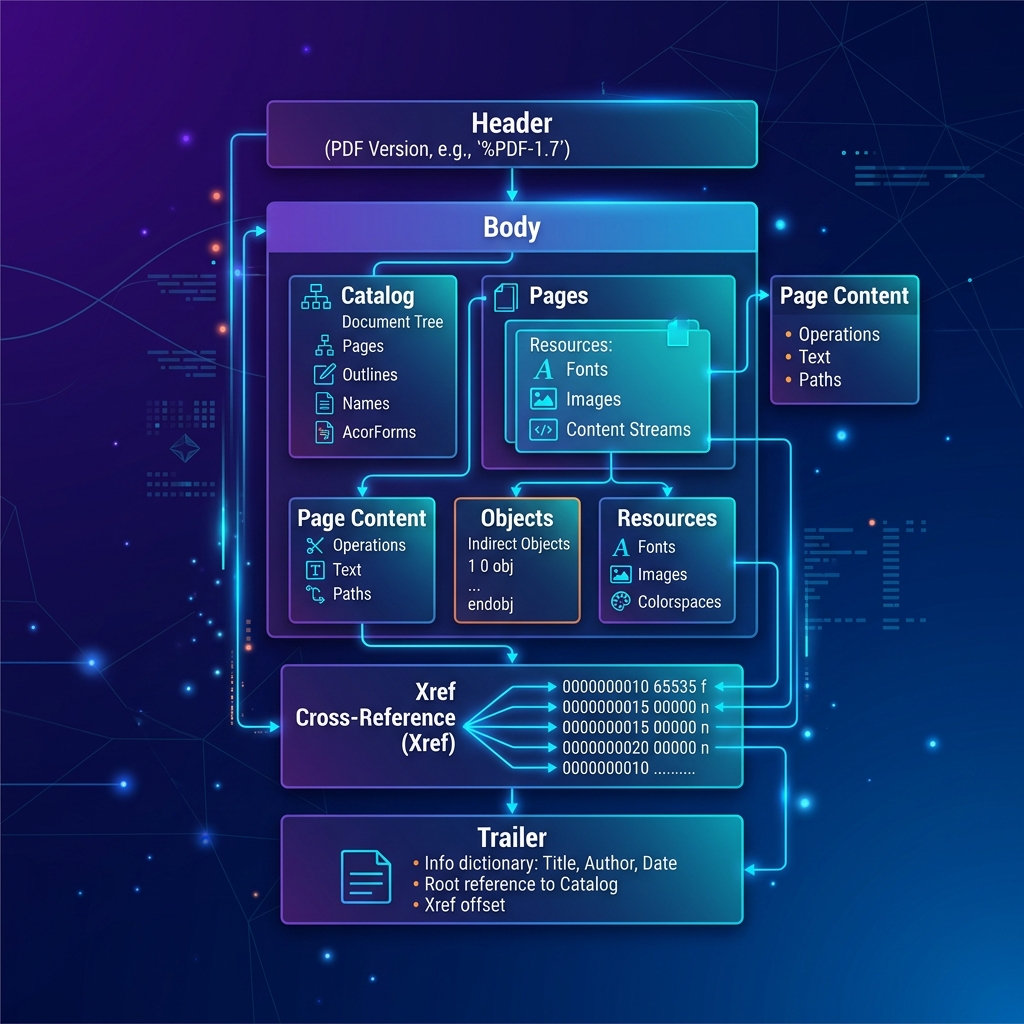
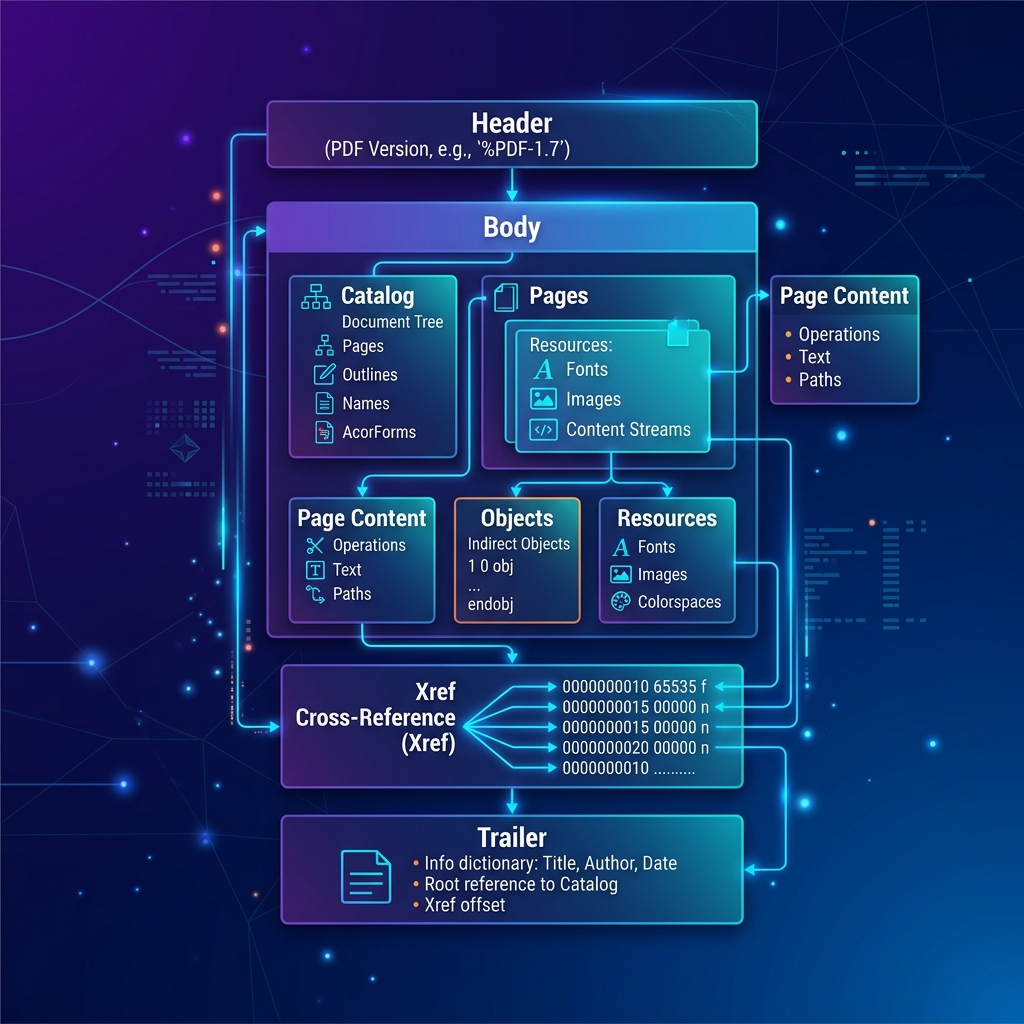
This is where most surprises come from. Because the tool copies pages into a new document, anything stored at the page level comes along, and anything stored at the document level stays behind.
| Element | After merging | What to do |
|---|---|---|
| Text, images, drawings, fonts | Kept as they are | Nothing |
| Page size and rotation | Kept per page | Fix in the source file if wrong |
| Links to websites | Usually kept, since they are attached to the page | Click a couple to check |
| Links that jump to another page in the same document | May stop working | Don't rely on them in the merged file |
| Bookmarks (side outline) | Not carried over | Keep the originals if you need the outline |
| Fillable form fields | Lose their form structure; may stop being editable | Fill and flatten before merging |
| Title, author and other document properties | Not carried over; the new file gets its own creation details | Set them again in an editor if they matter |
| Digital signatures | No longer valid | Send the signed document separately |
| Password protection | Not carried over, and encrypted inputs may produce blank pages | Unlock before, protect again after if needed |
The digital signature point deserves emphasis. A digitally signed PDF, such as an e-signed contract or some government-issued certificates, is valid only as long as the exact signed file is unchanged. A merged file is a new file, so even if the signature's visible stamp still appears on the page, a PDF reader will not validate it. When the recipient needs to verify a signature, send that document as its own attachment.
File size and practical limits
The merged file is roughly the sum of its parts. Three files of 1 MB, 3 MB and 200 KB will give you something around 4 MB, sometimes a little more or less depending on how the originals were written. The tool doesn't look for shared fonts or images across files, so two documents that each embed the same font will both keep their copy.
There is no fixed limit on the number of files or pages. The real limit is your device's memory: every input file is loaded into the browser at the same time, plus the new document being built. A desktop browser handles large batches comfortably; an older phone may slow down or stop responding with a few hundred megabytes of scans. If that happens:
- Close other tabs and try again.
- Merge in stages: combine files 1–5, then 6–10, then merge the two results.
- Compress the heaviest scans first, so there is less to hold in memory.
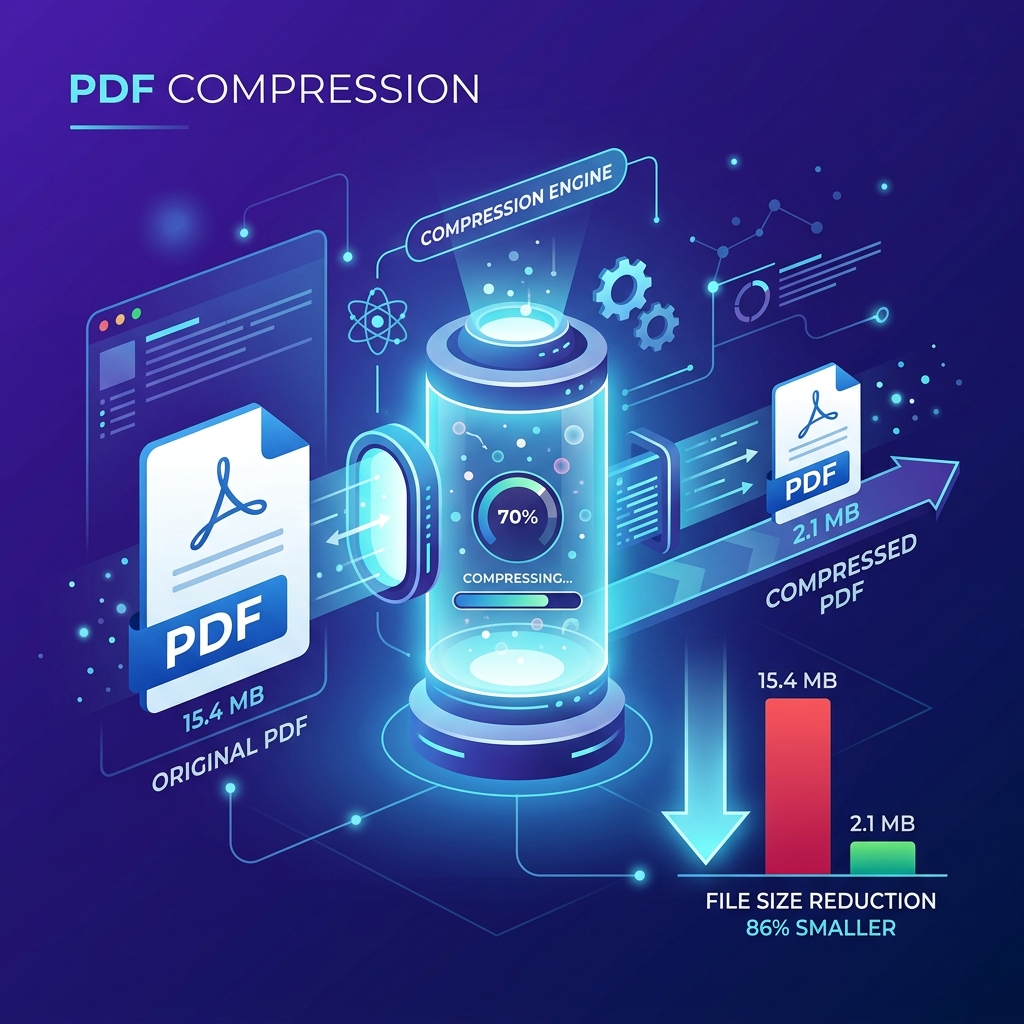
If the merged file is too big for an email or a portal, compress it afterwards, keeping in mind the trade-off described in the dossier example. Our step-by-step guide on how to compress a PDF explains when the lossless mode is enough and when the strong mode is worth it.
Check the result before you send it
Use "Preview Result" before downloading, and open the downloaded file once more in your usual PDF reader. A quick checklist:
- Page count: does it equal the sum of the pages of all your inputs?
- Order: scroll through the first page of each section. A file in the wrong position is the most common mistake.
- Blank pages: a run of empty pages usually points to an encrypted or damaged input.
- Readability: zoom in on a scan to make sure the text is still legible, especially after compression.
Most fixes don't require starting over. To drop a stray blank page or a terms-and-conditions section, use Remove Pages on the merged file. To move a single page, use Organize PDF. And if you later need to send one section on its own, the Split PDF tool can cut the dossier back into parts. Keep your original files until the application is accepted; they are your clean source if anything needs redoing.
Frequently asked questions
Can I merge only certain pages from each file?
Not in one step. The merge tool copies all pages of every file. Either remove the unwanted pages from each source file first, or merge everything and then delete the extra pages from the combined file.
Will the merged PDF still be searchable?
Yes, if the originals were. Text-based pages keep their selectable text because nothing is redrawn. Scanned pages that were images in the source remain images; merging does not add a text layer.
Why is the merged file called merged.pdf, and can I rename it?
That is the default name the tool gives the download. Rename it to something meaningful, such as your name and the application type, because many portals and recruiters see the file name.
I added a file twice on purpose, but it appears only once. Why?
The tool ignores a second file with the same name and size to prevent accidental duplicates. Save a copy under a different name if you really need it twice.
Can I merge PDFs on my phone?
Yes, the tool works in mobile browsers. Keep the total size moderate on older phones, since everything is held in the browser's memory, and merge in stages if the page becomes unresponsive.
The bottom line
Merging copies pages, not documents. Content and quality come through unchanged, while bookmarks, form fields, document properties and signatures stay with the originals. Prepare each file first by unlocking it, converting photos and compressing heavy scans on their own, control the order through the list, and check the preview before you send anything.