How to Remove Pages from a PDF: A Complete Guide

How to Remove Pages from a PDF: A Complete Guide

Introduction

Few document issues are as universally frustrating as receiving or preparing a multi-page PDF only to discover that it contains accidental blank sheets, outdated legal disclaimers, sensitive internal review notes, or duplicated scan pages.

Because the Portable Document Format (PDF) is designed as a standardized, "fixed-layout" digital printing format (as detailed in our What Is a PDF File? guide), everyday users often assume that modifying its internal page sequence is impossible without expensive proprietary desktop software.

In reality, page removal is one of the most fundamental and essential PDF editing workflows. Whether you need to purge a single blank page from an official government application, redact confidential pricing appendices before emailing a proposal to a client, or reorganize a massive real estate dossier, deleting unwanted pages is straightforward when you understand how PDF page structures operate.

The Short Answer: What Does Removing PDF Pages Entail?

Removing pages from a PDF involves creating an updated, optimized version of the document that excludes specific page indices while perfectly preserving the vector graphics, text layers, embedded fonts, image resolutions, and structural formatting of all remaining pages.

What Does It Mean to Remove Pages from a PDF?

When you delete pages from a PDF, software does not physically "erase" pixels from a piece of paper. Instead, it reconfigures the document's internal Page Tree hierarchy.

In technical terms, a PDF file is an organized collection of data objects. When you instruct a tool to remove pages 3 and 7 from a 10-page document, the application generates a clean output PDF containing only pages 1, 2, 4, 5, 6, 8, 9, and 10. The resulting file seamlessly adjusts its total page count from 10 to 8 while re-indexing the sequential page order.

It is important to distinguish between distinct page-level document operations:

  • Deleting Pages: Permanently excluding specific unneeded pages and outputting a single streamlined document.
  • Extracting Pages: Selecting specific pages to create a standalone separate PDF file while leaving the source file untouched.
  • Splitting a PDF: Breaking a large document into multiple distinct PDF segments (e.g., dividing a 100-page book into 10 separate chapter files).
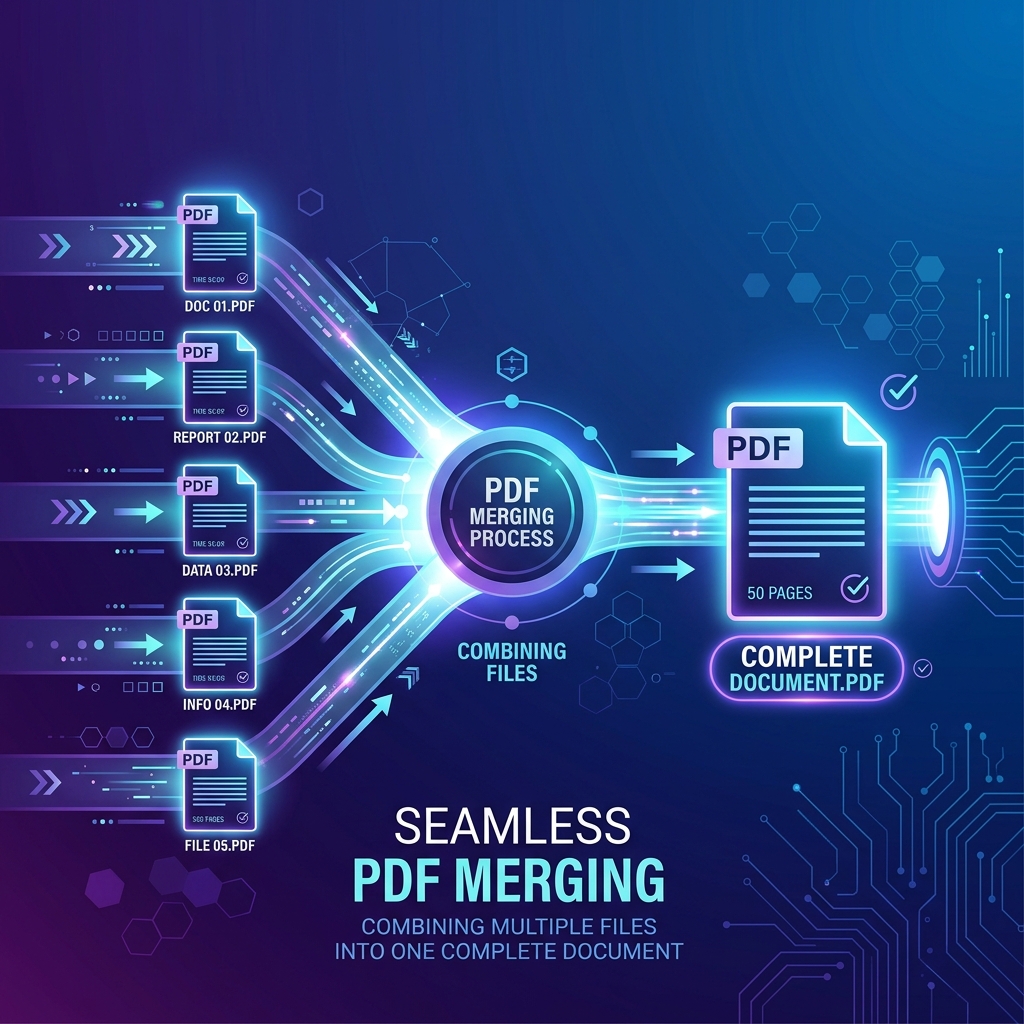
  • Merging PDFs: Combining independent PDF files into a single unified sequence (using dedicated utilities like Merge PDF).
Operation Action Performed Primary Use Case Typical Result
Page Deletion Excludes targeted unwanted pages from the sequence. Purging blank scans, duplicate sheets, and outdated clauses. Single trimmed PDF with reduced page count.
Page Extraction Copies selected pages into a new independent file. Isolating a single certificate or signature page. New small PDF containing only chosen pages.
Document Splitting Divides a file at designated page intervals. Breaking a large report into chapters or department packets. Multiple separate PDF files.
Document Merging Combines multiple distinct files into a continuous sequence. Assembling invoices, cover letters, and exhibits into one dossier. Single consolidated PDF file.

Why Would You Need to Remove Pages from a PDF?

In modern office workflows, academic research, and business operations, deleting PDF pages is essential across a broad spectrum of common situations:

  1. Eliminating Scanner Artifacts & Blank Sheets: Automatic document feeders (ADF) frequently scan the blank backsides of double-sided paperwork, generating unsightly empty pages.
  2. Protecting Confidential Information: Removing internal pricing formulas, reviewer notes, client social security numbers, or internal email threads before transmitting contracts externally.
  3. Removing Duplicate Pages: Eliminating accidental double-scans or repeated forms in large multi-page bundles.
  4. Purging Outdated Terms & Obsolete Addenda: Updating contracts or manuals by removing superseded terms, obsolete price schedules, or expired warranty clauses.
  5. Optimizing File Size for Email Attachments: Eliminating heavy image-heavy appendices or redundant cover sheets to bring document file size under strict email gateway limits (often paired with Compress PDF).
  6. Curating Tailored Client Portfolios: Selecting only the relevant presentation slides or contract sections pertinent to a specific customer or stakeholder.
  7. Streamlining Archival Digitization: Cleaning up OCR-processed historical records (as discussed in our What Is OCR? guide) by removing blank separator sheets used during physical scanning.
  8. Correcting Assembly Mistakes: Removing misprinted pages or incorrect orientation inserts before final printing and distribution.

What Happens When You Remove a Page from a PDF?

To understand the mechanics of page deletion, it helps to look briefly at the internal PDF object model established by ISO 32000 standards:

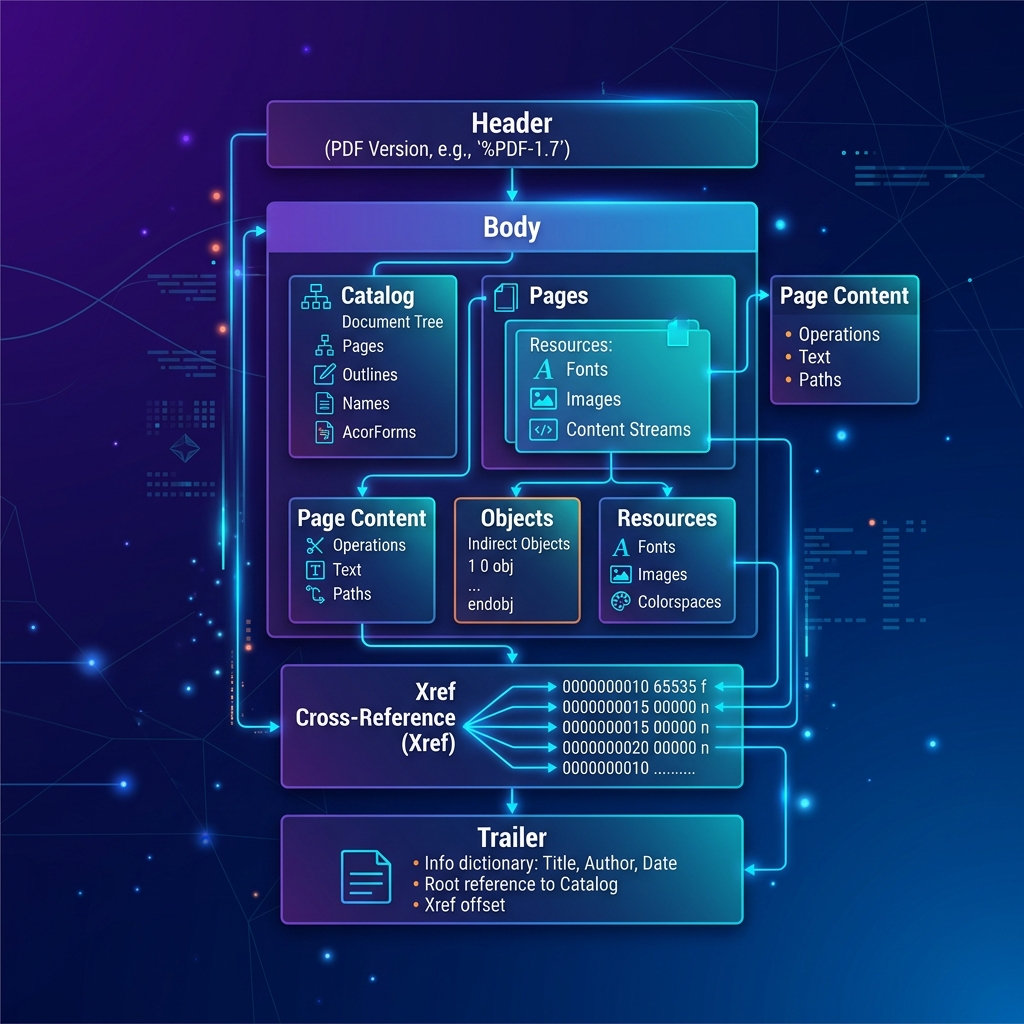
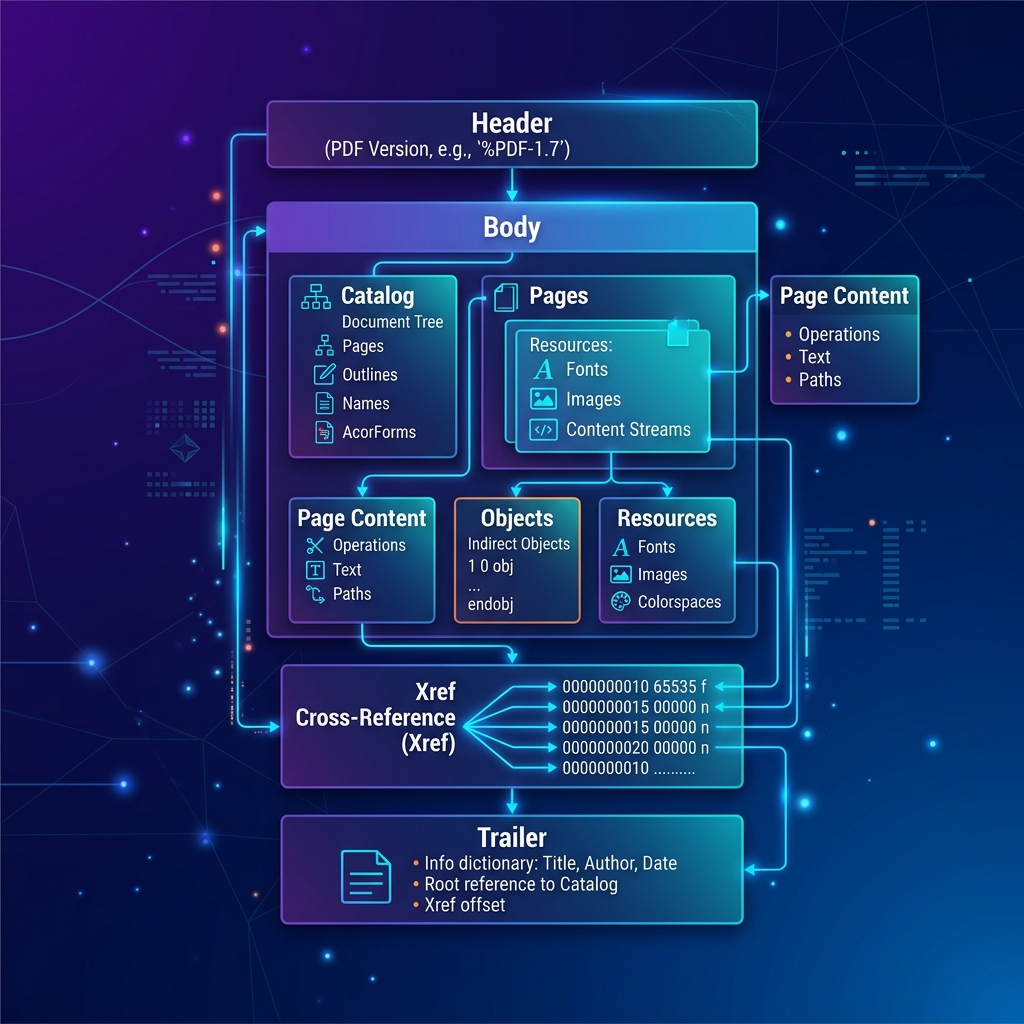
  • The Page Tree Structure: A PDF document contains a central catalog with a /Pages root dictionary. Each individual page is represented as a child leaf object (/Page) containing its own dimensions, rotation matrix, content streams, and resource dictionaries (such as fonts and embedded images).
  • Pointer Re-indexing: When a page is deleted, the software removes the reference to that specific page object from the central /Pages array. The total document page count (/Count) is decremented automatically.
  • Preservation of Remaining Elements: The vector drawings, selectable text streams, font subsets, and image data belonging to remaining pages are completely untouched.
  • Original File Safety: Modern privacy-first tools generate a brand-new sanitized file in memory; your original source document stored on your hard drive remains completely unmodified unless you explicitly choose to overwrite it.

Which Pages Should You Remove?

Before initiating a deletion operation, conduct a structured assessment to identify non-essential pages:

  • Completely Blank Pages: Scanned pages containing only white space or minor scanner sensor dust speckles.
  • Accidental Duplicates: Repeated sheets caused by physical page sticking during batch scanning.
  • Redundant Separator Sheets: Color barcode separator pages or blank divider tabs used by office scanners.
  • Internal Editorial Notes: Draft markups, lawyer comment sheets, or internal executive review memos intended solely for internal eyes.
  • Irrelevant Annexes: Heavy technical exhibits, marketing fluff, or regional terms that do not apply to the recipient.

What Should You Check Before Removing Pages?

Deleting pages permanently alters a document's internal cross-references. Always perform this pre-flight verification:

  1. Always Keep an Untouched Backup Copy: Never perform destructive operations on your sole master copy. Always verify that a pristine original file is preserved in your secure storage.
  2. Physical Page vs. Printed Folio Discrepancy: Crucially distinguish between the physical PDF page index (e.g., page 5 of the PDF file) and the printed page number stamped on the paper margin (which might read "Page 1" due to roman numeral front matter). Confusing these two numbering systems is the leading cause of accidental page deletion.
  3. Inspect High-Resolution Previews: Visually examine page thumbnails to ensure you are not accidentally deleting a page that contains critical signatures, notary stamps, or legal definitions.
  4. Check Document Bookmarks & Outline Links: If the PDF contains a table of contents with hyperlinked bookmarks, deleting a chapter page may leave dangling bookmark links pointing to non-existent targets.
  5. Audit Interactive Forms & Digital Signatures: Removing a page from a digitally signed or certified PDF will invalidate existing cryptographic digital signatures.

Critical Safety Warning: Digitally Signed PDFs

Deleting or reorganizing pages in a cryptographically signed PDF alters the document's byte stream and hash signature, instantly rendering existing digital signatures invalid. If a contract has already been signed by counterparties, obtain an unsigned draft to edit, or re-sign the document after page removal.

Removing Pages from Different Types of PDFs

Different categories of PDF files behave differently when pages are deleted:

  • Native Text PDFs: Created from Word or InDesign; removing pages is instantaneous and preserves vector crispness and live text layers (as explored in our PDF vs DOCX comparison).
  • Scanned Image PDFs: Contains high-resolution bitmap page scans; removing blank or blurry scans substantially cleans up the file.
  • Multi-Layer OCR PDFs: Searchable PDFs containing recognized text layers (from PDF to Text); removing pages preserves the underlying OCR text alignment for all remaining pages.
  • Encrypted & Password-Protected PDFs: If a document enforces "Owner Permission" restrictions that disable modification, you must unlock permissions before removing pages.
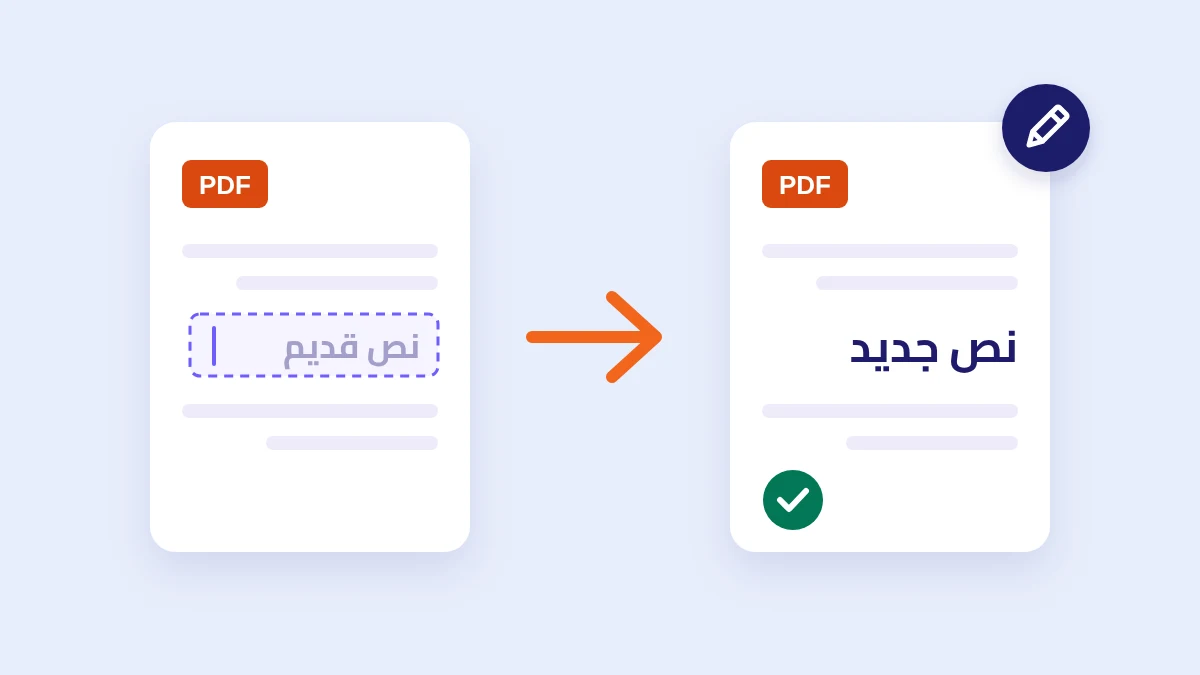
  • Multilingual & Arabic PDFs: Right-to-Left (RTL) reading flows and Arabic typography remain perfectly aligned across remaining pages without font corruption.

Practical Scenario: Cleaning a 25-Page Commercial Real Estate Dossier

To see how page removal streamlines professional operations, consider a corporate transaction coordinator preparing an executed commercial real estate dossier for bank submission:

  • The Initial Raw Scan: A 25-page PDF bundle created by a high-speed office scanner containing the purchase agreement, title insurance exhibits, tenant leases, and ID cards.
  • Identified Unwanted Content:
    • Pages 4 and 12: Completely blank sheets created by single-sided exhibits scanned on duplex settings.
    • Page 18: An accidental duplicate scan of the property boundary survey.
    • Pages 24 and 25: Internal broker commission calculation notes that should not be disclosed to the mortgage underwriter.
  • The Execution: The coordinator selects pages 4, 12, 18, 24, and 25 for deletion.
  • The Result: A streamlined 20-page finalized PDF that looks clean, reduces transmission file size, and protects sensitive internal brokerage data.

How to Remove Pages from a PDF Safely

Removing pages from a PDF is a straightforward operation, but doing it safely requires a structured and methodical workflow. Because a PDF re-indexes its sequential page numbers immediately after a deletion, making an unverified deletion can accidentally excise essential contract clauses, financial schedules, or signature blocks.

Whether you are handling a brief 5-page legal agreement or a 200-page institutional manual, following a proven end-to-end process guarantees that only unwanted sheets are purged while the rest of the document remains intact, fully formatted, and pristine.

1. Identify the Pages You Want to Remove

The first and most critical step is accurately pinpointing the exact target pages. Relying solely on memory or casual scrolling is the leading cause of accidental page loss.

  • Open and Review Visual Thumbnails: Inspect high-resolution page thumbnails in your PDF viewer to visually confirm the content of every single sheet before marking it for deletion.
  • Distinguish PDF Page Index from Printed Page Folios: A document's physical PDF index (e.g., page 8 in the viewer scrollbar) often does not match the printed page number stamped on the paper margin (which may read "Page 2" due to title pages, tables of contents, or Roman-numeral front matter). Always verify against the physical PDF index.
  • Flag Target Categories: Isolate accidental blank scans, duplicate sheets, obsolete addenda, and internal reviewer notes.
  • Check Cross-Page References: Ensure that the page you intend to delete is not referenced elsewhere in the text (e.g., "see Figure 3 on page 12" or "continued on page 7").

For example, in a 30-page annual audit report containing Roman-numeral preface pages (i–iv) and numbered report pages (1–26), deleting "page 5" requires determining whether you intend to delete physical PDF index 5 (which is printed page 1) or physical PDF index 9 (which is printed page 5).

2. Select One or Multiple Pages

Modern PDF editing environments provide multiple selection modalities depending on the distribution of unwanted content throughout your document:

  • Single-Page Selection: Clicking a single visual thumbnail to purge an isolated blank sheet or separator card.
  • Continuous Range Selection: Selecting a contiguous block of consecutive pages (such as pages 10 through 15) to eliminate an entire obsolete chapter or superseded contract exhibit.
  • Multiple Non-Consecutive Selection: Holding selection modifiers (like Ctrl on Windows or Cmd on Mac) to cherry-pick scattered pages (e.g., pages 3, 7, 12, and 19) across different sections of the document.
Selection Type Best Use Case Main Operational Risk
Single Page Removing an isolated blank scanner sheet or rogue title page. Very low risk; easy to verify visually.
Continuous Range Purging an entire obsolete appendix, draft chapter, or large exhibit. "Off-by-one" errors (accidentally including the intro or concluding page of the range).
Multiple Non-Consecutive Pages Cleaning scattered blank scans, duplicates, and internal notes across a large dossier. Accidentally selecting an adjacent critical page when clicking multiple thumbnails.

3. Remove the Selected Pages

Once your target pages are identified and selected, the conceptual execution workflow follows these standard stages across PDF processing platforms:

  1. Open the Document: Load your PDF into your chosen editing environment.
  2. Review Thumbnails: Switch to the multi-page thumbnail grid view for full structural visibility.
  3. Highlight Unwanted Pages: Select the specific pages identified during your pre-flight check.
  4. Apply Deletion: Trigger the remove/delete command. The software excludes the target page objects from the document's internal catalog.
  5. Rebuild and Export: Generate the sanitized output PDF with updated sequential indices.
  6. Preserve the Master Original: Save the resulting file with a new descriptive name (e.g., Contract_Final_Clean.pdf) rather than overwriting your source file.

4. Removing Non-Consecutive Pages

In real-world business environments, unwanted pages are rarely grouped conveniently together. A high-speed ADF office scan, for instance, might scatter blank sheets and duplicate printouts across the entire file.

To safely delete non-consecutive pages (such as pages 3, 7, 12, 18, and 24):

  • Write Down Target Numbers First: Note the exact physical PDF page numbers on a notepad or scratchpad before clicking.
  • Multi-Select in Grid View: Use multi-select shortcuts to highlight each designated thumbnail individually.
  • Count Selected Thumbnails: Verify that the selection counter matches your intended total (e.g., "5 pages selected") before confirming the deletion.

Scenario: A 25-page commercial contract contains 3 blank sheets (pages 4, 11, 19), 2 duplicate pages (pages 8 and 15), and 1 internal review page (page 23). Selecting exactly these 6 non-consecutive pages yields a clean, professional 19-page final document without disturbing the surrounding legal provisions.

5. Removing a Continuous Range of Pages

When an entire block of pages must be removedβ€”such as a 6-page draft exhibit spanning pages 10 through 15β€”range deletion provides rapid, clean pruning.

When executing range deletions, always calculate the exact impact on your document length to avoid classic "off-by-one" calculation mistakes:

Range Deletion Calculation Formula:

Pages Removed = (End Page βˆ’ Start Page) + 1

For a 40-page document where pages 10 through 15 are removed: (15 βˆ’ 10) + 1 = 6 pages removed. The expected resulting document contains exactly 34 pages (40 βˆ’ 6 = 34).

Always inspect page 9 (the sheet immediately preceding the range) and page 16 (the sheet immediately following the range) to confirm that the text narrative or numerical table flows logically across the cut point.

6. Preserve the Correct Page Order

A common misconception among beginner PDF users is confusing page deletion with page reordering. When pages are deleted, the relative sequential order of all remaining pages remains strictly unchanged.

To guarantee complete document integrity after page removal, verify these structural transitions:

  • Beginning of Document: Verify that page 1 remains the intended title or cover page.
  • Cut Transitions: Check the seam where deleted pages were removed to ensure sentences and paragraphs transition smoothly.
  • Ending Sections: Confirm that the final page still contains the concluding remarks, signatures, or index.
  • Chapter Flow: If entire chapters were removed, ensure that remaining chapter titles align with your revised table of contents.

7. Verify the Result After Removing Pages

Never send or publish a modified PDF without conducting a rigorous post-processing quality audit. For legal agreements, government filings, financial disclosures, and medical records, post-deletion verification is mandatory:

Comprehensive Post-Deletion Verification Checklist:

  • Total Page Count: Does the final page count exactly match your mathematical calculation (Original βˆ’ Removed)?
  • First & Last Pages: Are the opening cover sheet and final signature block intact and unaltered?
  • Boundary Seams: Did you inspect the pages immediately preceding and following each deletion point?
  • Interactive Bookmarks: Do the PDF bookmarks and outline links still resolve to valid destinations without broken anchors?
  • Internal Hyperlinks: Are internal cross-references (such as "see Section 4") still accurate?
  • Headers & Footers: Are running headers, document titles, and chapter markers consistent across remaining sheets?
  • Form Fields & Annotations: Are interactive form fields, dropdowns, and sticky note annotations intact on remaining pages?
  • Arabic & BiDi Alignment: For multilingual or Arabic documents, is the right-to-left visual flow and font rendering preserved?
  • Text Searchability: Can you select text and search keywords (via Ctrl + F) across all remaining pages (pairing with our OCR guide if working with scans)?

8. Practical Example: Removing Unwanted Pages from a Business Report

To illustrate how these steps combine in a professional setting, consider an executive preparing an quarterly operations report for an external board meeting:

  • The Source Document: A 40-page corporate report structured into six main sections:
    • Pages 1–8: Executive Summary & Highlights
    • Pages 9–20: Core Operational Analysis
    • Pages 21–25: Superseded Draft Materials & Obsolete Projections
    • Pages 26–34: Audited Financial Statements
    • Pages 35–37: Confidential Internal Management Notes
    • Pages 38–40: Statistical Appendix
  • The Action Plan:
    • Remove continuous range pages 21–25 (5 draft pages).
    • Remove continuous range pages 35–37 (3 internal confidential pages).
    • Total pages to remove: 5 + 3 = 8 pages.
  • The Result: The resulting sanitized PDF contains exactly 32 pages (40 βˆ’ 8 = 32).
  • The Post-Flight Audit: The executive verifies that Section 2 (ending on page 20) now connects cleanly to the Financial Statements (now starting on page 21), and that all confidential notes on former pages 35–37 have been completely eradicated from the document structure.

SmokePDF Practical Tip

Before deleting pages from an important PDF, save a separate copy of the original. Page removal is easy to repeat, but recovering the exact original document may not be.

How to Remove Pages from a PDF Online

If you need to remove pages 4, 9, and 17, selecting them individually reduces the risk of accidentally removing the pages between them.

Step 5: Be Careful With Page Numbering

One of the most common mistakes when removing PDF pages is assuming that every number associated with a page means the same thing.

It does not.

A document may have:

  • PDF viewer page numbers.
  • Printed page numbers.
  • Section numbers.
  • Chapter numbers.
  • Appendix numbers.

Consider a document with:

  • PDF position: Page 18 of 50
  • Printed page number: Page 15

The difference may exist because the document contains:

  • A cover.
  • A title page.
  • A contents page.

Therefore, if someone tells you:

"Delete page 15."

You should first determine whether they mean:

PDF page 15 or the page printed with the number 15.

This distinction is especially important when instructions are provided by another person.

Step 6: Remove a Single Page

Removing one page is the simplest scenario.

Imagine a 20-page report with a blank page at position 14.

You select page 14 and remove it.

The expected result is:

20 − 1 = 19 pages

After deletion, verify the transition:

Page 13 → Page 15

The content that was previously on page 15 should now follow page 13 naturally.

If page 15 begins halfway through a sentence, table, or section that depended on page 14, investigate before sharing the document.

Step 7: Remove Multiple Non-Consecutive Pages

Online PDF workflows are also useful when unwanted pages are distributed throughout the document.

For example, consider a 50-page report containing:

  • Page 4 — blank scan.
  • Page 11 — duplicate.
  • Page 18 — outdated chart.
  • Page 27 — internal note.
  • Page 43 — unnecessary appendix.

The selected pages are:

4, 11, 18, 27, 43

Five pages are removed.

Therefore:

50 − 5 = 45 pages

The remaining pages should retain their original sequence.

The operation should not cause page 10 to appear after page 18 or otherwise rearrange the document unless you explicitly perform a separate reordering operation.

Step 8: Remove a Continuous Section

A continuous range is useful when an entire section of a document is unnecessary.

For example, a 75-page report might contain an internal draft section from pages 41 through 48.

The number of pages in that range is:

(48 − 41) + 1 = 8 pages

Therefore:

75 − 8 = 67 pages

The +1 matters because both page 41 and page 48 are included.

This simple calculation provides a useful way to predict the final document length before completing the operation.

Step 9: Review the Selection Before Confirming

Before confirming page removal, perform a final selection check.

Review:

  • The first selected page.
  • The last selected page.
  • Every non-consecutive selection.
  • The total number of selected pages.
  • Any pages containing signatures.
  • Any pages containing tables.
  • Any pages containing legal clauses.
  • Any pages containing financial figures.
  • Any pages containing confidential information.

If the document is important, do not rely on memory.

Use the actual document and verify each selection.

Step 10: Generate the Cleaned PDF

After confirming the selection, complete the page-removal operation.

The resulting PDF should contain only the pages that were intentionally retained.

For example:

Original:
1 → 2 → 3 → 4 → 5 → 6 → 7 → 8 → 9

Remove:
3, 7

Result:
1 → 2 → 4 → 5 → 6 → 8 → 9

The important point is that removing pages should not automatically mean rearranging the remaining pages.

If you need to change their order, merge another document, or reorganize sections, those are separate PDF operations.

Step 11: Verify the Final Page Count

Always verify the number of pages in the resulting PDF.

Use the simple formula:

Final Pages = Original Pages − Removed Pages

For example:

  • Original: 80 pages
  • Removed: 12 pages
  • Expected: 68 pages

If the final PDF contains 68 pages, the basic count is consistent.

If it contains 67 or 69 pages, stop and investigate.

Page count alone does not prove that the document is correct, but a mismatch is an immediate warning sign.

Step 12: Check the Deletion Boundaries

This is one of the most important verification steps.

Suppose you remove pages 30 through 35.

Do not only check that those pages disappeared.

Check:

Page 29 → Page 36

Does the document still make sense?

Look for:

  • Broken paragraphs.
  • Missing table rows.
  • Missing section introductions.
  • References to deleted information.
  • Incorrect numbering.
  • Broken narrative flow.
  • Unexpected changes in formatting.

This is particularly important when deleting an entire section rather than a blank or duplicate page.

Online PDF Removal and Document Privacy

Before using any online PDF service, consider the sensitivity of the document.

Not every PDF should automatically be uploaded to an online service.

Documents may contain:

  • Personal information.
  • Financial records.
  • Contracts.
  • Identification documents.
  • Internal business information.
  • Confidential client information.
  • Legal material.
  • Proprietary company information.

For sensitive documents, understand how the particular service handles uploaded files before using it.

Important questions include:

  • Is the document uploaded to a remote server?
  • How long is it retained?
  • Is it automatically deleted?
  • Is the processing performed locally in the browser?
  • Is the file transmitted over an encrypted connection?
  • Does the service require an account?
  • Are processed files stored for later access?

The correct choice depends on the sensitivity of the document and the privacy requirements associated with it.

Convenience should not automatically override confidentiality.

Online vs. Desktop PDF Page Removal

Both online and desktop workflows can be useful.

Neither approach is universally better.

The correct choice depends on the document, the operation, and the privacy requirements.

How to Remove Pages from a PDF Online

Removing pages from a PDF does not require advanced PDF software or manual editing of the document's internal structure. For most everyday tasks, an online PDF page removal tool provides a faster way to select unwanted pages, remove them, and download a clean copy.

The important part is not simply deleting pages. You also need to make sure that the correct pages were selected, the remaining document stays in the intended order, and the resulting PDF is complete and usable.

1. Upload the PDF You Want to Edit

Start by selecting the PDF file that contains the pages you want to remove.

Before uploading, make sure you are working with the correct version of the document. If the file is important, keep an untouched copy of the original before making any changes.

For example, if you have a 30-page report and want to remove several draft pages, upload the original 30-page PDF rather than an already modified copy.

The upload process should preserve the original file during processing. Removing pages should create a new edited document rather than permanently modifying your only copy.

2. Wait for the PDF Pages to Be Loaded

After uploading the file, the PDF tool should process the document and display its pages, usually as thumbnails.

This preview is important because it allows you to identify pages visually instead of relying only on page numbers.

For documents containing:

  • Scanned pages,
  • Photographs,
  • Invoices,
  • Forms,
  • Tables,
  • Arabic text,
  • Or pages with similar-looking content,

the thumbnail preview can help distinguish the page you actually want to remove.

If a document is large, page previews may take longer to appear. The tool should indicate when the document is ready for editing rather than allowing the user to make selections before all required pages are available.

3. Select the Pages You Want to Delete

Once the pages are displayed, select the pages that should be removed.

Depending on the tool, you may be able to select:

  • One page,
  • Several individual pages,
  • A continuous range of pages,
  • Or multiple non-consecutive pages.

For example, if the document contains 20 pages and you want to remove pages 4, 9, and 17, select those three pages individually.

If you need to remove pages 10 through 15, selecting the complete range is usually faster and reduces the chance of accidentally missing a page.

4. Check the Selection Before Deleting

Before confirming the operation, review the selected pages one more time.

This is especially important when several pages have similar layouts or when the document contains printed page numbers that differ from the PDF viewer's page positions.

A useful verification method is to check three things:

  1. The PDF page position
  2. The printed page number, if available
  3. The visible content of the selected page

For example, a PDF viewer may identify a page as page 12 while the document itself displays "Page 10" because the first two pages are covers or introductory material.

The safest approach is therefore to verify the actual page content rather than relying exclusively on a number.

5. Remove the Selected Pages

After confirming your selection, activate the page removal operation.

The tool should remove the selected pages from the document structure and retain the remaining pages in their existing order.

If pages 5, 8, and 12 are removed from a 15-page document, the resulting PDF should contain 12 pages.

The pages that remain should keep their original relative order:

1 → 2 → 3 → 4 → 6 → 7 → 9 → 10 → 11 → 13 → 14 → 15

The operation should not unexpectedly reorder, rotate, or replace unrelated pages.

6. Review the Updated Page Count

After deletion, check the new total number of pages.

A simple calculation can help verify the result:

New Page Count = Original Page Count − Removed Page Count

For example:

30 − 4 = 26 pages

If the tool reports a different number, stop and investigate before downloading the final file.

This simple check is particularly useful when removing a large range of pages.

7. Inspect the Pages Around the Deleted Area

Do not only check the total page count.

Look at the pages immediately before and after the deleted section.

This helps detect problems such as:

  • Accidentally removing the wrong page,
  • Leaving an unwanted duplicate,
  • Breaking the logical flow of a document,
  • Losing a page that was required as an attachment,
  • Or creating an unexpected transition between sections.

For example, if pages 10–15 were removed, inspect pages 9 and 16 carefully. These are the new boundary pages of the edited section.

8. Download the Clean PDF

Once the result has been reviewed, download or save the edited PDF as a new file.

Use a clear filename that distinguishes the edited document from the original.

For example:

annual-report-original.pdf

can become:

annual-report-cleaned.pdf

Keeping the original and edited versions separate makes it easier to recover if you later discover that a page was removed accidentally.

SmokePDF Practical Tip

Always verify the pages immediately before and after the deleted section. The total page count can be correct even when the wrong page was removed. Checking the new boundaries of the document is one of the fastest ways to catch an accidental deletion.

Removing Pages from Different PDF Types and Situations

Not all PDF files behave the same way when pages are removed. A simple text-based PDF may be straightforward to edit, while scanned documents, encrypted files, forms, and PDFs containing interactive elements can require additional checks.

Understanding the type of PDF you are working with helps you choose the safest removal workflow and identify what should be verified afterward.

1. Removing Pages from Text-Based PDFs

Text-based PDFs are created from digital content such as word-processing documents, spreadsheets, presentations, or publishing software.

These PDFs usually contain selectable text and structured page content.

Removing pages from this type of document is generally straightforward because the pages already exist as independent entries within the PDF's page structure.

However, you should still verify:

  • Page order,
  • Bookmarks,
  • Internal links,
  • Page labels,
  • Headers and footers,
  • And the document's table of contents.

A page may be visually removed while another document element still references its previous location.

2. Removing Pages from Scanned PDFs

Scanned PDFs are often made from images rather than digitally generated text.

A scanned page may contain:

  • A full-page image,
  • An OCR text layer,
  • Handwritten annotations,
  • Stamps,
  • Signatures,
  • Or a combination of these elements.

Deleting a scanned page normally removes the entire page and its associated content.

Before removing pages from an important scanned document, check whether the page contains information that exists nowhere else.

For example, a scanned contract might contain a signature page near the end of the document. Removing it may leave the remaining contract readable but legally incomplete.

For OCR-based documents, it can also be useful to confirm that the pages immediately before and after the deletion still have the expected searchable text.

3. Removing Pages from PDFs with OCR Text Layers

Some scanned PDFs contain both an image layer and an invisible OCR text layer.

This allows the document to appear like a normal scanned page while still supporting text selection and search.

When removing a page from such a document, the page's image and associated text layer should be removed together.

Afterward, test the resulting document by:

  • Selecting text on several remaining pages,
  • Searching for known words,
  • Checking Arabic text if the document is bilingual,
  • And verifying that the search results point to the correct pages.

This is particularly important when the PDF will later be used for document search, extraction, or conversion.

4. Removing Pages from Password-Protected or Encrypted PDFs

Some PDFs restrict editing through document permissions or encryption.

In these cases, the ability to remove pages depends on the permissions applied to the document and the software being used.

You may encounter PDFs that allow:

  • Viewing but not editing,
  • Printing but not modifying,
  • Commenting but not deleting pages,
  • Or full editing after authentication.

Do not attempt to bypass security restrictions simply because a page needs to be removed.

If you are authorized to edit the document, use the appropriate password, permission, or authorized editing workflow.

After making the changes, verify that the resulting PDF still opens correctly and retains the intended security settings.

5. Removing Pages from Fillable PDF Forms

Interactive PDF forms require additional attention because pages can contain form fields.

A page may contain:

  • Text fields,
  • Checkboxes,
  • Radio buttons,
  • Dropdown menus,
  • Signature fields,
  • Calculated fields,
  • Or other interactive elements.

Removing such a page may also remove fields associated with it.

If the remaining pages depend on those fields, test the form after deletion.

For example, if page 3 contains an input field referenced by a calculation on page 5, deleting page 3 could affect the behavior of the remaining form.

For important forms, verify both the visual document and its interactive functionality.

Bookmarks and internal links can point to specific pages or locations within a PDF.

When a referenced page is removed, those destinations may become invalid or may point somewhere different after the document is reorganized.

After deleting pages from a heavily navigated PDF, test:

  • The main table of contents,
  • Bookmarks,
  • Section links,
  • Cross-references,
  • And buttons that navigate between pages.

A visually correct PDF can still contain broken navigation.

7. Removing Pages from Signed PDFs

Digitally signed PDFs require special care.

A digital signature is associated with the document's state at the time it was signed. Editing the PDF, including removing pages, can invalidate or alter the signature's validity depending on the signature and document configuration.

If a PDF has already been digitally signed, do not assume that page removal is a harmless visual change.

Instead:

  • Determine whether you are authorized to modify the document,
  • Check the signature status,
  • Preserve the original signed copy,
  • Make any required edits through an authorized process,
  • And verify the resulting document and signature status.

For legally or operationally important documents, retain the original signed version separately.

8. Removing Pages from Arabic and Bilingual PDFs

Arabic and bilingual PDFs introduce additional layout considerations.

A document may contain:

  • Right-to-left Arabic text,
  • Left-to-right English text,
  • Arabic-Indic numerals,
  • Western numerals,
  • Mixed-direction tables,
  • And bilingual page numbering.

When removing pages, the deletion itself does not normally change the direction of the remaining content. However, you should still inspect the document after editing.

Pay particular attention to:

  • Arabic page content,
  • Bilingual tables,
  • Page numbers,
  • Headers and footers,
  • Bookmarks,
  • And the logical order of sections.

This is especially important when a document contains Arabic and English sections that alternate throughout the file.

Comparison: PDF Types and Page-Removal Risks

Factor Online Workflow Desktop Workflow
Installation Usually unnecessary Usually required
Accessibility Browser-based Requires installed software
Quick page removal Convenient Convenient
Large documents Depends on service Often suitable
Offline use Usually limited Strong advantage
Sensitive documents Requires privacy review Can allow local processing
Advanced PDF editing Depends on tool Usually broader
Cross-device access Strong advantage Depends on installation
PDF Type Main Concern What to Verify After Removal
Text-based PDF Navigation and structure Text, order, links, bookmarks
Scanned PDF Missing visual information Images, signatures, page continuity
OCR PDF Text-layer consistency Search, selectable text, OCR quality
Encrypted PDF Editing permissions Access rights and security settings
Fillable form Interactive fields Fields, calculations, signatures
Bookmarked PDF Navigation destinations Bookmarks and internal links
Digitally signed PDF Signature validity Signature status and original copy
Arabic/bilingual PDF Mixed RTL/LTR content Direction, tables, page numbering

Imagine a 45-page scanned legal document containing:

  • 32 pages of the main agreement,
  • 4 pages of supporting evidence,
  • 3 duplicate scans,
  • 2 blank pages,
  • 2 pages containing confidential internal notes,
  • and 2 signature pages.

The requested output should remove the duplicates, blank pages, and internal notes.

That means:

3 + 2 + 2 = 7 pages removed

The expected result is:

45 − 7 = 38 pages

Before finalizing the document, the editor should verify that both signature pages remain, the agreement's page sequence is intact, the evidence section is complete, and no required attachment was accidentally removed.

Because the original document is legally important, the 45-page signed or source copy should be preserved separately from the 38-page working copy.

What Should You Check Based on the PDF Type?

A useful approach is to match your verification process to the document's characteristics.

  • For a normal text PDF, a quick structural review may be enough.
  • For a scanned document, inspect page images.
  • For an OCR document, perform text searches.
  • For a form, test the remaining fields.
  • For a bookmarked document, test navigation.
  • For a signed document, verify the signature status.
  • For an Arabic or bilingual document, inspect both language directions and mixed-layout sections.

The more complex the PDF, the more important the post-deletion verification becomes.

SmokePDF Practical Tip

Do not treat every PDF as a simple collection of pages. A page can contain text, images, OCR data, form fields, links, bookmarks, signatures, or other document structures. The safest page-removal workflow identifies what the PDF contains before deciding how much verification is necessary afterward.


How to Remove Pages from a PDF Offline

Removing pages from a PDF does not always require uploading the document to an online service. If the file contains confidential information, sensitive business records, personal data, legal material, or documents that must remain on a controlled device, an offline workflow can be a better choice.

Offline PDF editing also gives you more control over the original file, the output location, and the review process. The exact steps depend on the PDF application you use, but the underlying workflow is similar: open the document, identify the pages to remove, delete them, save a new copy, and verify the result.

Quick Answer

To remove PDF pages offline, open the document in a trusted desktop PDF application that supports page organization, select the pages you want to delete, remove them, save the result as a new file, and verify the page count, order, links, bookmarks, and other important elements before using the revised document.

When Is Offline Page Removal Better Than Online Removal?

Offline processing is particularly useful when the PDF should not leave the device or organization where it is stored. This can matter more than convenience when the document contains information that should not be transmitted to a third-party server.

  • Confidential business documents: Internal reports, contracts, financial records, and strategic documents may be better processed locally.
  • Personal information: Documents containing identification details, addresses, account information, or private correspondence may require additional privacy precautions.
  • Legal documents: Contracts, case files, evidence, and other legal records can require controlled handling.
  • Government or regulated documents: Organizational policies may restrict uploading documents to external services.
  • Large PDF files: Local processing can avoid upload and download delays for very large documents.
  • Limited or unreliable internet access: Offline tools can continue working without depending on an active connection.

Offline processing is not automatically safer in every situation. Security also depends on the device, software, operating system, user permissions, storage location, backups, and how the resulting file is shared afterward.

The Standard Offline Page-Removal Workflow

Although PDF applications use different interfaces, a reliable offline workflow can be organized into six stages.

  1. Open the original PDF: Work from the correct source file and confirm that it is the version you intend to edit.
  2. Create a working copy: Keep the untouched original separate from the file you will modify.
  3. Open the page-management view: Use the application's page thumbnails, page organizer, or equivalent page-management feature.
  4. Select the pages to remove: Confirm the page numbers carefully before deleting anything.
  5. Delete and save as a new file: Save the revised document under a new filename whenever the original may still be needed.
  6. Review the output: Check the page count, page sequence, bookmarks, links, forms, and important content before distribution.

This workflow is intentionally conservative. The goal is not only to remove pages, but also to prevent an otherwise simple deletion operation from damaging the document workflow around it.

Removing Pages with Desktop PDF Software

Many desktop PDF applications provide a page-management interface where document pages appear as thumbnails. This makes it possible to visually identify pages and remove one or several pages without editing the text inside the document.

The general process is usually:

  1. Open the PDF in the desktop application.
  2. Open the page organizer, thumbnail panel, or page-management tool.
  3. Locate the pages that should be removed.
  4. Select one page or multiple pages.
  5. Use the application's delete-page command.
  6. Review the resulting page sequence.
  7. Save the revised PDF as a separate file.

The names of commands and panels differ between applications, so the important principle is to use the application's page-management function rather than manually deleting text or objects from individual pages.

Removing Pages with a Browser-Based PDF Viewer

Some modern browsers and browser-based document tools can display PDF pages, but simply viewing a PDF does not necessarily provide full page-editing capabilities. If the viewer does not provide a page-organizing or page-deletion function, it should not be treated as a complete PDF editing solution.

When working offline, check whether the application actually supports page deletion and whether it can save the modified document as a PDF. If it cannot, use a PDF editor or another application designed for document manipulation instead.

Removing Pages from a PDF on macOS

macOS includes built-in PDF viewing and annotation capabilities, and some workflows can remove pages without installing a separate PDF editor. The exact interface can vary by macOS version and application settings.

The general approach is to open the PDF, display the page thumbnails, select the unwanted page or pages, remove them using the available page-management command, and save the resulting document.

Before replacing the original file, verify the output carefully. This is especially important when the PDF contains bookmarks, links, forms, signatures, or other interactive elements.

Removing Pages from a PDF on Windows

Windows users can use a desktop PDF editor or another application that supports PDF page organization. The workflow is similar regardless of the specific software: open the PDF, display its pages, select the pages to remove, delete them, save a new copy, and inspect the result.

When choosing software for offline processing, consider more than whether it has a delete-page button. Check whether it preserves the document features that matter to your workflow, including bookmarks, hyperlinks, form fields, page rotation, metadata, and document security settings.

Offline Removal and Document Security

Deleting pages from a PDF is a document-editing operation, not a complete security process. Removing a page does not necessarily remove every trace of information associated with that page from external systems, backups, exported copies, or previously shared versions.

Similarly, deleting a page should not be confused with permanently redacting sensitive information. If confidential information must be hidden from the remaining document, use a proper redaction workflow rather than simply covering text or deleting an unrelated page.

Important

If a PDF contains sensitive information, confirm what must be removed before editing. Page deletion and redaction solve different problems.

What Happens When You Remove Pages from a Digitally Signed PDF?

Digital signatures require special attention. A signature is associated with the document state that was signed. Changing the document by deleting pages can therefore affect the validity or trust status of the signature.

If the PDF is digitally signed, do not assume that deleting pages and saving the result will preserve the original signature. Instead, determine whether the document must remain in its signed state and whether the revised version requires a new authorized signing process.

For documents used in legal, financial, compliance, or official workflows, preserve the original signed file separately before making any changes.

Quality Checks After Offline Page Removal

After deleting pages locally, perform a final review before distributing the file. A successful deletion should produce the intended page count without introducing unexpected changes to the remaining document.

Check What to Verify Why It Matters
Page count The final number of pages matches the planned result. Confirms that the intended pages were removed.
Page order Remaining pages appear in the correct sequence. Prevents logical or narrative breaks.
Bookmarks Important bookmarks still point to the correct locations. Navigation can become inaccurate after structural changes.
Links Internal and external links still work as expected. Deleted pages can affect destinations and references.
Forms Required form fields and their relationships remain intact. Interactive documents may depend on page structure.
Signatures Any digital signature status is understood and documented. Editing can affect signature validity.
Visual layout Headers, footers, numbering, and page transitions look correct. Prevents presentation errors in the final document.
File opening The saved PDF opens normally in a PDF viewer. Confirms that the exported file is usable.

Practical Example: Removing Pages from a Confidential Company Report

Imagine a company has a 48-page internal report containing an executive summary, operational results, financial information, internal notes, appendices, and supporting documents. Before sending the report to an external partner, the company needs to remove several internal pages.

The pages to remove are:

  • Pages 7–9: internal planning notes.
  • Pages 22–24: confidential financial analysis.
  • Page 31: an internal review sheet.
  • Pages 42–43: duplicate supporting material.

The company should first preserve the original 48-page file. It then creates a working copy and removes the selected pages.

The number of removed pages is:

3 + 3 + 1 + 2 = 9 pages

The expected final document therefore contains:

48 βˆ’ 9 = 39 pages

After deletion, the company should not immediately send the file. It should review the 39-page document, check the transitions around pages 7–9, 22–24, 31, and 42–43, verify bookmarks and links, confirm that no confidential information remains, and open the saved PDF independently before distribution.

This example illustrates an important principle: page removal is only one step in document preparation. The final review determines whether the resulting PDF is actually suitable for its intended audience.

Offline vs. Online Page Removal

Factor Offline Processing Online Processing
Internet connection Usually not required after the software is installed. Required for upload and download.
Privacy control Document can remain on the local device. Document is normally transmitted to an online service.
Large files Can be convenient for large local files. Upload and download time may become significant.
Convenience Requires suitable software on the device. Can be accessed from a supported browser.
Document control Local storage and processing can provide greater control. Depends on the service's processing and storage policies.
Best suited for Confidential, large, or repeatedly edited documents. Quick edits where online processing is acceptable.

Choosing the Right Page-Removal Method

There is no single best method for every PDF. The right choice depends on the document's sensitivity, size, structure, required features, and the environment in which it is being edited.

  • Use an online workflow when convenience is the priority and the document can safely be processed through an online service.
  • Use an offline workflow when the document should remain on a controlled device or when local processing is more appropriate.
  • Use additional caution with signed PDFs, because editing can affect digital signatures.
  • Use a dedicated redaction workflow when the goal is to permanently remove sensitive information from the document rather than simply remove entire pages.
  • Always keep an untouched original when the document may need to be recovered or audited later.

SmokePDF Practical Tip

If you are unsure whether a page should be removed, do not delete it from the only copy. Create a working copy first, remove the pages there, and compare the final document with the original before distribution.


What You Will Learn in This Guide

This comprehensive guide covers everything you need to master PDF page removal across all platforms and operating systems:

  • Step-by-step methods for deleting individual and multiple pages on Windows, Mac, mobile devices, and in web browsers.
  • How to select non-consecutive page ranges and bulk-delete large page blocks safely.
  • How to remove pages from scanned and OCR-processed documents without degrading visual quality.
  • How to handle protected PDFs, form fields, bookmarks, and digital signatures during page deletion.
  • Best practices for verifying document structure and cross-references after page removal.
  • How to optimize document file size and streamline multi-page business workflows.

Practical Tip

Always verify both the physical thumbnail index and the printed margin page number before clicking delete. Preserving a clean master backup ensures you can always recover in case an essential page was selected by mistake.