You changed the date of an event after sending the flyer as a PDF, or spotted a wrong phone number, or were asked to write your name and today's date in an empty box on a form. You search for a way to edit a PDF, add and remove text, and find dozens of sites promising to change anything in one click. We wanted to know what actually happens to the file with each method, especially when the text is Arabic, so we tried the SmokePDF PDF editor and three other common methods on the same file, and checked the results by eye and with text-extraction software. This article covers what we found, what really happens when you "edit" an existing line, how to create a new file from scratch, and what you shouldn't edit at all.
The quick answer
For most everyday needs, such as writing a name, a date or a note, add text on top of the page with the Text tool in the PDF editor: Arabic letters join correctly, the text stays copyable, and the file barely grows. To change an existing line, use Edit text, keeping in mind that it covers the old line and writes the new one on top, so the old text stays inside the file. Remove private information first with a real redaction tool. And if the change is large and you have the original file (a Word document, for example), edit that and export it again: converting an Arabic PDF to Word and back broke punctuation and diacritics in our test.
Our test: the SmokePDF editor and three other methods on one file
We created a one-page announcement for a free training course, with no organization named. It has a title and six lines: the date, the venue, the room number, a registration code in English, and a line with Arabic diacritics ("سجّل أولاً", register first). All data is made up. We set the flyer in DejaVu Sans and exported it to PDF with LibreOffice, giving a 26.8 KB file. We then tried the following, and checked each resulting file in two ways: by looking at the page zoomed in, and by extracting its text with two different libraries (pdf.js, used by Firefox and many web tools, and Poppler) to see what was really left inside the file.
- The SmokePDF PDF editor: we changed the room number from 214 to 108 with Edit text and added an Arabic note with the Text tool ("Note: please bring your ID card"). We then created a new document from a blank page in the same editor.
- Opening the file in LibreOffice Draw and saving it again: without any edit, to see what changes just by opening and saving.
- Converting the PDF to Word and back to PDF: with LibreOffice Writer's built-in importer, again without any edit.
- A scanned file: we turned the page into a 150 dpi image and placed it in a PDF, as a scanner does, then opened it in the editor.
| Method | How the page looks afterwards | What we found inside the file | Size |
|---|---|---|---|
| Editor: adding a note | Fine; Arabic letters join correctly | Real text that can be copied and searched, with the "لا" exception explained below | 27.4 KB (+0.6) for both edits |
| Editor: editing the room-number line | Only the new number shows, in a different font from the other lines | The old number is still in the file and can be copied, as the tool warns | |
| Open and save in LibreOffice Draw | The line with diacritics got garbled | The other lines were fine | 28.9 KB |
| PDF to Word and back | 5 of 7 lines changed | The page became 18 separate text boxes | 34.2 KB |
| Scanned file | Same as the original | No text at all: 0 characters extracted, and 0 editable lines in the editor | 47.1 KB |
Why doesn't a PDF behave like a Word file?
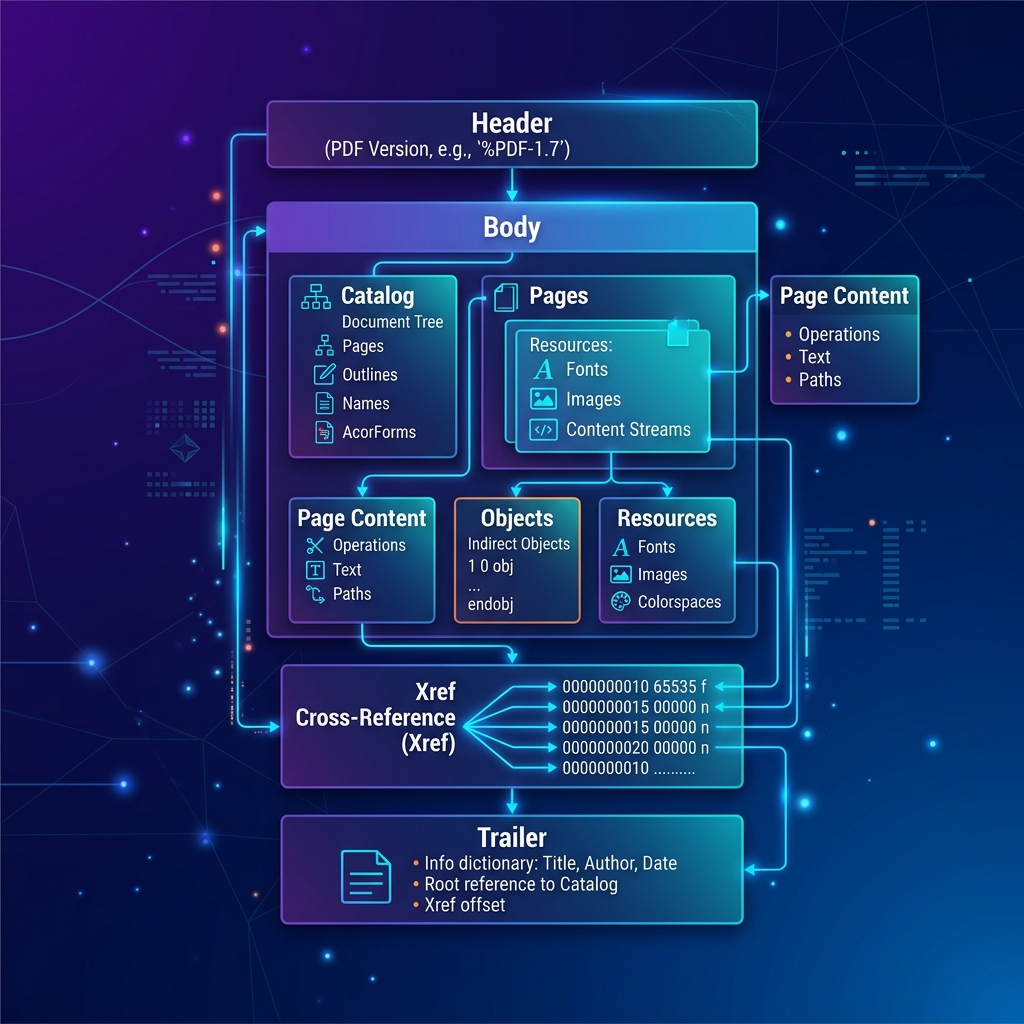
A Word file stores paragraphs: running text that the program re-flows across lines whenever you add a word. A PDF stores a final result: "draw these characters at exactly this position". The file doesn't know where a paragraph starts or ends, or that the second line continues the first. That's why there is no "editing" in a PDF in the sense we know from Word, but three different things: adding elements on top of the page, covering existing elements, or rebuilding the page. Every editor, free or paid, works with one of these three or a mix of them, and understanding the difference saves you most surprises. We explain the file's structure in more detail in What is a PDF file?.
This showed clearly when we converted the flyer to Word: we didn't get seven editable paragraphs but 18 separate text boxes fixed in place. The date line alone was split into seven boxes: "Date: Saturday", then "24/10/2026", then "from", then "9:00", and so on. To change the date in a file like this, you edit a small piece that knows nothing about the pieces next to it, so if the text gets longer it overlaps its neighbors.
Writing on a PDF: the safest method for most needs
If what you want is to add something rather than change something that's already there, this is the right method: writing your name on a form, the date and place of signing, a note for the recipient, or a correction next to a line. The original content is left untouched, and the new text is added as a layer on top. In the editor, pick the Text tool, click where you want on the page, and type.
In our test the Arabic note appeared with properly joined letters in the right direction, including the damma in "يُرجى", and stayed real text that can be selected and copied, not an image. After the note and the room-number edit together, the file grew by only 0.6 KB, because the editor embeds only the characters actually used from the font. Three practical notes from the test:
- Alignment is manual: added text knows nothing about the page's paragraphs, so it isn't aligned to their right edge automatically the way Word would do it. Place it where you want, then zoom the preview and check that its right end sits on the paragraph's edge.
- Pick a size close to the page's text: text much larger than its surroundings stands out and looks added later. That's fine for notes but not for filling in a form.
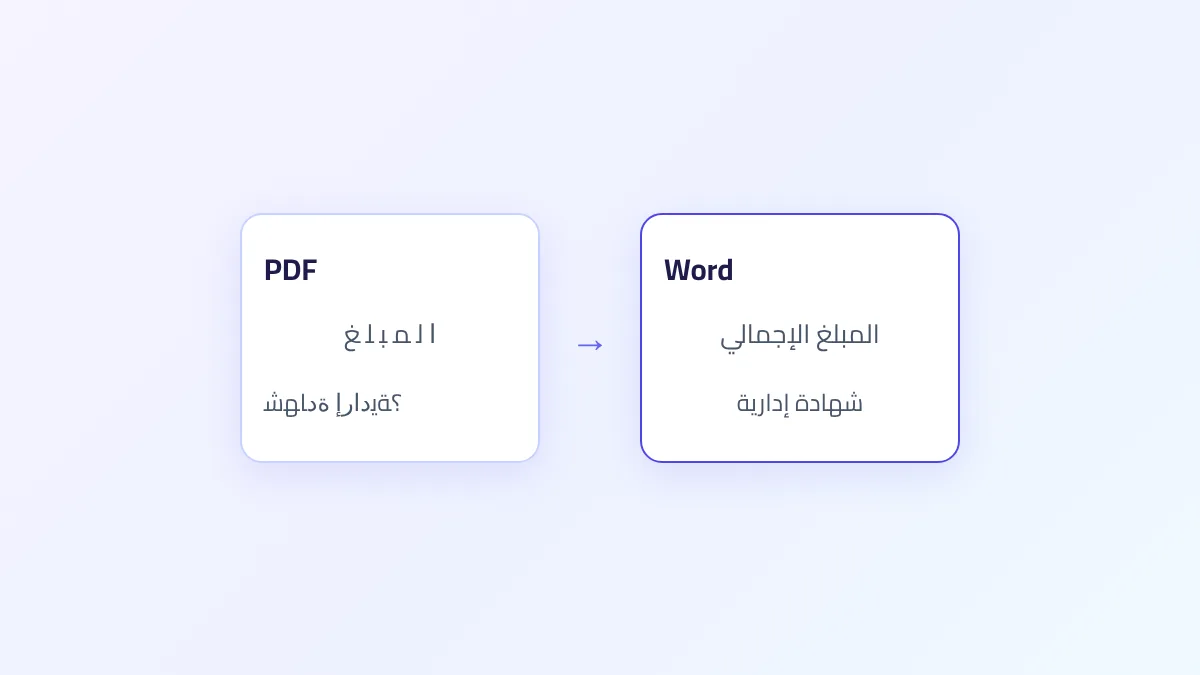
- "لا" when copying and searching: when we extracted the file's text, the Arabic word for "note" (ملاحظة) came out as "مالحظة", and in another document we created, "المتطوعين" (the volunteers) came out as "المتطوعني". The same happened in the original flyer text exported by LibreOffice in a different font: "الأولية" became "األولية" and "إعلان" became "إعالن", with both libraries we tried. The font draws some letter pairs, such as lam-alef, as a single combined shape, and on extraction it is split back into two letters in reversed order. The page itself looks perfectly fine, but searching the file for such a word may not find it. It's not a flaw of one particular editor, but it's a good reason not to rely on search alone when reviewing an Arabic file.
Editing an existing line: what really happens?
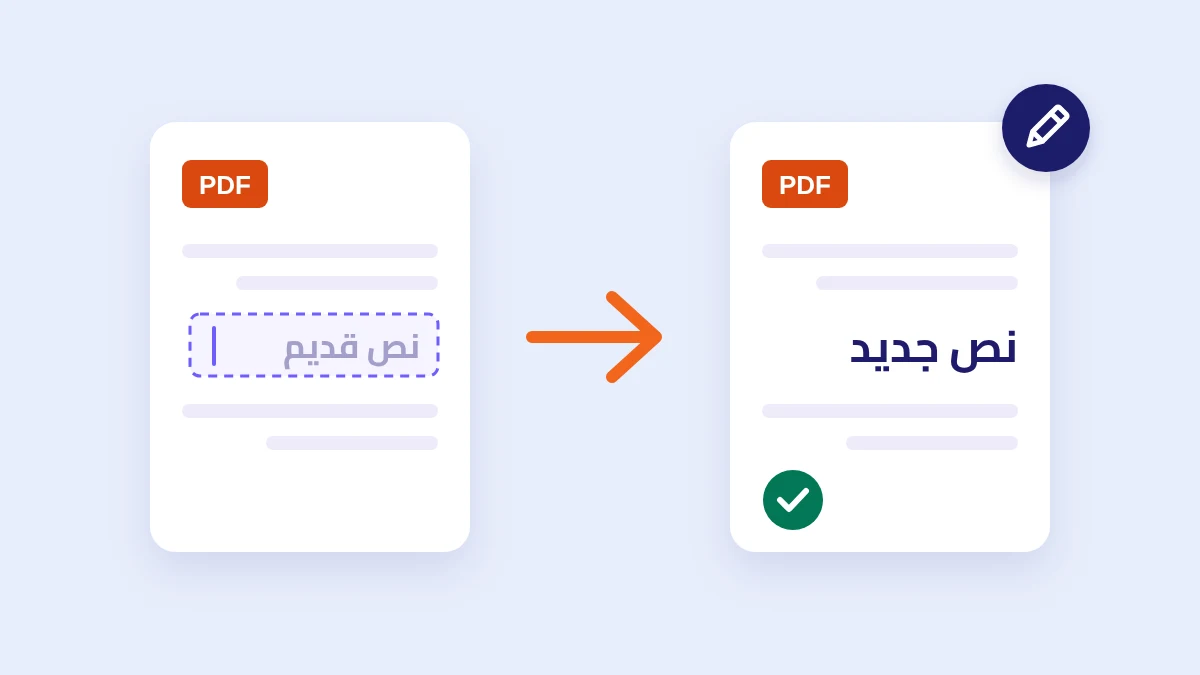
The most common request when editing a PDF is replacing a piece of information: a number that changed, a room that switched, or a date that moved. In the editor you pick Edit text, dotted outlines appear around the page's lines (the editor recognized all seven lines in our flyer), and you click a line to turn it into a text box containing its words, which you change as you like.
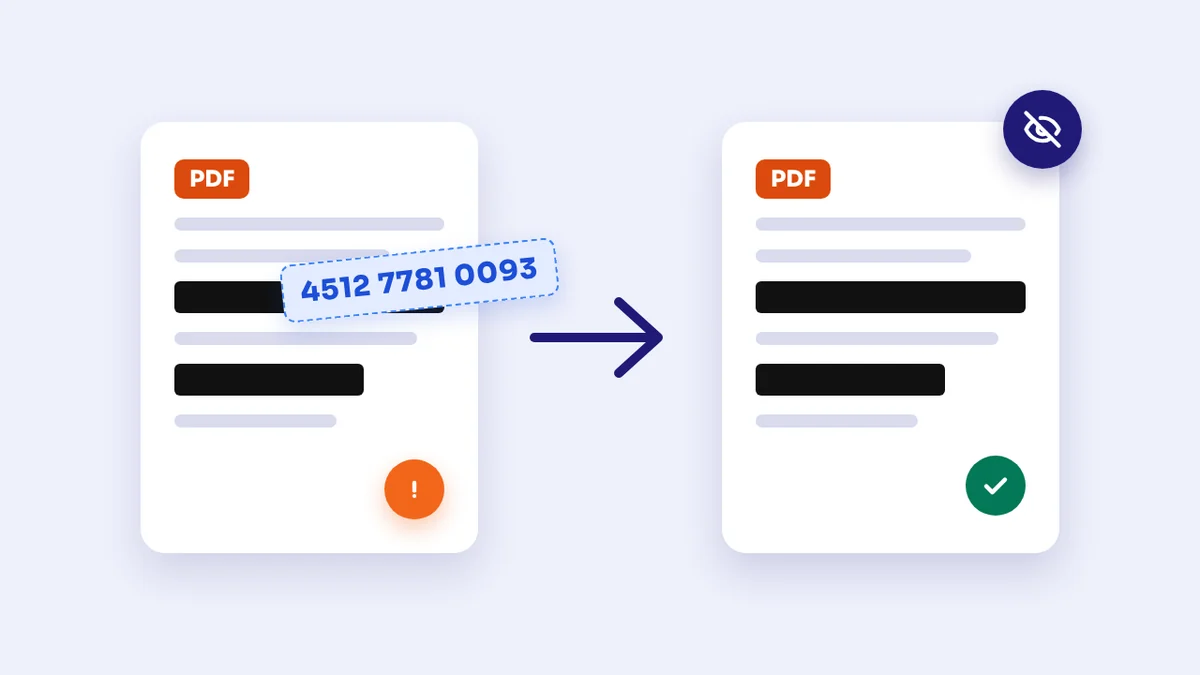
What happens on export is what the editor itself states under its toolbar: the original line is covered with a box in the background colour, and the new text is written on top. On screen, the result in our test was clean: 108 in its place and no trace of 214. But when we extracted the file's text, both numbers came out, the old one on its line and the new one on a separate line. The box is a layer drawn over the text; it doesn't delete anything underneath. Anyone who selects the page and copies it, searches the file, or converts it to Word will see the old number. The editor's Whiteout tool works the same way: it covers, it doesn't delete. We explain this mechanism in detail in How to redact a PDF.
Two more notes from the test:
- The font may change: an edited Arabic line is rewritten in the Cairo font. Our flyer uses DejaVu Sans, so after editing, the room-number line looked slightly different from the other lines. If that bothers you, edit adjacent lines together so they match, or go back to the original file.
- Zoom in and check: after editing, zoom the page and make sure the new line fully covers the old one, with no trace of the old line's letters around the new text, especially below the line.
When is editing by covering acceptable? When the old information is ordinary and you just don't want it to show when read or printed, like a typo in a flyer or a date that moved. When isn't it? When the old information is private: your personal phone number replaced with the office's, your address, or an amount. In that case remove it properly first with the Redact PDF tool, then open the result in the editor and add the new text over the redacted spot.
Creating a new PDF from scratch
Not everyone searching for "edit PDF" has a file. Sometimes you need a simple page: a flyer, a request, an attendance list, and you don't want to open a full program. In the editor, choose a page size (A4 portrait or landscape, Letter, A5 or Legal) and click "Start with a blank page". Then type with the Text tool and add tables, images, shapes and a signature as needed. You can add blank pages or pages from another PDF, and add page numbers or a watermark from the Document menu.
We tried it with three lines, one of them mixing Arabic, English and numbers: "اجتماع المتطوعين يوم 24/10/2026 في Room 3 الساعة 9:00" (volunteer meeting on 24/10/2026 in Room 3 at 9:00). Lines like this trip up many tools: numbers get reversed or words swap places. In the resulting file the line came out in the same order as on screen, and the whole document was 5.7 KB.
A note on privacy: the editor autosaves your work inside your browser, so if you close the page and come back you'll see a "Continue your last document" option. We tested this by reloading the page and the document came back as we left it. The saved copy stays on your device and is never sent to a server, but if you're on a shared computer, such as at a café or an office, click "Delete" next to the document when you're done.
Converting a PDF to Word to edit it: when is it worth it?
When the change is large (rewriting a paragraph, or adding lines in the middle of the page that push the rest down), converting to Word seems like the answer. Our test shows the price. We converted the flyer to Word and back to PDF without changing a single character, and compared the result with the original:
- The period at the end of two lines moved to the other side of the line.
- On the room-number line the space between the number and the words disappeared and the colon moved out of place: "214رقم القاعة:".
- On the date line, the date stuck to the word "Saturday".
- The "سجّل أولاً" line with a shadda and tanween got garbled: letters dropped and odd symbols appeared instead.
- The whole page content moved down by about one centimeter.
So five of the seven lines changed before any edit. The LibreOffice Draw test confirmed that diacritics are a general weak point: just opening the file and saving it garbled the same line, although the other lines stayed intact. Results vary between programs and between files, but the practical rule is the same: if you have the original file the PDF was made from, edit that and export it again. It's faster and cleaner than any conversion. If you don't, convert and check every line by eye, especially punctuation, numbers next to Arabic words, and words with diacritics. For the technical reasons behind broken letters on conversion, see Arabic PDF to Word.
Scanned files: there is no text to edit
A file that comes out of a scanner or a document-scanning app looks like any PDF, but it is really an image of each page. In our test we extracted 0 characters from the scanned copy, and when we opened it in the editor and chose Edit text, no editable line appeared, because there is no text at all.
What you can do: add text on top of the image with the Text tool, which works on scanned files just as on others. Or extract the text with optical character recognition (OCR) and rebuild the document, checking the result because OCR accuracy on Arabic depends on scan quality. To find out whether your file is scanned, try selecting a word: if nothing gets selected, or the whole page is selected as one box, it's an image.
What you shouldn't edit
Everything above is about files you made yourself or are authorized to change: your flyer, your CV, your report, or a form you were asked to fill in. Documents issued by someone else, such as an employment certificate, a transcript, a bank statement or an official document, are a different matter: changing their content is forgery, however "small" the change, even correcting a date or a name. If you find a mistake in one, ask the issuer for a corrected copy. You can still add what you're explicitly asked to add, such as your signature or a "copy for job application" note.
If the file is protected with a password or permission restrictions, the editor won't open it: we tried a file with an open password and another that only blocks editing, and both times a message asked us to unlock it first with the unlock tool. If you own the file and know its password, unlock it as explained in Protected PDF.
Before you send the edited file: a one-minute check
- Zoom the page to 200% and check the added and edited text: direction, joined letters, diacritics, no overlap with other text, and no trace left of the old line.
- Select all the text on the page, copy it and paste it into a note on your phone or computer. If something you thought you removed shows up, it's still in the file.
- Search the file for the old information, remembering that search may miss Arabic words containing "لا" even when they're there, so search for part of the word.
- If you went through Word, compare the new file with the original line by line: punctuation, numbers and diacritics.
- Keep the original under a different name; you may need to go back to it.
Frequently asked questions
Can I edit the existing text in a PDF directly?
Yes, line by line, with the editor's Edit text tool: click a line and change its words. But the old line is covered, not deleted, so it stays inside the file, and the edited line's font may change. Large edits that change paragraph length are cleaner in the original file.
Do Arabic letters join correctly when writing on a PDF?
In our test, yes: the text we added in the editor appeared joined and in the right direction, and so did a line mixing Arabic, English and numbers. The problems we found were with diacritics when the file was converted to Word or opened in another program, and with extracting "لا" when copying, not with the writing itself.
I covered some information with a white box or the Whiteout tool. Is it gone?
No. In our test the covered number stayed in the file and showed up when the text was extracted. To really remove information, use a redaction tool that deletes the text, then check by copying and pasting.
Can I create a PDF from scratch without Word?
Yes. In the editor, choose a page size and click "Start with a blank page", then add text, tables and images, and download the file. The three-line test document we created was 5.7 KB.
Why can't I select any word in my file?
Most likely because it's scanned, meaning each page is an image. You can write on top of it, but there's no text to edit until you run optical character recognition.