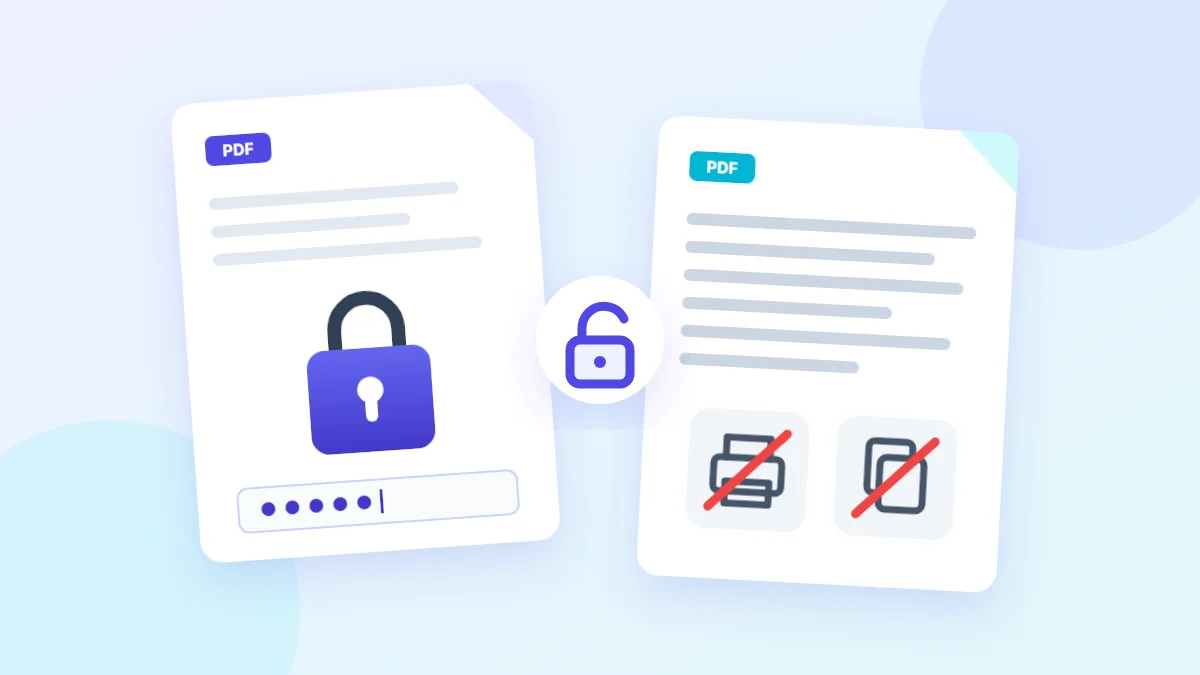
Your bank e-mails you a statement as a PDF, and when you try to open it, it asks for a password. Or an office sends you a certificate that opens fine, but the print button is greyed out and the text won't select. Then you try to upload the file to a job portal, or merge it with other documents into one application file, and it gets rejected because it's "protected". Most people assume this is all one kind of protection. In fact there are two completely different kinds, and each one is unlocked differently. We created five files with different types of protection and tested what happens to each. This article covers the results, how to tell which kind of protection your file has, and when you're actually entitled to remove it.
The short answer
If the file asks for a password when you open it, it's encrypted with an "open password", and only that password unlocks it: type it into Unlock PDF and you get a copy with no password. If it opens normally but blocks printing, copying or editing, it only carries "permission restrictions": leave the password box completely empty and the restrictions are removed. Either way, the text, fonts and images stay exactly as they were. And only unlock a file if it's yours or you're authorised to use it.
Two different locks on one file
The PDF standard allows two separate passwords, each with its own job:
- The open password (user password): the file's contents are encrypted with it. Without it, no program can see the text or images, because what's in the file is scrambled data until it's decrypted.
- The permissions password (owner password): it sets what's allowed after opening: printing, copying, editing, filling in forms, and rearranging pages. The file opens and reads normally, but the program is "asked" to block those actions.
"Asked" is the key word. In a restrictions-only file, the content is technically encrypted, but its key can be worked out without any password; otherwise nobody could open it. The restrictions themselves are just flags inside the file saying "don't allow printing", and each reader decides whether to honour them. Adobe Acrobat and most well-known programs do; some programs ignore them. A file can also combine the two: an open password, plus restrictions once it's open.
| Open password | Restrictions only | |
|---|---|---|
| What you see when opening the file | A box asking for the password | The file opens normally |
| What's blocked | Reading the whole file | Printing, copying or editing, depending on what the owner chose |
| Is the content really protected? | Yes, it's encrypted and unreadable without the password | No, it can be read; the blocking depends on the program |
| What you need to remove it | The open password itself | Nothing: leave the password box empty |
| Typical use | Bank statements, payslips, medical records | E-books, official forms, documents the publisher doesn't want edited |
Our test: five files, five kinds of protection
We created a three-page fictional bank statement in the name of a made-up account holder, with an account number, monthly transactions and a balance, and filled in a title and the bank's name in the file properties. All of the data is made up. We then saved five protected copies using the encryption types you actually come across in real files, from the oldest to the newest, and tried three things with each: extracting the text with an ordinary program without a password, unlocking it with SmokePDF's Unlock PDF tool, and comparing the result with the original file.
| File | Encryption | Opens without a password? | Text extracted without a password? | What we needed to unlock it |
|---|---|---|---|---|
| 1. Open password | AES-256 (newest) | No | No, not a single character | The open password |
| 2. Restrictions only (no printing, copying or editing) | AES-128 | Yes | Yes, all of it | Nothing, empty box |
| 3. Open password + restrictions | AES-256 | No | No | The open password |
| 4. Restrictions only | 128-bit RC4 (older) | Yes | Yes, all of it | Nothing, empty box |
| 5. Open password | 40-bit RC4 (oldest) | No | No | The open password |
All five files were unlocked by the tool without having to rebuild the pages as images. Here's what the test taught us:
- Restrictions don't protect the content: with files 2 and 4, an ordinary text-extraction program pulled out all three pages, account number and balance included, without asking for any password, even though "copying" was forbidden in the file. From the files with an open password, not a single character came out.
- For a restricted file, leave the box empty: when we typed a random password into the tool to remove the restrictions from file 2, it showed "Incorrect password", even though the file doesn't need a password at all. That's because the tool tries the password exactly as typed. Leave the box empty, or type the permissions password if you know it: both worked.
- The error message tells you the kind of protection: with files 1, 3 and 5, an empty box gave "Please enter the password", and a wrong password gave "Incorrect password". So if the tool asks for a password while the box is empty, your file has an open password, not just restrictions.
- The content didn't change: we compared the text extracted from each unlocked copy with the original file's text, and it matched character for character in all five cases, with the same three pages and the same font, and the text stayed selectable and searchable.
- What changed was the file properties: the title and the bank's name disappeared from the properties of the unlocked copies, and the creation date became the date of unlocking. It doesn't affect the pages, but bear it in mind if someone relies on the file's creation date.
How to tell which kind of protection your file has
You don't need any special program; the symptoms are usually enough:
- A box asking for a password before you see any page: an open password.
- The file opens, but the print button is greyed out, the text won't select, or editing tools are disabled: permission restrictions. Some programs also show "SECURED" next to the file name.
- The file opens and prints on your phone, but a website or another program rejects it: usually restrictions that your phone's reader ignores, but which the website detects as encryption and refuses. This happens in SmokePDF's own tools too: the merge, compress, split and rotate tools check the file before working on it, and if they find encryption of any kind, they ask you to unlock it first.
To be sure, open the file in Adobe Acrobat Reader, then go to File → Properties → Security. You'll see the security method, whether the file needs a password to open, and a list of what's allowed and what isn't.
Common situations, and what to do in each
| Situation | Usual protection | What to do |
|---|---|---|
| A bank or card statement sent by e-mail | Open password | The rule is usually given in the e-mail itself or in your account terms, such as part of your ID number or your date of birth. Open it with that, then unlock it if you need to upload it somewhere else. |
| A payslip or employment certificate from your employer's platform | Usually an open password | The rule varies from platform to platform, and is usually given in the e-mail or the platform's help pages. If you can't find it, ask HR rather than trying random passwords. |
| An official form that opens but can't be edited | Permission restrictions | You probably only want to fill it in: try filling in the fields first, since many forms allow filling but block editing. If you need to merge it into an application file, remove the restrictions with an empty box. |
| An old file you protected yourself | Whichever you chose | If you remember the password, unlock it and keep an unlocked copy somewhere safe. If you've forgotten it, look for the original unprotected version. |
| A book or course you bought with no-print restrictions | Permission restrictions | The restrictions are part of the terms of sale here. Read them, and if you need a printed copy, ask the publisher first. |
When are you entitled to unlock a PDF, and when not?
The rule is simple: the protection was put there for a reason, and the question is whether it was meant to keep you out.
- You're entitled to: a file you made yourself, or a file sent to you along with its password, such as your bank statement or payslip, when you want to use it for your own purposes, like uploading it to an official portal, archiving it, or merging it with your other documents.
- You're not entitled to: someone else's file whose password you don't have, or a book or training material whose publisher added restrictions to protect their rights, when you want to remove them to share it. Removing restrictions in that case may breach the terms of purchase or copyright law where you live, even if it's technically possible.
The Unlock PDF tool is built on that basis: it doesn't guess passwords or try combinations, and a file with an open password only opens with the correct one. If you've forgotten the password to your own file, the solution lies with whoever sent it, as we explain on the tool page.
After unlocking: three habits that keep your file safe
- Don't leave the unlocked copy lying around: a bank statement with no password can be read by anyone who gets hold of the file. Upload the unlocked copy where you need it, then delete it from your downloads folder and keep the protected original.
- Protect it again before e-mailing it: if you're sending the file on after merging or editing it, protect it again with Protect PDF, and send the password through a different channel, by text message or a call, not in the same e-mail as the file.
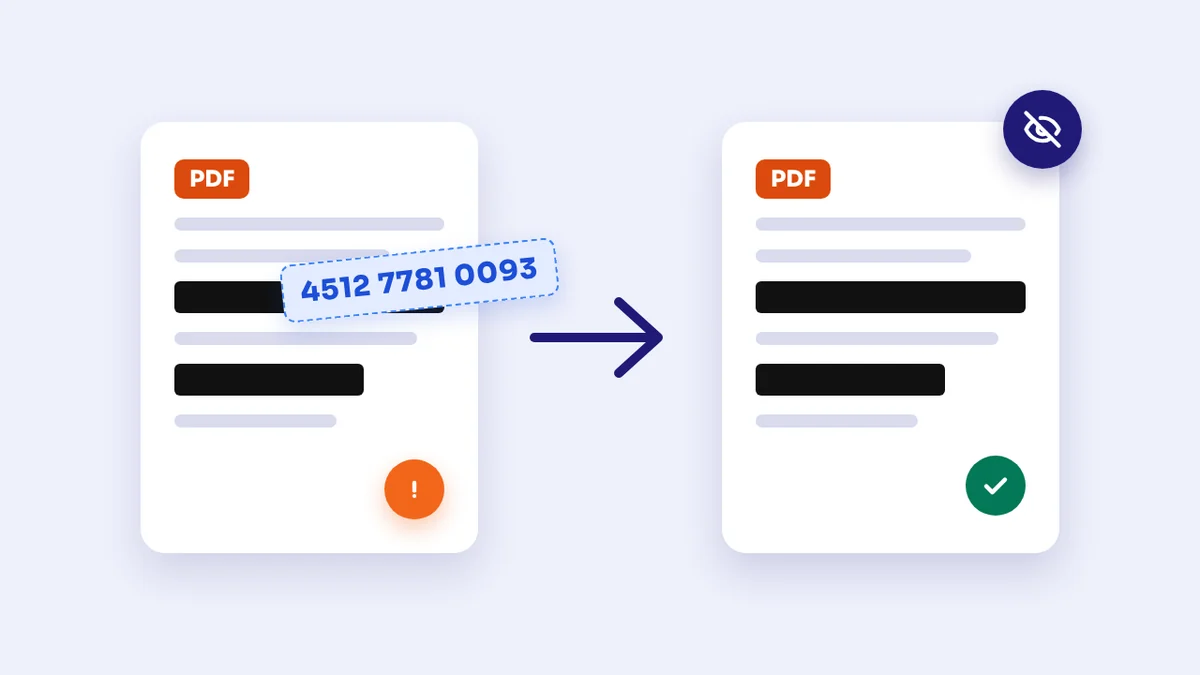
- Send only what the other side needs: if they need your name and balance but not your personal transactions, hide the rest before sending, as we explain in How to Redact a PDF. A password doesn't do the same job as redaction.
If you're the one protecting the file
The test result matters for people who send files too: if the content is confidential, don't rely on permission restrictions alone, because they don't stop anyone reading the text. Set an open password, and choose a strong one:
- Avoid dates and short numbers: a date of birth feels secret, but every date in the last century adds up to no more than 36,525 possibilities, and a 4-digit code is just one of 10,000. Automated programs can try numbers like these in a short time.
- Length matters more than symbols: a phrase of four unrelated words is harder to guess than a short word full of symbols, and easier for you to remember.
- Choose the newest encryption for sensitive documents: SmokePDF's Protect PDF tool currently uses 128-bit RC4 encryption, an older standard that every reader can open, and enough to stop a file being opened casually. For highly sensitive documents, though, a program that supports AES-256 is the better choice, such as Adobe Acrobat or the free qpdf tool.
Frequently asked questions
Is it legal to unlock a PDF?
Unlocking your own file, or a file sent to you with its password for you to use, is perfectly normal, like opening a lock you hold the key to. Removing the protection from a file you have no right to use, or removing restrictions a publisher put on a book in order to share it, may breach the terms of use or copyright law. If you're not sure, ask whoever sent you the file.
I typed the right password into the tool and it says it's wrong. Why?
If the file opens for you without a password, it only has restrictions, and the tool tries the password exactly as you typed it: clear the box and try again. If it does ask for a password when opening, check upper and lower case and your keyboard layout, since a password typed on an Arabic or French layout instead of an English one produces completely different characters.
Does unlocking reduce the file's quality?
Not in normal cases. In our test, the text came out identical to the original, character for character, in all five files, and stayed selectable and searchable. The only exception is a file with unusual encryption that the library doesn't support: the tool then rebuilds its pages as images, and says so clearly in the result message.
Why does the merge tool reject my file when it opens normally?
Because it carries permission restrictions. The file opens for you, but it's encrypted inside, and SmokePDF's editing tools don't work on encrypted files. Open it first with the unlock tool, leaving the password box empty, then use the unlocked copy for merging, compressing and so on.
Are my password or file sent to the site's servers?
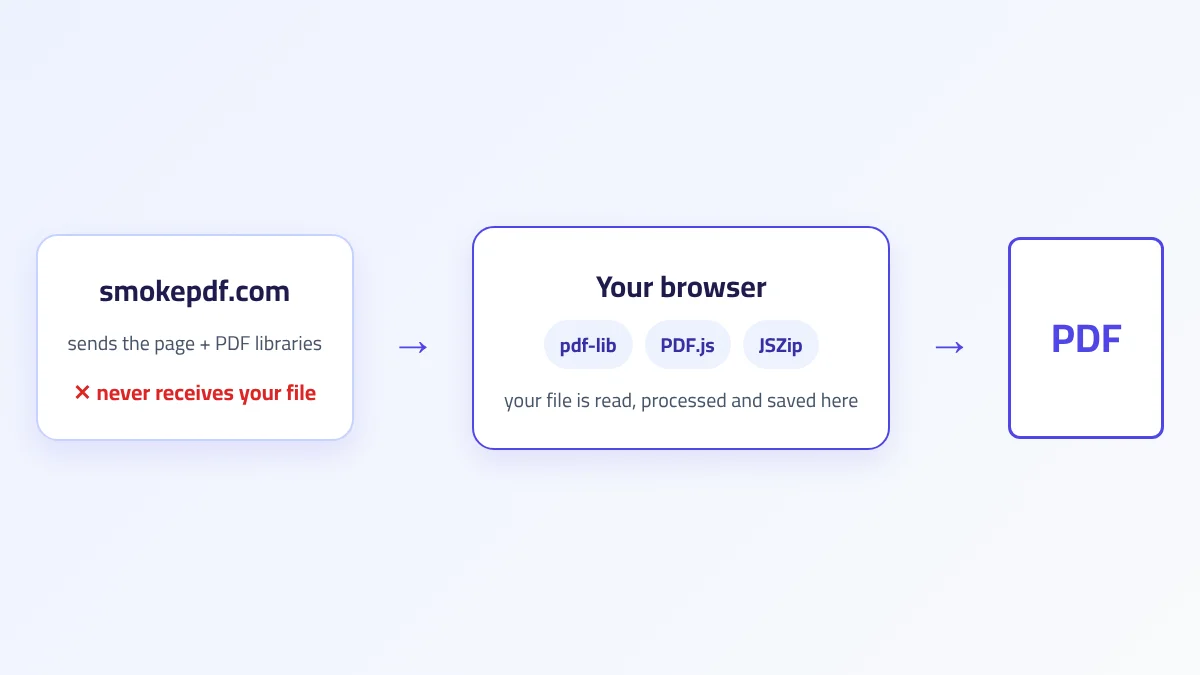
No. Decryption happens inside your browser, and neither the file nor its password leaves your device. What's downloaded from the internet when you press the button is the decryption library itself, not your file. We explain how this works in How In-Browser PDF Processing Works.
The takeaway
A "protected" PDF is either encrypted with an open password, which can't be read or opened without it, or restricted by permissions that block printing or copying without hiding the content. You unlock the first with its password and the second with an empty box, and in both cases the text stays as it was. Do it with your own files, or files sent to you for you to use, delete the unlocked copy when you've finished with it, and if you're the one protecting a file, choose a long open password, not a date of birth.