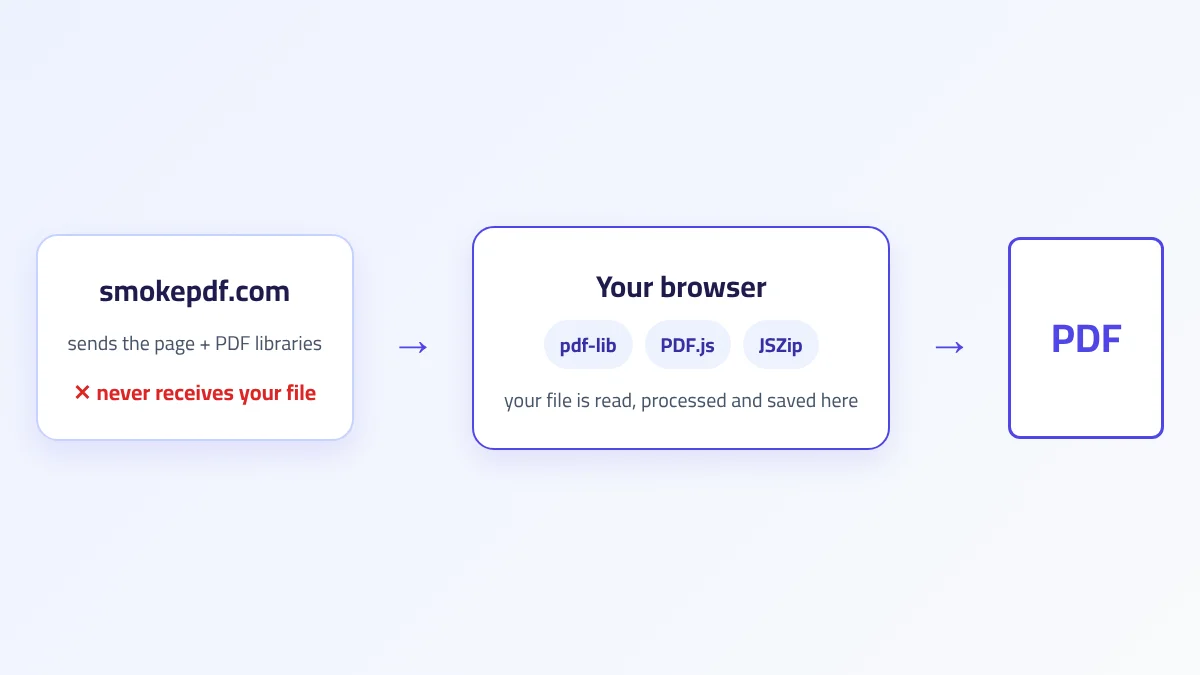
When you compress or merge a file on SmokePDF, the file doesn't leave your device. Plenty of sites say something similar, usually without explaining it. This article explains how it actually works: what gets downloaded, what runs inside your browser, where the limits of this approach are, and how you can check for yourself that your file wasn't sent anywhere.
Quick answer
When you open a tool page, your browser downloads specialized PDF libraries written in JavaScript (such as pdf-lib and PDF.js). When you pick a file, the browser reads it from your device into memory, the libraries process it there, and the result is created in memory and offered as a download. At no point does a request send the file's content to a server.
Two ways to process PDFs online
Most PDF tool websites work in one of two ways:
- Server-side processing: you upload your file to the site's server, software installed there processes it, and you download the result. The file crosses the internet twice and is stored on the server, at least briefly.
- In-browser processing: the server sends you the tool itself (a page and its code), and the file stays with you. All the work happens in the browser on your device.
The first approach has real advantages: a server is more powerful than a phone and can run heavy software such as optical character recognition (OCR) engines or faithful Office conversions. The second wins on privacy, and on speed for small and medium files, because there is nothing to upload or download. SmokePDF uses the second approach for all of its tools.
What loads when you open a tool page?
Open any tool, for example Merge PDF, and besides the design, the page loads JavaScript files that form the tool's engine:
- pdf-lib: an open-source library for creating and modifying PDFs: copying pages between files, deleting and rotating pages, adding text or images. We use it for merging, splitting, removing pages, rotating, page numbers and signing.
- PDF.js: the library Mozilla built to display PDFs in Firefox. It can draw a PDF page onto a canvas in the browser and extract its text. We use it for converting to images, converting to Word, and strong compression.
- JSZip: bundles several output files into one ZIP, as in splitting and PDF to JPG.
- The site's tools script: the code that connects these libraries to the buttons and options on the page.
These files load once and the browser caches them, so the tool opens faster on your next visit.
What happens, step by step, when you pick a file?
Merging is the simplest example:
- Reading: when you select files, the browser grants the page permission to read those files only, with no access to anything else on your device. Each file's content is read into browser memory as a sequence of bytes.
- Parsing: pdf-lib parses each file's structure: its pages, and the fonts and images each page uses.
- Building: the library creates a new empty document and copies in the pages of the first file, then the second, in order, together with everything each page needs to display correctly.
- Saving: the new file is written into browser memory as an object called a Blob.
- Downloading: the "Download result" button creates a temporary link to that object in memory, and the browser saves it to your Downloads folder like any other file.
"Download" here doesn't mean fetching from a server. The link the browser creates starts with blob: and points to your own device's memory.
When a tool needs to draw the pages
Some operations can't simply copy pages as they are. Converting to JPG, for instance, needs an image of each page. The tool uses PDF.js to draw the page onto a hidden canvas element at the resolution you choose, then saves the drawing as a JPEG.
Strong compression works the same way: it draws each page, saves it as a lower-quality JPEG, and builds a new PDF from those images. That's why scanned files shrink so much, and also why their text stops being selectable. In a test we ran on a 6-page scanned file of 7.33 MB, strong compression at 60% quality produced a 798 KB file. The full results are in our guide How to Compress a PDF.
Which tool uses which library?
A short summary of what happens inside the main tools, so you know what to expect from each:
| Tool | Library | What happens to the pages | Is text still selectable? |
|---|---|---|---|
| Merge, Split, Remove Pages | pdf-lib | Copied as they are into a new file | Yes |
| Sign, page numbers, watermark | pdf-lib | A layer (image or text) is added on top | Yes |
| Lossless compression | pdf-lib | The file structure is rewritten; content untouched | Yes |
| Strong compression | PDF.js + pdf-lib | Each page is drawn and saved as a JPEG | No |
| PDF to JPG | PDF.js + JSZip | Each page is drawn as an image and zipped | No (the output is images) |
| PDF to Word | PDF.js + JSZip | Text is extracted and a .docx is built from it | Yes, in Word |
| Password protection | Encryption library | Content is encrypted inside the file | Yes, after entering the password |
The limits of in-browser processing
This approach isn't better at everything, and it's only fair to list where it falls short:
- Memory: the whole file is read into browser memory, and so is the result. On an older phone, a huge file or dozens of files can make the page stop responding. The fix is to work in smaller batches.
- Speed on low-end devices: drawing a hundred pages at high resolution is heavy work. It takes seconds on a laptop and can take minutes on a basic phone.
- Complex conversions: converting PDF to Word while faithfully preserving tables and columns, or recognizing text in images, requires large software that doesn't run well in a browser. That's why our PDF to Word tool carries over text and paragraphs only, and its page says so plainly.
- Some libraries load on demand: the password protection tool downloads its encryption library when you click "Process now", so it needs a connection at that moment. The file itself is still not sent.
How to check for yourself that the file isn't sent
You don't have to take our word for it. Here are three ways to check, from easiest to most precise:
- The offline test: open Merge PDF and wait for it to finish loading. Disconnect from the internet (airplane mode). Pick two files and click "Process now". The merge completes and you can download it. If the tool needed a server, it would fail.
- Browser developer tools: on a computer, press F12 and open the "Network" tab, then run the operation. You'll see requests that load the page and the libraries, and visit statistics, but no request anywhere near the size of your file.
- Data usage: on a phone, note your mobile data usage before and after processing a large file. A 50 MB upload would clearly show up.
What about analytics and ads?
Like most websites, the page sends general visit data: which page you opened, your device type, which tool you used, and whether the operation succeeded. This tells us which tools need improvement. It doesn't include your file names or their content. What is collected, and by whom, is described in our Privacy Policy.
When is an upload-based tool the better choice?
If your file is a scan and you need its text to be editable, a server-side OCR tool will do a better job than any browser tool today. The same goes for converting Word to PDF with the layout fully intact: exporting from Word itself is best. A practical rule: for simple page operations (merging, splitting, removing, rotating, compressing, signing), in-browser processing is enough and more private. For heavy conversions, compare results and decide based on how sensitive the file is.
Frequently asked questions
Do the tools work offline?
Most of them do, once the page has loaded. The exception is password protection, which downloads its encryption library when used.
Does the browser keep a copy of my file after I close the page?
No. The file only exists in the page's memory and is discarded when you close it or navigate away. Only what you downloaded yourself stays in your Downloads folder.
Why does the tool slow down with large files on my phone?
Because your phone does all the work, and its memory and processor are weaker than a computer's or a server's. Split the file or use a computer for very large documents.

Related Articles
Explore more guides to master your PDF workflow:
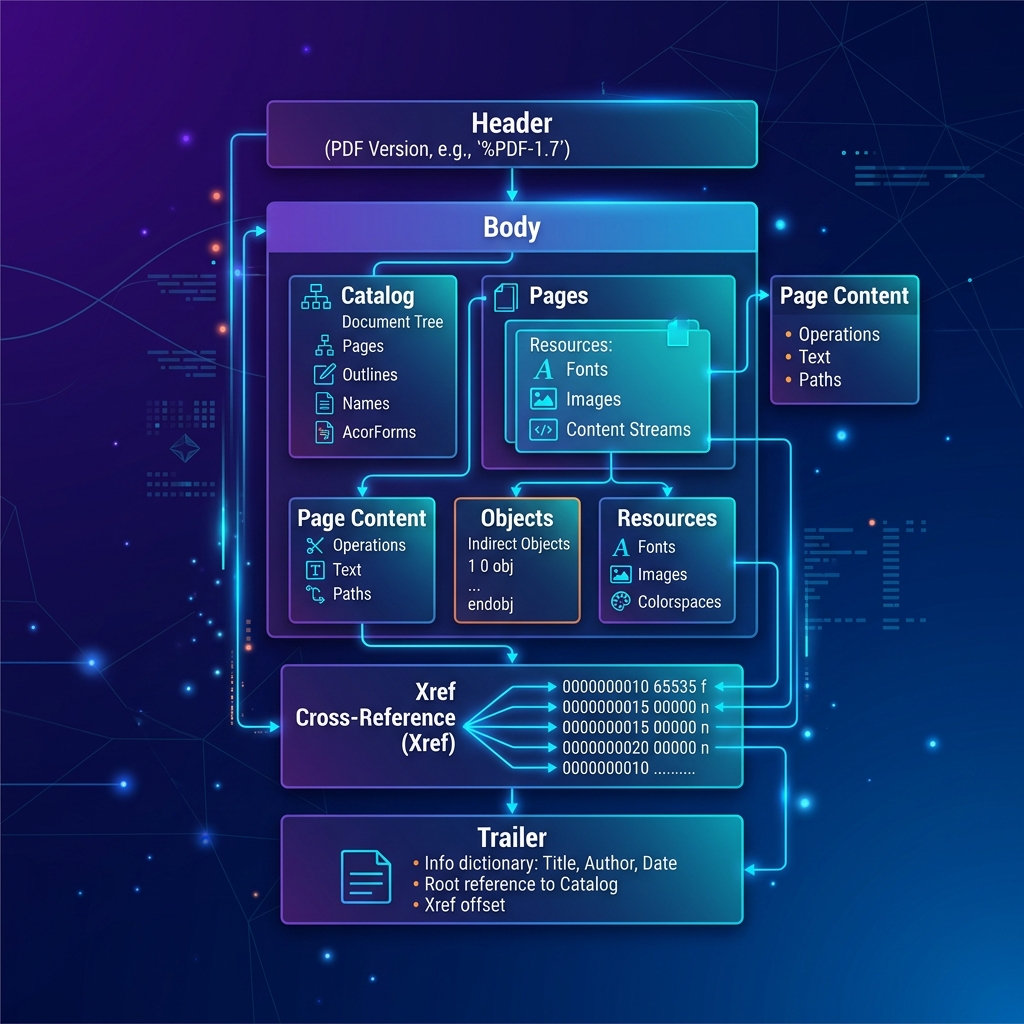
What Is a PDF File? A Complete Beginner's Guide
Learn what a PDF file is, how Portable Document Format works, its key features, history, advantages, and everyday uses in this comprehensive beginner's guide.
Read article →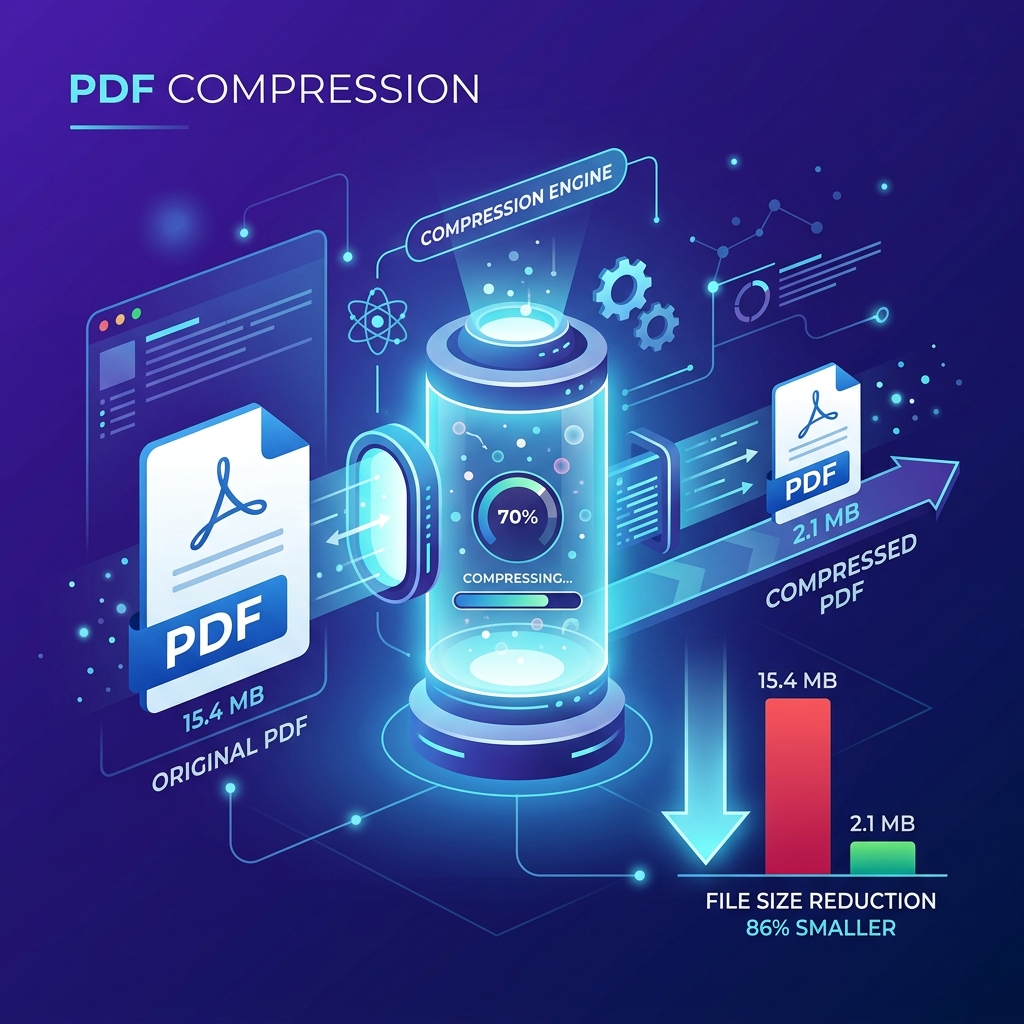
How to Compress a PDF Without Losing Quality
Learn how PDF compression works, the difference between lossy and lossless compression, best practices, and how to reduce file size without losing quality.
Read article →
What Is OCR? A Complete Guide to Optical Character Recognition
Learn what OCR is, how Optical Character Recognition works, why it matters for scanned PDFs, and how it turns image-based documents into searchable, editable text.
Read article →Conclusion
Merging PDF files is one of the simplest ways to improve document organization and simplify your workflow. Instead of managing multiple separate files, you can create a single, well-structured document that is easier to share, archive, print, and collaborate on.
Whether you're preparing business reports, legal documentation, educational resources, or personal records, understanding how PDF merging works helps you maintain document quality while improving efficiency.
By organizing files carefully, reviewing page order, preserving important interactive elements, and performing a final quality check, you can produce professional PDF documents that are easy to manage and distribute.