Table of Contents
- Introduction
- What Does OCR Mean?
- What OCR Actually Does
- How OCR Differs From a Normal PDF Text Layer
- Why OCR Matters for PDF Files
- Real-World Examples of OCR in Action
- What You Will Learn in This Guide
- How Does OCR Work? The OCR Process Explained Step by Step
- OCR Accuracy: What Affects Recognition Quality?
- OCR for Different Document Types: Scanned PDFs, Forms, Tables, and Books
- How to Make OCR More Accurate: A Practical Preprocessing and Verification Workflow
- Choosing the Right OCR Approach: Cloud OCR, Local OCR, and Browser-Based Processing
- OCR Accuracy in Real-World Documents: Common Errors, Quality Control, and When to Review Manually
- Frequently Asked Questions About OCR
- Final Takeaway: How to Use OCR Reliably
Introduction
Have you ever opened a scanned PDF document, tried to select a sentence with your mouse cursor to copy it, and realized you couldn't select a single word?
Or perhaps you pressed Ctrl + F (or Cmd + F) to search for an important name or number inside a 50-page scanned contract, only for your PDF reader to return zero search results—even though you can clearly see the words right in front of your eyes?
This frustrating experience happens because, to your computer, that scanned document is not a text document at all. It is simply a flat picture—a grid of colored pixels, no different from a digital photograph taken with your smartphone.
This is where OCR (Optical Character Recognition) comes in.
OCR is the foundational bridge between physical paper and digital data. It is the technology that inspects visual images, identifies the shapes of letters, numbers, and symbols, and translates them into genuine, machine-readable text that can be searched, selected, copied, edited, indexed, and analyzed.
The Short Answer: What Is OCR?
Optical Character Recognition (OCR) is an electronic conversion technology that recognizes printed, typed, or handwritten characters inside digital images or scanned documents, converting passive visual pixels into editable and searchable text data.
What Does OCR Mean?
The acronym OCR stands for Optical Character Recognition. Breaking down each word reveals exactly how the system operates:
- Optical: Refers to the visual inspection of an image using light sensors, scanners, or digital cameras to capture a graphical representation of physical marks on a page.
- Character: Refers to individual letters of an alphabet, numerical digits, punctuation marks, and typographical symbols that form human language.
- Recognition: Refers to the software's algorithmic intelligence that compares visual shapes against mathematical patterns to determine which specific character each mark represents.
In modern digital workflows, the term OCR has expanded beyond basic character matching to encompass advanced document layout analysis, language modeling, multi-column processing, and intelligent character recognition powered by machine learning.
What OCR Actually Does
To understand what OCR actually accomplishes under the hood, consider the difference between how a human reads a document and how a computer processes a file.
When you look at a photograph of an invoice, your brain instantly perceives the word "Total: $500.00" because human visual cognition effortlessly translates visual shapes into linguistic concepts.
A computer, however, only sees a two-dimensional grid of numerical values representing pixel brightness and color. Without OCR, the computer has no concept that the cluster of dark pixels on the page represents a letter "T", let alone the monetary value of an invoice.
OCR software performs a multi-step computational process:
- Image Pre-processing: Cleans up the image by straightening skewed pages, removing background noise, adjusting contrast, and converting colors into binary black-and-white pixels.
- Layout Analysis: Divides the page into zones, identifying headers, paragraphs, columns, tables, and non-text graphical elements.
- Feature Extraction & Pattern Matching: Scans character outlines, examining lines, curves, intersections, and loops to match them against known font glyphs and character models.
- Language Modeling & Post-processing: Uses built-in linguistic dictionaries to contextualize ambiguous characters (such as distinguishing between the number
1, lowercasel, and uppercaseI). - Text Layer Generation: Produces electronic text output or embeds an invisible, searchable text layer directly beneath the original scanned image.
How OCR Differs From a Normal PDF Text Layer
It is important to distinguish between a "native" digital PDF and a "scanned" image-based PDF.
When you write a document in a word processor like Microsoft Word or Google Docs and export it to PDF (as explained in our PDF vs DOCX guide), the resulting PDF contains a native text layer.
In a native PDF, every letter is already stored as a digital character code (such as Unicode or ASCII), along with font specifications and positional coordinates. The computer inherently knows what the text says without any visual interpretation.
In contrast, a scanned document or photograph contains zero digital character codes. It is strictly a container holding a raster graphic.
Applying OCR does not destroy or alter the original scan. Instead, high-grade OCR software creates a dual-layer searchable PDF: the original visual scan remains visible on top so the document retains 100% of its authentic visual appearance, while an invisible layer of recognized digital text is aligned underneath. When you highlight a line of text, your cursor is actually selecting the invisible OCR text layer.
If you need to extract the raw text directly from a document for editing in a text editor, you can also use dedicated tools such as PDF to Text or convert the document into an editable format with PDF to Word.
Why OCR Matters for PDF Files
OCR is essential for modern document management and digital transformation. Without OCR, billions of historical and paper-based documents remain locked in inaccessible image silos.
Key reasons OCR is critical for PDF workflows include:
- Full-Text Searchability: Allows instant searching across thousands of scanned pages in seconds, saving hundreds of hours in legal discovery, academic research, and enterprise audits.
- Content Extraction & Editing: Enables copying text out of scanned documents into spreadsheets, databases, or word processors without painful manual retyping.
- Digital Accessibility: Screen readers used by visually impaired individuals cannot read raw pictures. OCR provides the underlying text stream that assistive technologies require.
- Automated Indexing & Archiving: Search engines and enterprise document management systems (DMS) can automatically index the full content of OCR-processed PDFs.
- Data Extraction & Workflow Automation: Enables robotic process automation (RPA) tools and accounting software to automatically parse numbers from invoices, bills, and purchase orders.
Real-World Examples of OCR in Action
OCR is utilized every day across diverse industries and everyday productivity tasks:
- Legal & Corporate Contracts: Law firms scan decades of legacy paper contracts and apply OCR so lawyers can search for specific clauses or liability terms instantly.
- Financial Invoices & Receipts: Accounting departments process scanned vendor invoices, using OCR to extract invoice dates, line items, and payment amounts directly into ERP software.
- Libraries & Historical Archives: Cultural institutions digitize centuries-old books, manuscripts, and newspapers, making entire historical libraries publicly searchable online.
- Healthcare & Medical Records: Hospitals convert handwritten and typed paper patient intake forms into structured electronic health records (EHR).
- Government & Official Forms: Immigration agencies and tax authorities scan paper applications to automate identity verification and application processing.
- Arabic & Multilingual Documents: Businesses operating in the Middle East and international markets use multilingual OCR to extract text from mixed Arabic-English documents while preserving correct Right-to-Left (RTL) reading flow.
What You Will Learn in This Guide
This comprehensive guide will demystify every facet of Optical Character Recognition, equipping you with the practical knowledge needed to digitize and optimize your document workflows.
Throughout the upcoming parts of this guide, you will discover:
- The technical mechanics of how OCR engines analyze pixels and recognize glyphs.
- The step-by-step process of converting non-searchable scans into Searchable PDFs.
- The key factors that dictate OCR accuracy, including DPI resolution, contrast, fonts, and document condition.
- How OCR handles complex challenges such as cursive handwriting, complex tables, and Arabic RTL script.
- A complete comparison of OCR methods, desktop software, mobile scanner apps, and client-side online tools.
- Practical troubleshooting techniques to fix poor OCR results and verify recognized text before final distribution.
Whether you are archiving a single receipt or managing an enterprise repository of millions of scanned pages, understanding OCR is the key to unlocking the true power of your digital documents.
How Does OCR Work? The OCR Process Explained Step by Step
At first glance, Optical Character Recognition might seem like magic: you feed a flat picture into software, and seconds later you can highlight, copy, and search through the text. In reality, OCR relies on a sophisticated, multi-stage engineering pipeline that transforms raw pixel data into structured digital language.
Understanding this process helps clarify why certain documents convert flawlessly while others produce recognition errors, and how you can optimize your files for the best possible results.
1. Document or Image Input
Every OCR workflow begins with ingesting a visual source. This input can take several forms:
- Scanned PDF Pages: Multi-page PDF containers that store scanned pages as raster bitmaps rather than native vector text.
- Digital Images (JPG, PNG, TIFF): Photos of paper documents taken with a smartphone, camera, or flatbed scanner.
- Scanned Paper Forms & Invoices: Business documents containing structured grids, tables, and mixed fields.
- Screen Captures: Screenshots containing text embedded inside images or video frames.
At this initial stage, the OCR engine has zero understanding of the document's contents. It treats the file strictly as an array of pixels—a grid of color values with width, height, and color channels.
2. Image Preprocessing: Preparing Pixels for Recognition
Raw scanned documents frequently suffer from physical imperfections: skewed angles, paper shadows, wrinkles, uneven lighting, dust speckles, and low contrast. Before an OCR engine attempts to recognize letters, it preprocesses the image to isolate characters from background artifacts.
Key preprocessing steps include:
- Binarization (Thresholding): Converts color or grayscale pixels into binary pure black and pure white. This separates dark ink strokes from the white or off-white paper background.
- Deskewing: Detects if the document was placed crookedly on the scanner and automatically rotates the image by fractions of a degree so lines of text are perfectly horizontal.
- Despeckling (Noise Removal): Removes stray scanner dust, paper fiber marks, and small spots that could otherwise be misinterpreted as punctuation marks like periods or commas.
- Contrast Adjustment & Normalization: Enhances faint text lines and evens out gradient shadows caused by uneven phone camera lighting.
- Resolution Checking: Ensures the image has sufficient pixel density (ideally 300 DPI) for character details to be clearly distinguishable.
While preprocessing significantly improves accuracy for most documents, it cannot recover information that was never captured. A blurry, extremely low-resolution scan will still produce recognition errors.
3. Layout and Structure Detection (Zoning Analysis)
Real-world documents are rarely single blocks of continuous text. They contain headlines, sidebars, multi-column layouts, tables, headers, footers, logos, and illustrative graphics.
During layout analysis (also known as zoning), the OCR system breaks the page into distinct functional regions:
- Text Blocks: Grouping paragraphs and assigning a logical reading order (for example, ensuring a two-column newspaper is read column-by-column rather than straight across).
- Tables & Grids: Detecting rows, columns, and cell borders to preserve tabular data structures.
- Non-Text Elements: Identifying photos, signatures, company logos, and diagrams so the engine does not waste computational effort trying to read graphics as letters.
Correct layout detection is essential. If an engine misidentifies a two-column contract as a single text block, it will merge sentences across columns, resulting in nonsensical output.
4. Character and Word Recognition
Once text zones and individual text lines are isolated, the core recognition engine analyzes each character shape. Modern OCR systems generally utilize two complementary recognition paradigms:
- Pattern Matching (Matrix Matching): The engine compares character pixel grids against a library of pre-stored font glyphs. This method is exceptionally fast and accurate for standard, uniform fonts (such as Times New Roman or Arial), but struggles with varied font sizes, stylized headings, or slight distortions.
- Feature Extraction & Neural Networks: Modern AI-driven OCR engines analyze the geometric and topological features of characters—such as straight vertical lines, diagonal strokes, circular loops, enclosed spaces, and line intersections. Deep learning and Recurrent Neural Networks (RNNs) allow the system to recognize letters across thousands of font variations, italics, bold weights, and even mild handwriting.
5. Language Detection and Linguistic Modeling
Character recognition does not operate in a vacuum. OCR engines integrate language dictionaries, grammatical models, and n-gram probability tables to contextualize ambiguous character shapes.
For example, in English, an ambiguous vertical line could be an uppercase I, a lowercase l, or the digit 1. By checking the surrounding letters (for example, in the word "f-i-l-e"), the language model correctly resolves the character as a lowercase l.
The Unique Challenges of Arabic OCR:
Arabic presents distinctive linguistic characteristics that require specialized OCR modeling:
- Cursive & Connected Script: Unlike Latin letters which are typically spaced apart, Arabic words are written in continuous cursive script where letters join together. The OCR engine must accurately segment character boundaries (ligatures) without breaking letters apart.
- Contextual Letter Shapes: Arabic letters change their visual form depending on their position in a word (isolated, initial, medial, or final). A single letter can have up to four distinct visual shapes.
- Dots and Diacritics: Many Arabic letters share the same basic shape and are distinguished only by one, two, or three dots (such as ب, ت, ث, or ر, ز). Small speckles or scanner noise can easily cause character confusion.
- Right-to-Left (RTL) Flow: Text runs from right to left, while embedded numbers or English words run left to right, requiring sophisticated bidirectional (BiDi) reading order management.
6. Text Reconstruction and Searchable PDF Creation
After characters and words are verified, the OCR engine reconstructs the digital document. Depending on the user's objective, this results in:
- Raw Text Extraction: Outputting pure text into a
.txtfile via a tool like PDF to Text, or an editable format like PDF to Word. - Dual-Layer Searchable PDF: The standard format for professional archiving. The engine embeds an invisible, perfectly aligned text layer directly beneath the original scanned image. When a user opens the PDF, they see the authentic original scan, but can seamlessly search, highlight, and copy the text.
7. Confidence Scoring and Error Detection
Professional OCR engines calculate a confidence score (from 0% to 100%) for every recognized character and word. If a character is blurry or partially obscured, the engine flags it with low confidence.
Common factors that trigger OCR errors include:
- Low scan resolution (below 200 DPI).
- Motion blur or camera lens distortion.
- Severe page skew or folded corners.
- Faint ink or carbon-copy bleed-through.
- Unusual decorative or cursive script fonts.
- Complex, borderless tables and multi-layered backgrounds.
Practical Walkthrough: Processing a Bilingual Scanned Invoice
To see how all these steps interact in practice, consider a scanned Arabic-English commercial invoice:
- Input: A 300 DPI scanned PDF containing an Arabic company header, invoice number, date, and a billing table with English product names and numeric prices.
- Preprocessing: The engine straightens a 1.5-degree tilt, removes scanner dust, and binarizes the text.
- Layout Detection: It recognizes the top header zone, two metadata columns (invoice number on the left, date on the right), and a 5-column billing table.
- Recognition & Language Modeling: It applies Arabic language modeling to the header and addresses (handling cursive connections and RTL direction), Latin modeling to English product descriptions, and numerical modeling to the price column.
- Output: A dual-layer Searchable PDF where users can search for both Arabic vendor names and English product model numbers instantly.
Summary of OCR Processing Stages
| OCR Stage | Main Purpose | Common Problem Encountered |
|---|---|---|
| 1. Ingestion & Input | Receiving the visual document or raster image. | Unsupported image formats or corrupt file streams. |
| 2. Preprocessing | Cleaning noise, deskewing, and binarizing pixels. | Over-filtering faint text or misinterpreting light colored text. |
| 3. Layout Detection | Segmenting paragraphs, tables, and reading order. | Merging multi-column text or scrambling complex table cells. |
| 4. Character Recognition | Matching pixel features to alphabet glyphs. | Confusing similar characters (e.g., 0 vs O, 1 vs l, د vs ر). |
| 5. Language Modeling | Resolving ambiguous words using vocabulary dictionaries. | Technical jargon, proper names, or mixed-language phrases. |
| 6. Text Layer Assembly | Embedding invisible text coordinates behind the scan. | Misaligned coordinate mapping causing cursor selection drift. |
Practical Tip
Better input scan quality generally gives OCR engines the best chance of producing accurate text. However, even with high-resolution 300 DPI scans, always perform human spot-checks on critical numbers, dates, and legal names when documents carry financial, contractual, or operational importance.
OCR Accuracy: What Affects Recognition Quality?
A common misconception is that modern Optical Character Recognition is an all-or-nothing technology that either transcribes a document with 100% perfection or fails completely. In practice, OCR is a probabilistic recognition process: the software evaluates visual pixel patterns and determines the most likely character based on geometric features and linguistic context.
Because OCR depends heavily on visual clarity, two different scans of the exact same document can produce vastly different recognition results. Understanding the key variables that influence OCR accuracy allows you to optimize your scanning workflow and anticipate when human proofreading is necessary.
1. Scan Resolution and DPI (Dots Per Inch)
Resolution is the primary physical constraint on OCR quality. In document scanning, resolution is measured in DPI (Dots Per Inch), which indicates the number of individual pixel samples captured per linear inch of the physical page.
If the DPI is too low, the scanner cannot capture the fine geometric strokes that define character anatomy—such as the crossbar of an "e", the dot on an "i", or the open counter of an "o".
- Below 150 DPI: Insufficient for reliable OCR. Characters appear pixelated and broken; loops close up and punctuation marks often disappear entirely.
- 200 DPI: Acceptable for large, clean standard text (12pt or larger), but error rates rise sharply on footnotes, subscripts, and condensed fonts.
- 300 DPI: The industry-standard sweet spot for document digitization. It provides ample pixel detail for standard body text (8pt to 12pt) without creating unwieldy file sizes.
- 400 to 600 DPI: Recommended for very small fonts (under 6pt), intricate non-Latin scripts, historical documents, or degraded paper copies. However, increasing resolution beyond 600 DPI rarely improves recognition accuracy and dramatically increases processing time and memory consumption.
While 300 DPI serves as an excellent practical baseline, resolution alone does not guarantee perfection if other visual flaws are present.
2. Image Quality and Visual Artifacts
A high-resolution scan can still fail if the image suffers from optical or physical degradation. Common visual obstacles include:
- Motion Blur & Focus Issues: Smartphone photos taken with shaky hands or slight lens defocus soften sharp letter edges, confusing character edge detection.
- Uneven Lighting & Shadows: Ambient room lighting or phone shadows create gradient dark patches across the page, causing binarization algorithms to mistake paper shadows for ink.
- Lossy Compression Artifacts: Aggressively compressing scans with heavy JPEG compression introduces "mosquito noise" and pixel ringing around high-contrast character edges.
- Low Contrast & Faded Ink: Old receipts, thermal paper, or carbon-copy duplicates where faint grey text bleeds into off-white or yellowed paper.
- Page Curvature & Warp: Scanning thick bound books without pressing the spine flat results in curved, distorted text lines near the inner margin.
The human brain easily compensates for shadows, faint ink, and slight distortion by applying subconscious linguistic context. An OCR engine, however, evaluates raw mathematical pixel transitions and can easily misinterpret a paper crease as a letter stroke.
3. Font Style, Size, and Typography
Typography plays a massive role in character segmentation and recognition:
- Standard Printed Typefaces: Clean sans-serif fonts (like Arial, Helvetica, Roboto) and clear serif fonts (like Times New Roman, Georgia) produce the highest recognition rates because their glyph proportions are well-defined.
- Decorative & Script Fonts: Highly stylized display fonts, gothic lettering, and faux-calligraphy introduce non-standard flourishes that confuse feature extraction models.
- Font Size: Very small text (under 6pt) contains fewer physical pixels per letter, increasing the likelihood of character merging (such as "rn" being recognized as "m", or "cl" as "d").
- Kerning & Character Spacing: Ultra-condensed fonts where adjacent letters physically touch make character segmentation difficult. Conversely, widely tracked text can cause the engine to misinterpret letter spaces as word boundaries.
4. Document Layout and Structural Complexity
Recognizing individual characters is only half the battle; the OCR engine must also reconstruct the document's logical reading order. Layout complexity frequently introduces errors when documents feature:
- Multi-Column Articles: If the zoning algorithm fails to detect a column divider, text will be read horizontally across both columns, jumbling sentences together.
- Borderless Tables: Financial statements and tables without distinct gridlines make column alignment difficult, risking misplaced numbers.
- Floating Text Boxes & Sidebars: Callouts inserted mid-paragraph can interrupt the natural reading flow of main body text.
- Watermarks & Background Graphics: "CONFIDENTIAL" or "DRAFT" stamps overlaid across body text interfere with letter contours.
5. Language and Script Characteristics
Selecting the correct language profile before running OCR is vital because linguistic models guide character disambiguation. Processing an Arabic document with an English-only OCR profile produces unintelligible gibberish.
Specific Considerations for Arabic and Mixed-Script Documents:
- Cursive Connectivity: Arabic words are naturally connected. Variations in font ligatures require sophisticated segmentation algorithms.
- Position-Dependent Glyphs: Recognizing that a single Arabic letter changes shape depending on whether it appears at the start, middle, or end of a word.
- Crucial Dots (I'jam): Distinguishing between letters that differ only by tiny dots (e.g., ح / خ / ج or ر / ز) requires clean scans free of dust speckles.
- Bidirectional (BiDi) Text: Documents containing Arabic sentences alongside English model names or numbers require the engine to manage both RTL and LTR text streams seamlessly.
6. Printed Text vs. Handwriting (OCR vs. ICR)
A fundamental distinction in document digitization is the difference between machine-printed text and handwritten text:
- Standard OCR (Optical Character Recognition): Engineered specifically for uniform, machine-printed typography produced by computers, typewriters, and printing presses.
- ICR (Intelligent Character Recognition): A specialized, computationally intensive branch of recognition designed to interpret human handwriting and cursive notes.
Because individual handwriting varies wildly in slant, letter formation, pressure, and spacing, standard OCR engines produce significantly higher error rates on handwritten margins or hand-filled form fields. When extracting data from contracts or legal filings, you can extract printed sections using tools like PDF to Text or export the entire layout into an editable format with PDF to Word, but handwritten signatures and annotations should always be verified manually.
7. Original Source Quality and Generation Loss
Every time a document is photocopied, re-scanned, compressed, or photographed, it suffers from generation loss. A pristine original digital print will convert with exceptional accuracy, whereas a "photocopy of a photocopy" carries accumulated noise, toner splatter, and degraded contrast that severely hinder recognition engines.
8. OCR Engine Architecture and Language Models
Not all OCR software is built the same. Modern deep-learning engines equipped with multi-lingual transformer models and advanced layout parsers handle complex, imperfect scans far better than legacy matrix-matching engines. The underlying quality of the OCR engine's dictionary and structural analysis determines how gracefully it handles real-world document imperfections.
Realistic Comparison: Clean Scan vs. Degraded Document
Comparing Two Scenarios of the Same Invoice:
Document A (Optimal Conditions):
- Flatbed scan at 300 DPI, perfectly upright (0° skew).
- High contrast with crisp black typography on pure white background.
- Standard Arial font with clear 2pt gridlines separating table cells.
- Correct language dictionary applied.
- Expected Outcome: Near-flawless text recognition with intact tabular alignment.
Document B (Suboptimal Conditions):
- Smartphone photo taken in dim lighting (150 DPI effective resolution).
- Noticeable 4-degree skew with harsh phone shadow across the bottom total.
- Compressed 7pt decorative font with mixed Arabic and English product codes.
- Borderless table on textured recycled paper.
- Expected Outcome: High probability of character confusion (e.g., 8 vs B, 0 vs O), merged columns, and lost punctuation.
Summary of Factors Affecting OCR Accuracy
| Factor | Optimal Condition | Risk When Poor |
|---|---|---|
| Resolution (DPI) | 300 DPI for standard documents; 400+ for fine print. | Below 200 DPI causes broken letters and missing punctuation. |
| Contrast & Lighting | Crisp dark text on pure white, evenly lit background. | Shadows and low contrast cause background noise to be read as text. |
| Page Skew & Alignment | Straight, unrotated pages (less than 0.5° tilt). | Severe tilt disrupts line segmentation and reading order. |
| Typography & Fonts | Standard printed fonts (Arial, Times New Roman, Roboto). | Cursive, decorative, or touching bold glyphs cause recognition errors. |
| Document Layout | Clear margins, well-defined columns, and bordered tables. | Borderless tables or overlapping graphics cause jumbled sentences. |
| Language Settings | Matching language profile (e.g., Arabic + English enabled). | Incorrect dictionary results in nonsensical character substitutions. |
| Text Size | 8pt to 14pt body text. | Sub-6pt text lacks sufficient pixel detail for character features. |
| Source Quality | First-generation original digital print or clean original scan. | Photocopies of photocopies carry compounding noise and distortion. |
Pre-OCR Practical Improvement Checklist
Before submitting a critical batch of documents to an OCR engine, follow this practical checklist to maximize recognition accuracy:
- Source Quality: Always obtain the cleanest original document available rather than a multi-generation photocopy.
- Adequate Resolution: Ensure the scanner or camera captures at 300 DPI for standard office paperwork.
- Page Straightening: Align the physical paper flat against scanner guides or apply automated deskewing.
- Lighting & Contrast: Use flat, even lighting without harsh flash glares or mobile phone shadow gradients.
- Correct Language Profile: Verify that the OCR software has the appropriate language dictionaries active (especially for multilingual or Arabic documents).
- Noise Removal: Clean scanner glass to eliminate dust spots and wipe away loose speckles before scanning.
- Layout Review: Examine complex tables and multi-column pages to ensure zones are parsed logically.
- Human Proofreading: Always spot-check recognized numbers, legal party names, and critical dates on operational records.
Practical Tip
The goal of preprocessing is not to make the image look beautiful to human eyes; it is to make the characters as mathematically distinct and easy for the OCR engine to distinguish as possible.
OCR for Different Document Types: Scanned PDFs, Forms, Tables, and Books
Optical Character Recognition is not a single, uniform operation applied identically to every file. A single page of cleanly typeset text presents an entirely different recognition challenge than a multi-column academic journal, an intricately formatted commercial invoice, a paper intake form, or a fragile historical book.
Document structure dictates how OCR engines parse visual boundaries, isolate character blocks, and reconstruct reading order. Understanding how OCR behaves across distinct document categories helps you apply the right preprocessing steps and focus your proofreading where errors are most likely to occur.
1. Scanned PDF Documents: Image-Only vs. Searchable PDFs
A scanned PDF is essentially a digital container holding one or more full-page bitmap images. To software, an image-only PDF contains zero selectable text—it is impossible to copy a sentence or search for a keyword using Ctrl + F.
Applying OCR transforms these static scans into dual-layer Searchable PDFs. The visual page image remains completely unchanged on top, while an invisible, fully indexed layer of recognized text is embedded underneath in exact geometric alignment.
Multi-Page Consistency Challenges: In a 50-page scanned contract or manual, scan quality often fluctuates significantly from page to page. Page 1 may be crisp and sharp, while page 25 might be skewed, slightly out of focus, or printed on thinner paper with noticeable back-page bleed-through. Reviewing multi-page PDFs requires checking sample pages across the entire document rather than assuming consistent quality throughout.
Practical Example: When digitizing a 10-page commercial lease, OCR enables legal teams to instantly locate liability clauses, indemnification terms, and renewal dates across the entire document without retyping a single line.
2. Forms, Applications, and Structured Surveys
Paper forms (such as medical intake forms, visa applications, and insurance claims) represent one of the most complex layouts for OCR engines due to their dense visual architecture:
- Bounding Boxes & Gridlines: Rectangular input boxes and underline guides can physically touch printed letters, confusing feature extraction algorithms.
- Labels vs. Field Values: The engine must differentiate between the static prompt (e.g., "Full Name:") and the dynamic input text filled inside the box.
- Checkboxes and Radio Circles: Detecting marked vs. unmarked checkboxes requires specialized optical mark recognition (OMR) logic.
- Handwritten vs. Machine-Printed Content: Many forms contain printed instructions combined with handwritten user entries, requiring hybrid OCR/ICR processing.
It is important to distinguish between recognizing text and understanding form semantics. Standard OCR can transcribe the words "Date of Birth: 1985-04-12", but automated field mapping into a database requires specialized document intelligence software.
3. Tables, Invoices, and Financial Statements
Tabular data presents a severe structural test for OCR engines. In a financial statement, invoice, or price schedule, the meaning of every number is entirely dependent on its exact row and column position.
Key hurdles in tabular OCR include:
- Borderless Tables: When columns are separated only by whitespace rather than solid gridlines, the engine risks merging adjacent column values or misaligning decimal points.
- Multi-Line Row Descriptions: If a product description wraps onto two lines while the price column occupies a single line, the OCR engine must maintain vertical synchronization across the entire row.
- Financial Punctuation: Misinterpreting a decimal point as a comma or period (e.g., reading
$1,000.50as$1.000,50or$100050) can cause serious accounting errors.
Bilingual Invoice Scenario: Consider an international invoice containing Arabic company information and tax numbers alongside English product descriptions, quantities, and prices. The OCR engine must accurately recognize Arabic cursive typography on the header, maintain Latin character integrity on model numbers, align numerical prices into columns, and preserve the correct bidirectional flow across the page.
4. Books, Academic Reports, and Multi-Page Archival Documents
Digitizing bound publications—such as technical manuals, academic research papers, novels, and historical library archives—introduces unique macro-layout challenges:
- Running Headers & Footers: The OCR system should recognize repeated page numbers, book titles, and chapter headings and avoid inserting them into the middle of continuous body paragraphs.
- Footnotes & Marginalia: Footnotes at the bottom of a page must be separated from main body text to prevent disjointed reading flow.
- Multi-Column Typesetting: Scientific reports and newspapers require precise column boundary detection to avoid reading across column dividers horizontally.
- Historical Paper Degradation: Archival books frequently feature yellowed paper, faded ink, historic typography (such as long "s" resembling "f"), and ornate decorative drop caps.
When extracting raw chapters or compiling editable transcripts, you can export text directly using PDF to Text or generate a structured document with PDF to Word (as detailed in our PDF vs DOCX comparison guide).
5. Photographs of Documents (Smartphone Scans)
Capturing documents using smartphone cameras is convenient, but photographs differ fundamentally from controlled flatbed scanner outputs:
- Perspective & Keystoning Distortion: Holding a phone at an angle causes the top of the page to appear narrower than the bottom (trapezoidal distortion).
- Surface Curvature: Paper held in hand or thick book pages curve away from the camera lens, bending lines of text.
- Ambient Shadow Gradients: Overhead room lighting frequently casts the user's hand or phone shadow across critical text lines.
- Defocus & Lens Flare: Inadequate focus or oily camera lenses blur letter edges.
Modern mobile scanner apps mitigate these issues through automatic edge detection, perspective correction, and contrast binarization. When captured under bright, even lighting, smartphone photos can produce recognition results comparable to dedicated scanners.
6. Receipts and Small Thermal Documents
Store receipts, parking tickets, and delivery slips represent one of the highest error-rate categories in OCR:
- Thermal Printing Fading: Most receipts use heat-sensitive thermal paper that rapidly fades to faint grey or turns black when exposed to heat and sunlight.
- Narrow Layouts & Micro-Fonts: Text is heavily compressed into narrow 2-to-3-inch columns with minimal line spacing.
- Wrinkles & Physical Wear: Receipts carried in pockets or wallets carry creases that physically split numbers and letters.
Because receipts frequently involve financial reimbursements and expense tracking, always visually verify extracted totals, tax amounts, and dates.
7. Multilingual and Arabic Documents
Documents that blend Arabic with English, French, or technical numeric data require specialized dual-engine OCR processing:
- Bidirectional Text Management (BiDi): Arabic flows Right-to-Left (RTL), while embedded Latin product names, URLs, email addresses, and serial numbers flow Left-to-Right (LTR). The OCR engine must reconstruct the logical character sequence so copying and pasting maintains correct sentence order.
- Arabic-Indic vs. Western Arabic Numerals: Documents may use Eastern Arabic numerals (١, ٢, ٣) or Western digits (1, 2, 3) interchangeably within the same table.
- Cursive Segmentation: Intricate Arabic font styles with overlapping vertical ligatures (such as Diwani or complex Naskh variants) demand sophisticated character boundary analysis.
Practical Scenario: Processing a 40-Page Bilingual Financial Report
To see how document-type awareness guides real-world digitization, consider a corporate team processing a 40-page scanned Arabic-English annual financial audit:
- Initial Assessment: The document contains multi-column executive summaries, 15 pages of financial balance sheets, and bilingual audit notes.
- Targeted Preprocessing: Automated deskewing straightens 2-degree page tilts, and contrast enhancement cleans up faint grey table gridlines.
- Dual Language Profile: The team enables both Arabic and English language models to ensure accurate vocabulary recognition across both languages.
- Table Parsing Inspection: Balance sheets are inspected to verify that revenue numbers, expense columns, and currency indicators remain aligned in their proper table cells.
- Spot-Checking Quality Variations: Because older appendix pages were photocopied from archives, those specific pages are flagged for manual verification.
- Financial Value Audit: Total sums, percentage calculations, and account numbers are proofread against the original visual scan.
- Final Distribution: The team exports a dual-layer Searchable PDF that can be fully searched across internal corporate document archives.
Summary Comparison by Document Type
| Document Type | Main OCR Challenge | What to Check After OCR |
|---|---|---|
| Scanned PDF | Variations in scan quality across different pages. | Searchability across middle and later pages. |
| Forms & Applications | Interference from bounding boxes, lines, and handwriting. | Correct field association and checkbox statuses. |
| Invoices & Tables | Maintaining row/column alignment and decimal precision. | Numeric values, decimal points, dates, and column alignment. |
| Books & Manuals | Multi-column text, running headers, and footnotes. | Paragraph continuity across column and page breaks. |
| Photographs (Mobile) | Perspective tilt, lighting shadows, and lens blur. | Text clarity near edges and shadow-covered areas. |
| Receipts | Faded thermal ink, narrow layout, and tiny font sizes. | Total amounts, tax figures, merchant name, and date. |
| Arabic / Multilingual | Cursive script connections and mixed RTL/LTR reading flow. | Word order, i'jam dots, and embedded English terms. |
Quick Document-Type Decision Guide
Use this practical decision guide to set the right expectations before digitizing:
- If your document is standard printed text: OCR is generally straightforward and highly reliable.
- If your document is a scanned legal contract: Prioritize exact text fidelity, clause numbering, and complete page order.
- If your document is a structured form: Inspect field labels and distinguish printed text from handwritten entries.
- If your document is an invoice or balance sheet: Rigorously verify all numbers, decimals, totals, and column alignment.
- If your document is a book or academic journal: Check column flow, remove repeated running headers, and verify footnotes.
- If your document is a mobile photo: Ensure perspective correction and even binarization before recognizing text.
- If your document is a thermal receipt: Double-check faded dates, prices, and tax breakdown figures.
- If your document is Arabic or multilingual: Ensure both Arabic and Latin language models are active and verify bidirectional sentence flow.
Practical Tip
Always evaluate OCR quality in relation to the document's intended purpose. While minor spelling discrepancies in a general research archive may be harmless, a single misrecognized digit in a financial invoice, account number, date, or legal clause can lead to costly errors.
How to Make OCR More Accurate: A Practical Preprocessing and Verification Workflow
While modern Optical Character Recognition algorithms are remarkably advanced, high recognition accuracy is rarely an accident. Achieving near-flawless text conversion depends heavily on how a document is prepared before recognition, how engine settings are configured during processing, and how extracted data is verified afterward.
Following a systematic, step-by-step workflow transforms OCR from an unpredictable guessing game into a reliable, enterprise-grade digitization pipeline.
1. Start With the Best Available Source
The single most effective way to maximize OCR accuracy is to feed the engine the cleanest possible original document:
- Prefer Native Digital Files: If an original Microsoft Word, Excel, or vector PDF file exists, use it directly or export an editable document using PDF to Word rather than scanning a printed hard copy (as discussed in our PDF vs DOCX guide).
- Avoid Multi-Generation Copies: Every time a document is photocopied, re-scanned, photographed, or sent through lossy messaging apps, it suffers from generation loss. Faint toner splatter, contrast degradation, and pixel compression accumulate, making character segmentation substantially harder.
- Scan Directly From the Primary Paper: When physical scanning is required, always scan the original signed paper rather than a secondary photocopy or a low-resolution screenshot.
2. Scan at an Appropriate Resolution
Setting the correct optical resolution balances character detail against processing efficiency:
- 300 DPI (Industry Standard): The ideal baseline for standard office paperwork, letters, contracts, and invoices printed in 8pt to 12pt fonts. It provides ample pixel density for clear glyph edges without creating unwieldy file sizes.
- 200 DPI (Acceptable for Large Text): Usable when bandwidth or storage is severely constrained and the document features large, high-contrast headings, but error rates increase on punctuation and footnotes.
- 400 to 600 DPI (High Detail): Highly recommended for small legal disclaimers (under 6pt), historical manuscripts, intricate non-Latin typography, or thermal receipts.
- Diminishing Returns: Increasing resolution beyond 600 DPI does not improve recognition accuracy if the optical scan itself is blurry or out of focus; it only inflates file size and slows down processing time.
3. Correct Orientation, Skew, and Perspective
OCR algorithms expect text lines to run strictly horizontally. Angular misalignment disrupts character baseline tracking:
- Orientation Correction: Ensure all pages are rotated upright (0°) rather than sideways (90°/270°) or upside-down (180°).
- Deskewing: Correct slight page tilts. Even a 1-to-2-degree tilt can cause the engine to miscalculate line height and merge words across adjacent lines.
- Perspective Correction (Keystoning): When processing smartphone photos, apply geometric keystone correction to straighten trapezoidal page distortions.
- Book Curvature Flattening: When scanning thick bound books, press the spine flat or utilize book-scanning curvature correction software to eliminate curved text near the inner gutter.
4. Improve Contrast and Remove Visual Noise
Preprocessing cleans up the visual canvas so character recognition models can focus exclusively on letter strokes:
- Binarization & Thresholding: Converts color or grayscale images into crisp black characters on pure white backgrounds, eliminating paper shadows and gradient lighting.
- Despeckling: Removes isolated dust spots, scanner glass streaks, and paper fiber blemishes that might otherwise be misread as periods, commas, or apostrophes.
- Beware of Over-Filtering: Applying overly aggressive noise filters can accidentally erase delicate character features—such as the dot on an "i", decimal points in numbers, or essential Arabic diacritics and i'jam dots.
5. Handle Arabic and Multilingual Documents Correctly
Multilingual documents containing Arabic, English, and numerical data require careful engine configuration:
- Activate Dual Language Models: Never run a Latin-only OCR profile on a document containing Arabic. Always configure the engine with both Arabic and English dictionaries active.
- Bidirectional (BiDi) Flow Management: Ensure the software supports seamless Right-to-Left (RTL) Arabic paragraphs containing embedded Left-to-Right (LTR) elements—such as product model numbers, English names, email addresses, and currency symbols.
- Preserve Cursive Connections & Dots: Ensure the binarization process does not break thin Arabic ligatures or merge distinct dots (such as distinguishing between ت, ث, and ن).
- Numeral Consistency: Verify whether the document uses Eastern Arabic digits (١, ٢, ٣) or Western digits (1, 2, 3) to prevent numeric transcription errors in financial tables.
6. Preserve Layout Before Recognition (Zoning Analysis)
Accurate character recognition is meaningless if sentences are assembled out of order:
- Zoning Verification: Verify that multi-column layouts, sidebars, headers, footers, and callout boxes are identified as distinct zones before text extraction begins.
- Table Border Detection: Ensure table rows and columns are clearly mapped so numerical data remains aligned within its respective cells.
- Logical Reading Order (Z-Order): Confirm that the reconstructed text flow follows human reading logic rather than a naive left-to-right sweep across column dividers.
7. Verify OCR Output Instead of Trusting It Blindly
Because OCR is a probabilistic technology, searchability does not equal 100% accuracy. An engine may produce a plausible-looking word that contains critical errors:
- High-Risk Field Audits: Always manually verify personal names, legal party identities, dates, currency amounts, invoice totals, account numbers, and statutory clauses.
- Side-by-Side Comparison: Compare the extracted text layer directly against the original visual scan, looking for common character confusions (such as
0vsO,1vslvsI,8vsB, or Arabicرvsد). - Exporting for Review: You can export raw recognized text into a clean format using PDF to Text to run automated spellchecking and dictionary validation tools.
8. A Practical 10-Point OCR Quality-Control Checklist
Follow this checklist before, during, and after processing every batch of documents:
- Source Check: Use the primary digital file or the cleanest original hard copy available.
- Resolution: Set scan resolution to 300 DPI (or 400+ DPI for fine print).
- Orientation: Rotate all pages upright (0°).
- Deskew: Straighten tilted pages to under 0.5° angular deviation.
- Perspective: Correct keystoning and lens distortion on mobile phone photos.
- Contrast: Apply balanced binarization without clipping thin strokes or dots.
- Noise Removal: Clean scanner glass and remove background speckles.
- Language Selection: Enable all relevant language dictionaries (e.g., Arabic + English).
- Layout Zoning: Verify column boundaries and table structures.
- Human Proofreading: Manually verify all financial totals, legal dates, and critical names.
Summary Workflow Comparison Table
| Workflow Step | What to Do | Why It Helps OCR | What to Check |
|---|---|---|---|
| 1. Source Selection | Obtain original digital PDF or primary paper print. | Eliminates generation loss and photocopy distortion. | Confirm document is not a degraded copy. |
| 2. Resolution Setting | Scan at 300 DPI (400+ for fine print). | Provides adequate pixel density for character features. | Verify small text and footnotes are clearly legible. |
| 3. Geometry & Deskew | Straighten page angles and correct perspective. | Aligns text baselines horizontally for line segmentation. | Check that text lines do not slope across the page. |
| 4. Contrast & Cleanup | Even out lighting, remove shadows and dust. | Prevents background artifacts from being read as ink. | Ensure punctuation and Arabic dots remain intact. |
| 5. Language Profile | Enable matching language models (e.g., Arabic + English). | Enables vocabulary-assisted character disambiguation. | Verify that mixed Arabic-English terms resolve cleanly. |
| 6. Layout Zoning | Map columns, headers, and tables before recognition. | Preserves logical reading sequence and tabular data. | Check that multi-column text does not merge horizontally. |
| 7. Proofreading | Compare recognized text side-by-side with original scan. | Catches subtle digit and proper name substitutions. | Audit all totals, legal clauses, dates, and account numbers. |
Practical Example: Improving OCR on a Bilingual Arabic-English Contract
To see how this quality workflow functions in practice, consider a legal team digitizing an executed bilingual commercial lease agreement:
The Initial Problem State:
- The document was captured via smartphone camera at an angle (effective 150 DPI).
- A dark shadow falls across the right margin, and the page is tilted by 3.5 degrees.
- Arabic text on the right corresponds to English clauses on the left, with financial payment schedules in a middle table.
- A standard, unconfigured OCR run produced merged lines, scrambled numbers in the payment table, and garbled Arabic letters.
The Preprocessing & Optimization Process:
- Re-Scanning / Preparation: The page was flattened and re-captured under balanced lighting at 300 DPI.
- Geometric Correction: Automated deskewing rotated the page by 3.5° to achieve horizontal baseline alignment.
- Adaptive Binarization: Shadow gradients were neutralized, leaving crisp dark characters on a white background without cutting thin Arabic ligatures.
- Dual-Engine Configuration: The OCR software was configured with both Arabic (RTL) and English (LTR) language dictionaries.
- Zoning Separation: The Arabic column and English column were identified as separate reading zones, and the payment table was isolated.
The Final Verified Outcome:
The resulting dual-layer Searchable PDF allowed legal counsel to search for Arabic party names or English clause titles instantly, with 100% verified accuracy on rental sums and expiration dates.
Safe OCR Workflow: The 10-Step Process
Follow this end-to-end 10-step protocol for mission-critical document digitization:
- Source Ingestion: Verify if a native digital file is available before scanning.
- Resolution Setup: Scan physical paper at 300 DPI (or 400+ DPI for fine print).
- Orientation Alignment: Ensure all pages are rotated upright (0°).
- Geometric Deskewing: Correct page tilt and keystone perspective angles.
- Contrast Normalization: Enhance contrast and eliminate paper shadows.
- Noise Despeckling: Remove stray dust without erasing punctuation or dots.
- Language Profile Matching: Enable appropriate multilingual dictionaries (Arabic + Latin).
- Zoning & Layout Mapping: Define distinct columns, headers, and tables.
- OCR Processing: Generate the dual-layer Searchable PDF or raw text stream.
- Manual Verification: Spot-check numbers, dates, legal names, and financial totals before final archiving.
Practical Tip
Treat OCR as an intelligent digital assistant rather than an infallible transcriber. Spending two minutes on proper preprocessing and targeted verification prevents hours of costly document reconstruction down the road.
Choosing the Right OCR Approach: Cloud OCR, Local OCR, and Browser-Based Processing
Once you understand how Optical Character Recognition functions and how to optimize your source scans, the next critical architectural decision is choosing where and how your documents will be processed.
OCR software can be deployed across three primary architectures: remote cloud-based services, traditional local/offline desktop applications, and modern client-side browser processing. Each approach offers distinct tradeoffs across privacy, computational performance, convenience, hardware demands, and regulatory compliance.
1. Cloud-Based OCR Services
Cloud OCR involves transmitting digital images or scanned PDF files across the internet to a remote server or API cluster, where high-performance server hardware runs recognition algorithms and returns the digitized text or searchable PDF.
Key Advantages:
- Massive Computational Scale: Cloud providers utilize high-end server clusters with dedicated GPUs, allowing them to run massive deep-learning transformer models that would overwhelm low-powered local devices.
- Extensive Language Dictionaries: Centralized multi-lingual models support hundreds of international languages and historical scripts without requiring large local downloads.
- Zero Client Installation: Users do not need to install heavy desktop suites, manage local dependencies, or allocate local disk storage for language models.
- High-Throughput Batch Processing: Well-suited for enterprise organizations processing tens of thousands of scanned invoices daily.
Key Limitations & Tradeoffs:
- Network Bandwidth Dependency: Requires continuous internet connectivity. Uploading a high-resolution, 100-page scanned PDF (often hundreds of megabytes) introduces significant upload and download latency.
- Data Privacy & Residency Concerns: Sensitive documents leave your local network and pass through third-party servers, raising compliance questions regarding data residency, server retention policies, and third-party access.
- Usage Costs: Commercial cloud APIs typically charge per-page subscription or API transaction fees.
2. Local / Offline OCR (Desktop & On-Premises)
Local OCR executes entirely on the user's physical computer, workstation, or internal private corporate server. Files never travel across the internet; recognition is powered by local CPU, RAM, and GPU resources.
Key Advantages:
- Total Data Containment: Highly sensitive records—such as trade secrets, confidential legal briefs, and patient medical files—remain strictly within the local security perimeter.
- Full Offline Capability: Operates seamlessly without an active internet connection, making it ideal for air-gapped environments, legal discovery in courtrooms, or field operations.
- Direct File System Integration: Integrates directly with local folder structures, desktop scanners, and batch-scripting pipelines.
Key Limitations & Tradeoffs:
- Hardware Dependency: Processing speed depends entirely on local CPU and GPU power. Digitizing large multi-page scans on budget laptops can cause noticeable processing lag and battery drain.
- Software Maintenance: Users must manually install, configure, and update desktop applications, optical libraries, and language packs.
- Device-Specific Security: Local processing is only as secure as the host device itself; if the local computer is unencrypted or compromised, files remain vulnerable.
3. Browser-Based OCR and Client-Side Processing
Browser-based OCR allows users to process documents directly within a modern web browser. However, there is a fundamental technical distinction that every privacy-conscious user must understand:
Critical Distinction: "Browser-Based" vs. "Client-Side"
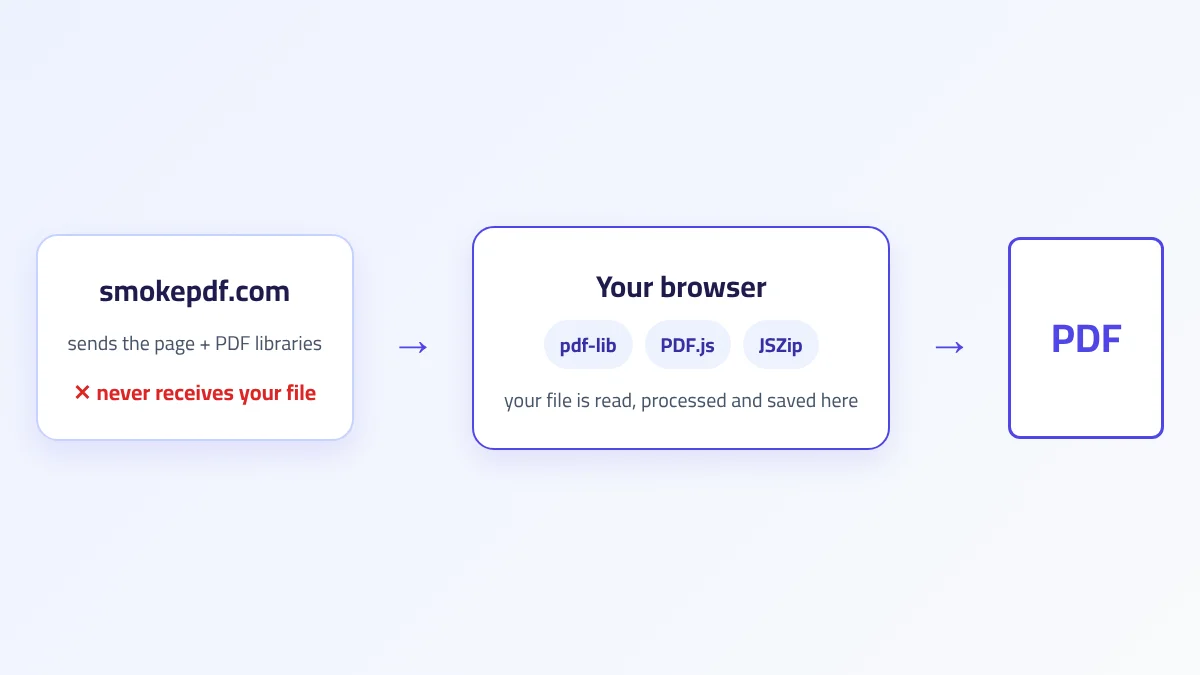
Many online PDF tools run inside a web browser but silently upload your private documents to an external cloud server for processing. In contrast, true client-side browser tools (such as SmokePDF) execute recognition algorithms entirely in-memory on your device using WebAssembly (Wasm) and JavaScript. Your files never leave your device.
Advantages of Client-Side Browser OCR:
- Instant Convenience: Accessible from any device (Windows, macOS, Linux, ChromeOS) without installing software.
- Privacy-First Architecture: Because processing happens locally in the browser sandbox, zero document bytes are transmitted to external servers, providing local-level privacy with web-level convenience.
- Direct Interactive UI: Instant text selection, immediate visual page adjustments, and real-time proofreading right in the browser tab.
Limitations of Browser OCR:
- Browser Sandbox Memory Ceilings: Web browser tabs typically enforce strict memory limits (often 1.5 GB to 2 GB per tab), which can struggle with massive 500-page scanned archives.
- Mobile Processing Constraints: Mobile phone browsers may throttle heavy CPU-intensive background recognition threads to conserve battery.
4. Privacy and Data Handling Considerations
When selecting an OCR deployment, evaluate your organization's legal, regulatory, and confidentiality obligations:
- Document Transit vs. Zero-Upload: Standard HTTPS encryption protects data in transit between your browser and a cloud server, but it does not prevent the remote server from reading, caching, or logging your document contents. Zero-upload client-side processing guarantees that no transmission occurs in the first place.
- Server Retention & Caching: Many cloud providers temporarily store uploaded files in server memory or disk caches for processing, recovery, or AI model training. Always review data retention clauses for confidential files.
- Sensitive Document Categories: Identity cards, passports, tax filings, payroll records, proprietary source code, patient records, and non-disclosure agreements should generally be processed using local or zero-upload client-side tools whenever possible.
5. OCR Accuracy vs. Processing Architecture
It is a common myth that cloud OCR is inherently more accurate than local or browser-based OCR. In reality, recognition accuracy is determined by the underlying algorithmic model, language dictionaries, and preprocessing filters—not by the geographic location of the CPU executing the code.
A well-trained neural network running locally or inside a WebAssembly client sandbox on a clean 300 DPI scan will routinely outperform an unconfigured cloud API processing a skewed, noisy 150 DPI image. The quality of your source document and proper language profile selection remain the primary drivers of accuracy.
6. Performance, Hardware, and Document Size
Document scale dictates the most practical operational choice:
- Small Documents (1 to 10 Pages): Browser-based client-side tools and desktop software excel here, providing instantaneous results without upload wait times.
- Medium Documents (10 to 50 Pages): Both local desktop tools and client-side web tools handle these efficiently on modern desktop hardware.
- Massive Archives (100 to 1,000+ Pages): Dedicated local desktop software or scalable cloud APIs are generally preferred to handle high-memory multi-core batch processing without browser tab timeouts. When managing very large scanned PDFs, you can optimize file sizes using our PDF compression methods guide.
7. When Should You Choose Each Approach?
- Choose Client-Side Browser OCR when: You need fast, private, zero-upload conversion of contracts, receipts, or everyday business documents without software installation (using tools like PDF to Text or PDF to Word).
- Choose Local Desktop OCR when: You are working in air-gapped environments, processing massive multi-hundred-page book scans, or integrating with specialized local flatbed scanner hardware.
- Choose Cloud OCR when: You are building high-volume enterprise automation pipelines processing thousands of multi-lingual vendor invoices across distributed corporate networks where external cloud processing is legally compliant.
Summary Comparison of OCR Deployment Approaches
| Approach | Where Processing Happens | Privacy Consideration | Performance Profile | Best Fit |
|---|---|---|---|---|
| Cloud OCR | Remote third-party server cluster / API. | Files leave device; subject to server data retention policies. | High-speed server compute, but dependent on upload bandwidth. | High-volume enterprise pipelines with approved compliance. |
| Local / Offline OCR | Local desktop computer hardware (CPU/GPU). | 100% private; zero external network transmission. | Dependent on local machine specs; no bandwidth limits. | Air-gapped environments, heavy book scans, and confidential archives. |
| Browser Client-Side OCR | Local browser tab memory via WebAssembly/JS. | 100% private; files never uploaded to any server. | Instant UI response; limited by browser tab memory. | Quick everyday conversions, sensitive contracts, and cross-platform use. |
How to Choose an OCR Processing Method: A 7-Question Decision Framework
When planning an OCR project, evaluate these seven practical questions:
- Is the document confidential or legally sensitive? If yes, prioritize zero-upload client-side browser OCR or local offline desktop software.
- Are files permitted to leave your local network under regulatory compliance? If data residency or NDA restrictions apply, eliminate third-party cloud uploads.
- Do you need to work offline or in an air-gapped facility? If yes, local desktop OCR is mandatory.
- How large is the document? Single-page forms and moderate PDFs run effortlessly in client-side browser tools; massive 500-page books require dedicated desktop or batch pipelines.
- How many total documents must be processed? For thousands of daily documents, evaluate automated batch systems. For individual files, browser tools provide immediate access.
- What hardware is available? High-powered workstations run local OCR rapidly, while lightweight laptops and Chromebooks benefit from browser-based WebAssembly engines.
- What languages and scripts are present? Ensure the selected environment provides robust bilingual modeling (such as Arabic RTL and English Latin support).
Practical Example: Choosing OCR for a Confidential Arabic-English Contract
Consider a corporate legal department handling an executed 30-page commercial joint venture agreement containing sensitive intellectual property clauses, financial payment schedules, and Arabic-English text:
- Privacy Assessment: The contract is covered by a strict non-disclosure agreement (NDA). Transmitting file bytes to unverified third-party cloud APIs would violate confidentiality obligations.
- Architecture Selection: The team selects a privacy-first, client-side browser OCR workflow (such as SmokePDF). The file is processed strictly in-memory on the local workstation without uploading a single byte to external servers.
- Language & Layout Configuration: The dual Arabic-English language model is enabled, ensuring RTL Arabic legal clauses and LTR English financial numbers are parsed correctly.
- Verification & Archiving: Extracted party names, bank account numbers, and indemnity clauses are verified side-by-side against the visual scan, and the final dual-layer Searchable PDF is archived in the firm's private internal document vault.
A Safe OCR Processing Workflow
Follow this 8-step protocol to balance accuracy, performance, and document privacy:
- Identify Document Sensitivity: Determine whether the document contains confidential, personal, or financial data.
- Establish Data Residency Rules: Confirm whether the file is permitted to be transmitted across the internet.
- Select the Processing Architecture: Choose client-side browser OCR for quick zero-upload privacy, local desktop tools for large offline batches, or cloud APIs for compliant enterprise automation.
- Configure Language Dictionaries: Activate all necessary languages (e.g., Arabic + English).
- Execute Preprocessing: Apply deskewing, binarization, and margin zoning.
- Run OCR Processing: Generate the dual-layer Searchable PDF or raw text stream.
- Perform Targeted Verification: Manually proofread high-risk numbers, dates, and legal names.
- Securely Save & Distribute: Export the validated document to your encrypted local or internal repository.
Practical Tip
Do not choose an OCR architecture based only on processing speed. First determine where the document is legally and ethically permitted to be processed, then evaluate accuracy, performance, and convenience.
OCR Accuracy in Real-World Documents: Common Errors, Quality Control, and When to Review Manually
A digitized document that looks visually flawless at a glance can still contain severe, hidden transcription mistakes. Optical Character Recognition does not "understand" text the way a human does; it calculates mathematical probabilities based on visual pixel patterns. When a letter or number is slightly degraded, the engine outputs the character with the highest mathematical confidence—even if that character creates an incorrect financial figure, alters a legal date, or changes the legal meaning of a contractual clause.
Understanding where OCR algorithms most commonly fail and establishing systematic quality-control protocols is the only way to ensure real-world accuracy across mission-critical business documents.
1. Why OCR Can Look Correct and Still Be Wrong
The most dangerous OCR errors are not unreadable gibberish; they are plausible-looking character substitutions. Because language models attempt to auto-correct unrecognized glyphs into valid dictionary words, an engine can quietly replace an intended word with a completely different valid word without flagging an error.
Classic visual substitution vulnerabilities include:
- Digit & Letter Confusion: The numeral
0misread as capital letterO; numeral1confused with lowercasel, uppercaseI, or vertical bar|; numeral5confused withS; numeral8confused withB. - Punctuation & Delimiters: A decimal point (
.) in a monetary amount misread as a comma (,) or completely dropped (turning$100.00into$10000). - Hyphens & Dashes: Minus signs, em-dashes, and hyphens merging into text or disappearing.
- Confidence Score Blind Spots: Even when an OCR engine assigns a "98% confidence score" to a recognized page, that remaining 2% uncertainty can easily be concentrated entirely on a 10-digit bank account number.
2. Common OCR Errors in Arabic Documents
Due to its rich typographic complexity, Arabic script presents unique recognition failure modes that do not occur in Latin alphabets:
- Dot Misplacement & Omission (I'jam): Many Arabic letters share identical base shapes (rasm) and are distinguished only by dots (e.g., ب, ت, ث, ن, ي or ج, ح, خ or د, ذ or ر, ز or س, ش). Low scan resolution or faint ink can cause dots to disappear or merge, turning one word into an entirely different concept.
- Cursive Ligature Splitting: The engine may fail to segment touching characters in complex Naskh or Ruq'ah fonts, resulting in fragmented syllables.
- Diacritics Read as Dirt / Noise: Optional vowel diacritics (tashkeel) are frequently misclassified as stray scanner dust or erroneously transcribed as quotation marks and commas.
- Bidirectional (BiDi) Inversion: When an Arabic sentence contains an embedded English product code, price, or date, naive OCR systems may invert the reading sequence of the numbers or place the Latin term on the wrong side of the paragraph.
- Eastern vs. Western Numerals: Confusing Eastern Arabic numerals (such as
٢for 2 or٥for 5) with Western digits (reading٥as zero0or letterO).
Practical Arabic Legal Scenario: In a liability waiver, misreading a single character can turn the Arabic phrase الشركة غير مسؤولة (The company is NOT responsible) into الشركة مسؤولة (The company IS responsible) if the negative particle is corrupted or dropped by noise filtering, completely reversing legal liability.
3. Common OCR Errors in Tables, Forms, and Structured Documents
Extracting text from structured grids requires both character recognition and accurate spatial zoning:
- Merged Columns in Borderless Tables: When columns lack visible vertical gridlines, the engine often reads horizontally across the entire page, merging item descriptions with unit prices and tax totals.
- Row Synchronization Failures: When a product description spans two lines while the price column spans only one line, subsequent rows become vertically shifted, assigning the wrong price to every following item.
- Headers & Footers Injected into Data: Repeating page headers, footers, or watermarks are frequently transcribed as random data rows in the middle of a continuous financial ledger.
- Form Checkbox Hallucinations: Unmarked checkbox squares are sometimes recognized as uppercase
O,D, or square bracket symbols[], while checked boxes are read asXor stray noise.
4. Numbers, Dates, Names, and Critical Data Fields
Unlike body paragraphs where human readers can infer misspelled words from surrounding context, critical data fields have zero linguistic redundancy. An invoice number, date, or percentage cannot be validated by an English dictionary; every character must be verified exactly.
| Critical Field | Typical OCR Risk | Recommended Verification Method |
|---|---|---|
| Financial Totals | Dropped decimal points (e.g., $5,000.00 read as $500000). | Cross-calculate line items (Qty × Price) to verify mathematical sum. |
| Bank Account / IBAN | Substitution between 0/O, 1/I/l, and 8/B. | Character-by-character visual comparison against visual scan. |
| Invoice & Contract IDs | Missing dashes or mixed alphanumeric letter swaps. | Match against original ERP or billing tracking records. |
| Execution & Due Dates | Reversal of Day/Month format (e.g., 03/05 vs 05/03) or dropped slashes. | Confirm date syntax against standard corporate calendar format. |
| Percentages & Taxes | Percent symbol (%) misread as 96, 0/0, or dropped. | Verify tax rate against statutory standard VAT percentages. |
| Proper Names & Parties | Misplaced Arabic dots changing family or corporate names. | Cross-check legal entity names against official registry documents. |
| Addresses & Postal Codes | Numeric transposition in 5-digit postal zip codes. | Validate postal code format against city and province names. |
| Product / Serial Numbers | Merged characters in dense micro-printed serial plates. | Scan barcode directly or double-check against product inventory lists. |
5. Legal, Financial, Government, and Official Documents
In high-stakes documentation, OCR must never be treated as an unquestioned, authoritative truth. It is a powerful transcription assistant that accelerates indexing and drafting, but legal accountability always remains with the human operator.
- Casual Research vs. Official Filings: A 95% accurate OCR scan is perfectly adequate for locating a keyword in a personal research archive. However, that same 5% error rate is completely unacceptable on a court filing, government identity renewal, or audited balance sheet.
- Page-by-Page vs. Field-by-Field Auditing: For legal contracts, conduct a rigorous page-by-page visual comparison. For structured forms and standardized receipts, a targeted field-by-field audit of primary numerical inputs offers maximum efficiency.
6. Human Review vs. Automated OCR: The Hybrid Workflow
The most effective digitization pipelines combine the relentless speed of automated OCR algorithms with the contextual discernment of human proofreaders:
- What Automation Does Best: Instantly parsing millions of characters, converting large multi-page scans into dual-layer Searchable PDFs, enabling global keyword search, and indexing text databases.
- What Humans Do Best: Understanding nuanced legal terminology, recognizing proper names of people and obscure entities, interpreting complex multi-row financial tables, and validating semantic correctness.
The 3-Tier Hybrid Workflow: Automated OCR → Algorithmic Validation (Spellcheck & Sum Checks) → Targeted Human Review of Flagged Fields.
7. How to Measure OCR Quality
Evaluating OCR output objectively requires understanding industry-standard quality metrics:
- Character Error Rate (CER): The percentage of individual character substitutions, deletions, and insertions across a document. A CER of 1% means 99 out of 100 characters are correct.
- Word Error Rate (WER): The percentage of words containing one or more erroneous characters. Because a single wrong letter invalidates an entire word, WER is always higher than CER.
- Field-Level Accuracy: The percentage of critical data blocks (e.g., total amount, date, vendor name) that are 100% error-free.
- The Global Metric Fallacy: Never rely exclusively on a single overall document score. A 50-page financial report can have a 99.8% CER but still contain a catastrophic $100,000 error on page 42.
8. Quality-Control Workflow for Real Documents
Follow this 10-step protocol to systematically eliminate OCR errors from operational records:
- Assess Risk Level: Determine whether the file is an informal note or a binding legal/financial record.
- Inspect Physical Source: Ensure the scan is crisp, flat, and legible.
- Verify Language Settings: Activate appropriate multilingual dictionaries (Arabic + English).
- Apply Preprocessing: Deskew pages, normalize contrast, and remove background noise.
- Run OCR Processing: Generate the searchable text layer or raw text stream.
- Audit Reading Order: Check that multi-column articles and sidebars flow naturally.
- Proofread Critical Data: Rigorously verify all totals, dates, names, and account numbers.
- Compare Suspicious Zones: Visually compare low-confidence or blurry passages against the source scan.
- Correct Text Layer: Apply manual corrections directly to the digitized text stream.
- Securely Archive & Distribute: Export the validated dual-layer Searchable PDF or editable format via PDF to Word or PDF to Text (as explored in our PDF vs DOCX guide).
OCR Error Types and Recommended Quality Checks
| Error Type | Example | Risk Level | Recommended Check |
|---|---|---|---|
| Character Substitution | Reading CO01 as C0O1 or l as 1. |
Medium | Automated spellcheck and dictionary validation. |
| Arabic Dot / Letter Confusion | Reading تأكيد as تأكيد vs ثأكيد or بدر as ندر. |
High | Contextual human review of Arabic proper nouns and party names. |
| Numeric Substitution | Reading $8,500 as $3,500 or $8,500.00 as $850000. |
Critical | Automated line-item sum reconciliation and visual comparison. |
| Date Transposition | Reading 01/06/2026 as 01/08/2026. |
Critical | Cross-check against contract term dates and billing cycles. |
| Table Structure Error | Columns merging horizontally in borderless tables. | High | Inspect grid layout zoning and column count before text export. |
| Reading Order Scrambling | Reading across multi-column magazine articles horizontally. | Medium | Review paragraph flow and column boundary markers. |
| Missing Text / Dropped Lines | Dropping faint italic footnotes or margin disclaimers. | High | Compare total line count and inspect margin boundaries. |
| Mixed-Language BiDi Reversal | Inverting English product codes embedded inside Arabic text. | Medium | Check copy-paste directionality in text editor. |
| Punctuation & Sign Error | Negative sign - dropped on financial balance sheet. |
Critical | Confirm accounting parentheses and negative credit figures. |
| Critical Field Corruption | Single digit error in an official tax identification number. | Critical | Direct visual side-by-side audit against original scan. |
Practical Example: Reviewing a Bilingual Arabic-English Invoice
Consider an accounting specialist processing a 2-page bilingual commercial invoice:
- Automated Extraction: The document is scanned at 300 DPI, and OCR extracts the bilingual text stream.
- Structural Table Validation: The software checks that the 6-column line-item table aligns properly (Item #, Arabic Name, English Description, Qty, Unit Price, Total).
- BiDi Ordering Review: The reviewer confirms that English model codes embedded in Arabic rows read in the correct sequence.
- Mathematical Reconciliation: An automated script calculates
Quantity × Unit Pricefor all 8 line items and flags a $20 discrepancy on item #4 where$18.50was transcribed as$13.50. - Tax Rate Audit: The 15% VAT rate and invoice total are visually verified against the original scan.
- Human Sign-Off: The accountant approves the validated searchable invoice and archives it in the enterprise ledger.
Practical Example: Reviewing a Scanned Arabic-English Contract
When legal counsel digitizes a 20-page signed bilingual distribution agreement:
- Page-by-Page Visual Audit: Counsel examines each page side-by-side with the original scan rather than relying solely on global search.
- Verification of Legal Terms: Defined terms, liability caps, termination notice periods (e.g., 30 days vs 90 days), and arbitration clauses are verified character-by-character.
- Signature & Notary Seals: Handwritten signatures and stamped notary endorsements are verified visually on the image layer.
- Dual-Layer Preservation: The firm archives the final dual-layer Searchable PDF, ensuring the unalterable original image remains visible on top while the verified text layer enables instant keyword search.
When Should You Review OCR Manually?
| Situation / Document Type | Manual Review Level | Why Review Is Required |
|---|---|---|
| Casual Personal Notes | Low | Minor typos do not impair personal understanding. |
| Clean Printed Book / Manual | Low to Moderate | Standard vocabulary allows contextual reading; spot-check headers. |
| Internal Reference Document | Moderate | Review headings, summary bullet points, and key metrics. |
| Search-Only Archive | Moderate | Verify high-value metadata tags, titles, and dates. |
| Commercial Financial Invoice | High | A single wrong digit or dropped decimal causes accounting errors. |
| Government / Intake Form | High | Verify field-to-value mappings and checkbox states. |
| Binding Legal Contract | Very High | Full page-by-page audit of obligations, sums, dates, and party names. |
| Government Identity / Passport | Very High | Exact character matching required for legal compliance and security. |
| Technical Specification / Blueprints | High | Verify engineering dimensions, tolerances, and part serials. |
| Audited Corporate Annual Report | Very High | Strict fiduciary compliance requires 100% numeric reconciliation. |
Final OCR Quality-Control Checklist
Use this comprehensive 16-point checklist to ensure maximum fidelity across your digitized documents:
- Source Quality: Use the primary digital file or the cleanest original paper print.
- Optical Resolution: Scan at 300 DPI for standard pages (400+ DPI for micro-print).
- Page Orientation: Ensure all pages are rotated upright (0°).
- Geometric Deskewing: Straighten tilted pages to under 0.5° angular deviation.
- Perspective Correction: Eliminate smartphone camera keystoning.
- Contrast Normalization: Enhance contrast without eroding fine character strokes.
- Noise Despeckling: Eliminate background dust without deleting punctuation or dots.
- Language Configuration: Activate all required language dictionaries (Arabic + Latin).
- Arabic Script Verification: Confirm dots (i'jam), ligatures, and diacritics are parsed correctly.
- BiDi Sequence Verification: Check that embedded English words inside Arabic sentences flow properly.
- Layout Zoning: Verify that multi-column texts, headers, and sidebars are separated.
- Table Alignment: Check that numbers remain in their designated row/column cells.
- Numeric & Date Audit: Proofread all totals, decimals, account numbers, and deadlines.
- Proper Name Verification: Check legal entity names and personal identities.
- Visual Side-by-Side Comparison: Audit high-risk clauses directly against the visual scan.
- Dual-Layer Searchable Export: Save the verified document in a secure, searchable format.
Practical Tip
Searchable does not automatically mean accurate. The higher the real-world consequence of an error, the more indispensable targeted human verification becomes.
Frequently Asked Questions About OCR
Explore practical answers to common questions about Optical Character Recognition, document scanning, accuracy, and multilingual workflows:
1. What is OCR and what is it used for?
OCR (Optical Character Recognition) is an automated technology that converts visual letter and number shapes from images, scanned documents, and paper photographs into machine-encoded, searchable, and editable digital text. It is used to digitize paper archives, automate invoice processing, create searchable legal vaults, and make printed materials accessible to assistive technologies.
2. Can OCR convert a scanned PDF into searchable text?
Yes. OCR generates a dual-layer Searchable PDF by placing an invisible, indexed layer of recognized text directly beneath the original scanned page image. This preserves 100% of the visual page appearance while allowing you to highlight sentences, search for terms with Ctrl + F, and copy text into other applications.
3. Does OCR work with Arabic documents?
Yes, modern neural network OCR engines support Arabic script when configured with Arabic language models. Because Arabic features cursive connections, contextual glyph forms, and essential distinction dots (i'jam), scanning at 300+ DPI and ensuring proper contrast is vital for preventing character confusion.
4. What DPI is best for OCR?
300 DPI is the industry-standard benchmark for standard printed office documents, contracts, and invoices printed in 8pt to 12pt fonts. For fine print below 6pt, complex Arabic calligraphy, or degraded historical archives, scanning at 400 to 600 DPI provides superior character recognition.
5. Can OCR recognize handwriting?
Standard OCR is optimized for machine-printed fonts. Transcribing cursive handwriting or pen-filled intake forms requires Intelligent Character Recognition (ICR). While ICR has improved dramatically with deep learning, handwriting accuracy remains significantly lower than printed text and requires careful manual proofreading.
6. Why does OCR make mistakes?
OCR operates probabilistically rather than semantically. When physical paper suffers from low contrast, optical blur, page tilt, coffee stains, or unusual decorative fonts, the engine outputs the character with the highest mathematical score, occasionally substituting similar-looking glyphs (such as 0 vs O or 1 vs l).
7. Can OCR preserve the original PDF layout?
Yes. In a dual-layer Searchable PDF, the visual layout is completely untouched because the original scanned bitmap remains in the visual foreground. Advanced OCR layout analysis (zoning) also detects columns, headers, and callouts to preserve logical reading flow when copying text.
8. How accurate is OCR for tables and invoices?
OCR handles structured tables with clear borders very accurately. However, borderless tables and multi-line item descriptions can cause column merging or row misalignment. Always audit financial numbers, currency signs, and decimal points manually.
9. Should OCR output be manually reviewed?
Yes, for all high-consequence documents. While informal research archives tolerate small character substitutions, legally binding contracts, corporate tax filings, medical files, and government records should undergo side-by-side human verification of names, dates, and financial sums.
10. Can OCR recognize Arabic and English in the same document?
Yes. Modern OCR systems allow activating multi-language profiles (Arabic + English). The engine uses Bidirectional (BiDi) parsing algorithms to correctly manage Right-to-Left Arabic sentences containing Left-to-Right English technical terms, email addresses, and product codes.
11. What is the difference between OCR and PDF-to-Text?
PDF-to-Text extracts digital characters that already exist natively inside a vector PDF file. OCR is required when a PDF contains only flat picture scans with no embedded digital text, performing visual pattern analysis to generate new digital characters from scratch.
12. Can OCR make a scanned PDF editable?
Yes. Once OCR transcribes the visual image into digital text, you can export the recognized contents into editable formats like Microsoft Word DOCX via PDF to Word or extract clean plain text using PDF to Text (as detailed in our PDF vs DOCX guide).
13. Is OCR safe for confidential documents?
Safety depends on processing architecture. Cloud OCR uploads your private files to remote third-party servers. In contrast, zero-upload client-side browser tools (like SmokePDF) and local desktop software process files entirely in-memory on your physical machine, guaranteeing complete document privacy.
14. How can OCR accuracy be improved?
Improve accuracy by scanning original clean documents at 300 DPI, straightening tilted pages (deskewing), normalizing contrast, removing background dust, activating all relevant language dictionaries, and verifying column zoning before recognition.
15. What should I check after OCR processing?
After processing, check critical financial totals, decimal points, dates, party names, account numbers, table row/column alignment, and bidirectional reading flow across mixed Arabic-English sentences.
Final Takeaway: How to Use OCR Reliably
Optical Character Recognition has revolutionized how modern organizations manage paper archives, converting static physical documents into dynamic, searchable, and easily accessible digital knowledge. However, achieving dependable real-world results requires understanding both its immense capabilities and its mathematical boundaries:
- Source Quality Is Foundational: Feeding clean, upright, 300 DPI scans into the engine eliminates the vast majority of character substitution errors before processing even begins.
- Language & Script Configuration Matters: For Arabic and multilingual documents, always activate matching language models to support cursive ligatures, i'jam dots, and bidirectional (BiDi) sentence structures.
- Target High-Risk Fields: Never rely on global document accuracy scores alone; always proofread financial sums, legal dates, party identities, and account numbers manually.
- Adopt the Safe 6-Stage Lifecycle:
Whether you need to extract clean plain text using PDF to Text, convert scanned files into editable documents with PDF to Word, or optimize massive scanned archives using our PDF compression guide, treating OCR as an intelligent transcription assistant ensures maximum speed with uncompromising accuracy.
Practical Tip
Searchable does not automatically mean accurate. Use OCR to accelerate document processing, then match the level of human verification to the consequences of an error.