Home Blog PDF Basics PDF vs DOCX

PDF vs DOCX: What's the Difference and Which Format Should You Use?

Discover the differences between PDF and DOCX formats, compare editing, formatting, sharing, printing, and learn which format is best for your documents.

PDF vs DOCX: What's the Difference and Which Format Should You Use?

Introduction

PDF and DOCX are two of the most widely used document formats, but they are designed for different purposes.

A PDF is primarily designed to preserve the appearance and layout of a document. A DOCX file, on the other hand, is designed primarily for creating and editing documents.

This difference explains why the same document can behave very differently depending on which format you choose.

A report might be easier to write and edit as a DOCX file but better to distribute as a PDF.

A contract might be drafted in DOCX and then converted to PDF before being sent to another person.

A form might need to remain editable during preparation but become a fixed PDF when the final version is approved.

Understanding these differences can help you choose the right format instead of converting files unnecessarily.

The Short Answer

If you need to create, edit, and collaborate on a document, DOCX is usually the more suitable format.

If you need to share, print, archive, or distribute a document while preserving its appearance, PDF is usually the better choice.

However, this is only a general rule.

The right format depends on what you need to do with the document.

Requirement Usually Better Choice
Frequent editingDOCX
Collaborative writingDOCX
Preserving page layoutPDF
PrintingPDF
Final document distributionPDF
Drafting a reportDOCX
Sending a finalized contractPDF
Long-term visual consistencyPDF
Word-processing featuresDOCX
Fixed presentationPDF

What Is a PDF?

PDF stands for Portable Document Format.

It was designed to make documents easier to share while preserving their appearance across different computers, operating systems, and applications.

A PDF can contain:

  • Text
  • Images
  • Fonts
  • Vector graphics
  • Tables
  • Links
  • Forms
  • Annotations
  • Metadata
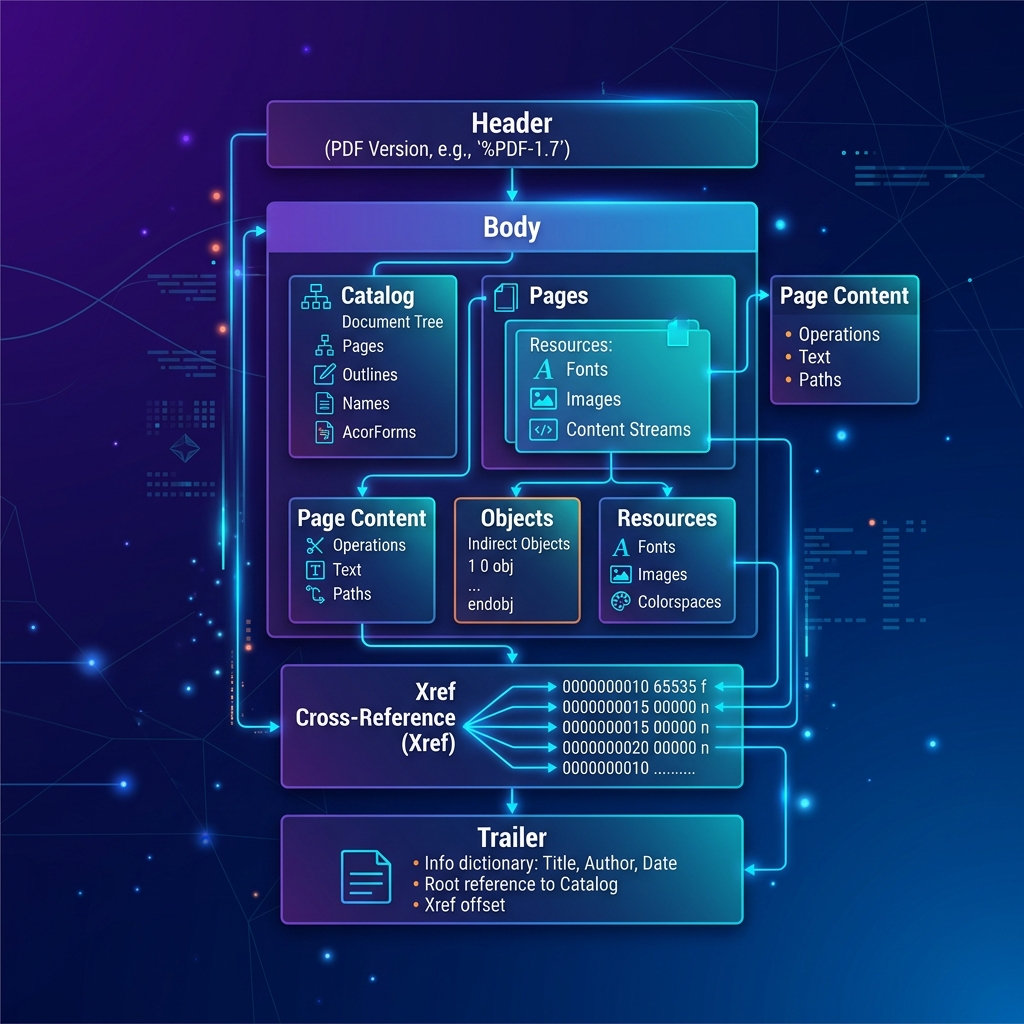
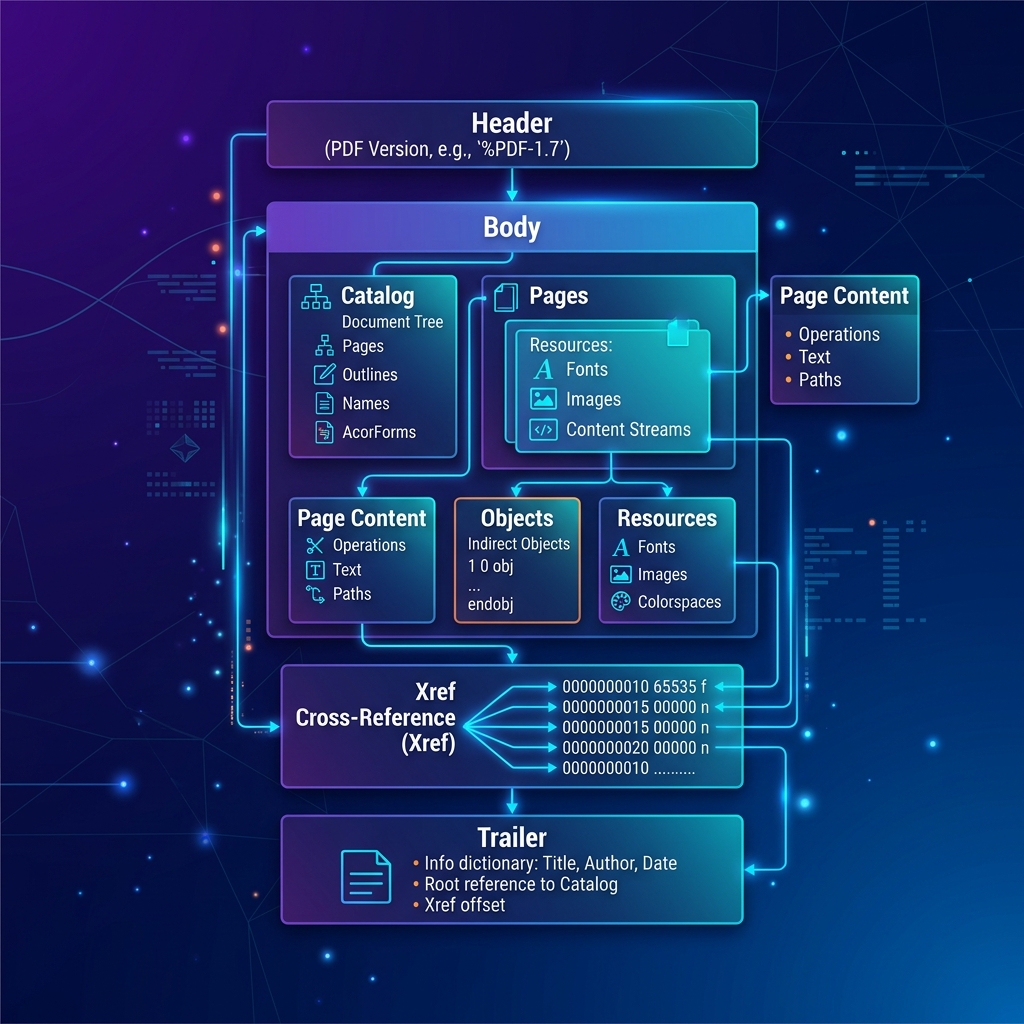
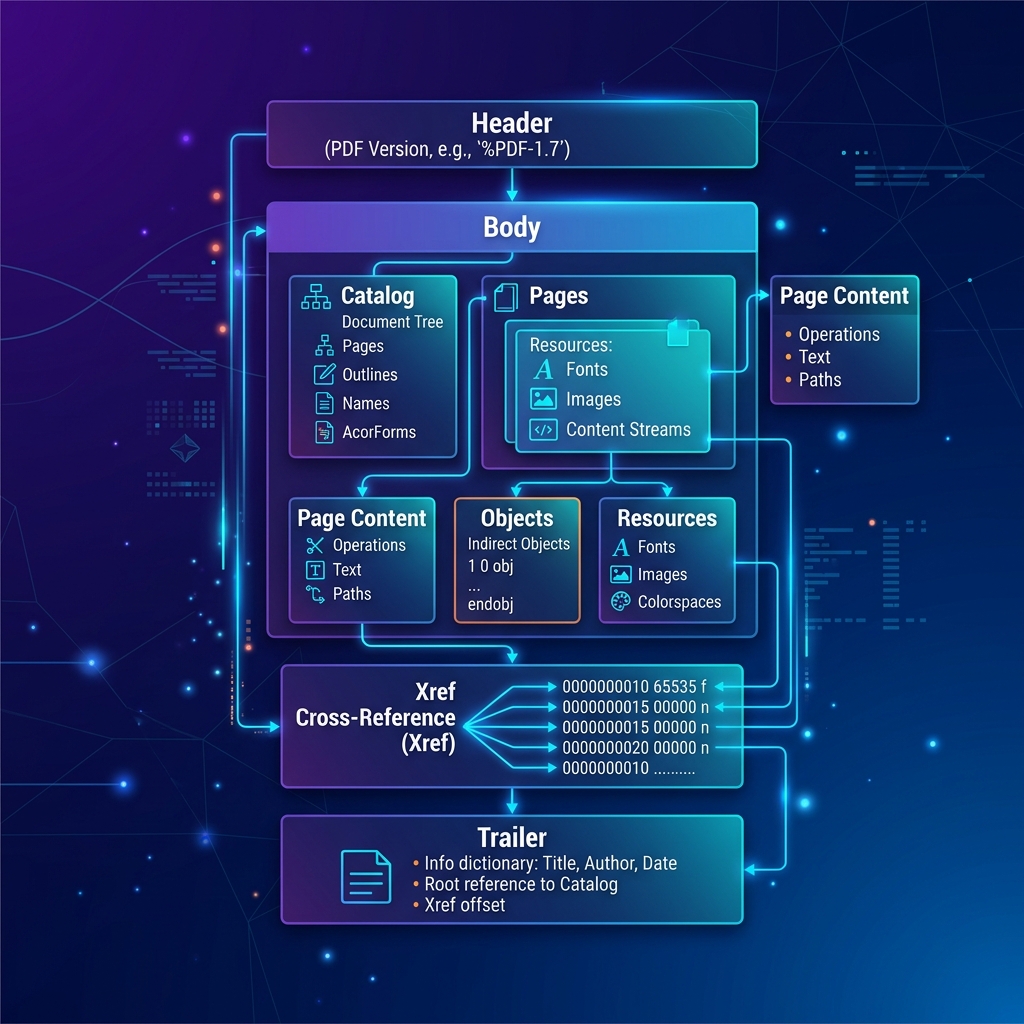
  • Other embedded resources

One of the defining characteristics of PDF is that the document is generally intended to preserve a fixed page layout.

If you create a PDF on one computer and open it on another device, the pages are generally expected to look substantially the same.

This makes PDF particularly useful for documents where visual consistency matters.

Examples include:

  • Contracts
  • Invoices
  • Reports
  • Brochures
  • Manuals
  • Applications
  • Certificates
  • Official documents

What Is a DOCX File?

DOCX is the modern Microsoft Word document format based on the Office Open XML standard.

Unlike PDF, DOCX is primarily designed as an editable word-processing format.

A DOCX document can contain:

  • Text
  • Headings
  • Images
  • Tables
  • Lists
  • Styles
  • Headers and footers
  • Comments
  • Track changes
  • References
  • Other document elements

The format is designed to allow users to continue modifying the document.

This makes DOCX particularly useful during the drafting and editing stages of a document's lifecycle.

For example, if several people need to review a report, add comments, change paragraphs, or update tables, DOCX may be more convenient than PDF.

The Fundamental Difference

The simplest way to understand the difference is to think about the purpose of each format.

DOCX is primarily an editing format.

PDF is primarily a distribution and presentation format.

This does not mean that PDFs cannot be edited or that DOCX files cannot be shared.

Modern PDF applications can provide extensive editing capabilities, while DOCX files can easily be distributed.

The distinction is about what each format was fundamentally designed to accomplish.

A DOCX document is generally expected to remain editable.

A PDF is generally expected to preserve a final visual representation.

Why the Difference Matters

Choosing between PDF and DOCX can affect much more than the file extension.

It can affect:

  • Whether the recipient can easily edit the document
  • Whether the page layout remains stable
  • How fonts and spacing are displayed
  • How the document prints
  • How collaboration works
  • How comments and revisions are handled
  • How the document is archived
  • How easily the file can be converted into another format

This is why choosing the right format should be based on the document's purpose rather than simply on personal preference.

A Simple Document Workflow

In many real-world situations, you do not have to choose only one format.

A document can move through several formats during its lifecycle.

For example:

Create → Edit → Review → Finalize → Distribute

DOCX may be used during the first stages:

Create → Edit → Review

Then the finalized document can be converted to PDF:

Finalize → PDF → Distribute

This workflow combines the strengths of both formats.

The editable source remains available for future changes, while the PDF provides a stable version for sharing.

What You Will Learn in This Guide

In the rest of this article, we will compare PDF and DOCX across the factors that matter most in everyday document workflows.

You will learn:

  • Which format is easier to edit
  • Which format preserves formatting better
  • How PDF and DOCX differ when documents are shared
  • Which format is better for printing
  • How collaboration works in each format
  • How security features differ
  • What happens when documents are converted
  • Which format is better for different professional situations
  • When you should keep both a DOCX source and a PDF final version

By the end, you should be able to choose the appropriate format based on what you actually need to do with the document.


Editing and Document Creation: PDF vs DOCX

One of the biggest practical differences between PDF and DOCX becomes obvious when you need to create or edit a document.

DOCX is designed around the idea that a document can continue to change.

PDF is designed primarily around preserving a finished representation of a document.

This difference affects everything from changing a single sentence to restructuring an entire report.

Why DOCX Is Usually Better for Editing

A DOCX document is built for word processing.

You can normally:

  • Add or remove paragraphs
  • Change wording
  • Rearrange sections
  • Modify headings
  • Change fonts and styles
  • Insert or replace images
  • Edit tables
  • Add comments
  • Track revisions
  • Accept or reject changes

These features make DOCX particularly useful during the creation and review stages.

For example, imagine that a company is preparing a 30-page annual report.

The content may go through several rounds of revision:

Draft → Review → Corrections → Management Review → Final Revision

A DOCX file is well suited to this process because the document remains editable throughout the workflow.

Why PDF Is Less Convenient for Major Editing

PDF files can be edited with dedicated PDF software, but editing a PDF is not always equivalent to editing the original document.

A PDF represents pages rather than simply representing a stream of editable paragraphs.

When you edit a PDF, the software may need to reconstruct or manipulate existing page elements.

This can make some tasks more difficult, especially when you need to make substantial changes.

For example, changing one word is very different from:

  • Rewriting several paragraphs
  • Changing the structure of a report
  • Moving large sections
  • Redesigning a table
  • Changing multiple styles throughout a document

For major revisions, working from the original DOCX file is often more efficient.

Editing a PDF vs Editing the Original DOCX

Consider a simple example.

Suppose you created a five-page report in Word and exported it as a PDF.

Later, you discover that the report contains an incorrect paragraph.

If you still have the original DOCX file, you can usually:

  1. Open the DOCX.
  2. Edit the paragraph.
  3. Save the document.
  4. Export a new PDF.

This preserves the original editing workflow.

If you only have the PDF, you may need to use a PDF editor or convert the PDF back into an editable format.

That conversion can introduce formatting differences, especially in complex documents.

Why Converting PDF Back to DOCX Can Be Imperfect

PDF and DOCX organize document information differently.

A DOCX file stores document structure such as paragraphs, styles, tables, and other word-processing elements.

A PDF focuses more heavily on the visual placement of objects on pages.

When software converts a PDF into DOCX, it has to infer the original document structure from the PDF.

This process may work well for simple documents but become more difficult when the PDF contains:

  • Complex tables
  • Multiple columns
  • Floating images
  • Unusual fonts
  • Text boxes
  • Headers and footers
  • Footnotes
  • Forms
  • Mixed languages
  • Right-to-left text

The resulting DOCX may require manual cleanup.

Collaboration and Revision Tracking

DOCX is particularly useful when several people need to work on the same document.

Depending on the software being used, collaborators can:

  • Add comments
  • Suggest changes
  • Track revisions
  • Compare versions
  • Accept or reject edits

This makes DOCX practical for documents that are still being developed.

PDF can also support comments, annotations, and review workflows, but these features serve a different purpose.

A PDF review workflow is often more appropriate when the underlying content is already close to final and reviewers need to annotate or approve the document rather than continuously rewrite it.

When PDF Editing Makes Sense

PDF editing is still useful in many situations.

For example, you may need to:

  • Correct a small piece of text
  • Add or remove pages
  • Rearrange pages
  • Add annotations
  • Fill a form
  • Add a signature
  • Add a watermark
  • Crop pages
  • Protect the document

These are different from completely rewriting the document.

The distinction is important:

PDF is often convenient for modifying a finished document.

DOCX is usually more convenient for developing the document itself.

A Practical Rule

Use the format that matches the stage of your document.

During creation:

DOCX → Draft → Edit → Review

After approval:

PDF → Finalize → Share → Print → Archive

This simple separation can prevent many unnecessary conversions.

Keep the Source File

If a document may need substantial changes in the future, keep the original DOCX file even after creating the final PDF.

For example, a business may keep:

Annual-Report-2026.docx

and distribute:

Annual-Report-2026.pdf

The DOCX becomes the editable source.

The PDF becomes the stable distribution copy.

This workflow provides both flexibility and consistency.

When You Need Both Formats

In many professional workflows, PDF and DOCX are not competing formats.

They are complementary.

You may use DOCX for:

  • Writing
  • Editing
  • Collaboration
  • Revision tracking
  • Content development

Then use PDF for:

  • Final distribution
  • Printing
  • Client delivery
  • Official submissions
  • Archiving
  • Consistent presentation

The important question is not "Which format should I always use?"

It is:

Which format is appropriate for this stage of the document's lifecycle?

Practical Tip

If you are preparing an important document that may require future revisions, keep the original DOCX even after exporting the final PDF. The PDF is your distribution copy; the DOCX can remain your editable source.

If you need to convert a completed document between formats, SmokePDF provides dedicated Word to PDF and PDF to Word tools.


Formatting and Layout: PDF vs DOCX

Another major difference between PDF and DOCX is how each format handles document layout.

When a document contains carefully positioned text, images, tables, headers, footers, or page breaks, the format you choose can affect how consistently that layout is displayed.

This becomes particularly important when a document is opened on different computers, operating systems, applications, or screen sizes.

Why PDF Usually Preserves Layout Better

PDF is designed to preserve the visual representation of a document.

When a PDF is created correctly, elements such as:

  • Text position
  • Page breaks
  • Margins
  • Images
  • Tables
  • Headers
  • Footers
  • Fonts
  • Page dimensions

are generally preserved as part of the final page layout.

This is one of the main reasons PDF is widely used for final documents.

A report designed to contain exactly ten pages can generally remain a ten-page document when opened by another person.

The same level of visual consistency is not always guaranteed when working with an editable DOCX document.

Why DOCX Layout Can Change

DOCX is designed to remain editable.

Its layout is therefore influenced by the document's content, styles, fonts, application, and available rendering environment.

A document may look slightly different when opened in another word-processing application or on another computer.

Possible changes can include:

  • Different line wrapping
  • Changed page breaks
  • Different spacing
  • Font substitution
  • Modified table widths
  • Image repositioning
  • Header or footer changes

These differences do not necessarily mean that the DOCX file is corrupted.

They can result from differences in fonts, software versions, document settings, or rendering engines.

Fonts Can Affect Layout

Fonts are particularly important.

Imagine a DOCX document that uses a font installed on the author's computer but not on the recipient's computer.

If the recipient's system cannot access the original font, the application may substitute another font.

A different font can have different:

  • Character widths
  • Line heights
  • Spacing
  • Weight
  • Glyph shapes

As a result, text may wrap differently.

A paragraph that originally occupied three lines could become four lines.

That small change can move the content below it and potentially change several page breaks.

In a long document, one font substitution can therefore affect the layout of multiple pages.

PDF and Font Embedding

PDF can reduce this problem by storing or referencing the fonts required to display the document.

Depending on how the PDF was created, fonts may be embedded fully or as subsets containing only the characters needed by the document.

This helps the PDF maintain more consistent visual rendering across devices.

However, PDF files are not automatically guaranteed to contain every font or resource required in every situation.

The quality of the PDF creation process still matters.

Tables and Complex Documents

Tables can also behave differently.

A DOCX table remains part of an editable document structure.

This makes it possible to:

  • Add rows
  • Delete columns
  • Change cell content
  • Adjust widths
  • Modify borders
  • Change formatting

This flexibility is useful during document creation.

However, changes to table content can also affect the surrounding layout.

PDF tables are generally fixed as part of the page representation.

This makes them more stable for viewing and printing, but less convenient to restructure.

For a finalized financial report, a stable PDF table may be preferable.

For a report that is still being updated every week, a DOCX table may be more practical.

Images and Page Positioning

Images provide another important difference.

In DOCX, an image can be configured in different ways relative to surrounding text.

For example, it can be:

  • Inline with text
  • Wrapped around text
  • Positioned relative to a paragraph
  • Positioned relative to a page
  • Anchored to another document element

These options provide flexibility, but they also create more opportunities for layout changes when the document is edited.

In a PDF, the final position of the image is generally part of the page layout.

This makes the PDF more predictable for final distribution.

Headers, Footers, and Page Breaks

Professional documents often depend on carefully controlled page structure.

Examples include:

  • Company reports
  • Academic papers
  • Legal documents
  • Manuals
  • Proposals
  • Invoices

DOCX provides tools for controlling headers, footers, sections, and page breaks.

However, because the document remains editable, later changes can cause content to move between pages.

PDF freezes the final page representation.

Once the final PDF has been generated, its pages do not normally reflow simply because another person opens the file.

This is one of the strongest advantages of PDF for finalized documents.

Right-to-Left and Multilingual Documents

Multilingual documents can introduce additional layout considerations.

Documents containing Arabic, Hebrew, or mixed right-to-left and left-to-right content may require correct:

  • Text direction
  • Font support
  • Character shaping
  • Bidirectional ordering
  • Paragraph alignment

DOCX applications can provide extensive support for these requirements, but the final appearance may still depend on the software and fonts used to open the document.

PDF can preserve the final rendered appearance more consistently once the document has been correctly generated.

For multilingual business documents, it is therefore important to verify both the editable source and the final PDF.

Mobile Devices and Different Applications

Another practical consideration is where the document will be opened.

A DOCX file may be viewed using different applications across:

  • Windows
  • macOS
  • Android
  • iOS
  • Web browsers
  • Office suites
  • Third-party document editors

Different applications may interpret some document features differently.

PDF readers are generally more focused on displaying the final page representation.

This makes PDF particularly convenient when the recipient should see a specific final layout without needing the same editing environment used by the author.

Which Format Should You Use for Layout-Sensitive Documents?

A useful rule is:

Choose DOCX when the layout still needs to change.

Choose PDF when the layout needs to remain stable.

For example:

Situation Recommended Format
Document still being writtenDOCX
Frequent layout changesDOCX
Collaborative editingDOCX
Final client presentationPDF
Fixed-page reportPDF
PrintingPDF
Official submissionPDF
Document requiring future structural editsDOCX

This is not an absolute rule.

A DOCX file can be used for final delivery, and a PDF can be edited.

The important distinction is whether editability or visual stability is the primary requirement.

A Practical Example

Consider a 50-page company report.

During preparation, the team may need to:

  • Add new sections
  • Update financial figures
  • Replace charts
  • Change tables
  • Correct text
  • Add comments
  • Review multiple revisions

DOCX is usually more appropriate during this stage.

Once the report has been approved, the company may export a final PDF.

The PDF can then be:

  • Sent to clients
  • Uploaded to a website
  • Printed
  • Submitted officially
  • Archived

The editable DOCX remains the source document.

The PDF becomes the stable final representation.

Practical Tip

If the exact appearance of a document matters to the recipient, review the final PDF on at least one device other than the computer used to create it. This can help identify unexpected font, spacing, or rendering problems before distribution.


File Size, Performance, and Sharing: PDF vs DOCX

File size is another practical factor when choosing between PDF and DOCX.

There is no universal rule saying that PDF files are always smaller than DOCX files or that DOCX files are always more efficient.

The final size depends on what the document contains and how the file was created.

Images, fonts, embedded resources, metadata, and document structure can all affect the result.

Why File Size Varies

A simple text document may be relatively small in either format.

A document containing high-resolution photographs, charts, scanned pages, or embedded resources can become much larger.

For example, consider two documents containing the same written content.

One contains only text.

The other contains:

  • High-resolution photographs
  • Multiple charts
  • Embedded fonts
  • Large images
  • Additional document resources

The second file will naturally require more storage regardless of whether it is saved as PDF or DOCX.

This is why comparing formats based only on the file extension can be misleading.

Images Are Often the Biggest Factor

Images can have a significant impact on document size.

A DOCX file containing several original high-resolution photographs may become large.

When that document is exported to PDF, the resulting PDF may also remain large if the images are not optimized during the conversion process.

The opposite can also happen.

A carefully optimized PDF can be considerably smaller than the original DOCX if unnecessary image data and resources have been reduced.

For image-heavy documents, the way the images are handled can therefore matter more than the choice between PDF and DOCX itself.

Scanned Documents

Scanned documents are another important example.

A scanned page is often stored primarily as an image.

A document containing hundreds of scanned pages can therefore become very large.

If the document is intended for screen viewing rather than professional printing, image resolution and compression settings can have a significant effect on the final file size.

This applies regardless of whether the scanned content is ultimately distributed as PDF or included in another document format.

Sharing by Email

PDF is commonly used when sending finalized documents by email.

One reason is that the recipient generally does not need the same word-processing environment used to create the original document.

A finalized PDF can be opened with a wide range of PDF readers.

DOCX files can also be shared by email, but they are more appropriate when the recipient is expected to continue editing the document.

For example:

Send for review → DOCX

Send as final version → PDF

This simple distinction can make document workflows easier to manage.

Sharing With Clients and Customers

When sending a document to a client, the goal is often to present a specific final version.

PDF is useful in this situation because it helps preserve:

  • Page structure
  • Typography
  • Images
  • Tables
  • Headers
  • Footers

The recipient can review the same final page representation without needing to edit the document.

DOCX may be preferable when the client is expected to modify the document or collaborate on its contents.

Website Downloads

PDF is also widely used for downloadable documents on websites.

Examples include:

  • Product brochures
  • User manuals
  • Price lists
  • Application forms
  • Research reports
  • Company documents
  • Guides

A PDF provides a predictable document experience for visitors.

However, website owners should still pay attention to file size.

A very large PDF can take longer to download and consume more bandwidth.

This becomes particularly important for mobile users.

Mobile Devices

Document size can affect mobile usability.

Large files may require more:

  • Download time
  • Mobile data
  • Storage
  • Processing resources

A reasonably optimized PDF can therefore provide a better experience than an unnecessarily large document.

However, reducing the file size should not come at the expense of readability.

For example, compressing a document until small text becomes difficult to read is usually not a useful optimization.

Cloud Storage and File Management

File size can also matter when storing large numbers of documents.

Consider a company that maintains thousands of reports, invoices, manuals, or archived documents.

Even a modest reduction in the average file size can become significant when multiplied across a large document collection.

However, storage efficiency should not be the only consideration.

Organizations also need to consider:

  • Document quality
  • Searchability
  • Accessibility
  • Long-term preservation
  • Version management

A smaller file is useful only if it remains suitable for its intended purpose.

PDF vs DOCX for Collaboration

Collaboration introduces another important difference.

DOCX is generally better suited to active document collaboration because it is designed to remain editable.

Teams can use features such as:

  • Comments
  • Revision tracking
  • Content editing
  • Version comparison

PDF can also support annotations and review workflows.

However, it is generally more appropriate when the document is already close to final and collaborators are reviewing or approving rather than continuously rewriting the content.

Performance Is More Than File Size

File size is important, but it is not the only measure of performance.

A document's practical performance can also depend on:

  • Number of pages
  • Number of images
  • Image resolution
  • Embedded fonts
  • Complex graphics
  • Interactive elements
  • Device capabilities
  • Viewer software

A slightly larger PDF may open and display more efficiently than a poorly constructed smaller file.

Similarly, a DOCX file with complex formatting can require more processing than a simple text document.

A Practical Comparison

Situation PDF DOCX
Final email attachmentExcellentSuitable if editing is required
Document for client approvalExcellentSuitable for collaborative editing
Website downloadExcellentLess common for final distribution
Mobile viewingUsually convenientDepends on the application
Active collaborationLimited compared with DOCXExcellent
Large image-heavy documentDepends on optimizationDepends on embedded content
Long-term file collectionStrong optionUseful as editable source
Final presentationExcellentLess predictable

These are general guidelines rather than absolute rules.

The best choice depends on the document's purpose and how it will be used.

How to Reduce File Size Safely

If a PDF is larger than necessary, consider optimizing it before sharing it.

Useful approaches can include:

  • Compressing images
  • Removing unnecessary resources
  • Reducing excessive image resolution
  • Removing unnecessary attachments
  • Using appropriate compression settings

Always compare the optimized file with the original.

Check both the size reduction and the document's visual quality.

If the file is still too large, stronger optimization can be considered.

For detailed guidance, see SmokePDF's PDF compression guide.

Choosing Based on the Sharing Scenario

A simple decision framework can help:

If the recipient needs to edit the document: Choose DOCX.

If the recipient only needs to read or print the final document: Choose PDF.

If the document will be uploaded to a website: PDF is often a practical choice, provided that the file is appropriately optimized.

If the document is still under development: Keep DOCX as the editable source.

If the document has been finalized: Create a PDF distribution copy.

This approach separates the editable source from the final presentation.

Practical Tip

Before sending a large document, check both its file size and how it behaves on the device your recipient is likely to use. A technically valid document can still provide a poor user experience if it takes too long to download or is difficult to read.


Security, Privacy, and Document Control: PDF vs DOCX

Security is another important factor when deciding whether a document should remain in DOCX format or be distributed as PDF.

Neither format should automatically be considered completely secure.

The appropriate choice depends on what you need to protect, who will receive the document, and whether the file is still being edited.

Why the Final Format Matters

A document that is still being edited has different security requirements from a document that has already been finalized.

During the drafting stage, the main concern may be controlling who can modify the content.

After approval, the priority may shift toward distributing a stable version and reducing unwanted changes.

This is another reason why many workflows use DOCX during creation and PDF for final distribution.

Editing Control in DOCX

DOCX is designed to remain editable.

This is useful when people need to collaborate, but it can also create risks when an editable document is distributed without appropriate controls.

A recipient may be able to:

  • Change text
  • Replace images
  • Modify tables
  • Add or remove sections
  • Change formatting
  • Add comments
  • Continue editing the document

This is not necessarily a security problem.

In many situations, it is exactly what the sender wants.

However, if the document is intended to represent an approved final version, unrestricted editing may not be desirable.

PDF as a Distribution Format

PDF is often more appropriate when the goal is to distribute a finalized version.

The recipient can normally view the document without needing to modify its underlying page structure.

This makes PDF useful for:

  • Approved contracts
  • Invoices
  • Official reports
  • Certificates
  • Client deliverables
  • Published documents
  • Final proposals

A PDF does not automatically prevent editing, but it creates a clearer separation between the final representation and the editable source.

PDF Password Protection

PDF can support password-based protection and other document permissions, depending on the software and workflow used to create the file.

For example, a PDF may be configured to restrict certain actions such as:

  • Editing
  • Copying
  • Printing
  • Adding annotations

However, these restrictions should not be treated as a substitute for strong information security.

Document permissions and encryption are different concepts, and their effectiveness depends on how they are implemented and supported by the software being used.

Encryption and Sensitive Documents

When a document contains sensitive information, encryption can be more important than simply choosing PDF or DOCX.

Examples include:

  • Financial information
  • Personal information
  • Business records
  • Confidential contracts
  • Internal company documents

The appropriate protection method depends on the sensitivity of the information and the organization's security requirements.

If a document is highly sensitive, do not assume that converting it from DOCX to PDF automatically makes it secure.

Security should be considered throughout the document lifecycle.

Passwords Are Not a Complete Security Strategy

A password can add a useful layer of protection, but it is not a complete security strategy.

Organizations should also consider:

  • Who receives the file
  • How the file is transmitted
  • Where the file is stored
  • Who has access to the original
  • Whether copies are retained
  • How access is revoked
  • Whether the document contains sensitive information

A protected PDF can still be exposed if the password is shared insecurely or the file is stored in an unprotected location.

Digital Signatures

Digital signatures are another important consideration for finalized documents.

A digital signature can help establish information about the document and signer and can provide mechanisms for detecting certain changes after signing.

This is different from simply placing an image of a handwritten signature on a page.

For documents that require formal approval or verification, digital signature technology may be more appropriate than simply sending an editable DOCX file.

Comments and Tracked Changes

DOCX is often preferable during review because it supports workflows involving comments and tracked changes.

For example:

Draft → Review → Comments → Revisions → Approval

This allows a team to see how the document developed.

Once the review process is complete, the final document can be exported to PDF for distribution.

This creates a useful distinction between:

Working document and Approved final document

Protecting the Original Source

If a PDF is created from a DOCX document, the original DOCX should normally be retained when future editing may be required.

The two files serve different purposes.

For example:

Project-Proposal.docx can remain the editable source.

Project-Proposal-Final.pdf can become the distribution copy.

This makes it easier to update the document later without attempting to reconstruct the editable structure from the PDF.

Privacy and Local Processing

The way a document is processed can also matter for privacy.

If a document contains confidential information, users should understand whether the software processes files locally or uploads them to a remote server.

A document conversion or compression service may use different processing architectures.

For privacy-sensitive workflows, review the provider's data handling practices before uploading confidential documents.

SmokePDF is designed around client-side browser processing for its supported PDF tools, meaning files can be processed locally in the user's browser rather than being sent to a remote processing server.

Users should still follow their organization's security policies when handling sensitive documents.

PDF vs DOCX Security Comparison

Security Consideration PDF DOCX
Final document distributionStrong fitSuitable but remains editable
Active collaborationLimited compared with DOCXStrong fit
Password protectionSupported by many PDF toolsSupported by Word and compatible tools
Encryption optionsAvailable depending on workflowAvailable depending on software
Editing controlCan restrict certain actionsDesigned to remain editable
Digital signaturesWidely used for finalized documentsAlso supported in appropriate workflows
Review commentsSupportedStrong collaboration features
Tracked revisionsLess suitable for active editingStrong fit
Long-term final copyStrong optionBetter retained as source
Sensitive informationRequires appropriate security controlsRequires appropriate security controls

The table should be understood as a practical comparison, not a guarantee of security.

Actual protection depends on the software, settings, encryption, passwords, access controls, and handling procedures used.

A Practical Security Workflow

For an important document, a sensible workflow can be:

  1. Create the document in DOCX. Keep the editable source under appropriate access controls.
  2. Review and revise the content. Use comments and tracked changes where appropriate.
  3. Finalize the document. Confirm that the content and formatting are correct.
  4. Export a final PDF. Use appropriate PDF settings for the intended purpose.
  5. Apply required security controls. Use encryption, passwords, digital signatures, or access controls when appropriate.
  6. Verify the final file. Open the PDF and confirm that its content, layout, and required security features work as expected.
  7. Retain the original source securely. Keep the DOCX if future editing is expected.

This approach separates content creation from final distribution and security control.

Practical Tip

Do not assume that converting a DOCX file to PDF automatically makes sensitive information secure. Security depends on encryption, access controls, transmission, storage, and the way the final document is handled.

If you need to protect a finalized PDF, you can use SmokePDF's Protect PDF tool.


Printing, Accessibility, and Long-Term Document Use: PDF vs DOCX

The choice between PDF and DOCX is not only about editing and sharing.

Printing, accessibility, long-term preservation, and future reuse can also influence which format is more appropriate.

A document may pass through several stages during its lifetime:

Creation → Editing → Review → Approval → Distribution → Printing → Archiving

The best format can therefore change as the document moves through this lifecycle.

PDF for Reliable Printing

PDF is widely used when a document needs to be printed consistently.

Because PDF preserves a defined page layout, it can help maintain:

  • Page dimensions
  • Margins
  • Line breaks
  • Images
  • Tables
  • Headers
  • Footers
  • Page numbering

This is particularly useful for documents that have already been approved and should be printed without further layout changes.

Examples include:

  • Invoices
  • Reports
  • Brochures
  • Certificates
  • Contracts
  • Application forms
  • Technical manuals

Why DOCX Can Be More Flexible Before Printing

DOCX is often more useful when the document still needs to be adjusted before printing.

A user can change:

  • Margins
  • Font sizes
  • Paragraph spacing
  • Page orientation
  • Table dimensions
  • Image placement
  • Headers and footers

This flexibility is valuable during document preparation.

However, it also means that the final page arrangement can change as the document is edited.

For that reason, many workflows use DOCX for preparation and PDF for the final print-ready version.

The quality of a printed document depends on more than the file format.

Images, graphics, fonts, and the settings used when exporting or printing can all affect the result.

A PDF containing a low-resolution image will not automatically become high quality simply because it is a PDF.

Similarly, a DOCX document can contain high-quality images and graphics.

The important question is whether the document has been prepared appropriately for its intended output.

For professional printing, users should consider:

  • Image resolution
  • Page dimensions
  • Bleed requirements
  • Color settings
  • Font handling
  • Printer capabilities

The exact requirements can vary depending on the printing process.

Accessibility Matters

Accessibility is another important consideration.

A document should ideally be usable by people with different visual, motor, hearing, or cognitive needs.

Accessibility can involve features such as:

  • Proper document structure
  • Meaningful headings
  • Logical reading order
  • Alternative text for images
  • Sufficient text contrast
  • Searchable text
  • Appropriate language metadata
  • Accessible tables

Neither PDF nor DOCX should automatically be considered accessible simply because of the file format.

Accessibility depends heavily on how the document is structured and created.

Accessible DOCX Documents

DOCX can provide useful tools for creating structured documents.

For example, authors can use:

  • Heading styles
  • Lists
  • Table structures
  • Alternative text
  • Document language settings
  • Logical content order

Using proper heading styles is particularly useful because it gives assistive technologies meaningful information about the document structure.

A document that visually looks like a heading but is created only by increasing the font size may not provide the same structural information.

Accessible PDF Documents

PDF can also be made accessible when it contains appropriate structural information.

Accessible PDFs may use tags to represent elements such as:

  • Headings
  • Paragraphs
  • Lists
  • Tables
  • Figures

A properly tagged PDF can provide assistive technologies with information about how content should be interpreted.

However, simply exporting a DOCX document to PDF does not guarantee accessibility.

The conversion process and resulting PDF structure should be checked when accessibility is important.

Screen Readers and Reading Order

Reading order is particularly important for screen-reader users.

A document may appear visually correct but still have an unexpected reading sequence when interpreted by assistive technology.

This can happen with:

  • Multi-column layouts
  • Floating images
  • Complex tables
  • Sidebars
  • Text boxes
  • Decorative elements

For important accessible documents, visual inspection alone is not enough.

The logical structure should also be tested.

Arabic and Multilingual Accessibility

Multilingual documents require additional attention.

Arabic documents can involve:

  • Right-to-left paragraph direction
  • Arabic character shaping
  • Arabic fonts
  • Mixed Arabic and Latin text
  • Numerals
  • Tables containing both RTL and LTR content

The source document and final PDF should both be checked to ensure that text remains readable and logically ordered.

This is especially important when a document contains Arabic alongside English, numbers, dates, or technical terms.

A visually correct document can still have problems with reading order if its underlying structure is incorrect.

Searchable Text vs Scanned Pages

Another important distinction is whether the document contains real text or scanned images.

A scanned PDF may look perfectly readable but contain little or no searchable text.

This can affect:

  • Search
  • Copying
  • Accessibility
  • Text extraction
  • Screen-reader compatibility
  • Document indexing

OCR can help convert scanned content into searchable text.

However, OCR quality depends on factors such as:

  • Scan resolution
  • Font clarity
  • Document quality
  • Language
  • Page orientation
  • Layout complexity

For documents containing Arabic, OCR should be tested carefully because language support and reading order can affect the resulting text.

Long-Term Preservation

Long-term preservation is another reason organizations may choose PDF.

A finalized PDF can provide a stable representation of a document that is easier to distribute and archive than an editable working file.

However, not every PDF is equally suitable for long-term preservation.

Organizations with formal archival requirements may use specialized standards such as PDF/A.

PDF/A is designed specifically for document preservation and places additional requirements on aspects such as fonts, resources, and external dependencies.

The appropriate archival standard depends on the organization's requirements.

Why the Original DOCX Still Matters

Even when a PDF is used as the final archival or distribution copy, the original DOCX may still be valuable.

The source file can be useful when:

  • The document needs major revisions
  • Content must be reused
  • A new version must be created
  • Text needs to be translated
  • Tables need to be updated
  • Branding needs to change

Trying to reconstruct a complex editable document from a finalized PDF can require additional work and may not reproduce the original structure perfectly.

A practical document-management strategy is therefore to retain both when appropriate:

Editable source → DOCX

Final distribution copy → PDF

Archival copy → PDF/A when required

Reusing Content in Future Documents

DOCX is generally better suited to content reuse during active document production.

Text, tables, and sections can be copied and modified as part of a new document.

PDF can also be used as a reference source, but extracting content from a PDF may not always reproduce the original editable structure.

This distinction becomes particularly important for organizations that regularly update:

  • Reports
  • Proposals
  • Manuals
  • Templates
  • Contracts
  • Marketing materials

Keeping an editable source can save time when creating future versions.

Practical Comparison

Requirement PDF DOCX
Consistent printingExcellentGood, but layout can change
Editing before finalizationLimitedExcellent
Accessibility authoringPossible with proper structureStrong authoring tools
Accessible final distributionStrong when properly taggedSuitable
Searchable textExcellent when text-basedExcellent
Scanned documentsCommon, but OCR may be requiredCan contain imported scans
Long-term final representationStrongBetter retained as source
PDF/A archivalDesigned for this purposeNot applicable
Reusing editable contentLess convenientExcellent
Final print-ready copyExcellentCan be exported to PDF

The format should therefore be selected according to the document's stage and purpose rather than by assuming that one format is universally better.

A Practical Lifecycle Example

Consider a company creating an annual report.

Stage 1 — Creation: The team writes and structures the report in DOCX.

Stage 2 — Collaboration: Editors add comments and revise the content.

Stage 3 — Approval: The final text and layout are reviewed.

Stage 4 — Distribution: A final PDF is generated for clients and stakeholders.

Stage 5 — Printing: The PDF is used as the controlled print version.

Stage 6 — Archiving: If required by the organization's preservation policy, an appropriate archival PDF format such as PDF/A is stored.

Stage 7 — Future Revision: The original DOCX remains available for the next annual report.

This workflow combines the strengths of both formats instead of forcing one format to perform every role.

Practical Tip

Think of DOCX as the editable working source and PDF as the controlled final representation. When accessibility or long-term preservation matters, validate the final file rather than assuming that conversion automatically preserves every requirement.


PDF vs DOCX: Which Format Should You Choose?

After comparing editing, layout, file size, sharing, security, printing, accessibility, and long-term use, the practical answer becomes clearer:

Neither PDF nor DOCX is universally better.

The right format depends on what you need the document to do.

A useful way to make the decision is to start with the document's purpose rather than its file extension.

Choose DOCX When You Need to Keep Editing

DOCX is generally the better choice when the document is still being created or actively revised.

Choose DOCX when you need to:

  • Write and rewrite content
  • Collaborate with other people
  • Track revisions
  • Add comments
  • Change formatting frequently
  • Reorganize sections
  • Update tables
  • Reuse content in future documents

For example, a team preparing a business proposal may work in DOCX until the content, pricing, branding, and structure have been approved.

During this stage, flexibility is usually more important than fixed presentation.

Choose PDF When the Document Is Final

PDF is generally the better choice when the document has reached its final distribution stage.

Choose PDF when you need to:

  • Share a finalized document
  • Preserve page layout
  • Print consistently
  • Send a document to clients
  • Publish a downloadable guide
  • Distribute an approved report
  • Provide a stable reference copy

The main advantage is that the recipient receives a representation of the document that is designed to remain visually consistent.

Choose DOCX for Collaboration

If several people need to actively work on the same document, DOCX is usually more convenient.

A collaborative workflow may look like:

Author → Reviewer → Editor → Manager → Final approval

During this process, participants may need to modify text, leave comments, accept or reject changes, and reorganize sections.

DOCX is designed for this type of workflow.

A PDF can support comments and annotations, but it is generally less convenient for extensive content rewriting.

Choose PDF for Client Delivery

Client delivery often requires a different approach.

Once a proposal, report, invoice, or presentation has been approved, the recipient may only need to read or print it.

In that situation, sending the editable DOCX source may create unnecessary opportunities for accidental changes.

A final PDF provides a clearer distribution copy. When your DOCX source is ready, you can convert it using a Word to PDF converter.

For example:

Internal working file: Company-Proposal.docx

Client version: Company-Proposal-Final.pdf

This simple separation can make document management easier.

Choose PDF for Consistent Layout

If the appearance of every page matters, PDF is usually the safer distribution format.

This is particularly relevant for:

  • Marketing brochures
  • Certificates
  • Forms
  • Invoices
  • Reports
  • Manuals
  • Technical documentation
  • Official letters

PDF preserves the page-oriented representation of the document, making it more predictable across different devices and viewers.

Choose DOCX for Frequent Structural Changes

Some documents are updated regularly.

Examples include:

  • Internal procedures
  • Meeting notes
  • Project plans
  • Draft reports
  • Training materials
  • Working templates

If sections are frequently added, removed, rewritten, or rearranged, DOCX can be more efficient.

The document remains editable instead of requiring repeated conversion from a finalized PDF. If you ever only possess a finalized PDF and need to make major revisions, you can use PDF to Word to recreate an editable source.

Choose PDF for Website Distribution

PDF is often a practical choice for documents published on a website.

It works well for:

  • Guides
  • Brochures
  • Manuals
  • Reports
  • Forms
  • Product documentation

However, website owners should consider accessibility, mobile usability, and file size. For large documents, consult our PDF compression methods guide to optimize download speeds.

A PDF that is technically correct but extremely large or poorly structured may still provide a poor user experience.

Choose Based on Accessibility Requirements

Accessibility should be considered before selecting the final format.

If the document needs structured headings, logical reading order, alternative text, accessible tables, or screen-reader compatibility, the author should build those requirements into the document from the beginning.

DOCX can provide useful accessibility authoring tools.

PDF can also provide strong accessibility when the final document is properly tagged and tested.

The important point is:

Accessibility is a document-quality requirement, not simply a file-format feature.

Choose Based on Security Requirements

Security requirements should also influence the decision.

If the document is still being edited, access control around the DOCX source may be important.

If the document is finalized, a PDF may be more appropriate for controlled distribution. You can protect your finalized documents with passwords and encryption using Protect PDF.

For sensitive documents, additional protections may be required regardless of format. These can include:

  • Encryption
  • Passwords
  • Access controls
  • Digital signatures
  • Secure transmission
  • Secure storage

Do not assume that choosing PDF automatically makes confidential information secure.

Choose Based on Printing

If the document will be printed repeatedly or professionally, PDF is usually the preferred final format.

This is because the page layout can be prepared and verified before distribution.

However, the quality of the final print still depends on:

  • Image resolution
  • Fonts
  • Page dimensions
  • Color settings
  • Printer requirements

The format alone cannot guarantee professional print quality.

Choose Based on Long-Term Preservation

For long-term preservation, the decision may involve more than simply PDF versus DOCX.

The editable DOCX may be retained as the source.

A finalized PDF may be retained as the distribution or reference copy.

Where formal archival requirements apply, an archival format such as PDF/A may be appropriate.

A practical strategy is therefore:

DOCX → Editable source

PDF → Final distribution

PDF/A → Archival copy when required

Quick Decision Table

Your Main Goal Recommended Format Why
Write and rewrite contentDOCXDesigned for editing
Collaborate with a teamDOCXStrong review and revision features
Track changesDOCXBuilt for revision workflows
Send a final documentPDFStable distribution format
Preserve exact page layoutPDFFixed-page representation
Print a finalized documentPDFPredictable page structure
Publish a website downloadPDFConvenient final distribution
Create an editable templateDOCXEasy to modify and reuse
Protect a final documentPDF or DOCX with appropriate securityDepends on security requirements
Archive a final documentPDF/A when requiredDesigned for preservation
Reuse content extensivelyDOCXEasier to edit and restructure
Provide a reference copyPDFStable representation

The Simple Rule

If you want a simple rule to remember:

Use DOCX to create and change the document. Use PDF to distribute and preserve the finalized presentation.

This rule will not cover every specialized workflow, but it works well for many everyday business and personal documents.

When You Should Keep Both Formats

In many professional workflows, the best answer is not to choose only one.

Keep both when the document may need future editing.

For example:

  • Source: Annual-Report-2026.docx
  • Final: Annual-Report-2026.pdf
  • Archive: Annual-Report-2026.pdf or an appropriate PDF/A version when required.

This provides an editable source while maintaining a stable final representation.

A Five-Question Decision Framework

Before choosing a format, ask:

  1. Will I need to edit the content later? If yes, keep a DOCX version.
  2. Does the recipient need to modify the document? If yes, DOCX may be more appropriate.
  3. Does the exact visual layout need to remain stable? If yes, PDF is usually preferable for distribution.
  4. Will the document be printed, published, or formally delivered? If yes, PDF is often the better final format.
  5. Does the document have special accessibility, security, or archival requirements? If yes, choose the format and settings based on those requirements rather than relying on the extension alone.

This framework helps turn the PDF vs DOCX question into a practical document-management decision.

Final Recommendation

For most workflows, the strongest approach is to use each format for what it does best.

Create and maintain the editable document in DOCX when ongoing editing is required.

Export a final PDF when the content and layout have been approved.

Apply appropriate security, accessibility, compression, and archival settings based on the document's purpose.

Keep the original DOCX when future editing or reuse is likely.

This approach avoids treating PDF and DOCX as competing formats and instead uses them as complementary parts of the same document lifecycle.

Practical Tip

Do not convert a document simply because one format is considered "better." First identify whether your priority is editing, collaboration, layout stability, sharing, printing, accessibility, security, or long-term preservation.


Frequently Asked Questions About PDF vs DOCX

1. Is PDF better than DOCX?

Neither format is universally better.

DOCX is generally better for creating, editing, collaborating on, and frequently updating documents.

PDF is generally better for distributing finalized documents while preserving their intended page layout.

The best choice depends on the document's purpose.

2. Should I use PDF or DOCX for editing?

DOCX is usually the better choice for major editing.

It is designed for changing text, restructuring sections, modifying formatting, tracking revisions, and collaborating with other users.

PDF can be edited in some situations, but it is generally better suited to finalized documents and smaller changes.

3. Should I send a PDF or DOCX to a client?

If the document is a finalized deliverable that the client only needs to read, review, or print, PDF is usually the better choice.

If the client needs to continue editing or collaborating on the document, DOCX may be more appropriate.

A common workflow is:

DOCX for internal editing → PDF for final client delivery

4. Which format keeps the layout better?

PDF generally provides more predictable layout preservation.

It stores the document as a page-oriented representation, helping maintain page dimensions, typography, images, tables, headers, and footers.

DOCX is more flexible, but its layout can change when fonts, applications, page settings, or content change.

5. Is PDF smaller than DOCX?

Not necessarily.

File size depends on the document's contents.

Images, scanned pages, fonts, embedded resources, and compression settings can all affect the final size.

A carefully optimized PDF can be smaller than a DOCX, but an image-heavy PDF can also be very large.

The file format alone does not determine file size.

6. Which format is better for printing?

PDF is usually the preferred format for a finalized document that will be printed.

Because the page layout is fixed, the document can be reviewed before printing and distributed as a controlled print version.

However, print quality also depends on image resolution, fonts, page dimensions, color settings, and the printing process.

7. Is DOCX better for collaboration?

DOCX is generally better suited to active document collaboration.

It supports workflows involving:

  • Comments
  • Tracked changes
  • Editing
  • Revision
  • Reorganization

PDF can support comments and annotations, but it is generally less convenient when several people need to rewrite the document.

8. Is PDF more secure than DOCX?

Not automatically.

PDF can provide useful security features such as passwords, encryption, permissions, and digital signatures depending on the software and workflow.

DOCX can also support security controls.

The security of a document depends on encryption, access controls, passwords, transmission, storage, and how the file is handled.

Simply converting DOCX to PDF does not automatically make sensitive information secure.

9. Which format is better for accessibility?

Neither format is automatically accessible.

DOCX provides tools for creating structured documents using headings, lists, alternative text, language settings, and logical content order.

PDF can also be made accessible through proper tagging and document structure.

The final file should be tested rather than assuming that conversion automatically preserves accessibility.

10. Can I convert DOCX to PDF without losing formatting?

Conversion can preserve formatting very well, but it is not guaranteed to reproduce every element perfectly.

Problems can occur with:

  • Fonts
  • Complex tables
  • Images
  • Page breaks
  • Columns
  • Headers and footers
  • Embedded objects

Using appropriate fonts and checking the final PDF after conversion can reduce unexpected changes.

11. Should I keep the DOCX after creating a PDF?

Usually, yes, if you expect future editing or reuse.

The DOCX can remain the editable source while the PDF serves as the final distribution copy.

For example:

  • Annual-Report-2026.docx
  • Annual-Report-2026.pdf

Keeping both can prevent the need to reconstruct an editable document from a finalized PDF later.

12. Is PDF/A the same as regular PDF?

No.

PDF/A is a specialized version of PDF designed for long-term document preservation.

It introduces additional requirements intended to make documents more self-contained and suitable for archival workflows.

Organizations should use PDF/A when their preservation requirements call for it rather than assuming that every ordinary PDF is an archival PDF.

13. Which format should I use for Arabic documents?

Both PDF and DOCX can be appropriate for Arabic documents.

The important factors include:

  • Correct right-to-left direction
  • Arabic font support
  • Character shaping
  • Mixed Arabic and English text handling
  • Correct number and date placement
  • Table direction
  • Reading order

The final document should be checked visually and, when accessibility matters, structurally.

14. Which format is better for website downloads?

PDF is often a practical choice for website downloads because it provides a stable final document that users can view or print.

However, website owners should also consider:

  • File size
  • Mobile performance
  • Accessibility
  • Searchability
  • Document structure

A large or poorly structured PDF may still create a poor user experience.

15. Can I keep both PDF and DOCX?

Yes.

For many professional workflows, keeping both is the best approach.

Use DOCX as the editable source and PDF as the final distribution copy.

When formal archival requirements apply, an appropriate PDF/A version can also be retained.

This provides flexibility without sacrificing a stable final representation.


Final Takeaway

PDF and DOCX are not competing formats where one must always replace the other.

They serve different purposes within a document lifecycle.

Choose DOCX when you need to:

  • Create content
  • Edit frequently
  • Collaborate
  • Track revisions
  • Reuse content

Choose PDF when you need to:

  • Distribute a finalized document
  • Preserve page layout
  • Print consistently
  • Publish a stable reference copy
  • Deliver an approved version

Consider PDF/A when:

  • Long-term archival preservation is required
  • Your organization has formal document-preservation requirements

For many workflows, the most practical solution is to keep both the editable DOCX source and the finalized PDF.

The important question is therefore not: "Which format is better?"

It is: "Which format is better for this stage and purpose of the document?"

For tools related to document conversion, you can use SmokePDF's Word to PDF and PDF to Word tools.

If your PDF is too large for sharing or uploading, you can also use the PDF compression guide.

Practical Tip

Before choosing a format, identify the document's next step. If it will continue to change, keep DOCX. If it is finalized and ready to distribute, PDF is usually the better final copy.