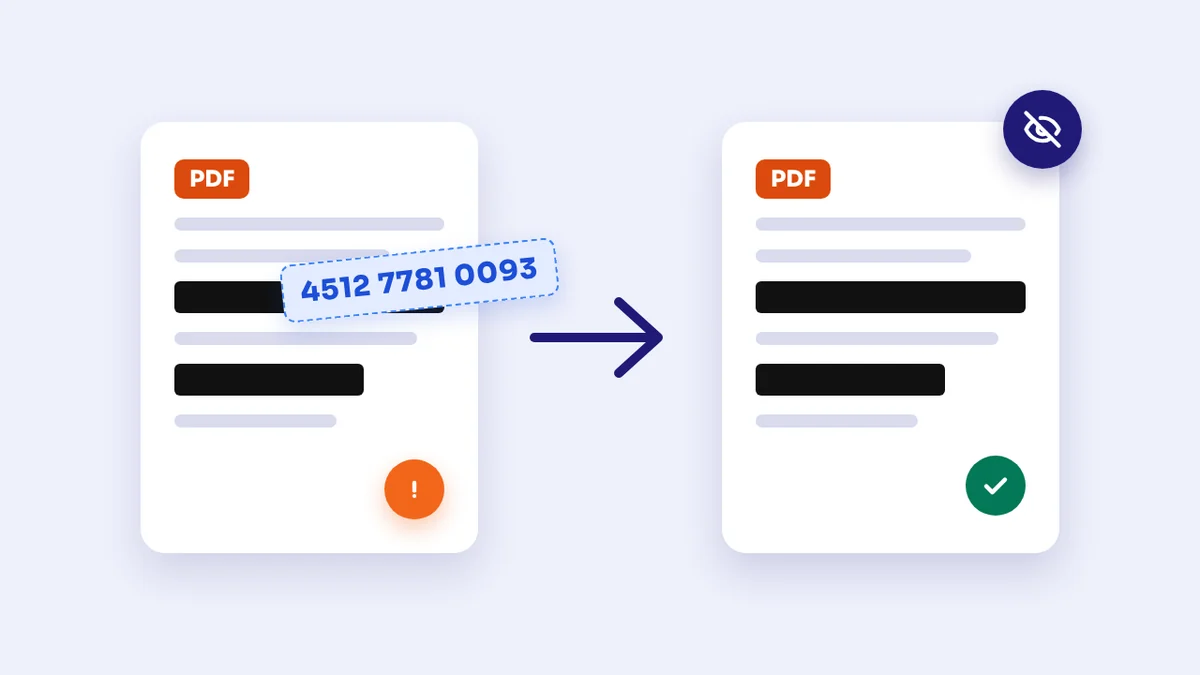
A landlord asks for a copy of your ID card. An employer wants a salary certificate that happens to show your bank account number. A job site asks for a transcript with your phone number and home address on it. You want to send the document, but not everything in it. So you open the file, draw a black rectangle over the number, or shade it black in Word before saving as PDF, and you assume that's the end of it. We ran a test to find out whether it is, and recovered every "hidden" number in seconds. This article covers what the test showed, the places information leaks from even after it has been covered, and a way to check any file yourself before you send it.
The short answer
A black rectangle over text only hides it from the eye: the text is still in the file underneath, and it comes out when you select the page and paste it somewhere. Real redaction removes the text itself instead of covering it. Use a redaction tool that redraws the page after filling the area with black, such as Redact PDF, and then check the result: select all the text on the page, copy it, paste it into a note, and search the file for the number you hid. If it turns up, it wasn't hidden.
Our test: three ways of hiding numbers, then trying to get them back
We wrote a fictional salary certificate in Word format (DOCX) for a made-up employee, with four pieces of sensitive information: a national ID number, a 24-digit bank account number written in groups (011 780 0000123456789012 34), a phone number written with spaces between its groups of digits, and an e-mail address. We also filled in the document properties (author and title), as many people do. All of the data is made up. We then hid the four items in three different ways, and tried to extract them from each resulting file with an ordinary text-extraction program.
- Black shading in a Word file: we shaded the numbers' background black and set their font colour to black, then converted the file to PDF with LibreOffice Writer.
- Black rectangles drawn over the text: we took the original PDF and drew an opaque black rectangle over each item, the way most PDF editors do when you draw a shape.
- A redaction tool that removes the text: we ran the original file through SmokePDF's redaction tool, using auto-find.
On screen, methods 1 and 2 looked perfect: clean black bars with nothing showing through. Here's what we found inside the files:
| Method | Looks hidden? | Items recovered from the text | Person's name in file properties |
|---|---|---|---|
| Black shading in a Word file | Yes | 4 of 4 | Yes, in the title and author fields |
| Black rectangles over the text | Yes | 4 of 4 | Yes |
| Redaction tool that removes the text | Yes | 0 of 4 | No, file properties were cleared |
With the first two methods, the text came out in full, including all four groups of the account number. The document properties also travelled into the PDF unchanged: the author's name and the title "Attestation de travail" followed by the employee's name. None of that shows on the page, but any PDF reader displays it under the file's properties. With the third method, not a single character could be extracted from the page, because it had become an image in which the marked areas were painted black before saving, and the author and title fields were empty. The cost: the file grew from 17 to 55 KB, and the text on the redacted page could no longer be selected.
A note from the same test: on the first run, our tool's auto-find missed the phone number written with spaces, and covered only the long middle group of the account number. The reason is that in a right-to-left paragraph, the groups of digits are stored in the file as separate pieces. We changed the tool to join those pieces, ran the test again, and all four items were covered in full. We mention it because it illustrates a general rule: auto-find, in any tool, is a help rather than a guarantee, so look through the pages yourself before saving.
Why does the text stay under the box?
A PDF page isn't a single picture. It's a stack of instructions: "draw this text in this font at this position", then "draw a black rectangle here". When you draw a rectangle, the program adds a new instruction on top of the text instruction without deleting it. Your eye sees the top layer, but programs that read, copy and search text go straight to the text instruction and ignore whatever is drawn over it. That's also why white text on a white background, or text shrunk until it can't be read, doesn't count as hidden. We explain this structure in more detail in What Is a PDF File?.
It isn't only beginners who get caught by this. In January 2019, lawyers for Paul Manafort, Donald Trump's former campaign chairman, filed a document in a US court with passages blacked out, and journalists copied the text from under the bars and published what was meant to stay sealed. In December 2009, the US Transportation Security Administration (TSA) published its airport screening procedures manual with the sensitive parts covered by black rectangles, and readers recovered the covered text the same way.
Six places information leaks from after you "hide" it
Text under a box is the best-known leak, but it isn't the only one. Before sending a document with sensitive information in it, think about these six places:
- Text under a shape: as in the test, any rectangle, highlight or shading covers the text without removing it.
- File metadata: the author's name, the document title, the program used and the creation date. Word processors fill in the author from your account name and carry these properties into the PDF when you save, so the file can carry your name even if you hid it on the page. You can view them with PDF Info.
- Comments and annotations: some editors add the black rectangle as a "comment" floating over the page rather than part of it. Anyone who opens the file in a different program can move or delete it with a click.
- The hidden text layer in scanned files: many scanners and scanning apps add invisible text from optical character recognition (OCR) under the page image so the file can be searched. Draw over the image, and the number is still in that invisible layer.
- Earlier versions inside the file: some PDF programs save edits by appending them to the end of the file instead of rewriting it, so the original version of the page stays inside, and specialist tools can recover it.
- Images and the file name: blurring and pixelating aren't safe ways to hide numbers and text. An open-source tool called Depix, released in 2020, recovers pixelated text under certain conditions. In 2023, a flaw nicknamed aCropalypse was found in the screenshot editor on Google Pixel phones and in the Windows Snipping Tool: both could leave part of the original image inside the cropped file. And finally, a file named "ID_Firstname_Lastname.pdf" gives away what you hid inside it.
So what does real redaction look like?
Real redaction removes the information from the file rather than just covering it. You have two options:
- Redraw the page as an image after painting the areas: this is what SmokePDF's Redact PDF tool does. Pages with boxes on them are redrawn as images, the marked areas are painted black before saving, and nothing remains underneath. Other pages stay as they are, and the file's properties, comments and attachments are removed. The downside is that a redacted page loses its copyable text.
- Redaction features in specialist programs: some paid programs delete the marked characters from the page instructions and keep the rest of the text selectable. The result is cleaner, but watch for the difference between the program's "Redact" tool and its "draw rectangle" tool: the second removes nothing. Most of these programs also ask you to "apply" redactions after marking them, and if you don't, the text stays.
Whatever tool you use, keep the original file yourself, since redaction can't be undone, and send only the redacted copy.
What to hide in each kind of document
The rule: hide what the other side doesn't need for the purpose they asked for the document, and leave what they do need. Hiding too much can get a document rejected, and government offices and banks often require a full copy, so ask before you redact.
| Document | What the other side usually needs | What you can usually hide |
|---|---|---|
| ID card copy for a landlord or hotel | Name, photo and card number | Address, parents' names, and expiry date if not requested |
| Bank statement as proof of income | Name, monthly salary credits and balance | The full account number (leave the last 4 digits) and personal transactions |
| Salary certificate or payslip | Name, employer and net pay | Social security number and bank details |
| A contract or invoice shared as an example | The clauses and wording | Names, amounts, addresses and signatures |
| A screenshot of a chat or e-mail | The content you mean to share | Other people's names, numbers and photos |
When you send a copy of an ID card or other personal document, you can also write its purpose on it, such as "Copy for flat rental only, October 2026", with the Watermark PDF tool. It won't stop anyone copying the document, but it makes using it for something else harder and more obvious.
How to check that redaction worked
Don't trust what you see on screen. Before sending any redacted file, whether you made it with our tool or another program, run these four checks on the exact copy you're about to send:
- Copy and paste: open the file, press Ctrl+A then Ctrl+C (or select the page text with your finger on a phone), and paste into an empty note. If the hidden number appears, redaction failed.
- Search: press Ctrl+F and search for part of the number, such as its last 4 digits. If the program finds it, it's still in the file.
- Extract all the text: run the file through PDF to Text. It shows every bit of extractable text on every page, including text hiding under shapes.
- File properties and name: view the file's properties with PDF Info and make sure the author and title fields don't contain what you hid, then rename the file if its name gives away who it belongs to.
These checks won't reveal earlier versions saved at the end of the file, so if you're not sure how the program you used saves its changes, the safest option is for the sensitive page to be a fresh image with no text in it.
Frequently asked questions
Isn't it enough to flatten the file after drawing the black box?
No. Flattening merges the box into the page content so it can't be moved afterwards, but it doesn't delete the text underneath. Method 2 in our test drew the rectangles directly into the page content, which is the same as a flattened file, and the text still came out in full. Flatten PDF is useful for fixing form fields and comments in place, not for hiding information.
Doesn't a password do the same job as redaction?
No, they serve different purposes. A password stops people who don't know it from opening the file, but whoever you send it to sees everything inside. If you want someone to read the document without certain numbers, you need redaction. You can combine the two: redact first, then protect the file with Protect PDF if it will pass through e-mail or a shared folder.
I photographed my ID card and drew a black bar on it with my phone's markup tool. Is that safe?
Usually yes, if the pen was opaque and the image was saved as a new copy. The risks are a translucent highlighter that leaves numbers readable once the brightness is turned up, a light blur, and older apps that haven't been updated since the aCropalypse flaw. Use an opaque pen, and zoom in on the image after saving to make sure nothing shows under the bar.
Does the site upload my file to a server to redact it?
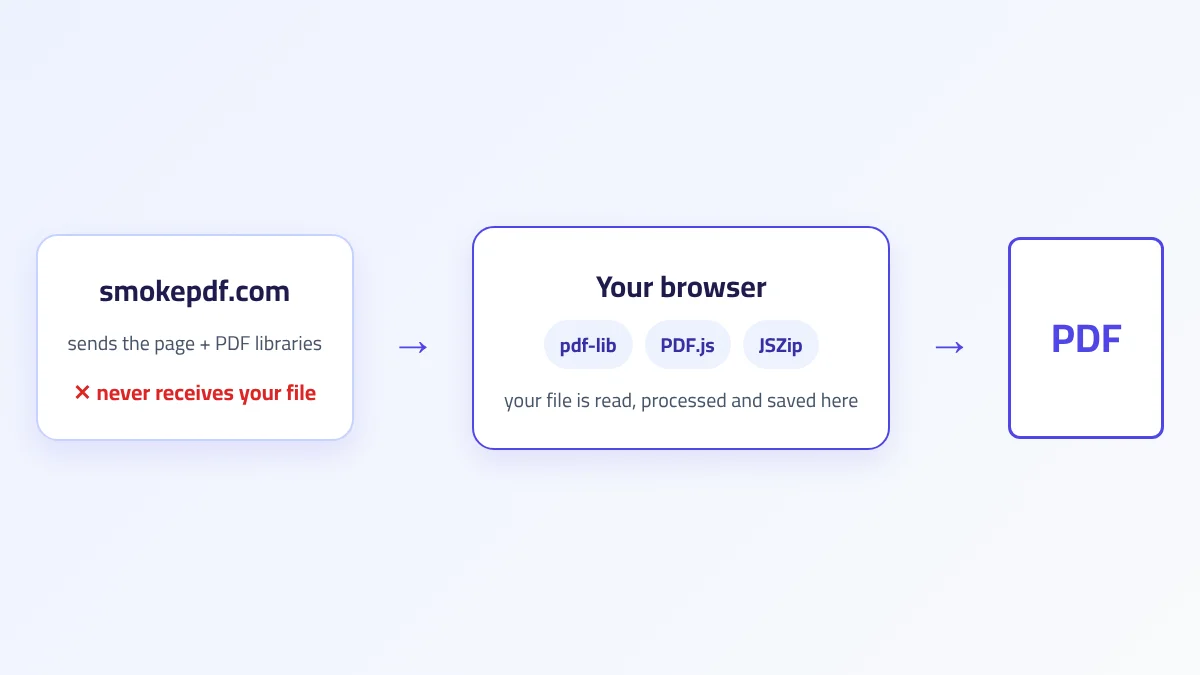
No. SmokePDF's redaction tool displays the pages, searches them, paints the areas and builds the new file inside your browser, and neither the file nor the text you search for is sent to any server. We explain how that works in How In-Browser PDF Processing Works.
I've already sent a file with black boxes on it. What now?
Check the copy you sent with the copy-and-paste test. If the information shows up, treat it as if it had been sent in full: if it's a bank account or payment card number, contact your bank and ask what to do, and if it's a password, change it. Next time, hide the information with a tool that removes the text, and check the file before sending.
The takeaway
A black box only fools the eye: in our test we recovered everything it covered, along with the document owner's name from the file properties. Real redaction removes the text, and removes the file's properties and comments with it. Use a redaction tool that redraws the page, hide only what the other side doesn't need, and don't send anything until you've copied and pasted the page text, searched for the number, and checked the file's properties and name.