You open an Arabic PDF that looks fine on screen, convert it to Word, and get broken Arabic letters, reversed words, or meaningless symbols. Usually the culprit is not Word, nor only your converter, but the way the Arabic text was stored inside the PDF. This guide explains what happens behind the page, how to diagnose a file in a minute, and what can realistically be repaired.
For the general format comparison, see PDF vs DOCX. Here we focus on the Arabic text layer itself, including a test we ran and its results as they came out.
Quick answer
Before converting an Arabic PDF to Word, copy a sentence from the file into a plain text editor, and press Ctrl+F in your PDF reader to search for an Arabic word you can see on the page. If the sentence pastes cleanly and the search finds the word, conversion will give you editable text that needs light proofreading. If it pastes reversed, disconnected or as symbols, the fault is in the file's text layer and no converter will fully fix it: the reliable fix is to ask for the original Word file, and failing that, to re-extract the text with OCR. PDF to Text shows you in seconds roughly what any converter will see in your file.
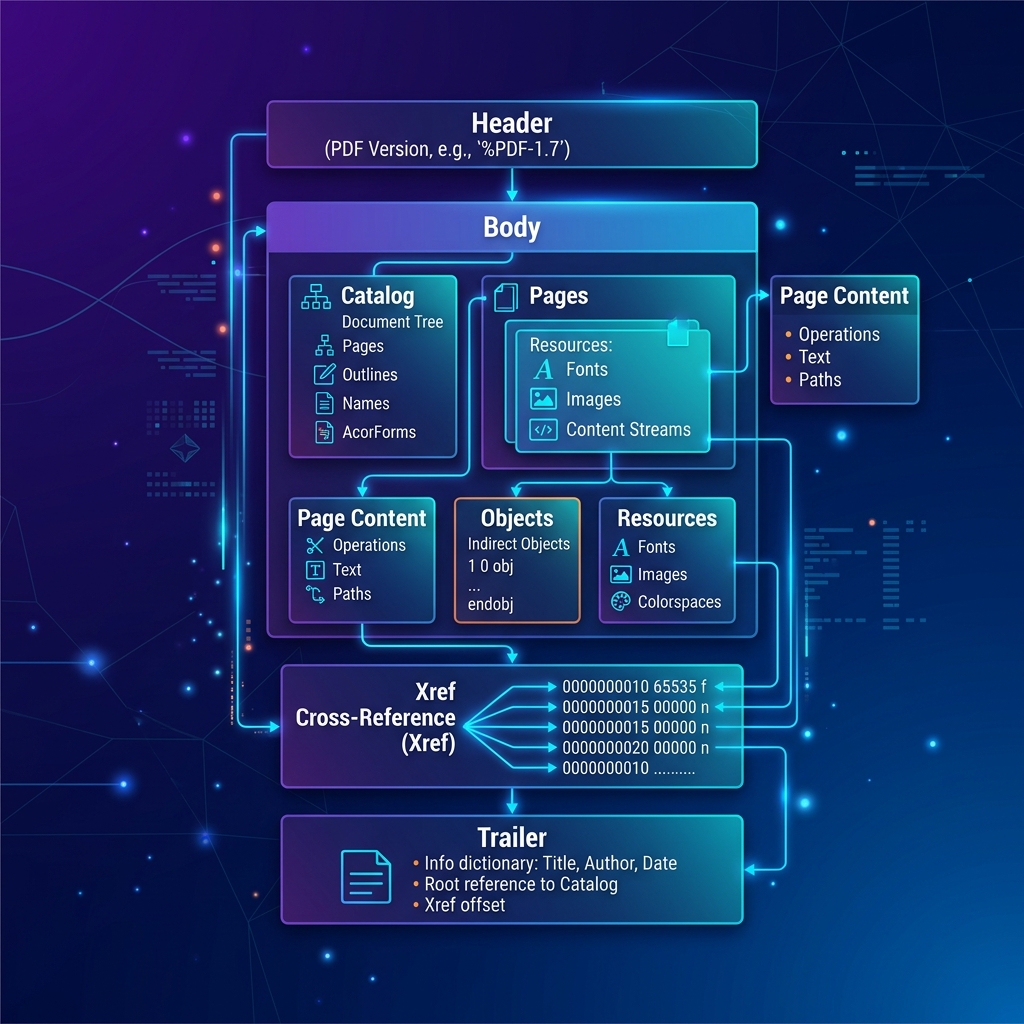
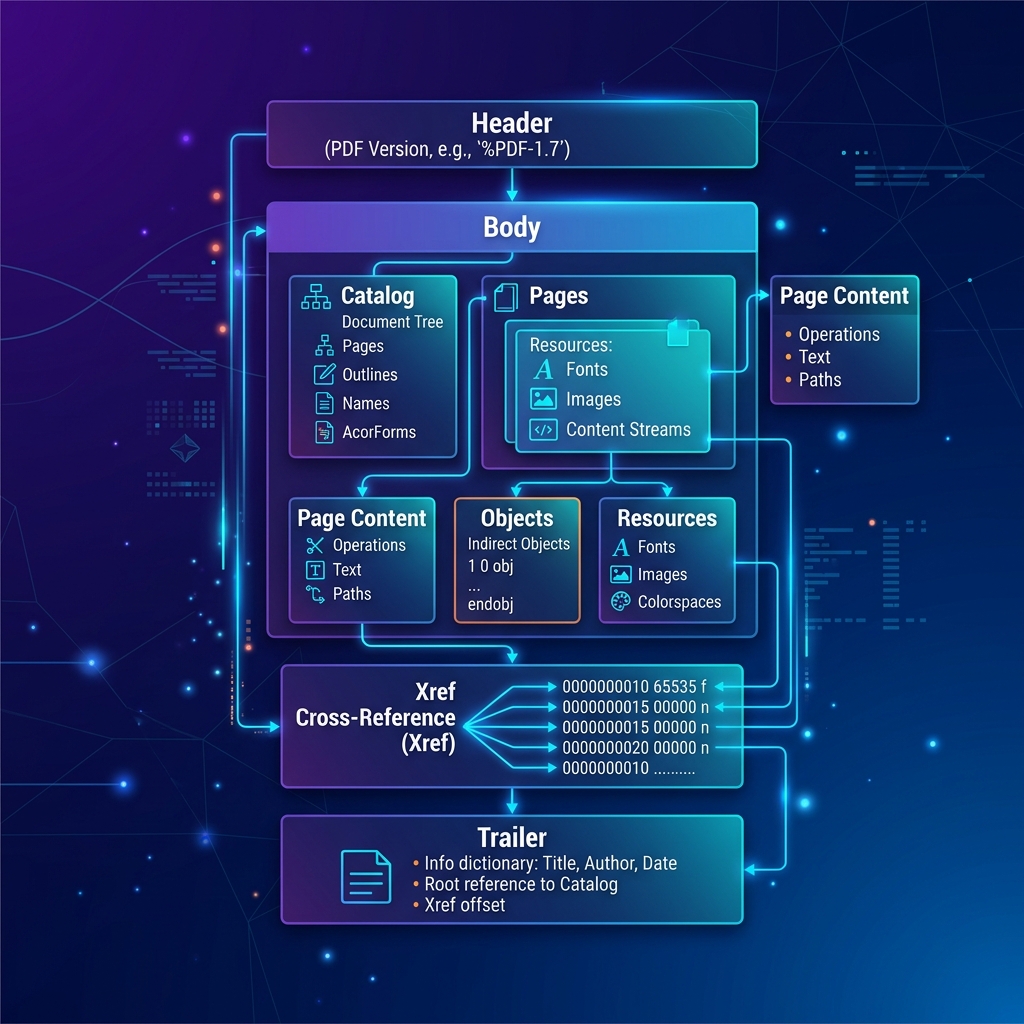
How a PDF stores Arabic text
When you type in Word, the file stores letters: kaf has one Unicode code whether it sits at the start, middle or end of a word. The program picks each letter's shape and joins it to its neighbours when it displays the text. This is called shaping.
A PDF stores glyphs instead: instructions such as "draw shape 412 from this font at this position". Shaping already happened in the program that created the PDF, which chose the initial, medial, final or isolated form of each letter and drew lam-alef (لا) as one combined shape. The page looks right, but the file holds finished shapes, not letters.
To turn shapes back into letters you can copy and search, a reader needs a translation table attached to each font, the ToUnicode map: shape 412 is kaf (ك), shape 97 is lam followed by alef. Modern programs write it when exporting. When it is missing or wrong, the reader guesses from glyph names or the font's encoding, and with Arabic the guess often fails, giving random Latin characters or empty boxes.
Two more issues are specific to right-to-left scripts:
- Storage order: Arabic is read right to left, but a PDF does not require shapes to be stored in reading order. Some programs store them in logical (reading) order; others store them in visual order, left to right as they appear on the page. The reader has to rebuild the reading order, and when it gets this wrong the Arabic text comes out reversed after converting the PDF.
- Unicode presentation forms: some programs map shapes to special Unicode characters called presentation forms, which encode each positional form of a letter separately, in the ranges U+FB50–U+FDFF and U+FE70–U+FEFF. On screen they look like normal letters, but they are different characters: search doesn't find them, spell-checkers don't recognise them, and some programs display them unjoined.
Symptoms and their likely causes
The kind of error usually points to its cause:
| Symptom | Likely cause | What to try |
|---|---|---|
| Disconnected or isolated letters, or words that search can't find even though they look right | Text stored as presentation forms (U+FB50–FDFF, U+FE70–FEFF) instead of normal letters | NFKC normalization, or ask for the original file |
| Arabic text reversed: words, or letters within words, in the wrong order | Text stored in visual order and the reading order was not rebuilt | The original file, or OCR if the text is long |
| "لا" comes out as "ال" inside a word | How that particular file stored the lam-alef ligature | Search for words containing لا and correct them by hand |
| Random Latin characters or empty boxes | Missing or broken ToUnicode map, or a custom-encoded font | OCR on the page images, or the original file |
| Diacritics (tashkeel) misplaced or lost | Vowel marks are separate shapes placed over letters and may be read apart from them | Manual proofreading, especially in fully vowelled text |
| Numbers and Latin words jump to another spot in a mixed line | Paragraph direction in Word, or digits stored reversed in the file | Set the paragraph to right-to-left, then check the numbers |
| Extra space before commas or inside words | Text is split into pieces in the file and the converter inserts a space between pieces | Find and Replace in Word |
| Nothing at all | The file is scanned: its pages are images | OCR |
Several can occur together; files from older design software often combine presentation forms with visual order.
A one-minute diagnosis before converting
Don't convert a 40-page file before checking. These checks take about a minute:
- Copy and paste into a plain editor. Paste an Arabic sentence with a لا word and some numbers into Notepad or another plain editor. It tidies nothing, so you see what the file really contains: joined letters, word order, intact numbers?
- Search with Ctrl+F. In your PDF reader, search for an Arabic word you can clearly see on the page. If the search finds nothing, the text is either an image or stored as presentation forms or with a broken encoding.
- Check the fonts and where the file came from. In Adobe Acrobat Reader, File, then Properties, Fonts tab lists the fonts and whether each is embedded; no fonts at all suggests a scan. PDF Info shows the "Producer", the program that created the file; an older design or publishing program is a warning sign.
- Try PDF to Text. It reads only the existing text layer, with the same library (pdf.js) our PDF to Word uses, so its output is close to what will land in Word, with no formatting hiding problems. Empty output means a scan.
If you can script a little, look for characters in U+FB50–U+FDFF or U+FE70–U+FEFF in the extracted text; many of them confirm a presentation-forms problem.
Our test: a clean file can still carry small errors
We wanted to see what happens with a well-made Arabic PDF. We exported a two-page Arabic Word report, with bold and italic words and Arabic commas, to PDF with LibreOffice. The embedded fonts were DejaVu Sans and Caladea, both with ToUnicode maps. We then extracted the text three ways: with poppler's pdftotext, and with SmokePDF's PDF to Text and PDF to Word.
What we found:
- No presentation-form characters at all: 0 out of 1,845 characters. Every letter came out as a normal, searchable letter.
- Lines and right-to-left reading order were correct in all three outputs.
- Bold and italic words came through as plain text, because formatting isn't part of the text layer being read.
- But every لا in the word "لاختبار" came out as "الختبار": lam and alef swapped places, in all three outputs.
- An extra space appeared before some commas, as in "مائلة ،".
The conclusion we draw from this one test, without generalising beyond it: even a well-made PDF can carry small errors that come from ligatures. Lam-alef is drawn as one shape standing for two letters, and turning it back into two letters in the right order depends on how the file describes that shape. Since three different tools produced the same error, it is a property of the file rather than of one converter, and not something a converter can guess back. The practical advice: after every conversion, search the Word file for words containing ال and لا, and proofread before relying on the text.
Fixes, from most to least reliable
1. Ask for the original file
If the PDF came from a colleague or an office, ask for the original Word or Google Docs file. It never went through the glyph stage, so it has none of the problems above.
2. Export again from the source
If a PDF is needed, export again with "Save as PDF" in Word, LibreOffice or Google Docs, fonts embedded; these normally write ToUnicode maps. Broken text maps more often come from old virtual PDF printers and older design software. Do one copy-and-paste test before sending.
3. Normalize presentation forms (if you are comfortable with technical tools)
If presentation forms are the only problem, there is a well-known technical fix: apply Unicode normalization in the form called NFKC. It converts each presentation form into the matching normal letter and turns the combined ﻻ into lam followed by alef. In Python, for example, a single call to unicodedata.normalize('NFKC', text) does it, and other text tools and editors offer the same function.
Word's Find and Replace isn't practical here: each letter has several forms, so you'd need dozens of replacements. Mind the limits:
- Work on a copy and compare the result with the original.
- NFKC changes other characters too: the single character ﷺ becomes the full phrase "صلى الله عليه وسلم", ﷲ becomes "الله", and some special Latin symbols become their plain equivalents.
- It does not fix order: reversed text stays reversed, just with normal letters.
4. Reversed text
Fixing a line or two by hand is doable, but visual-order files often reverse numbers and Latin words differently from the Arabic around them. Beyond a few paragraphs, OCR (step 6) usually takes less effort.
5. Tidy the result in Word
Even sound text needs some adjustment in Word:
- Paragraph direction: select the text and press Ctrl with the right Shift key to make paragraphs right-to-left (Ctrl with the left Shift switches back), in Word on Windows. Many of the "jumping" numbers settle down after this step alone.
- Numbers and Latin words: if one is still out of place, a neutral character at the boundary (bracket, dash, slash) is usually the cause. Retype that part, or insert the invisible right-to-left mark: type 200F and press Alt+X in Word. Also check the digits themselves; 2026 can arrive as 6202 from a visual-order file.
- Extra spaces: in Find and Replace (Ctrl+H), search for a space followed by the Arabic comma "،" and replace it with the comma alone; repeat for full stops and double spaces.
- Joining lines: most converters make each PDF line a paragraph, so join them before serious editing.
6. When the text layer can't be repaired: OCR
If the output is symbols or reversed throughout, ignore the text layer and extract the text from the page images with OCR. The drawn shapes are correct; only the translation was broken. Our OCR guide covers what makes Arabic recognition succeed. To be clear: SmokePDF does not currently have an OCR tool, so this step happens in other software that supports Arabic.
Can you convert PDF to Word without changing the Arabic font?
Not entirely. A PDF usually embeds only a subset of a font, the shapes used in the document, which can't be installed or used by Word to type new text. For the same font to appear in Word, the full font must be installed on your device.
Find the font's name in the document properties (see the diagnosis above). If it ships with Windows, such as Arial, Traditional Arabic, Simplified Arabic or Sakkal Majalla, select the text in Word and apply it. Note that Word keeps separate font settings for Latin and Arabic text: in the Font dialog (Ctrl+D), choose the font in the Complex scripts section, which appears when Arabic is enabled in Office. Otherwise pick a close substitute, or license the original font if the look matters.
Even with the right font, spacing and line breaks won't match the original, because Word reflows the text.
What SmokePDF's PDF to Word does with Arabic
Here is exactly what PDF to Word does:
- It reads the existing text layer page by page in your browser; the file is not uploaded.
- It groups text pieces into lines by vertical position and joins pieces in a line with a space, so an extra space can appear where the file split the text.
- It writes each line as its own paragraph in a real .docx file, with a page break between pages, and marks the first short line of a page as a heading.
- It converts presentation forms (U+FB50–FDFF, U+FE70–FEFF) back to the matching normal letters with NFKC normalization, the same fix described above, so the text becomes searchable and spell-checkable. PDF to Text does the same.
- Any line containing Arabic letters is set right-to-left and right-aligned. The font in the output is Arial, not the original font.
- Images, table structure, columns, colours, and bold or italic formatting are not carried over.
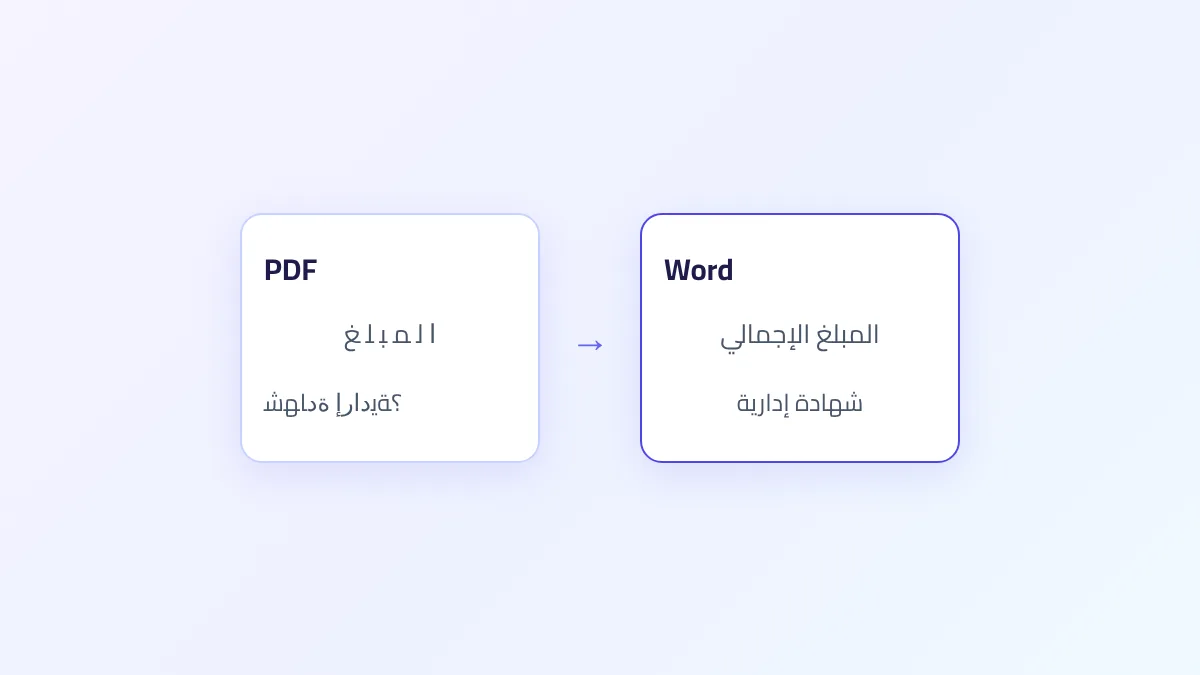
We tried this on a second file built to have the problem: two Arabic lines stored as 44 presentation-form characters. PDF to Text and PDF to Word both returned normal letters in correct reading order, such as "المبلغ الإجمالي هو 450 درهم", and the Word paragraphs came out right-to-left. That is one test file, not a promise for every file.
What the tool does not repair matters just as much: broken ToUnicode maps, and the lam-alef swap we saw in "الختبار", which is a property of the file itself. Reading order is rebuilt by pdf.js, the library that reads the file, so it may succeed on one file and fail on another stored in a complex visual order. For a scanned file, the tool tells you it found no extractable text; it has no OCR. To compare other converters against clear criteria, see our guide to choosing a free PDF converter.
Frequently asked questions
Why does the text look right in my PDF reader but come out reversed when I copy it?
Displaying and copying are different operations. The reader draws shapes in position, so the page looks right; copying relies on the text layer, and if that is in visual order or lacks a ToUnicode map, copying reveals what the screen hides.
Will Word fix the problem if I open the PDF in it directly?
Recent Word versions can open PDFs and may keep the layout closer than a text-based converter, but they rely on the same text layer. Letters that can't be recovered from the file won't come out right in Word either.
My file has Arabic lines and French lines. What should I expect?
In PDF to Word, any line containing an Arabic letter is set right-to-left, while a purely French line stays left-to-right. Trouble usually shows up in mixed lines, so check the position of French words, numbers and punctuation there after converting.
Is OCR always better than a text layer with errors?
No. If the errors are few, such as extra spaces or a handful of لا words, manual proofreading is quicker and more accurate, because OCR adds errors of its own, like confusing letters that differ only in their dots. Use OCR when most text is symbols or reversed.
How do I send an Arabic document so it can be converted back to Word cleanly later?
Export it to PDF from Word, LibreOffice or Google Docs, and do a copy-and-paste test before sending. If you use our Word to PDF, choose "Save with selectable text" through the print window, because the direct download stores pages as images whose text can't be extracted.
The bottom line
A PDF stores the shapes of Arabic letters, not the letters, so converting it to Word depends on the maps back to letters and on the storage order. Check the file for a minute first, ask for the original when you can, and proofread لا words, commas and numbers afterwards. When the text layer is broken at the source, no converter can guess the letters back; the remaining route is OCR.