Search for a free PDF converter and you will find dozens of sites that look almost identical: a big upload box, a promise of "fast and free", and a list of formats. They don't behave the same. Some add a watermark to the result, some stop after two files a day, some ask you to sign up at the last step, and many send your document to their servers before converting it. This guide shows how to judge any converter in a few minutes and what to realistically expect from each common conversion.
Quick answer
A good free PDF converter gives you a clean file with no watermark, no sign-up and no surprise limits, and tells you whether your document leaves your device. Test it first with a short, non-sensitive file: check the output (can you select the text? is Arabic in the right order?) and watch whether the file is uploaded. For documents you created yourself in Word, Excel or PowerPoint, exporting to PDF from that program is usually the most faithful option; converters are most useful when all you have is the PDF, or when you are on a device without that program.
What a "free PDF converter" often hides
Running a conversion service costs money, so "free" usually comes with a catch somewhere. None of these is automatically a deal-breaker, but you should know which one you are accepting:
- Watermarks. The converted file carries the site's name across the page or in a corner. You often discover it only after downloading, and removing it means paying.
- Page, size or daily limits. A cap on file size, number of pages, or conversions per day. It is fine for a one-page letter and a problem for a 60-page report.
- Sign-up walls. You upload, wait, and then the download button asks for an account or an email address.
- File uploads. Many online converters upload your file to their servers, process it there and keep it for some period. For a menu that hardly matters; for an ID card, a bank statement or a signed contract it does.
- Heavy ads and fake buttons. Pages where the biggest "Download" button is an advert, or where a pop-up offers to install something.
Free tools are not bad; the price is just paid in some currency. Choose which: your data, your time, your email address, or a few limitations.
A checklist for choosing a free PDF converter
Before trusting a converter with a real document, run it through these questions using a short test file you don't mind sharing.
1. Does the file leave your device?
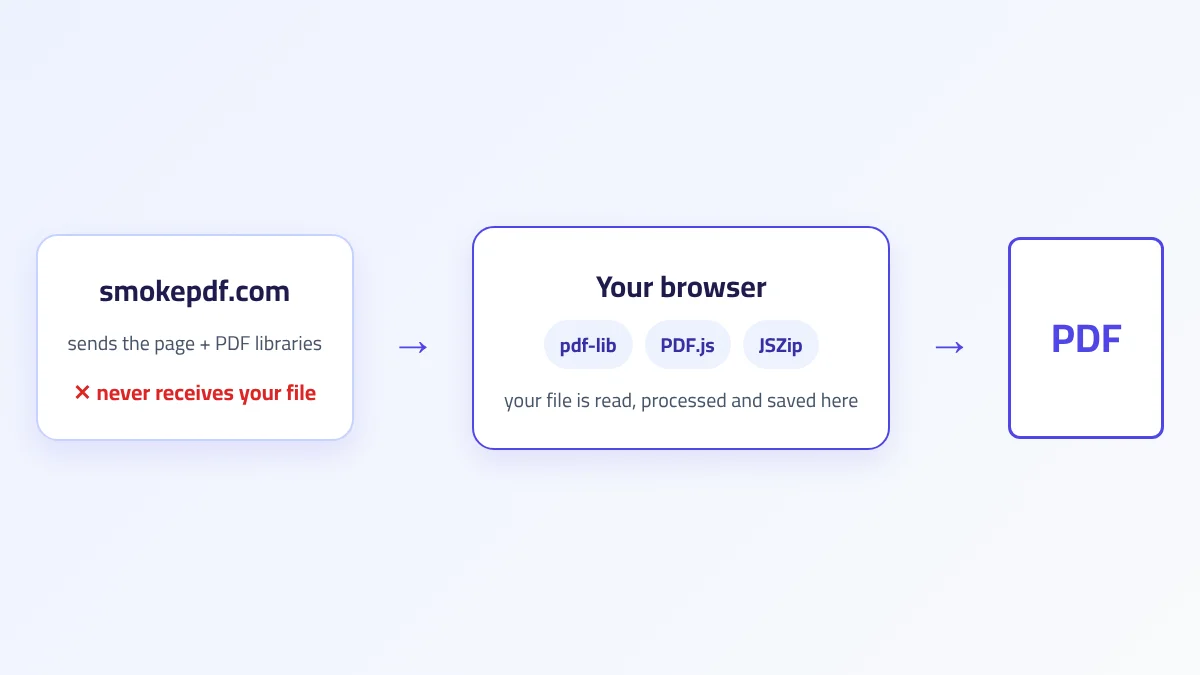
If you want a PDF converter without uploading, the site's privacy page should say so plainly. If it does not, check yourself. In a desktop browser, open the developer tools (F12), switch to the Network tab, then pick your file and start the conversion. If you see a request whose size is close to your file's size going out to the site, the file was uploaded. A second test: open the tool page, let it load fully, disconnect from the internet, then convert. A tool that still produces the result processed it on your device. If it fails offline, that alone doesn't prove an upload, because some pages fetch a library only when you click convert; the Network tab is what settles it. We explain both tests in detail, and why in-browser processing is possible at all, in how browser PDF processing works.
2. Is the output text or a picture of text?
Open the result and try to select a word. Some conversions produce real text you can search and copy; others produce pages that are images, which look identical on screen but can't be searched, are larger, and can't be read by screen readers. Neither is wrong, but you should know which one you got.
3. How does it handle Arabic and right-to-left text?
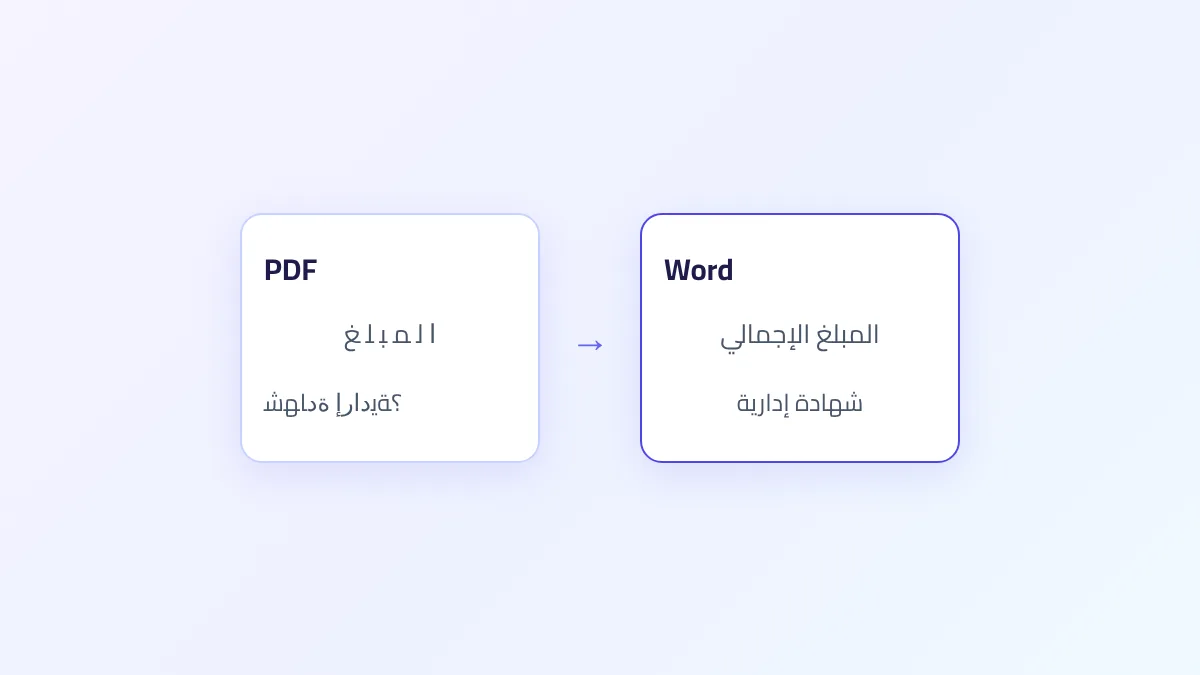
This is where many converters fail quietly. Watch for letters that come out disconnected, words in reverse order, or paragraphs aligned to the left. Test with a page that mixes Arabic and numbers, since that is where order problems show up first. Keep in mind that some of the fault can lie in the PDF itself: files exported from older or design software sometimes store Arabic in display order, and most converters will struggle with them.
4. Does the layout survive?
Compare the result with the original: tables, columns, images, headers, page numbers. If you only want the words, a plain result is fine; if the document must look identical, the bar is much higher.
5. What are the limits and conditions?
Look for file-size caps, page limits, daily quotas, a watermark on the output, or an account requirement. Note also what the tool cannot do: many converters can't read scanned pages without OCR, and a password-protected file usually needs to be unlocked first.
What to expect from each conversion
Not all conversions are equally hard. Turning images into a PDF is simple and reliable; turning a PDF back into an editable Word file or a spreadsheet is a reconstruction, and every tool approximates. The table below summarises what you get from the SmokePDF converters specifically, and what to watch for.
| Conversion | What you get | Watch out for |
|---|---|---|
| PDF to Word | Editable .docx with the text in page order; Arabic paragraphs set right to left | Images, tables, columns and fonts are not carried over; scans have no text |
| Word to PDF | Layout, tables, images and lists kept | Direct download is image-based; headers, footers and page numbers are missing |
| JPG / PNG to PDF | One image per A4 page, no recompression | Fixed A4 portrait; text in photos is not searchable |
| PDF to JPG / PNG | One image per page, resolution 1x to 3x | Every page is converted; text becomes pixels |
| PDF to Excel | One sheet per page, rows rebuilt from text positions | No border detection; empty cells shift values; no OCR |
| Excel to PDF | One page per sheet with values and merged cells | Image-based; uniform table style; long sheets get tiny |
| PDF to PowerPoint | One slide per page, each slide a full image | Nothing is editable; slide size follows the first page |
| PowerPoint to PDF | One slide per page at the deck's own size | Image-based; charts, SmartArt, bullets and table styles may be missing |
| PDF to Text | A UTF-8 .txt file with page separators | Line breaks and table structure lost; scans give empty text |
PDF to Word
Most people who search for PDF to Word free want to edit a few lines. PDF to Word reads the text layer and rebuilds it line by line, each PDF page starting a new page in Word, with the first short line of a page set as a bold heading. It is not a layout copy: images, table structure, columns, colours and original fonts don't come through. If the file is a scan, there is no text to extract at all, and you need OCR first; see what OCR is. If you are unsure which format you should be working in, PDF vs DOCX covers the trade-off.
Word to PDF
If you need Word to PDF free on a device without Office, Word to PDF lays out your .docx in the browser and keeps page size, margins, tables, images, lists and Arabic text. The direct download stores pages as images, so text isn't selectable and the file is bigger. The second button, "Save with selectable text (via Print)", opens the print window; choose "Save as PDF" and you get a small file with real text. Headers, footers and page numbers are not drawn. If you have Word, Google Docs or LibreOffice at hand, saving as PDF from there remains the most faithful route.
JPG and PNG to PDF
JPG to PDF free tools are the easiest to get right. JPG to PDF places each photo on its own A4 page, scaled to fit with a white margin, never cropped, and embedded without recompression. PNG to PDF does the same for screenshots with lossless storage. Small images are not enlarged, so a low-resolution picture appears small in the middle of the page. Text in the photos stays an image.
PDF to JPG and PNG
PDF to JPG and PDF to PNG draw each page and save it as an image, from 1x to 3x resolution, packed in a ZIP with numbered names. JPG gives smaller files and suits photos; PNG keeps text and line drawings sharp but is larger. Scanned PDFs convert well here, because they are images already. If you only need one page, extract it first, since every page is converted.
PDF to Excel
Expect to tidy up. PDF to Excel groups text that sits at the same height into a row and places each piece in the next cell. It does not detect table borders, so when the original table has an empty cell, the values after it slide one column over. Each page becomes its own sheet, plain numbers and percentages become real numbers, and titles or page numbers land in the sheet too. It saves retyping a price list or statement that has a text layer; it cannot read a scanned statement.
Excel to PDF
Excel to PDF turns each sheet into exactly one A4 page in the tool's own uniform style, as an image. Values, merged cells and number formats come through; your fonts, colours and column widths don't, and neither do charts. A sheet with hundreds of rows becomes too small to read. For anything formal or long, your spreadsheet program's own "Save as PDF" is the better choice.
PDF to PowerPoint
PDF to PowerPoint does not rebuild editable slides: each page becomes one slide holding a single image of that page. It works well for showing a deck you only have as PDF, or adding your own slides around it. If you need to change the words, get the text with PDF to Word and paste it into new slides.
PowerPoint to PDF
PowerPoint to PDF draws each slide in the browser and places it on a page at the deck's own size, as an image. Simple decks with titles, text and pictures come out close to the original. Charts, SmartArt, animations and speaker notes are not included, and bullet markers or table styles may not show. For a deck that will be printed or presented formally, export it from PowerPoint or Google Slides instead.
PDF to Text
PDF to Text gives you every word in one plain .txt file, with a separator line for each page. It joins pieces with spaces, so line breaks and tables flatten. Like the other text-based conversions, it reads only an existing text layer.
When exporting from the original program is better
A simple rule saves a lot of frustration: if you have the original file and the program that made it, export to PDF from there. Word, Excel, PowerPoint, Google Docs and LibreOffice all have a "Save as PDF" option, and they know their own documents best. You get real, searchable text, the right fonts, headers and page numbers, and usually a smaller file.
Converters earn their place elsewhere:
- You are on a phone or a borrowed computer without Office installed.
- You only have the PDF, and you need the words or numbers back.
- You have photos or screenshots that need to become one document.
- You need pages as images for a chat, a slide or an upload form that rejects PDF.
The reverse direction deserves realistic expectations. A PDF records where each letter is drawn on the page, not which paragraph, table cell or column it belongs to. Any tool that turns a PDF back into Word or Excel is guessing that structure, so plan on some manual clean-up, and keep the original PDF for reference.
Using SmokePDF as a free PDF converter: what to expect
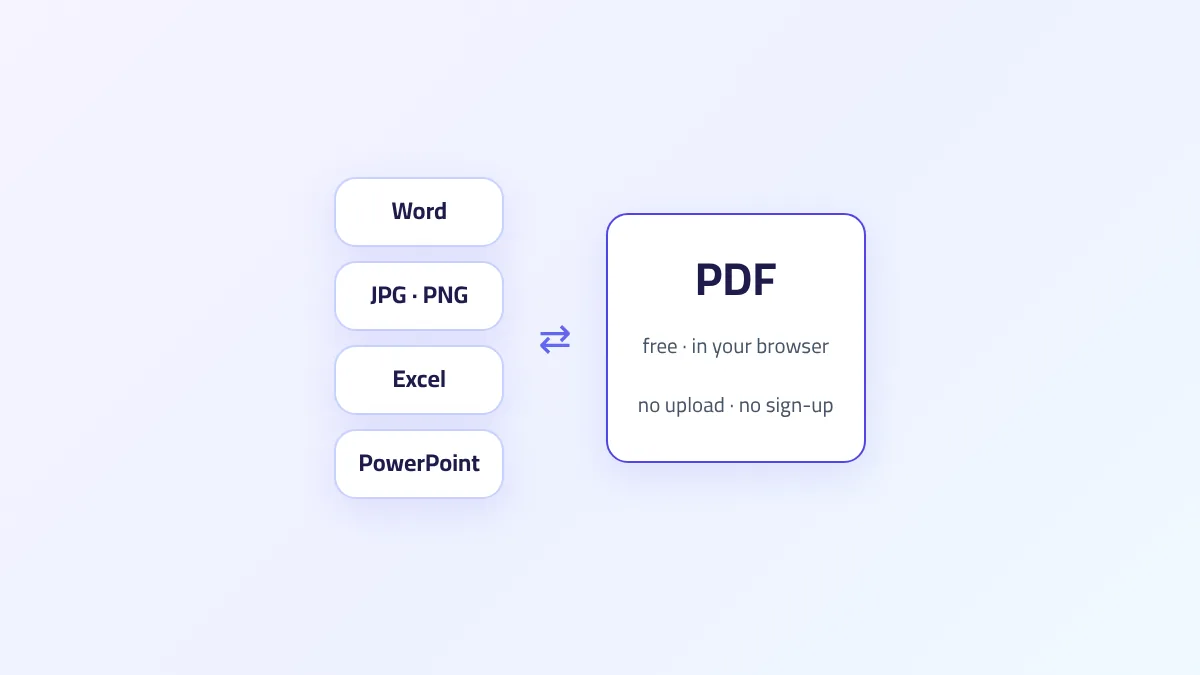
SmokePDF's converters run inside your browser. The file is read and converted on your device, and the result is created there too, so the document is not uploaded to our servers. There is no account to create and no watermark on the output. The practical limit is your device's memory: a long PDF at high resolution can slow down a phone, and splitting it first helps.
The honest limitations are the ones described above. There is no OCR, so scans can be turned into images or slides but not into editable text. Several outputs (Word to PDF's direct download, Excel to PDF, PowerPoint to PDF, PDF to PowerPoint) are image-based. And PDF to PowerPoint loads one of its libraries from a public CDN, so that page needs an internet connection when it opens.
Frequently asked questions
Is it safe to convert confidential documents with a free online converter?
It depends on where the conversion happens. If the file is uploaded, you are trusting that service's storage and deletion policy. If it is processed in your browser, the file stays on your device; you can confirm this with the Network tab test described above before using a sensitive document.
Can I convert PDF to Word for free without losing the formatting?
Fully keeping complex formatting is hard for any converter, because the PDF doesn't store paragraphs and table cells as such. A free tool can reliably give you the text in order; for a close layout copy, desktop software that opens PDFs directly may get nearer, and some clean-up is still normal.
Why does my converted PDF say "no text" when I can read it on screen?
Because what you see is a picture of text, usually from a scanner or a phone camera. Reading it on screen works, but a converter looking for a text layer finds nothing. You need an OCR tool to turn the image into characters first.
Do I need to install anything to convert PDF for free on my phone?
No. A PDF converter online that runs in the browser works in Chrome or Safari on the phone itself. Keep files reasonably sized, since a phone has less memory than a computer.
My PDF is password-protected. Can a converter open it?
Not if it needs a password to open. If the file is yours and you know the password, remove it first with an unlock tool, convert, and protect the result again if needed.
The bottom line
Judge a free PDF converter by four things: whether your file leaves your device, whether the output is text or images, how it treats Arabic, and what limits or watermarks come attached. Test with a short file before the real one. Export from the original program whenever you can, and use a converter when all you have is the PDF, the photos, or a device without the right software.