Home Blog PDF Compression What Is PDF Compression?

What Is PDF Compression? A Complete Beginner's Guide

What Is PDF Compression? — SmokePDF Guide
Advertisement

Quick Answer

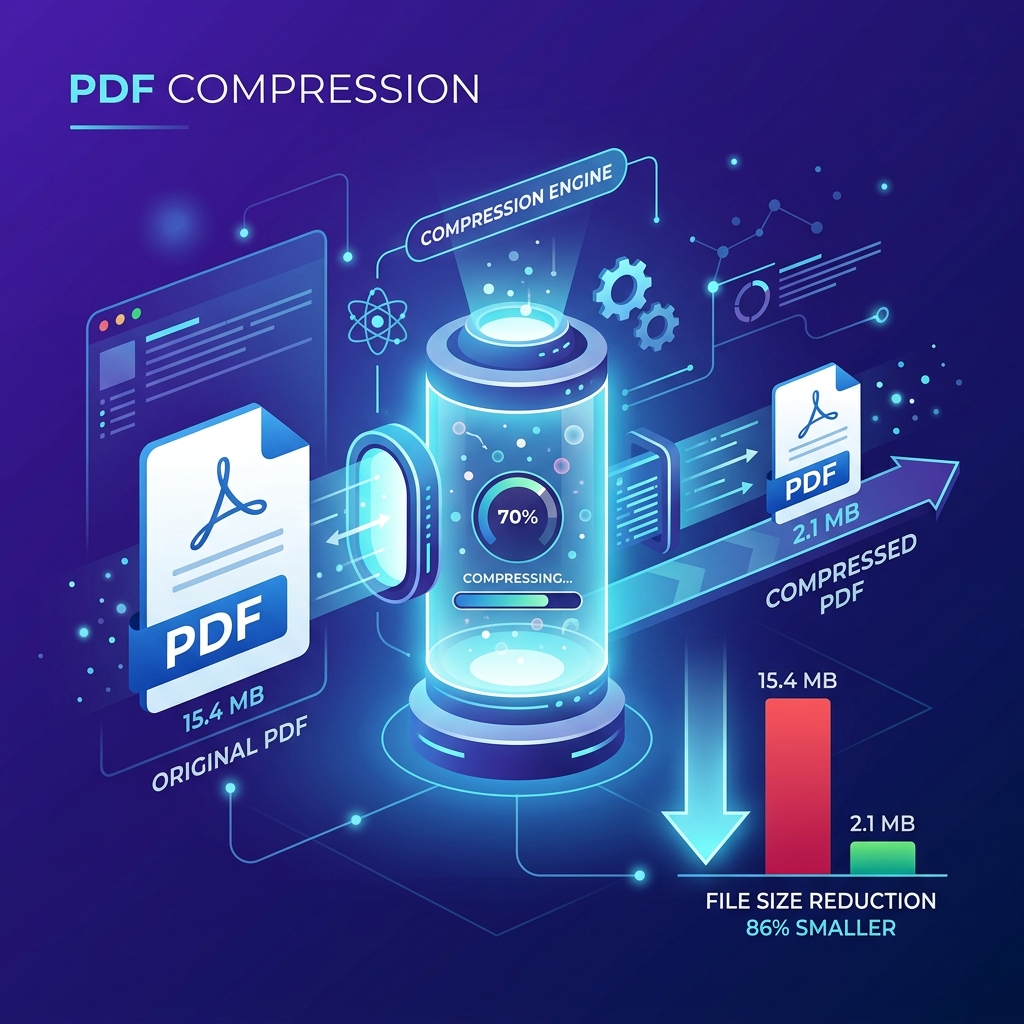
PDF compression is the process of reducing a PDF file's size by optimizing its internal components — images, fonts, streams, and metadata — while preserving document quality and functionality. Compression can reduce PDF file sizes by 30% to 80% or more, depending on content type.


What Is PDF Compression?

PDF files have become the universal standard for sharing documents across computers, smartphones, and tablets. Whether you are sending contracts, invoices, resumes, ebooks, research papers, or business presentations, PDFs ensure that the document looks exactly the same on every device.

However, one common problem affects millions of users every day: large PDF files.

A PDF can easily grow to tens or even hundreds of megabytes, making it difficult to email, upload to websites, share through messaging apps, or store efficiently.

This is where PDF compression becomes essential.

PDF compression is the process of reducing the amount of storage space required for a Portable Document Format (PDF) file. Rather than changing the purpose of the document, compression focuses on storing the same information more efficiently. This may involve removing redundant data, optimizing embedded resources, or reducing the quality of certain elements—typically images—when appropriate.

Think of PDF compression like packing a suitcase. Instead of throwing away your belongings, you organize them in a way that uses less space. In many cases, everything is still there, but it fits more efficiently.

Depending on the compression method used, you may reduce file size by 20%, 50%, or even more than 90%.

Modern PDF compression techniques can optimize:

  • Images
  • Fonts
  • Metadata
  • Embedded objects
  • Color profiles
  • Duplicate resources
  • Compression streams

The exact techniques depend on the type of content inside the PDF. For example:

  • A scanned document usually contains large images.
  • A digitally created report mostly contains text and vector graphics.
  • A marketing brochure may include high-resolution photographs, logos, and custom fonts.

Because every PDF is different, there is no single compression method that works best for every file. Understanding what is inside your PDF is the first step toward choosing the right compression strategy.

Did You Know?

Many PDF files contain hidden information that users never see — unused objects, duplicate resources, embedded metadata, and oversized images. Removing or optimizing these elements using tools like SmokePDF Compress PDF can dramatically reduce file size without affecting visible content.


Why PDF Files Become Large

One of the biggest misconceptions about PDF documents is that their file size depends only on the number of pages.

In reality, a 500-page PDF containing only text may be smaller than a 10-page brochure filled with high-resolution images.

The size of a PDF is determined by the content stored inside it rather than its page count.

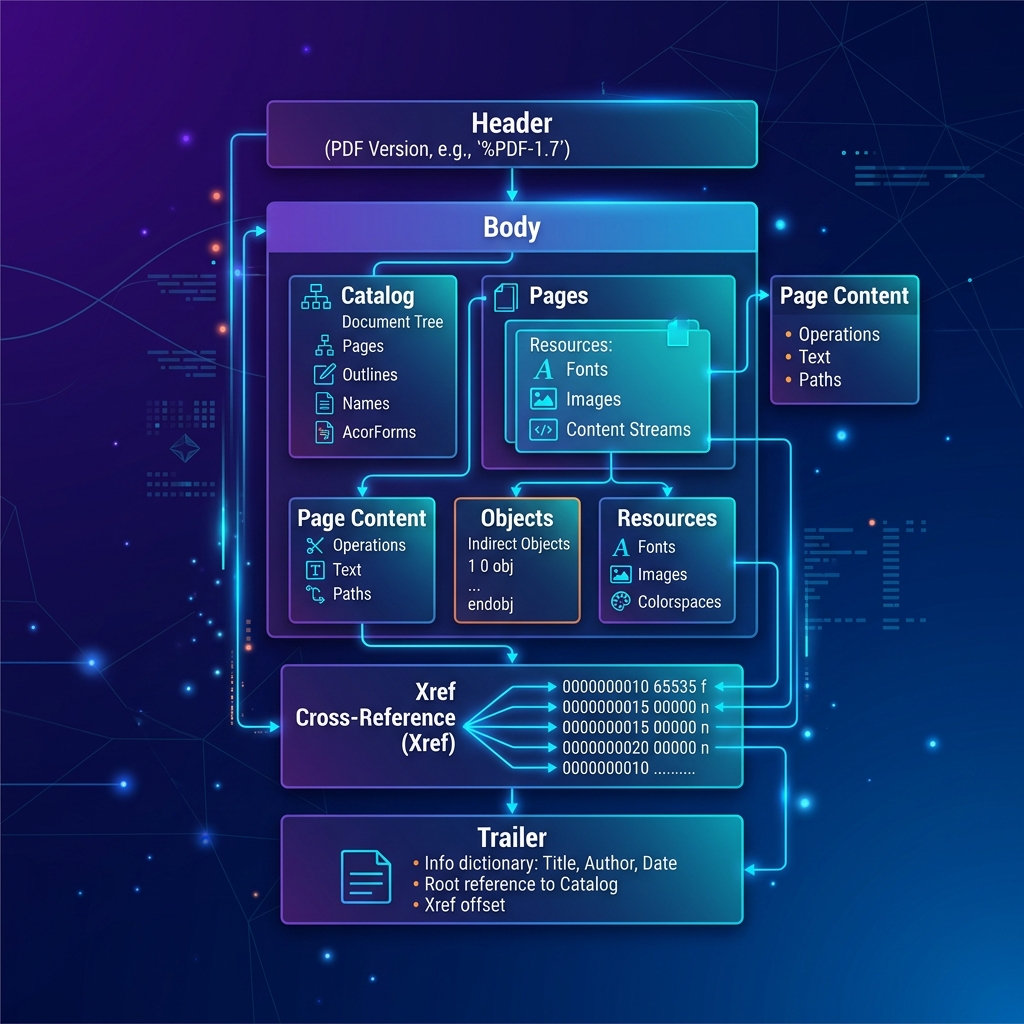
Understanding what contributes to file size is the first step toward reducing it effectively. You can quickly inspect your document's internal structure using our PDF Information tool.

Images Are Usually the Biggest Contributor

In most PDF documents, images occupy the largest percentage of storage space.

This is especially true for:

  • Scanned documents
  • Marketing brochures
  • Catalogs
  • Photography portfolios
  • Architectural drawings
  • Medical documents

For example, scanning a document at 600 DPI instead of 300 DPI can more than double the file size while providing very little visual improvement for everyday viewing.

Similarly, embedding several high-resolution photographs directly into a PDF without optimization can increase its size from a few megabytes to hundreds of megabytes.

Document Type Approximate Size
Text-only report (50 pages)1–2 MB
Research paper with charts5–10 MB
Magazine with high-resolution images50–200 MB
Scanned contract (300 DPI)15–30 MB
Scanned contract (600 DPI)40–80 MB

As this comparison shows, image resolution often has a greater impact than page count.

Embedded Fonts

PDF files frequently include fonts so documents appear identical on every computer.

This process is called font embedding.

Although embedding fonts improves compatibility, it also increases the document size.

Some PDFs embed:

  • Entire font families
  • Multiple font weights
  • Unused character sets
  • Decorative fonts

Modern PDF optimization tools often replace full font embedding with font subsetting, which stores only the characters actually used in the document.

This can significantly reduce file size without affecting appearance.

Scanned Pages Are Different from Digital Documents

Many users assume every PDF is created the same way.

This is not true.

A digitally created PDF stores text as characters.

A scanned PDF stores images of each page.

Imagine scanning a 100-page book. Instead of storing letters and words, the PDF contains 100 large images. That is why scanned PDFs are usually much larger than digitally generated documents.

Metadata and Hidden Information

Many PDF files contain information that users never see.

Examples include:

  • Author information
  • Editing history
  • Creation software
  • Color profiles
  • Comments
  • Hidden layers
  • Embedded thumbnails
  • Attachments
  • JavaScript actions
  • Form definitions

While each item may seem small, together they can noticeably increase file size. Professional PDF optimization tools can safely remove unnecessary metadata while preserving the visible document — which you can also clean using our Protect PDF tool.

Duplicate Resources

Some poorly generated PDFs store the same resource multiple times.

Examples include:

  • The same company logo repeated on every page
  • Identical icons
  • Repeated background graphics
  • Duplicate font definitions

Modern optimization software detects these duplicates and stores them only once, allowing every page to reference the same resource. This reduces file size without changing the document's appearance.

Color Profiles

Professional printing workflows often embed ICC color profiles to ensure accurate color reproduction.

These profiles are essential for commercial printing but unnecessary for many everyday uses such as:

  • Email attachments
  • Online sharing
  • Internal documentation
  • School assignments

Removing unused color profiles can reduce file size while maintaining acceptable visual quality for digital viewing.

Attachments and Embedded Files

PDF documents can contain more than text and images.

They may also include:

  • Excel spreadsheets
  • Word documents
  • ZIP archives
  • Videos
  • Audio files
  • CAD drawings

These embedded files become part of the PDF itself, significantly increasing its size. If the attachments are no longer needed, removing them can dramatically reduce the document size.

Key Takeaway

Large PDF files are rarely caused by having too many pages. Instead, file size is usually determined by the combination of:

  • High-resolution images
  • Embedded fonts
  • Scanned pages
  • Hidden metadata
  • Duplicate resources
  • Color profiles
  • Embedded attachments

How PDF Compression Works

Now that you understand what makes a PDF file large, the next question is obvious:

How does PDF compression actually reduce the file size?

Many people imagine compression as simply "making a file smaller." In reality, PDF compression is a collection of intelligent optimization techniques that remove waste, reorganize information, and encode data more efficiently—without changing the document's purpose.

Depending on the document, PDF compression may reduce the file size by 20%, 50%, or even more than 90%.

The exact reduction depends on the type of content inside the PDF.

PDF Compression Is Not a Single Technique

A PDF file contains different types of data:

  • Text
  • Images
  • Fonts
  • Graphics
  • Metadata
  • Embedded objects

Each type requires a different optimization method.

Instead of applying one universal algorithm, professional PDF compressors analyze the document and choose the most appropriate optimization for each element.

Think of it as organizing a cluttered room. You don't solve every problem the same way—you fold clothes, recycle old papers, throw away trash, and store valuable items neatly. PDF compression follows a similar principle.

Step 1 — Image Optimization

For most documents, images consume the largest amount of storage.

Compression software typically begins by analyzing every image inside the PDF.

Possible optimizations include:

  • Reducing image resolution when appropriate
  • Recompressing JPEG images
  • Converting lossless images to more efficient formats when acceptable
  • Removing unnecessary color information
  • Eliminating duplicated images

For scanned documents, image optimization often provides the biggest reduction in file size.

Step 2 — Text Compression

Text itself requires very little storage.

However, the way text is encoded can still be optimized.

Many PDF creators use efficient compression algorithms such as Flate (ZIP-based compression) to store text streams.

Because text contains many repeating patterns, these algorithms can dramatically reduce storage without losing any information.

This process is completely lossless—the document looks exactly the same after decompression.

Step 3 — Font Optimization

Fonts can occupy a surprising amount of space.

Instead of embedding an entire font containing thousands of characters, optimization software often creates a font subset.

For example: If your document contains only the letters used in a five-page report, there is no reason to include every character from every language supported by the font.

Keeping only the required glyphs can save hundreds of kilobytes.

Step 4 — Removing Redundant Data

PDF generators sometimes save duplicate resources multiple times.

Examples include:

  • Company logos repeated on every page
  • Background graphics
  • Icons
  • Watermarks
  • Font definitions

Compression tools detect these duplicates and store them only once.

Every page simply references the original resource instead of creating another copy.

This optimization is invisible to the user but highly effective.

Step 5 — Metadata Cleanup

PDF files frequently contain hidden information that most users never access.

Examples include:

  • Editing history
  • Application data
  • Printer settings
  • Embedded thumbnails
  • Unused bookmarks
  • Temporary objects

Removing unnecessary metadata reduces file size while keeping the visible content unchanged. Modern tools like SmokePDF Compress PDF handle this cleanup automatically in your browser.

Step 6 — Object Stream Compression

Modern PDF standards allow objects to be grouped into compressed streams.

Instead of storing hundreds or thousands of separate objects individually, they are packed together and compressed as a single data stream.

This reduces overhead and makes the entire file more efficient.

Many PDFs created years ago do not use object streams, which is one reason older files can often be optimized significantly.

Lossless vs. Lossy Compression

Not every compression method works the same way.

There are two major categories:

Compression Type Quality Typical Size Reduction Best For
LosslessNo quality lossSmall to moderateContracts, reports, invoices, legal documents
LossySlight quality reductionModerate to very highScanned PDFs, brochures, image-heavy files

Lossless compression preserves every bit of information.

Lossy compression intentionally removes information that is usually invisible or barely noticeable to the human eye.

For documents that contain many photographs, lossy compression often provides the greatest savings.

Why Some PDFs Compress Better Than Others

You may notice that two files of similar size produce completely different compression results.

For example:

  • A text-based report may shrink by only 15% because it is already highly optimized.
  • A scanned document may shrink by 80% after image optimization.
  • A marketing brochure may shrink by 60% after recompressing photographs.
  • A poorly generated PDF containing duplicate resources may shrink dramatically.

There is no universal compression ratio. Every document is unique.

Does Compression Reduce Quality?

This depends entirely on the compression method.

If only metadata, duplicate resources, unused fonts, and object streams are optimized, the document will look identical.

If image quality is reduced intentionally, some visual differences may appear—especially when zooming in.

High-quality PDF compressors allow users to choose the balance between:

  • Maximum quality
  • Balanced compression
  • Maximum file size reduction

This flexibility makes PDF compression suitable for everything from legal documents to printable marketing materials.

Key Takeaway

PDF compression is much more sophisticated than simply shrinking a file. It combines multiple optimization techniques, including:

  • Image optimization
  • Text compression
  • Font subsetting
  • Metadata cleanup
  • Duplicate resource removal
  • Object stream optimization

The best compression tools automatically decide which techniques to apply, producing the smallest possible file while preserving readability and document integrity.


Common PDF Compression Methods and Technologies

By now, you understand that PDF compression is not based on a single technique. Behind every compressed PDF is a collection of specialized algorithms designed to optimize different types of content.

Some algorithms are perfect for text, others are designed specifically for photographs, some excel at scanned documents, and others work best for monochrome engineering drawings or legal paperwork. Understanding these technologies will help you appreciate why some PDF compressors produce much better results than others.

Flate Compression (ZIP-Based)

The most common compression method inside PDF files is Flate Compression. It is based on the same technology used in ZIP archives. Rather than removing information, Flate searches for repeated patterns in data and stores them more efficiently.

For example, if the same sequence of characters appears hundreds of times, the compressor stores it once and references it whenever needed. This dramatically reduces storage requirements without changing the content.

Best Uses:

  • Plain text
  • Vector graphics
  • Line drawings
  • Forms
  • Metadata
  • Structured document objects

Because it is lossless, every piece of information remains intact.

Advantages: No quality loss, fast decompression, excellent compatibility, supported by every modern PDF reader.

Limitations: Flate is not ideal for photographs; images usually require different compression methods to achieve significant reductions.

JPEG Compression

Most photographs inside PDF files use JPEG compression. Unlike Flate, JPEG is a lossy format. Instead of preserving every tiny detail, JPEG removes visual information that the human eye is unlikely to notice. The result is dramatically smaller image files.

Best Uses: Photographs, product images, landscapes, marketing brochures, magazines, and reports containing many pictures.

Advantages: Excellent compression ratios, small file sizes, fast loading, widely supported.

Limitations: Repeatedly recompressing JPEG images can gradually reduce quality. High compression levels may also introduce visible artifacts around text or sharp edges.

JPEG2000

JPEG2000 is an advanced successor to traditional JPEG. Instead of using older compression techniques, it relies on wavelet technology, allowing images to remain sharper even at higher compression ratios. JPEG2000 can operate in both lossless and lossy modes, making it considerably more flexible.

Advantages: Better image quality, higher compression efficiency, supports transparency, supports progressive decoding, flexible quality settings.

Limitations: Although technically superior, JPEG2000 is slower to process and not universally supported by older PDF software. For this reason, many PDF generators still prefer standard JPEG.

JBIG2 Compression

JBIG2 is designed specifically for black-and-white scanned documents. Instead of compressing each letter individually, JBIG2 analyzes repeated symbols. If the software detects that two characters appear identical, it stores only one copy and references it throughout the document.

Best Uses: Books, contracts, legal archives, office documents, historical records, and scanned paperwork.

Advantages: Extremely high compression ratios, outstanding performance for monochrome documents, excellent for large archives.

⚠️ Important Note on JBIG2

Some aggressive JBIG2 implementations have historically introduced recognition errors by treating similar-looking characters as identical. Modern PDF software avoids this issue by using safer encoding methods, but it remains one reason why document verification is important after heavy compression.

CCITT Group 4

CCITT Group 4 is another compression standard designed for monochrome images. It has been widely used for decades in fax machines and document scanners. Although older than JBIG2, it remains extremely reliable.

Best Uses: Fax documents, black-and-white scans, engineering drawings, technical documentation.

Advantages: Fast processing, excellent compatibility, completely lossless for monochrome images.

MRC (Mixed Raster Content)

One of the most advanced technologies used by professional PDF software is Mixed Raster Content (MRC). Instead of compressing an entire scanned page as one image, MRC separates it into multiple layers (e.g., Background, Text, Graphics, Foreground objects). Each layer is compressed using the most suitable algorithm (e.g., Background → JPEG, Text → JBIG2, Graphics → Flate).

Advantages: Superior compression, excellent text readability, high-quality scanned documents, better OCR accuracy, professional archive quality.

Limitations: MRC requires more processing power and is generally found in enterprise-level PDF software rather than simple online tools.

Compression Technologies Comparison

Technology Lossless Best For Compression Level Compatibility
FlateYesText, vectors, metadataMediumExcellent
JPEGNoPhotographsHighExcellent
JPEG2000Yes / NoHigh-quality imagesVery HighGood
JBIG2UsuallyBlack-and-white scansExcellentVery Good
CCITT Group 4YesFax & monochrome documentsHighExcellent
MRCMixedProfessional scanned PDFsExcellentGood

Which Technology Does SmokePDF Use?

When you use an online PDF compression tool like SmokePDF, you rarely choose the compression algorithm directly. Instead, the software automatically analyzes image types, color depth, font usage, document structure, embedded objects, and scanned pages, then applies the most efficient combination of compression techniques. This intelligent optimization allows users to achieve smaller file sizes without needing technical knowledge of underlying algorithms.

Why Different PDF Compressors Produce Different Results

Compressing the same PDF with two different tools can produce very different file sizes because every compressor uses its own optimization strategy. While basic tools only compress images, advanced tools remove duplicate resources, optimize fonts, compress object streams, clean metadata, optimize document structure, and re-encode images intelligently.

Choosing the Right Compression Technology

In general, text-heavy documents benefit most from Flate, photographic documents benefit from JPEG or JPEG2000, scanned paperwork benefits from JBIG2 or MRC, and mixed documents automatically combine several technologies. Professional PDF software relies on multi-algorithm engines for optimal balance.

📌 Key Takeaway

PDF compression is powered by several specialized technologies, each optimized for different types of content. Modern compressors combine algorithms such as Flate, JPEG, JPEG2000, JBIG2, CCITT Group 4, and MRC to achieve the best balance between file size, quality, and compatibility.


How to Compress a PDF Without Losing Quality

One of the biggest misconceptions about PDF compression is that reducing file size always means sacrificing quality. Fortunately, modern PDF compression tools have become much smarter.

When used correctly, they can significantly reduce file size while preserving text clarity, image sharpness, and overall document appearance. Whether you're preparing a report for email, uploading a document to a government portal, or storing files in the cloud, following the right approach helps you achieve the smallest possible file without compromising readability.

Step 1: Understand Your Document

Before compressing a PDF, identify the type of content it contains. Different documents benefit from different compression strategies. For example:

  • A legal contract mostly contains text.
  • A university thesis combines text, diagrams, and charts.
  • A scanned document is essentially a collection of images.
  • A marketing brochure may contain dozens of high-resolution photographs.

Knowing what your PDF contains allows compression software to apply the most suitable optimization methods.

Step 2: Choose the Appropriate Compression Level

Most PDF compressors provide several compression options. Typical choices include:

  • Low Compression: Preserves maximum visual quality with minimal size reduction.
  • Medium Compression: Balances size reduction with high visual quality.
  • High Compression: Produces the smallest file size with aggressive optimization.

Although selecting the highest compression level may produce the smallest file, it is not always the best choice. If your document contains important photographs or detailed diagrams, excessive compression may reduce visual quality. For most everyday documents, the medium setting provides an excellent balance between quality and file size.

Step 3: Remove Unnecessary Elements

Many PDF files contain information that users never actually need. Examples include:

  • Hidden metadata
  • Duplicate embedded resources
  • Unused fonts
  • Invisible objects
  • Empty pages
  • Obsolete annotations

Removing these unnecessary elements often reduces file size without affecting the visible content. Professional PDF optimization tools perform this cleanup automatically.

Step 4: Optimize Images

Images are usually the largest component of a PDF. Optimizing them often produces the greatest reduction in file size. Common optimization techniques include:

  • Lowering image resolution
  • Recompressing photographs
  • Removing unnecessary color information
  • Converting oversized images to appropriate dimensions

For example, a 600 DPI image intended only for screen viewing rarely needs such a high resolution. Reducing it to 150–200 DPI can dramatically decrease file size while remaining visually sharp on most displays.

Step 5: Preserve Text Quality

Unlike images, text should remain perfectly readable after compression. Modern PDF compressors normally leave text untouched while focusing optimization efforts on images and embedded resources. This ensures that:

  • Searchable text remains searchable.
  • Copy-and-paste functionality continues to work.
  • OCR data is preserved.
  • Printed documents remain clear.

If compressed text appears blurry, the problem usually lies in scanned images rather than actual digital text.

Step 6: Verify the Result

Never assume compression was successful simply because the file became smaller. Always review the compressed PDF. Check:

  • Text readability
  • Image quality
  • Charts and diagrams
  • Tables
  • Page layout
  • Hyperlinks
  • Bookmarks
  • Digital signatures (if applicable)

Spending a few seconds reviewing the document can prevent problems later.

Common Mistakes to Avoid

Many users unintentionally reduce document quality more than necessary. Here are the most common mistakes:

Compressing an Already Compressed PDF

Repeated compression often produces diminishing returns. Instead of significantly reducing file size, repeated compression may gradually reduce image quality. If possible, always compress the original document rather than an already optimized version.

Choosing Maximum Compression Every Time

Maximum compression is not always appropriate. Documents containing detailed illustrations, architectural drawings, medical scans, or photographs may require higher quality settings. Selecting the correct balance is more important than achieving the absolute smallest file.

Ignoring Image Resolution

Many PDFs include photographs that are far larger than necessary. Optimizing image resolution often produces better results than aggressively lowering image quality.

Forgetting to Review the Final File

Compression should never be the last step. Always open the optimized PDF before sending or publishing it. Verify that everything appears exactly as expected.

Best Practices for Different Types of Documents

Document Type Recommended Compression
Legal ContractsLossless
Financial ReportsLossless
Academic PapersMostly Lossless
Scanned DocumentsBalanced Lossy
Marketing BrochuresMedium Lossy
Product CatalogsMedium Lossy
Presentation SlidesBalanced
Image PortfoliosLow Compression

When Should You Compress a PDF?

Compression is useful in many everyday situations. For example:

  • Before Sending by Email: Many email providers limit attachment size. Compressing a PDF often allows it to be sent without splitting the document into multiple files.
  • Before Uploading Online: Government portals, universities, banks, and job application websites frequently impose strict upload limits. Compression helps documents meet these requirements.
  • Before Cloud Storage: Smaller files consume less storage space and synchronize faster across multiple devices.
  • Before Sharing on Mobile Devices: Compressed PDFs download more quickly and consume less mobile data, improving the experience for users with slower internet connections.

Why Use SmokePDF to Compress PDFs?

SmokePDF's Compress PDF tool is designed to make PDF compression simple while preserving document quality. Instead of requiring technical knowledge, the tool automatically analyzes your document and applies suitable optimization techniques.

Depending on the document, SmokePDF can:

  • Reduce file size substantially.
  • Preserve readable text.
  • Maintain image clarity whenever possible.
  • Optimize embedded resources.
  • Process files securely in your browser without server uploads.
  • Help prepare PDFs for email, online submissions, and cloud storage.

This approach makes PDF optimization accessible even for users with no technical experience.

Before and After Example

Imagine a PDF brochure containing high-resolution product images:

Stage File Size
Original PDF42 MB
After Smart Compression11 MB
Space Saved31 MB (≈74%)

Although the exact results vary from one document to another, this example illustrates how effective intelligent PDF optimization can be.

📌 Key Takeaway

Compressing a PDF without losing quality is entirely possible when the right techniques are applied. Understanding your document, selecting an appropriate compression level, optimizing images carefully, removing unnecessary data, and reviewing the final result all contribute to achieving the best balance between quality and file size. Modern PDF compressors automate much of this work, allowing users to reduce document size efficiently while preserving the content that matters most.


Real-World Applications of PDF Compression

Learning how PDF compression works is useful, but understanding where it is actually used every day makes the concept much more practical.

Millions of people compress PDF documents daily without even realizing how much time, storage space, and bandwidth they save. From students submitting assignments to multinational corporations exchanging technical documentation, PDF compression has become an essential part of modern digital workflows. Let's explore some of the most common real-world applications.

Businesses and Corporate Documents

Businesses generate enormous numbers of PDF files every day. Examples include:

  • Contracts
  • Financial reports
  • Employee handbooks
  • Product catalogs
  • Sales presentations
  • Purchase orders
  • Technical manuals

Many of these documents are shared repeatedly through email, cloud storage, and internal collaboration platforms. Without compression, file sizes quickly accumulate, increasing storage costs and slowing document transfers. For companies handling thousands of documents every month, even a small reduction in average file size can result in significant savings.

📊 Real-World Example: Corporate Storage Savings

Imagine a company that stores 50,000 PDF files with an average size of 8 MB. Total storage required is 400 GB.

If intelligent compression reduces each file by 45%, storage requirements decrease to approximately 220 GB—representing nearly 180 GB of saved storage without deleting a single document.

Government Services

Government agencies frequently require citizens to upload PDF documents. Examples include:

  • Passport applications
  • Visa requests
  • Tax declarations
  • Property registrations
  • Business licenses
  • Court documents

Many online government portals impose strict upload limits. A document that exceeds the allowed size may be rejected immediately. Compressing the PDF beforehand often solves the problem without affecting readability.

Universities and Education

Students regularly submit assignments in PDF format. Typical documents include:

  • Research papers
  • Master's theses
  • PhD dissertations
  • Laboratory reports
  • Project documentation
  • Presentation materials

Large scanned appendices and high-resolution diagrams can cause these files to exceed university upload limits. Compressing the PDF allows students to submit their work successfully while preserving academic quality.

Job Applications

Many employers request resumes and supporting documents as PDF files. A typical application may include:

  • Resume
  • Cover letter
  • Certificates
  • Portfolio
  • Recommendation letters

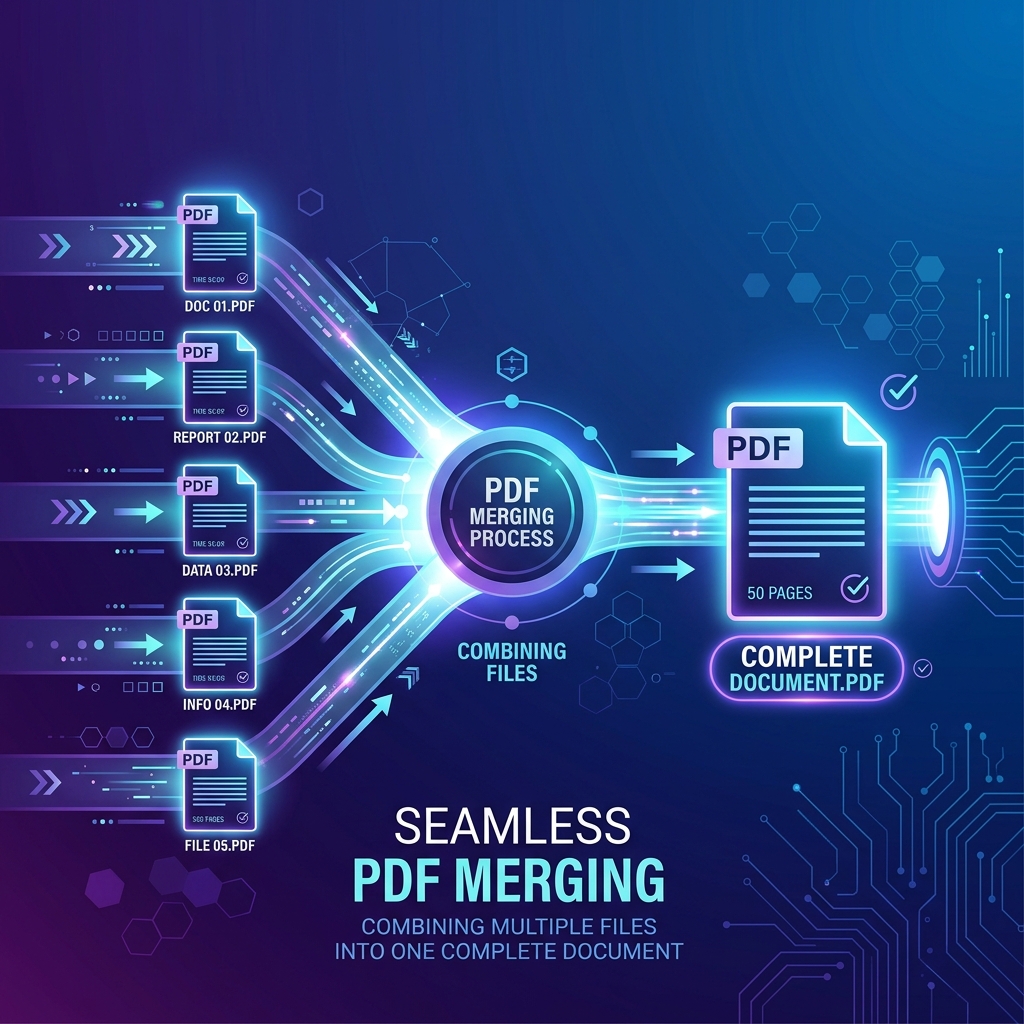
Combining these files into a single optimized PDF creates a more professional submission while ensuring the attachment remains within email size limits.

Healthcare

Hospitals and medical clinics manage thousands of PDF documents every day. Examples include:

  • Patient reports
  • Laboratory results
  • Medical imaging summaries
  • Insurance documentation
  • Referral letters

Although medical images themselves often remain in specialized formats, supporting documentation is commonly exchanged as PDFs. Compression accelerates secure document sharing while reducing storage requirements.

Legal Professionals

Law firms handle massive collections of digital documents. Examples include:

  • Contracts
  • Evidence files
  • Court submissions
  • Witness statements
  • Case records

Accuracy is critical. For this reason, legal professionals generally prefer lossless compression whenever document integrity must remain absolutely unchanged.

Banks and Financial Institutions

Financial organizations generate extensive PDF documentation. Examples include:

  • Monthly statements
  • Audit reports
  • Loan agreements
  • Investment portfolios
  • Compliance documents

Efficient compression reduces storage costs while making customer downloads significantly faster.

Marketing and Design Teams

Marketing departments frequently distribute visually rich PDF documents. These include:

  • Product catalogs
  • Brochures
  • Company profiles
  • Event guides
  • Promotional materials

Such documents often contain hundreds of high-resolution images. Without compression, downloads become unnecessarily slow. Balanced image optimization allows marketers to maintain an attractive appearance while dramatically reducing file size.

Architects and Engineers

Technical industries rely heavily on PDF documents. Common examples include:

  • CAD exports
  • Blueprints
  • Engineering specifications
  • Construction reports
  • Inspection documents

These files often combine detailed vector drawings with photographs and annotations. Selecting the correct compression method ensures technical accuracy while simplifying file sharing between teams.

Publishers and Authors

Authors and publishing companies regularly prepare PDF versions of:

  • Books
  • E-books
  • Instruction manuals
  • User guides
  • White papers

Smaller files improve download speeds and reduce bandwidth costs, especially when serving thousands of readers.

Freelancers and Remote Workers

Freelancers constantly exchange documents with clients. Examples include:

  • Proposals
  • Contracts
  • Design mockups
  • Invoices
  • Project reports

Compressed PDFs upload faster, download more quickly, and create a smoother experience for both clients and service providers.

Cloud Storage Optimization

Cloud storage services have become essential for both individuals and organizations. Although storage capacities continue to increase, unnecessary file sizes still consume valuable space. Compressing documents before uploading them offers several advantages:

  • Reduced storage consumption
  • Faster synchronization
  • Quicker backups
  • Lower bandwidth usage
  • Improved collaboration

This becomes especially valuable for organizations managing millions of documents.

Mobile Users

Not everyone has access to high-speed internet. Many users rely on mobile networks. Smaller PDF files:

  • Download faster
  • Consume less mobile data
  • Open more quickly
  • Improve user satisfaction

For businesses serving international audiences, optimizing documents for mobile users can significantly improve accessibility.

Common Mistakes in Real Projects

Even experienced users sometimes misuse PDF compression. Here are several common mistakes:

Compressing Every File the Same Way

Not all PDFs are identical. A scanned invoice requires different settings than a legal contract or a photography portfolio. Choosing the same compression level for every document rarely produces the best results.

Ignoring the Final Destination

Ask yourself: Will this PDF be printed? Will it only be viewed on screen? Will it be archived for many years? Will it be edited later? The intended purpose should always influence compression settings.

Focusing Only on File Size

A smaller file is not automatically a better file. The true objective is to achieve the smallest file that still fulfills its intended purpose without sacrificing readability or usability.

Best Practices for Real-World Workflows

Professionals typically follow several simple guidelines:

  • ✓ Compress the original document whenever possible.
  • ✓ Keep an untouched backup of important files.
  • ✓ Review the compressed version before sharing it.
  • ✓ Use lossless compression for legal or archival documents.
  • ✓ Use balanced lossy compression for image-heavy PDFs.
  • ✓ Avoid repeatedly compressing the same file.
  • ✓ Choose quality over extreme size reduction when readability is important.

Why Compression Matters More Than Ever

Every year, organizations create more digital documents than the year before. Cloud storage continues to grow, remote work continues to expand, and government services continue moving online. As a result, efficient document management has become increasingly important.

PDF compression is no longer simply a convenience—it is an essential productivity tool that saves time, storage, bandwidth, and money while improving the overall user experience. Tools like SmokePDF's online compressor make executing these workflows effortless directly in your web browser.

📌 Key Takeaway

PDF compression is used across virtually every industry, from education and healthcare to law, engineering, finance, and government services. Choosing the appropriate compression method for each situation helps organizations reduce storage costs, improve collaboration, accelerate document sharing, and provide a better experience for users. Rather than viewing compression as a simple file-size reduction technique, professionals treat it as an important part of efficient digital document management.


Frequently Asked Questions (FAQ)

Does PDF compression reduce file quality?

Not necessarily. Whether quality is affected depends on the compression method being used. Lossless compression preserves all original data and does not reduce quality, making it ideal for text documents, legal files, and archives. Lossy compression, on the other hand, removes certain visual details—primarily from images—to achieve much smaller file sizes. When applied carefully, the difference is often imperceptible to the human eye. Modern PDF compression tools automatically balance quality and file size, allowing users to reduce storage requirements while maintaining excellent readability.

What is the difference between lossless and lossy PDF compression?

Lossless compression keeps every bit of the original information intact. After decompression, the document is identical to the original file. Lossy compression permanently removes selected data that is considered less noticeable, usually from images. In simple terms: Lossless = Maximum quality, Lossy = Smaller files. The best choice depends on the purpose of your document.

Can compressed PDFs still be edited?

Yes. Compression generally affects file size rather than editing capabilities. A compressed PDF can still be edited provided that the original document allows editing, security restrictions are not enabled, and editing software supports the document. However, if images were compressed aggressively, restoring their original quality is usually impossible.

Is PDF compression safe?

Yes, provided you use a trustworthy PDF compression tool. For sensitive or confidential documents, browser-based tools that process files locally (like SmokePDF) provide an additional layer of privacy because the document never leaves your device. Always verify the privacy policy of any online service before uploading confidential information.

Why doesn't my PDF become much smaller?

Not every PDF can be compressed significantly. If the document already uses efficient compression, contains mostly text, has few images, or has already been optimized, then there may be little room for additional size reduction. The greatest savings usually occur with scanned documents and PDFs containing high-resolution photographs.

How much can PDF compression reduce file size?

There is no fixed percentage because every document is different. Typical results include:

Document Type Typical Size Reduction
Text documents10–30%
Mixed documents30–60%
Scanned documents50–80%
Image-heavy PDFs40–90%

Actual results depend on document structure, image quality, fonts, embedded objects, and the selected compression settings.

Does compression affect searchable text?

Normally, no. Digital text remains searchable after compression. Only scanned PDFs without Optical Character Recognition (OCR) behave differently because they contain images rather than actual text. If OCR has already been applied, searchable text is generally preserved.

Should I compress PDFs before emailing them?

Absolutely. Compressing PDFs before sending them by email offers several benefits: faster uploads, faster downloads, smaller attachments, better compatibility with attachment limits, and reduced storage usage for both sender and recipient. For business communication, compressing documents before sending them is considered a best practice.

Is PDF compression useful for cloud storage?

Yes. Smaller files synchronize faster, consume less storage space, require less bandwidth, improve backup efficiency, and reduce long-term storage costs. Organizations managing thousands of documents can save substantial storage resources through intelligent PDF optimization.

Which documents should not be heavily compressed?

Some documents should prioritize accuracy over maximum size reduction. Examples include: legal contracts, engineering drawings, medical documentation, scientific publications, archival records, and professional print files. For these documents, lossless or lightly compressed settings are generally recommended.


Final Thoughts

PDF compression is far more than a simple file-size reduction technique. It is an essential component of modern document management that improves storage efficiency, accelerates file sharing, simplifies online submissions, and enhances collaboration across businesses, educational institutions, government agencies, and individual users.

Understanding how PDF compression works also helps you make better decisions when choosing compression settings for different types of documents. Rather than selecting the strongest compression available every time, experienced users consider the document's purpose, its content, and the desired balance between quality and file size.

Ready to Compress Your PDF?

Now that you understand how PDF compression works, it's time to put that knowledge into practice. SmokePDF makes the process quick, secure, and straightforward directly in your browser.

Compress Your PDF with SmokePDF →

Article Summary

In this guide, you learned:

  • What PDF compression is and why it matters.
  • Why PDF files become large.
  • The difference between lossless and lossy compression.
  • The technologies behind modern PDF compression.
  • How to compress PDFs without losing quality.
  • Real-world applications across different industries.
  • Best practices for achieving excellent results.
  • Common mistakes to avoid.
  • Answers to the most frequently asked questions.
Advertisement