You've filled in a PDF form, a membership, registration or grant application, signed it, and want to send it so nobody can change your answers with a click on the field. The usual advice is "flatten the file". But what actually happens to the fields, the signature and the comments when you flatten? And do Arabic values survive? We tried both modes of the site's flatten tool on the same form after filling it in three different programs, and checked what was left inside each file.
The short answer
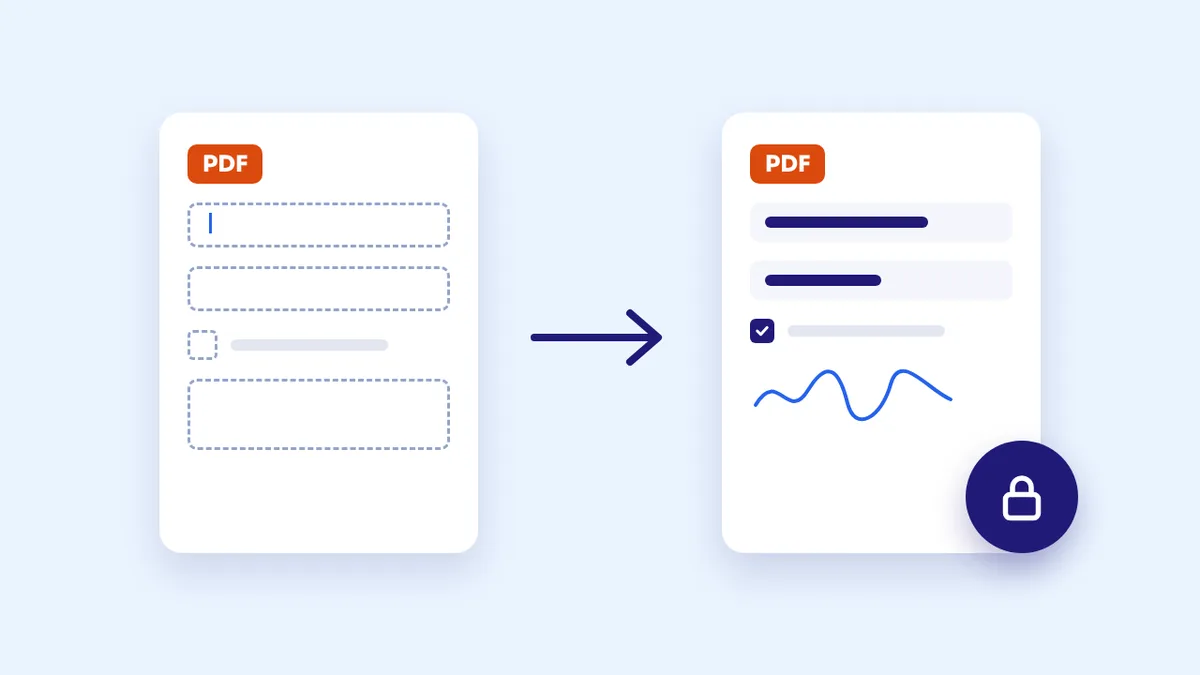
Flattening turns what's in the fields into a fixed part of the page, so the values can't be edited by clicking them. In Flatten PDF, start with "Flatten Form Fields & Signatures Only": it keeps the text copyable and the file small, and merges a hand-drawn signature into the page. It leaves sticky-note comments as they are, though, so delete them before flattening. If your Arabic values show up empty in the preview, or the tool asks you to, choose Full Visual Rasterization: it shows everything as you see it, but the pages become images.
Our test: one form, filled in three programs
We designed a "membership application for a test club" with all its data made up. It has:
- Text fields for the name, city and notes.
- A dropdown for the activity.
- Two radio buttons for the subscription type.
- A checkbox for agreeing to the club rules.
We also added what people usually add in a PDF viewer: a hand-drawn signature, and a review comment reading "check the city before accepting".
Then we filled in the form three ways, because programs don't all save values the same way:
- Latin values in a program that draws the field's appearance along with its value, as most PDF readers do.
- Arabic values in another program that draws the field's appearance, with correctly joined letters.
- Arabic values in a program that saves the value without drawing it, leaving the drawing to the reader. Some form-filling tools do this.
We flattened each copy with both modes, then checked the result: do the values show? Can they be edited or copied? What happened to the signature and the comment? And how big is the file?
What we found in our tool, and fixed before publishing
The test uncovered three problems in the form-fields mode, which we fixed before publishing this article:
- The Arabic values in case three vanished without warning. Because the program hadn't drawn them, the fields came out empty after flattening, while the tool reported success. The tool now checks for this: it redraws Latin values itself, and if the values are Arabic it stops and asks you to use full visual flattening, instead of producing an incomplete file.
- The agreement checkbox in case two lost its tick. That program stores the checkbox state in a different place from where the tool was reading it. The tool now goes by what PDF readers actually display.
- The hand-drawn signature stayed a separate object that could be moved or deleted after flattening, even though the mode's name mentions signatures. The mode now merges hand-drawn signatures, highlights, shapes and stamps into the page.
After the fix we reran the whole test. We also applied the same mode to 19 other files, among them forms, reports, contracts and invoices, and their pages rendered identical to the originals.
Results: what stays and what changes in each mode
| What we checked | Form fields only | Full Visual Rasterization |
|---|---|---|
| Values visible | Yes in cases one and two. In case three the tool stops and asks for the other mode | Yes in all three cases, with Arabic correctly joined |
| Editing values by clicking the field | Not possible; the fields no longer exist | Not possible |
| Copying and searching the values | Works, but the Arabic name in case two copied as special letter forms with reversed brackets | Not possible; the page is an image |
| The page's own text (headings and questions) | Stays copyable text | Becomes part of an image |
| Hand-drawn signature | Became part of the page | Became part of the page |
| Review comment | Stayed a comment that can be opened, read and deleted | Vanished completely, text and all |
| Size in case one (original 30 KB) | 30 KB | 77 KB |
| Size in case two (original 213 KB) | 202 KB | 66 KB |
Three things from the table:
- The comment is what gets forgotten. With form-fields flattening, the reviewer's note "check the city before accepting" stayed in the file, readable by anyone who opens the comments panel. If comments are for internal use, delete them before flattening. With visual flattening it disappeared entirely, which is handy if that's what you want, and a problem if the comment was meant for the recipient.
- Size isn't a fixed rule. Visual flattening more than doubled the light form, but shrank the second one from 213 to 66 KB. The program that filled it had embedded full, heavy fonts, which disappeared once the page became an image.
- What shows before flattening differs between programs. In case three, one of the PDF readers we tried showed the Arabic values as empty even before flattening. So if a recipient tells you the fields are empty although you filled them in, visual flattening fixes it, because it draws the values as the browser sees them and fixes them into the page.
Which mode should you choose?
- Form fields only is the first choice for most forms: the file stays light and its text stays searchable, which matters to organisations that process or search applications automatically.
- Full Visual Rasterization when the values are Arabic and were filled in a program that doesn't draw them, when you want no comment or separate object left in the file, or when a recipient complains of empty fields.
- Either way, flattening prevents easy editing, not deliberate editing: after form-fields flattening, the values are ordinary text that an advanced PDF editor can change like any other text on the page.
Before sending a flattened form
- Keep an unflattened copy. Fields don't come back after flattening, so if you need to fix a mistake, you'll edit the original and flatten again.
- Order the steps: fill in the fields, sign, delete internal comments, flatten, then compress if the file is large. A signature added with the site's Sign PDF tool is already part of the page and doesn't need flattening.
- Check the preview field by field. Look at every value and checkbox before downloading, especially Arabic fields.
- Open the result in another program. Make sure the values show in a phone browser or a different PDF reader from the one you used, which is closer to what the recipient will see.
- If the form holds something the recipient doesn't need, such as a full account number, hide it with Redact PDF. Flattening fixes information in place; it doesn't hide it.
Frequently asked questions
I filled in the form, but the recipient sees it empty. Why?
Most likely the program you filled it with saved the values without drawing them inside the fields, leaving that to the reader, and some readers don't. We saw this in our test with Arabic values. The fix is to flatten with Full Visual Rasterization, so the values are drawn as the browser sees them and fixed into the page.
Can I flatten just one page of the file?
The tool flattens the whole file. If you want to flatten one page visually and keep the rest as text, extract that page with Extract PDF Pages, flatten it, then put it back with Merge PDF and Organize PDF.
Do sticky-note comments stay after flattening the fields?
Yes. This mode leaves them on purpose, because they're notes rather than part of the content, so they stay readable and deletable. Delete them before flattening if they aren't for the recipient, or use visual flattening, which keeps none of them.
Is the form uploaded to a server while flattening?
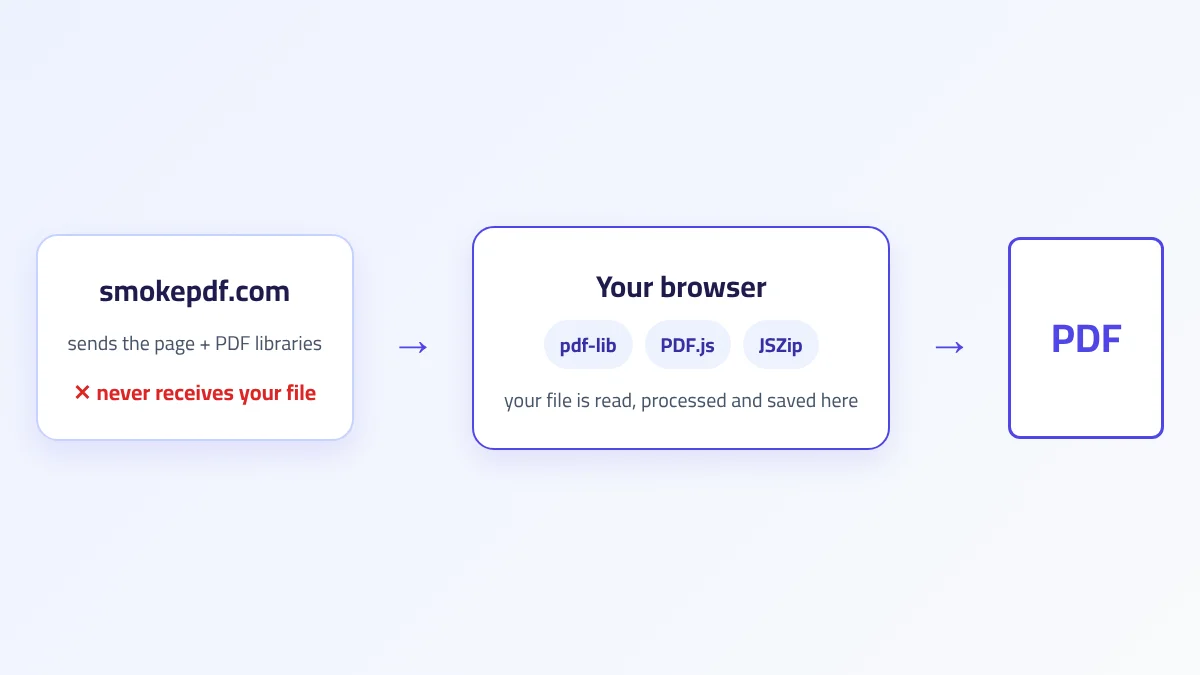
No. Both modes run in your browser, and the file never leaves your device. That matters with forms, which are full of names and addresses. We explain how this works in How In-Browser PDF Processing Works.
The takeaway
Flattening a PDF fixes what's in the fields, but what's left afterwards depends on the mode and on the program you filled the form in. In our test, form-fields flattening kept the text and the size, merged the signature, and left the review comment in place for anyone who looks for it. Visual flattening was the answer when Arabic values were filled in a program that doesn't draw them, and we fixed the tool so those values no longer come out empty without warning. Delete internal comments, check the preview, and open the result in another program before you send it.