A watermark is semi-transparent text or a logo placed on a page to show its status, its owner or its purpose, without stopping anyone from reading it. You stamp "Draft" on a contract before sending it for review, "Preview copy" on a photo catalog you send a client before payment, or "For job application only" on an employment certificate you hand to a company. In all three cases you assume the mark is now part of the file, and that whoever receives it can't use it without the mark. To find out whether that holds, we added a watermark to three test files with the site's tool, checked what a recipient could do with them, and tried three ways of merging the watermark into the page.
The short answer
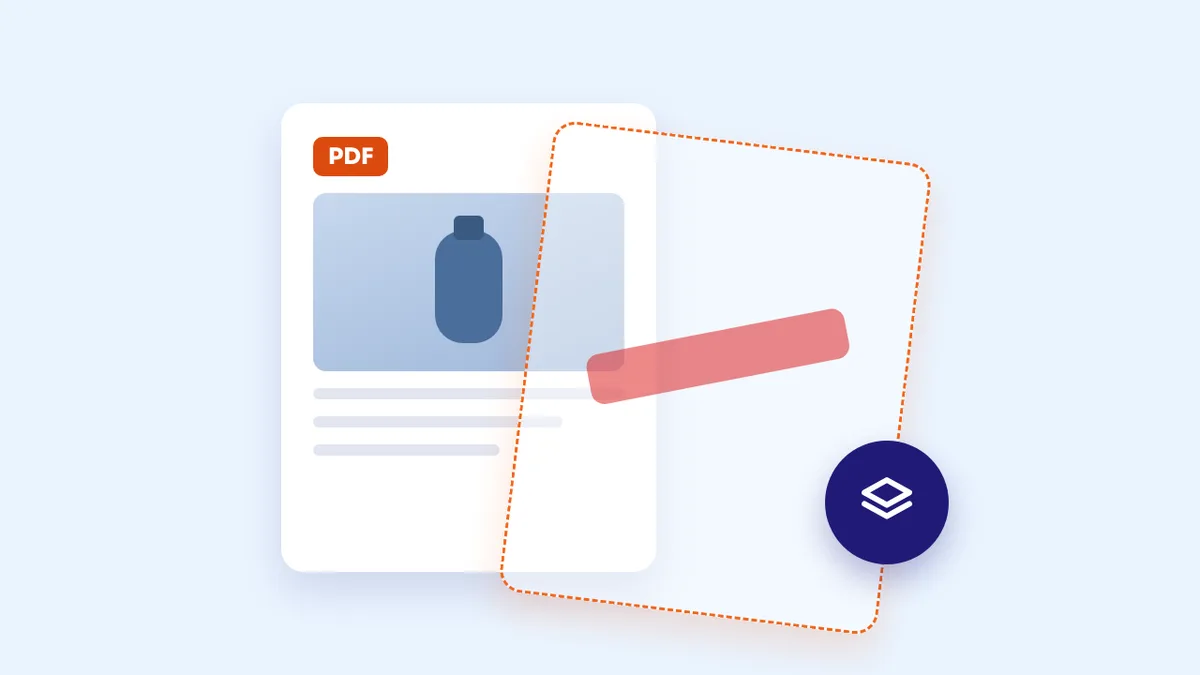
A PDF watermark is usually drawn on top of the page as a separate layer, so the images and text underneath stay as they were. In our test we pulled the catalog photos and the scanned certificate out of the watermarked files completely clean, byte-for-byte identical to the originals. A watermark on its own is enough to label an internal draft, but it doesn't protect images or personal documents. To protect them, place the watermark over the part that matters with Add Watermark to PDF, merge it into the page with the "Full Visual Rasterization" option in Flatten PDF, and keep the original yourself.
Our test: three files, three purposes
We prepared three files covering the most common uses of a watermark, with everything in them made up:
- A two-page text contract saved from the browser: a "cooperation agreement" between two fictional parties. Watermark: "Draft" (in Arabic).
- A product catalog with two vase photos we designed for the test, for a fictional shop. Watermark: "Preview copy".
- A scanned employment certificate, meaning a page image inside a PDF, for a "Test Employee", with a fake stamp and signature. Watermark: "For job application only".
We added the watermark with the site's tool at its defaults: page centre, 25% opacity. Then we inspected each file the way a curious recipient would: copying the text, extracting the images, and looking at the file's structure.
What we found: the watermark is a layer on the page, not part of it
The original images come out clean. Using a free tool that extracts images from PDFs, we pulled the two vase photos out of the watermarked catalog and the scanned page out of the watermarked certificate. We compared them with the images extracted from the same files before watermarking, and they were byte-for-byte identical. The watermark didn't touch the images at all: it was added as a separate transparent image on top of them, and it appeared in the image list as an item of its own.
One object repeated on every page. In the two-page contract, the watermark on both pages is the same image used twice. So a PDF editor that lets you select and delete images removes the watermark in a few clicks. Here the watermark tells the reader something, but it doesn't stop them from anything. We come back to removal in detail in the section on removing a watermark.
The text is unaffected. This is a point in the watermark's favour: because it's an image, not text, the word "Draft" didn't get mixed into the contract's text when copied, and the copied text stayed exactly as it was before the watermark. Whoever reviews the draft can copy its clauses or convert it to Word without watermark words breaking them up.
The default position may cover nothing. In the catalog, the watermark landed in the centre of the page, below the two photos rather than on them, so the products carried no mark at all. In the certificate it landed in blank space near the signature, which can be cropped off without touching the text. A watermark in empty space is cropped out in seconds.
We also noticed during the test that long text, such as "For job application only" in Arabic, ran wider than the page and got cut off in the saved file. We fixed that before publishing: the tool now shrinks long text so it stays inside the page.
How to merge the watermark into the page: three methods we tried
For the watermark to become inseparable, the whole page has to become a single image that includes it. We tried three methods with the site's tools on the watermarked certificate and contract:
| Method | Watermark merged? | Copying text | Certificate size (original 240 KB) | Contract size (original 30 KB) |
|---|---|---|---|---|
| Watermark only | No; original images extract clean | Works | 256 KB | 33 KB |
| "Full Visual Rasterization" in Flatten PDF | Yes, in both files | Not possible | 281 KB | 181 KB |
| "Strong" compression in Compress PDF | Certificate only | Not possible where merged | 44 KB | Unchanged, so the watermark stayed separate |
| PDF to JPG, then JPG to PDF | Yes, in both files | Not possible | 281 KB | 181 KB |
- Full Visual Rasterization is the clearest: one step, and the watermark becomes part of the page image every time. The text stayed sharp when zoomed in, but it can no longer be copied or searched, and the text contract grew from 33 to 181 KB.
- Strong compression merged the watermark into the certificate and shrank it to 44 KB, at lower sharpness. But it declined to convert the contract, because the images would have been larger than the file, and returned it unchanged with the message "already compact". So strong compression isn't a reliable way to merge: check the result message, and if it doesn't say the pages were converted to images, the watermark is still separate.
- Converting to images and back to PDF gave the same result as flattening, but in two steps, and added a white margin around each page, so its content shrank slightly. It suits you if you also want the images themselves.
Merging isn't absolute protection either: someone with an image editor and enough time can try to retouch the watermark out by hand. But there's a big difference between a watermark that's deleted in a few clicks and one that needs manual retouching that usually leaves traces.
Removing a watermark from a PDF: when it's legitimate, and when it's possible
Many people search for a way to remove a watermark from a PDF. The answer starts with a question: whose watermark is it?
When it's legitimate: when the file is yours and you added the watermark, like a draft that has been approved and is now final, or a preview copy the client has paid for, so you want to deliver the full version. Likewise, when an organisation sends you a copy marked "Draft" and you need the final one: the right route is to ask that organisation for the final version, not to strip its mark.
When it isn't: when the watermark belongs to someone else, such as a designer's or photographer's logo on their work, a publisher's mark on a book or paid material, or a "copy" stamp on a document issued by an official body. Removing the watermark in these cases infringes the owner's rights, and with documents it can amount to altering a record that only its issuer may change. That's why our site doesn't offer a watermark removal tool, and why we don't explain here how to strip watermarks from other people's files.
How to remove it from your own file:
- Go back to the original first. This is the fastest and cleanest route: the Word file, the images, or the PDF you had before adding the watermark. Export it again or send it as it is, with no loss of quality. That's why we always recommend keeping the original without a watermark.
- If the original is gone, find out what kind of watermark it is. Open the file in a PDF editor that lets you select objects and click on the watermark. If it selects as a separate object, it's a layer you can delete from your file. If it doesn't select because it's part of the page image, it's merged.
- A merged watermark can't be removed cleanly. Any attempt to retouch it out in an image editor leaves traces on what's underneath; it's better to recreate the file from its source, or ask whoever prepared it for a new copy.
This is the flip side of what we found in the test: if a watermark is a layer that's easy to delete from your own file, it's just as easy to delete from the copy you send to others. So if it must not be removable, merge it before sending, as in the previous section.
What to choose, by purpose
- A draft or internal document: the point is to inform the reader, not to stop them. The watermark alone is enough, and it keeps the text copyable and convertible for reviewers. No need to merge.
- Portfolio images or a catalog before payment: put the watermark over the images, not in the middle of the page: drag the box onto the image in the tool's preview. If the page has two images, run the tool twice with two positions; we tried this, and the tool added the second watermark without any problem. Then merge with Full Visual Rasterization and send only the preview copy.
- Copies of personal documents: write the recipient, the purpose and the date in the watermark, such as "Copy for Company X – job application – October 2026", so the copy is no good for anything else. Place it over part of the important data while keeping it readable, then merge it by flattening. And if the document has a number the recipient doesn't need at all, a watermark isn't enough: hide it with Redact PDF before sending.
Tips for a watermark that does its job
- Keep the original without a watermark. Watermarking and merging are done on a copy; the tool creates a new file and doesn't change the original.
- Choose opacity by position. 15% to 25% over text keeps it readable; 50% and above makes the watermark stand out but may cover letters. In our test, the contract's title stayed readable under a 70% watermark, but the watermark became the first thing the eye caught.
- Make the text specific. "Confidential" on its own doesn't stop a copy being reused, while "Copy for Bank X on date Y" exposes it if it turns up anywhere else.
- Check the result before sending. Open the file and zoom in: make sure the watermark is whole and where you wanted it, and that what should stay readable still is.
- Order the steps. If you're going to sign or remove pages, do that first, then add the watermark, then merge last, because a merged page is an image that's hard to edit. And if you only need certain pages, extract them before all that, as explained in How to Extract Pages from a PDF.
Frequently asked questions
Do the watermark's words show up when copying text or converting the file to Word?
Not with the site's tool, because the watermark is added as an image, not text. In our test the text copied from the contract was exactly as it was before the watermark. After merging by flattening, though, all the text becomes part of an image and can't be copied at all.
Does the watermark show when the file is printed?
Yes. The watermark is part of what's drawn on the page, so it prints just as you see it on screen, at the same opacity. On a black-and-white printer the red watermark will come out light grey, so print one page first to check it's clear enough on paper.
Does a watermark reduce the file's quality?
The watermark alone changes nothing underneath it. It's merging that turns the page into an image: with Full Visual Rasterization the text stayed sharp when zoomed, while strong compression produced a much smaller file at lower sharpness.
Can I use a logo instead of text?
Yes, the tool accepts a PNG or JPG image as a watermark. PNG with a transparent background is better, so no white box shows around the logo. The same rules apply: the logo is a separate layer until you merge it.
Is my file uploaded to a server to add the watermark?
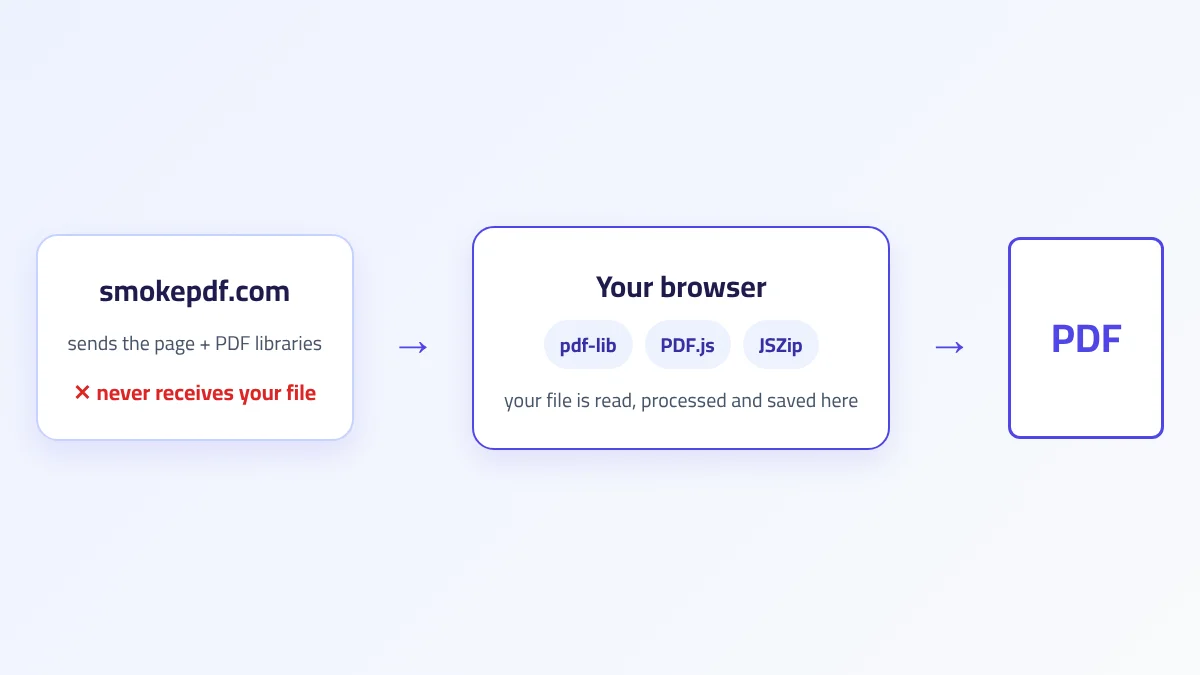
No. Watermarking, flattening and compression all run in your browser, and the file never leaves your device. That matters especially with copies of personal documents, as we explain in How In-Browser PDF Processing Works.
The takeaway
A PDF watermark is a visible notice, not a lock. In our test the original images came out from under it clean, the watermark itself was a single object that could be deleted, and in its default position it landed in empty space covering nothing important. That's fine if your goal is to label a draft, and it also means the easiest way to remove your own watermark is to go back to the original, but it isn't enough to protect your portfolio images or copies of your documents. Put the watermark over what matters, write the recipient and purpose in it, merge it into the page with Full Visual Rasterization, and check the result before you send it.