Your bank asks for one page of a long report, or you need to send just the statement page without the rest of the file. You extract the page, open the new file, see a single page, and send it. But a PDF isn't a photocopied sheet: a page is a set of linked objects, and copying it can drag along things that never appear on screen. To find out what really travels with an extracted page, we tried it on a 31-page test report and inspected what was inside each resulting file, not just what it showed.
The short answer
Open Extract PDF Pages, upload the file, type the pages you want, such as 3, 7-9 or 1,4,10-12, and download the new file. The original stays untouched. Before sending the result, look at its size: a single text page usually weighs tens of kilobytes, so hundreds of kilobytes with no visible images means the file carries something you can't see. Also check the comments and document properties, because comments written on a page travel with it.
Our test: a 31-page report and one page to send
We created a 31-page annual report in an office program, with everything in it made up: the organisation is "Example Foundation", the client is "Test Client", and the account number is all zeros. We made it look like the reports people export from Word or LibreOffice:
- A table of contents at the start, with links to each section, and bookmarks in the sidebar.
- An image on the cover.
- Two links at the end of each section: "back to the introduction" and "see the account statement".
- File properties: the report title, the department that wrote it, and the keywords "confidential, internal, draft 3".
- A fake account statement on page 10, with an internal comment added to it: "Internal note: test copy, do not send".
Then we tried two common cases: extracting the statement page on its own, and extracting section two (pages 7 to 9) to send to a colleague. We inspected each result from the inside: its size, how many pages its structure held, its properties, its comments and its links.
The surprise: whole pages inside the file that don't show
When we extracted section two with the site's tool, the file opened with three pages, as requested. But its internal structure held five pages. The two extra ones were the introduction and the entire statement page, with the account number, the balance and the comment. No reader displays them and Ctrl+F doesn't find them, but anyone who inspects the file's structure with a free tool can recover their text. We did it in under a minute.
The cause was the two links at the end of the section. A link in a PDF isn't a text address; it points directly at the target page inside the file. Programs that copy a page into a new file follow everything the page points to, so nothing breaks, and that brings the whole target page along. The same mechanism made the one-page statement file weigh 559 KB, although the page is only text and a table. The office program had put the resources of every page, including the cover image, in one shared list, so the image came along with the page without being drawn on it.
This is what we found in our own tool, and we fixed it before publishing this article. The tool now removes links to pages that weren't extracted, and keeps only the images and fonts the chosen pages actually use. We applied the same fix to removing pages, splitting, redaction and the editor. After the fix, the statement page came out at 40 KB, the section-two file held only its three pages, and the extracted pages still rendered identical to the original, without a single difference.
The problem isn't specific to one site: it comes from the way many libraries copy pages. So the checklist below is useful whatever program you use.
What travels with an extracted page?
We compared three methods: the extraction tool before and after the fix, and "print to PDF", which redraws the page into a new file. We tested printing with a virtual PDF printer on Linux; details may differ slightly on Windows and macOS.
| What we checked | Extraction before the fix | Extraction after the fix | Print to PDF |
|---|---|---|---|
| Size of the statement page (original: 620 KB for 31 pages) | 559 KB | 40 KB | 23 KB |
| Hidden pages in the section-two file | Two, including the statement | None | None |
| Report title, author and keywords | Removed | Removed | Removed |
| Comment on the page | Kept | Kept | Gone |
| Links and bookmarks | Bookmarks lost; links kept and pulled in their pages | Bookmarks lost; links to pages not extracted disabled | All links gone |
| Form fields | Value shows but can't be edited | Value shows but can't be edited | Value printed as plain text |
| Copying text from the page | Works | Works | Works, with one stray symbol in one line when copied |
Three things worth noting:
- Comments travel with the page. The internal "do not send" comment stayed in the extracted file, with its text and its author's name. Extraction moves the page as it is, with everything on it, so any comment, highlight or review note on the page will reach whoever you send it to.
- Other programs may keep the file's properties. Our tool starts a new file, so it doesn't carry over the report title or the word "confidential". But programs that delete the extra pages from the same file, our editor among them, keep those properties. The fix is to open the document properties and look.
- Form fields freeze. The value typed in a field shows in the new file, but the field can no longer be filled in. If the other side needs to fill in the form, send the whole file, or delete the pages you don't need instead of extracting one.
A checklist before sending extracted pages
- Compare the size with what you see. A single text page is usually 20 to 80 KB. If the file is much larger and shows no images, it carries invisible content: images from other pages, or entire pages.
- Open the document properties. In Chrome's PDF viewer they're in the (⋮) menu under "Document properties"; in Adobe Acrobat Reader press Ctrl+D. Look at the title, author and keywords: is there an internal project name, or words like "draft" or "confidential"?
- Look for comments. Scan the page for small note icons, or open the comments panel in Acrobat, and delete what isn't needed before extracting.
- Try the links. A link that takes you to a page that isn't in the file means the target page was part of the original. In a sound tool the link is disabled and the page isn't there.
- For very sensitive information, cut the tie to the original. If you need to be sure nothing reaches the recipient beyond what you see, print the pages to PDF, or turn them into images with PDF to JPG and back with JPG to PDF. The second route makes the text uncopyable, which is sometimes an acceptable price. And if the page itself has a number that mustn't show, that's a job for Redact PDF, not extraction.
Extract, remove, split or print?
The visible result can look the same, but each method suits a different case:
- Extract: when you need a few pages from a large file. You type only what to keep, and a new file starts without the original's properties.
- Remove: when you want to keep most of the file and drop a few pages, as explained in How to Remove Pages from a PDF. Our tool creates a new file here too, while some desktop programs keep the original file's properties.
- Split: when one file is really several documents, like a scan holding three contracts. Split PDF makes each part a separate file. In our test, the report's eleven parts weighed 6.2 MB together before the fix and 0.93 MB after.
- Print to PDF: when you want a "clean" file with no comments, links or properties, and can accept the internal text changing slightly, as with the stray symbol we saw when copying.
Frequently asked questions
Does extracting pages change the original file?
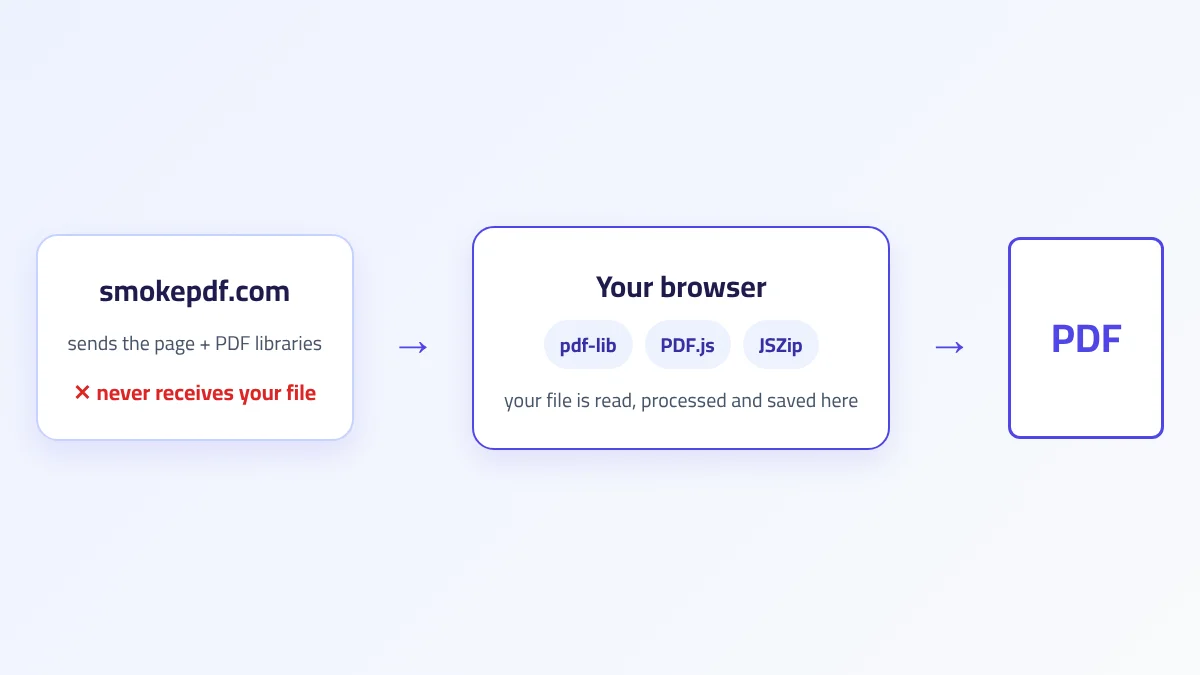
No. The tool reads the file and creates a new one with the chosen pages; the original stays on your device as it was. The file isn't uploaded to any server either: all processing happens in your browser, as we explain in How In-Browser PDF Processing Works.
Do extracted pages lose quality?
No. Extraction moves the page as it is, without redrawing or compressing it. In our test we rendered every extracted page and laid it over the original page, and found no difference at all. It's printing to PDF that rebuilds the page and may change small things.
I extracted one page and it's almost as large as the whole file. Why?
Most likely the original file keeps its images and fonts in one list shared by all pages, so all of them travel with any page. Or the page has links to other pages that were copied with it. Either way the difference doesn't show on screen, only in the size. The site's extraction tool now strips these leftovers; if it happens with another program, print the page to PDF.
Can I get the extracted pages in a different order?
The tool outputs pages in their original order, whatever order you type the numbers in. To reorder them, open the result in Organize PDF and drag the pages into place.
Why don't the bookmarks work in the extracted file?
Bookmarks belong to the whole file, not to a page, so they don't travel with copied pages. If the recipient needs to navigate a long document, sending the full original or splitting it into parts may suit better than extracting.
The takeaway
Extracting pages from a PDF is quick, but a PDF page isn't a separate sheet. In our test, links dragged along whole pages that never show, a shared resource list carried the cover image onto a page with no images, and the internal comment stayed on the page. We fixed that in the site's tool, but the safe habit is the same with any program: before sending extracted pages, compare the size with what you see, open the document properties, and look for comments. And if the page holds sensitive information, print it to PDF or redact what needs hiding before you send it.