Cropping a PDF looks like the simplest edit there is: choose how much to trim from each side and the margins disappear. But what you see after cropping isn't everything that's in the file. We ran our crop tool on six fictional pages, each one a case that turns up in real documents, then measured where the frame landed on every page and checked what was left of the trimmed area inside the file.
The quick answer
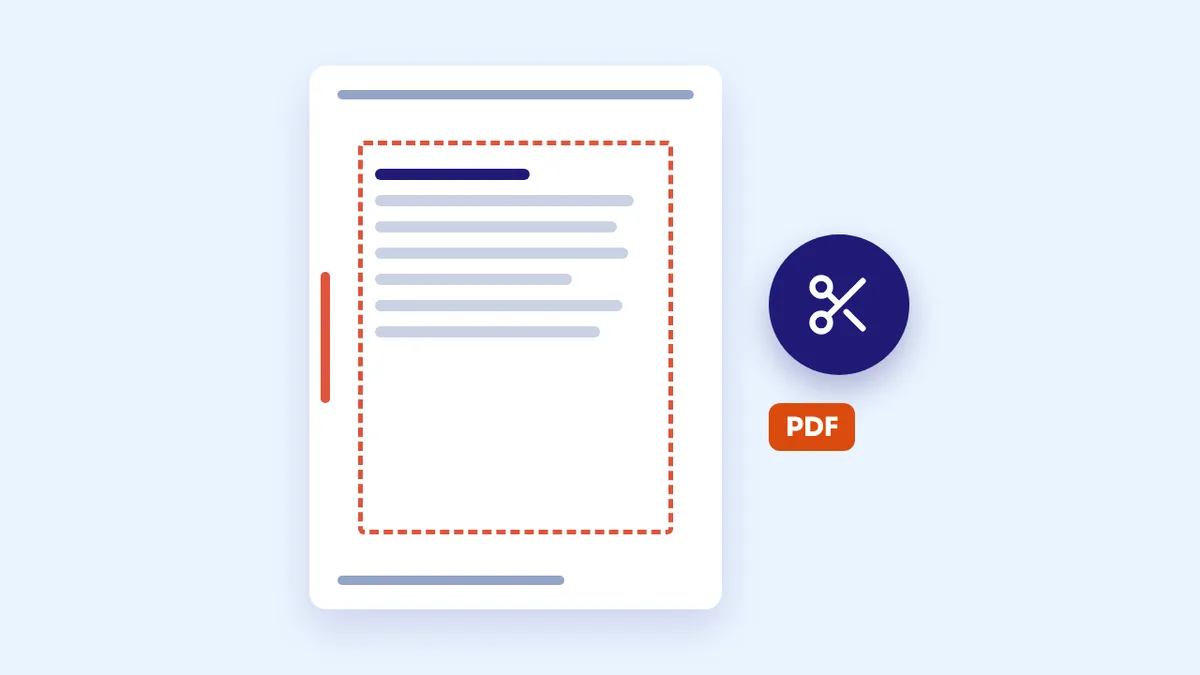
In the Crop PDF tool, enter how much to trim from each side, step through the pages in the preview to check the red frame suits them all, then apply. A normal crop hides the margins without touching text quality, but whatever is outside the frame stays in the file and can be copied. If a margin holds a reference number or an internal note the recipient shouldn't see, tick "Permanently remove what is outside the frame": those parts are really deleted, but the pages become images.
Our test: six pages, six problems
We built a file for a fictional "Example Test Association". All its text and references are invented. It has six pages:
- A normal internal memo with the association's name in the header, a footer reading "Internal ref: TEST-REF-0001, not to be shared outside the association", and a red note in the left margin: "Reviewer note: budget not final".
- A page that mimics a scan: a white sheet surrounded by an uneven black border, as when the scanner lid is left open.
- A landscape page with a table of volunteers with made-up names.
- A page stored rotated inside the file: it shows as portrait in a reader but is stored as landscape with a rotation setting, which is common with scanned pages.
- A page whose coordinates don't start at zero, as some print programs and scanners produce. In a reader it looks identical to page one.
- A page that was already cropped, its margins hidden by an earlier crop.
We cropped the whole file with the same values: 8% from the top, 6% from the bottom, 5% from the right and 8% from the left. Then we measured where the frame landed on each page as a reader sees it, and extracted the text of the output to see what remained.
What we found in our tool, and fixed before publishing
On the first three pages the tool cropped exactly what we asked. The rest exposed four problems:
- The rotated page was cropped on the wrong sides. The tool measured sides on the page as stored rather than as displayed, so it took 5% off the top instead of 8%, and 8% off the bottom instead of 6%. Sides are now measured as you see them.
- The page with shifted coordinates came out mangled. The frame landed in the wrong place: about 20% was cut from the top and 22% from the right, slicing lines of text down the middle, while the red note and part of the footer stayed visible. The frame is now built on the page's actual boundaries.
- The page that was already cropped got bigger instead of smaller. We asked for more trimming, but the tool recalculated the frame from the full sheet, bringing back previously hidden areas on three sides. Cropping now starts from the page's current edges.
- The preview showed the first page only, so there was no way to spot any of this before downloading. You can now step through every page and see the frame on each one.
There was a fifth problem you can't see: the footers and the red note vanished from the pages but stayed inside the file. We extracted the text of the cropped file with an ordinary program, and "TEST-REF" turned up on five pages, along with the full internal note. That isn't a bug in the tool; it's how cropping works in the PDF format. But the tool said "success" with no warning at all. It now counts the text left outside the frame and tells you, and we added a permanent removal option.
Results: normal crop vs permanent crop
| What we checked | Tool before the fix | Normal crop after the fix | Crop with "Permanently remove what is outside the frame" |
|---|---|---|---|
| Normal, landscape and scanned pages | Cropped as asked | Cropped as asked | Cropped as asked |
| Rotated page | Sides swapped | 8%, 6%, 5% and 8% as asked | As asked |
| Page with shifted coordinates | Misplaced frame, lines cut | Identical to page one | Identical to page one |
| Already-cropped page | Got bigger | Trimmed by the values asked | Trimmed by the values asked |
| Reference and note text outside the frame | Still there, no warning | Still there, with a warning naming the number of pages | Removed |
| Selecting and copying page text | Possible | Possible | Not possible, pages are images |
| File size (original 84 KB) | 73 KB | 73 KB | 445 KB |
Three things stand out from the table:
- A normal crop is the right choice most of the time. Wide white margins, a black scanner border, or an article you want to print larger: nothing confidential sits outside the frame, the text stays searchable, and the file doesn't grow.
- Cropping is not a way to hide information. Anyone who opens the file in an editor, copies its text or searches it will find what you trimmed. If a margin holds a reference number or an internal note, use the permanent crop.
- A permanent crop has a cost. The pages became images, so their text can't be copied, and the file grew more than fivefold. You can shrink it afterwards with Compress PDF.
Crop or redact?
Cropping trims a strip from the edges of the page, by the same amounts on every page. If what you need to hide is in the middle of a page, such as a name in a table or a number in a paragraph, cropping won't help. Use Redact PDF, which covers the areas you mark and deletes what's underneath. We explain the difference between covering something up and actually removing it in our guide to redacting a PDF.
Before you crop a file
- Step through every page in the preview. The same values apply to all pages, so a page with a wider scanner border or a different layout may need other values. In that case, pull it out with Extract Pages and crop it on its own.
- Start small. 5% of an A4 page is about 1 cm on each side and about 1.5 cm at the top or bottom. Trimming too much cuts into lines of text.
- Read the warning after cropping. If the tool says text was left outside the frame, ask yourself whether it matters if the recipient reads it.
- If some pages are upside down, fix them first with Rotate PDF so that "top" really is the top.
- Keep the original. The tool doesn't change your file, so if you trimmed too much, run it again on the original with smaller values.
Frequently asked questions
Does cropping a PDF lower text quality?
Not with a normal crop: the tool only changes the boundaries of the visible area, and text and images stay as they were. A permanent crop redraws each page as an image at a resolution that's good for reading and printing, but the text becomes part of the image.
Why did the cropped part show up when I opened the file in another program?
Because a normal crop doesn't delete it. Most PDF readers show only the visible area, but editing software may display the whole page. If you want it gone in every program, crop the original again with the permanent removal option.
Can I crop just one page of the file?
The tool crops every page by the same amounts. To crop a single page, extract it, crop it, then put it back with Merge PDF and Organize PDF.
Is my file uploaded to a server while cropping?
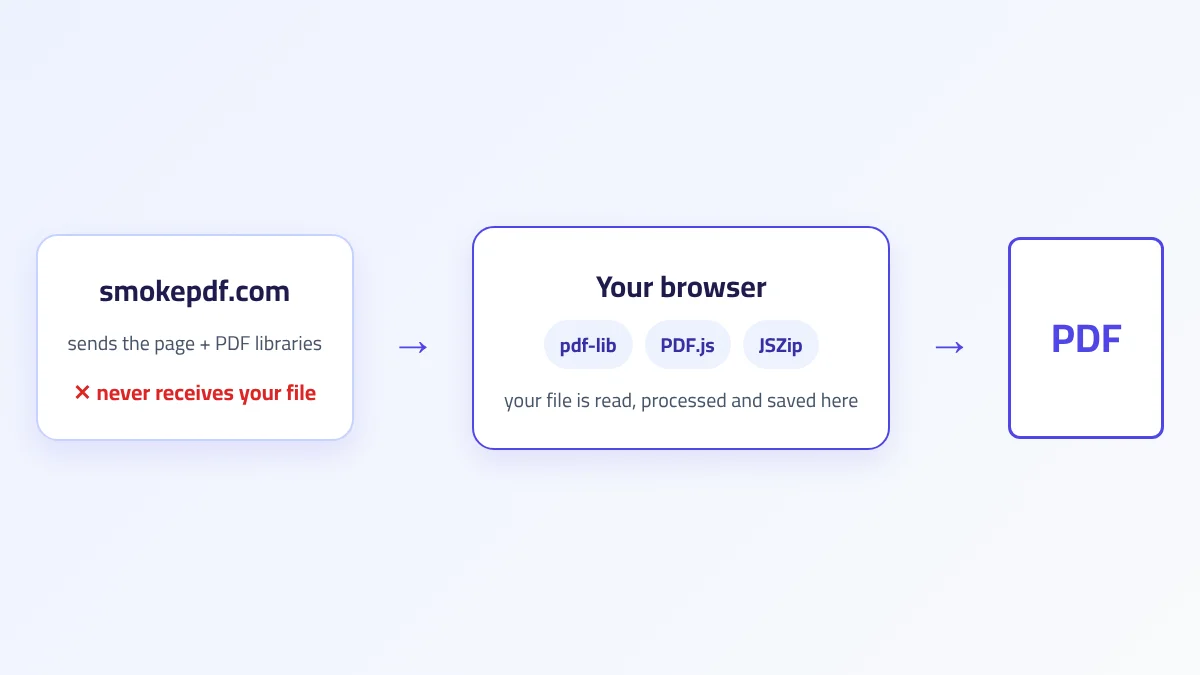
No. Both kinds of crop run in your browser, and the file never leaves your device. We explain how in How browser-based PDF processing works.
The takeaway
Cropping a PDF changes what you see on the page, not what's inside it. In our test, the footers and the internal note vanished from the pages but stayed in the file, ready to be copied. The test also exposed bugs in our tool with rotated, shifted and previously cropped pages. We fixed them, and added a preview of every page, a warning about text left outside the frame, and an option to remove it for good. Use a normal crop for margins and scanner borders, a permanent crop when a margin holds something the recipient shouldn't see, and redaction for anything in the middle of the page.