You send your comments on a lease or an employment contract, and two days later the file comes back with a short note: "We made the changes you asked for, please sign." The page looks almost the same, but did only your changes go in? Reading the whole contract again is tiring, and the eye easily skips a figure that went from 4,500 to 4,800 or a "not" added to the first clause. To see what comparison tools really catch and what they miss, we made two versions of a test lease with five small differences, compared them three ways, and then tried cases that make a comparison mislead you.
The short answer
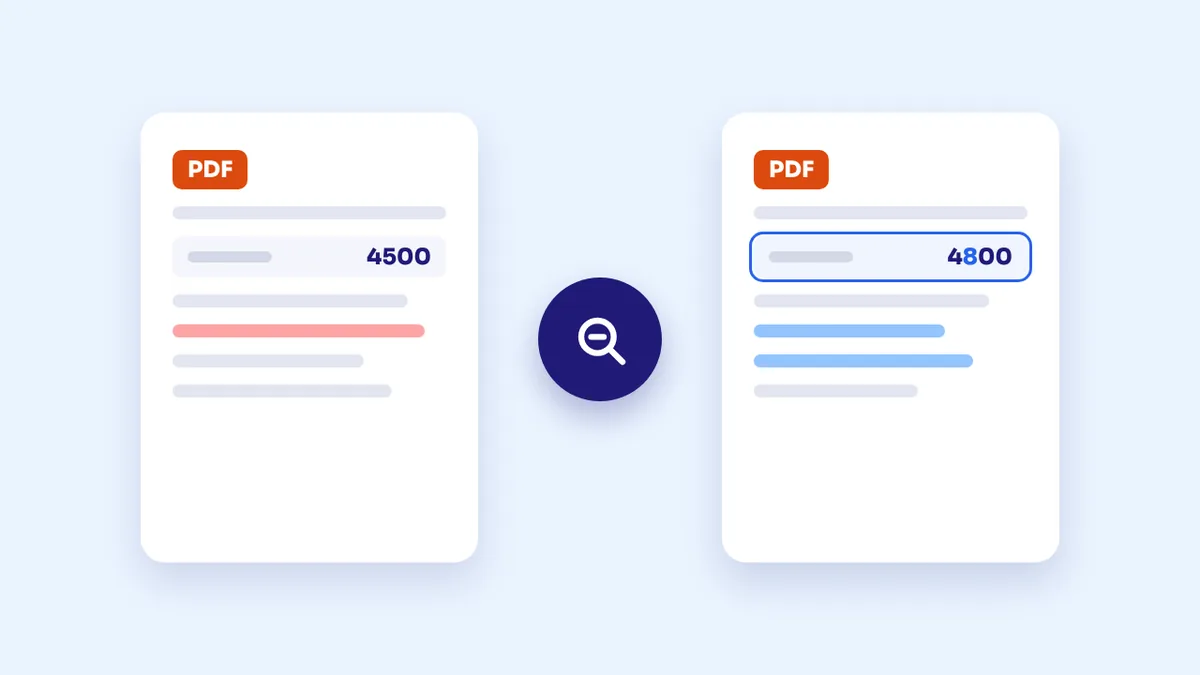
Put the original first and the revised version second in Compare PDF: whatever was removed shows in red and whatever was added in blue. In our test, the visual comparison caught the changed figures, the date and the deleted sentence. But the added word turned its whole line into overlapping colour, and everything after the deleted sentence showed up as changed, which buried a moved comma. So zoom in on every coloured mark however small, and at the first big shift switch to side-by-side view and read what follows yourself. If you can get both versions as Word files, compare the text in them directly.
Our test: one contract, five small changes
We wrote a one-page lease for a shop, in Arabic, with made-up names and figures, and saved it as a PDF from the browser. Then we made a "revised" copy of the same file with five changes of the kind that slip past unnoticed:
- The start date moved from 15 November to 18 November.
- The annual rent went from 4,500 to 4,800 riyals.
- A "not" was added to the termination clause, so it now read "the tenant may not terminate the contract".
- A whole sentence was removed from the maintenance clause: the landlord's duty to fix faults within 7 days.
- A comma was moved in the deposit clause, shifting where the sentence breaks.
We compared the two versions with both modes of the site's Compare PDF tool, highlighting differences and side by side, and then extracted the text of both files with a text-extraction program and compared it word by word.
| Change | Highlight differences | Side by side | Text comparison |
|---|---|---|---|
| Date 15 → 18 | Shown, but only the one changed digit is coloured, and it's small | Visible if you read the line | Shown |
| Rent 4,500 → 4,800 | Shown, one coloured digit inside the figure | Visible if you read the line | Shown |
| "Not" added | Whole line overlapping red and blue, unreadable | Clear when compared | Shown exactly |
| Sentence removed from a clause | Clearly in red, then everything after it doubled in two colours | Clear; the clause is a line shorter | Shown |
| Comma moved | Lost in the colours of the shift | Hard to spot | Shown |
What the comparison report showed
Figures get caught, but they're small. In the rent change only the differing digit was coloured, because the other digits matched in the same place. When we tried a version with only the amount changed, the coloured dots on the whole page added up to the size of one digit. On a full grey page, a mark that size is easy to miss unless you zoom in and go through it line by line.
An added word moves the whole line. Arabic lines start from the right, so adding the word for "not" at the start pushed the rest of the words left. A visual comparison checks position against position, so it saw every word on the line as "different", and the line came out as a block of red and blue on top of each other. It tells you this line changed, but not how.
A deletion shifts everything after it. The removed sentence showed clearly in red, which is the best thing the tool did. But the clause became a line shorter, every following clause moved up, and every line after it appeared twice: in red where it used to be and in blue where it is now. In that doubling it was impossible to notice that one comma had moved in the deposit clause. This is the most important result of the test: any small change that comes after an addition or deletion that alters line lengths can disappear from the report.
The text comparison caught all five, the comma included, because it compares words in order rather than their positions on the page, so a shifted line doesn't matter to it. But it has conditions of its own, as we'll see.
Three cases where the comparison misleads you
We also tried three common cases with no real change, to see what the tool would say:
- Same text, file exported by another program: we saved the same original contract text as a PDF from an office program instead of the browser. The font and spacing were different, and about 60% of the page's text came out coloured, although not one letter of the contract had changed. The text comparison also saw most words as different, because the two programs store Arabic text inside the file in different ways.
- A scanned copy: we turned the original into an image as if it had gone through a scanner, with a tiny tilt (under half a degree). About 40% of the page came out coloured, on every line. And since an image has no text, a text comparison isn't possible at all.
- An extra page at the start: we added a cover page before the revised contract. The tool then compared the contract page with the cover page, and the new contract page with a blank page, so everything was coloured. The fix is to remove the extra page temporarily with Remove PDF Pages and compare again.
The rule that follows: a visual comparison is very precise when both files come from the same source, the same program and the same page order. When any of those differ, lots of colour doesn't mean lots of changes.
A practical way to compare a contract before signing
- Get both versions from the same source. If the contract is written in Word, ask for the editable file along with the PDF. Comparing two Word versions in a program that compares text, such as Word's Compare feature or Compare documents in Google Docs, isn't affected by shifted lines and shows every word added or removed.
- Start with highlighted differences. In Compare PDF, add the original first and then the revised file. Anything without colour is unchanged in place.
- Zoom in on every coloured mark, however small. A blue dot the size of a digit can be a difference of thousands.
- At the first overlapping line or shift, switch to side by side. Read the line in both versions next to each other, then read the rest of the page after the shift yourself, because the report can no longer tell a real change from shifted lines there.
- Always read the sensitive spots by hand: amounts and payment terms, dates and durations, negations (not, no, without, except), words of obligation (may, must, shall), penalty clauses, and party names and account numbers.
- Keep both versions. Once you're satisfied, save the original, the revision and the report together. If you'll sign with a signature image, remember it doesn't record the text you signed, as we explained in How to Sign a PDF.
Why not just copy the text and compare it?
Text comparison was the most accurate in our test, but it assumes the text extracted from the file is sound. That isn't guaranteed in Arabic PDFs: letters are stored in the file as connected shapes, and every reader turns them back into letters its own way. When we extracted our contract's text with two different programs, one gave the right words with extra spaces inside them, and the other gave scattered letters without their dots, in reverse order. And a scanned file has no text at all. So text comparison is best when you have the two Word versions; with PDFs, a visual comparison plus reading the sensitive spots by hand is safer.
Frequently asked questions
Which file do I put first?
The original first, then the revised version. That way red means "was there and got removed" and blue means "added in the new version". Swap the order and the colours swap meaning.
Are the contracts uploaded to a server to be compared?
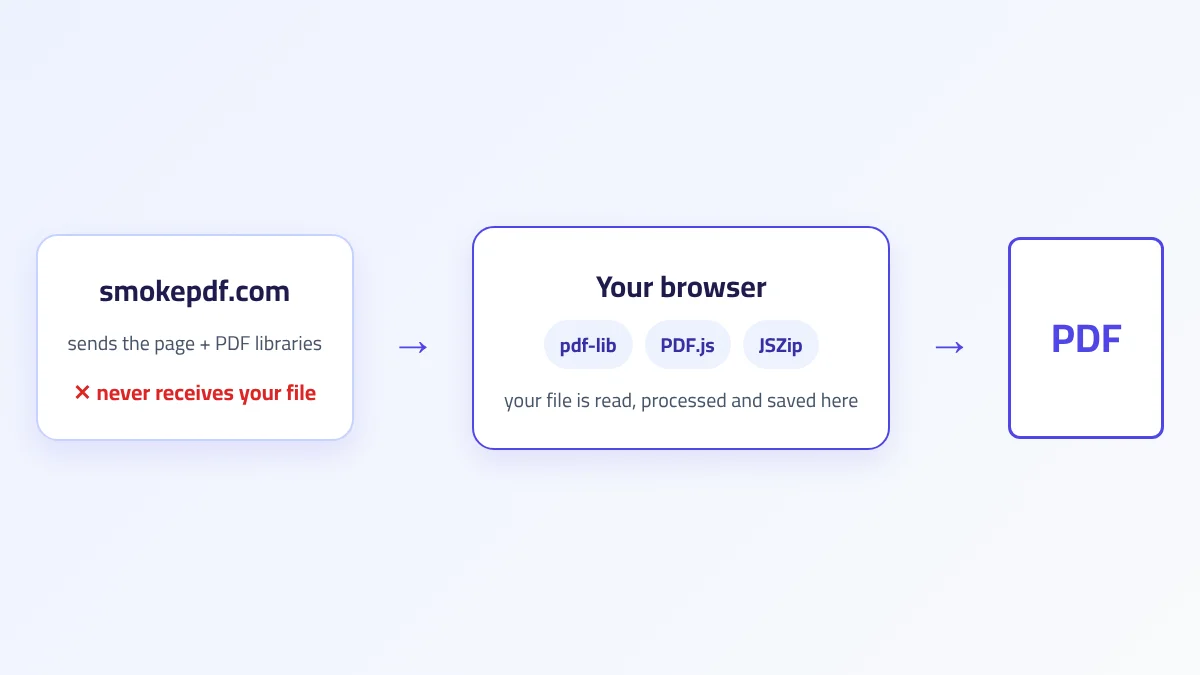
No. The comparison tool draws and compares the pages in your browser, and neither file leaves your device. That matters because contracts hold names, amounts and ID numbers. We explain how this works in How In-Browser PDF Processing Works.
Can I compare a printed, signed contract with the digital version?
With the visual tool, the scanned page will come out almost entirely coloured, as in our test. Side by side works better here: put the scan next to the digital version and read the sensitive spots one by one.
Both files come from the same program, but the whole page is coloured. Why?
Most likely a line was added or removed near the top of the page, so everything below it moved, or a page was added at the start, so the pages no longer line up. Look for the first place the colour starts: that's the first change. Then continue in side-by-side view.
Is comparing enough instead of reading the contract?
Comparing points you to where things changed, but it doesn't understand what the change means. A misplaced comma or a "not" at the start of a clause can reverse an obligation. Read every changed spot carefully, and always read the sensitive clauses: comparing shortens the reading, it doesn't replace it.
The takeaway
A visual comparison of two PDFs quickly shows the figures and sentences that changed, provided both files come from the same source in the same order. But it treats shifted lines as changes, which buries small changes that come after any addition or deletion. Zoom in on every coloured mark, switch to side by side at the first shift, and read the amounts, dates and negations yourself regardless. And if you can get the two Word versions, compare their text: in our test it was the only method that caught the comma.