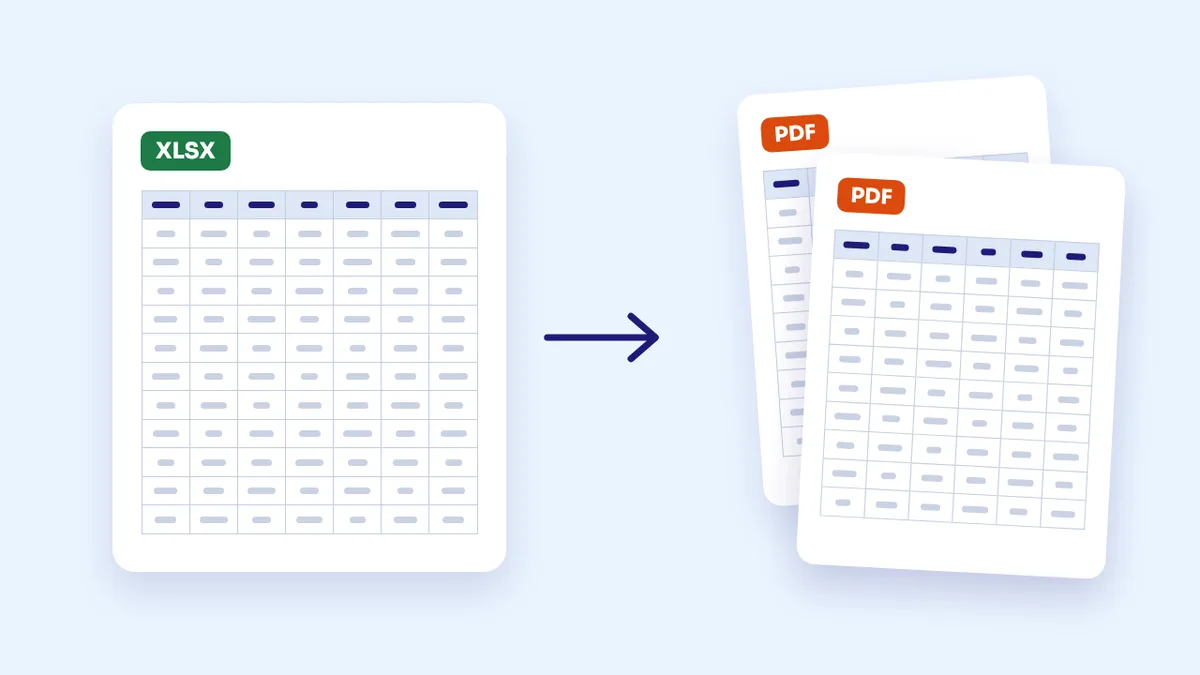
Converting an Excel file to PDF looks like a one-click job until you open the result: a hundred-row table squeezed into an unreadable strip, columns split across two pages, dates turned into ###, or a hidden sheet suddenly visible to the person you sent it to. We built a fictional Arabic workbook full of the things that usually break tables, converted it with our tool and with a desktop spreadsheet program, and compared the output page by page.
The quick answer
In the Excel to PDF tool, choose your file and leave the orientation on "Auto". Each visible sheet runs over as many A4 pages as it needs, the header row repeats at the top of every page, and all of the sheet's columns stay within the page width. Hidden and empty sheets are not printed. The output is page images, so text can't be copied, and your cell colours and fonts are not carried over. If you need your exact formatting or searchable text, export from Excel itself after adjusting the print settings described below.
Our test: a five-sheet Arabic workbook
We made a "test shop report" in which every name and number is invented, and gave each sheet a problem that real files often have:
- Sales: 122 rows (a header row, 120 sales and a totals row) with dates, decimals and formulas. Far longer than one page.
- Budget: 16 columns: the item, twelve months, total, average and notes. Wider than a portrait page.
- Summary: a small table with a merged title across its columns.
- Internal figures: a hidden sheet, the kind people keep in a file for numbers the recipient shouldn't see.
- Empty: a sheet with nothing in it.
We converted the workbook with our tool as it was, again after fixing it, and with the PDF export in LibreOffice Calc using its default settings. We then repeated the test with a 30-row English CSV file and a 1,000-row workbook containing vertically merged cells.
What we found in our tool, and fixed before publishing
The previous version of the tool failed this test in several ways:
- It stopped completely because of the empty sheet. A technical error appeared and no file was produced. The tool now skips empty sheets, and if no visible sheet with data is left, it says so plainly.
- It printed the hidden sheet. With the empty sheet removed, a file came out, and its last page was "Internal figures" in full. This was the most serious problem, because someone who hides a sheet doesn't expect the recipient to see it. Only visible sheets are converted now.
- It squeezed 122 rows onto one page. Every sheet went on a single page however long it was, so the sales table became a narrow strip whose numbers couldn't be read even when zoomed. Sheets are now split across pages at a normal reading size.
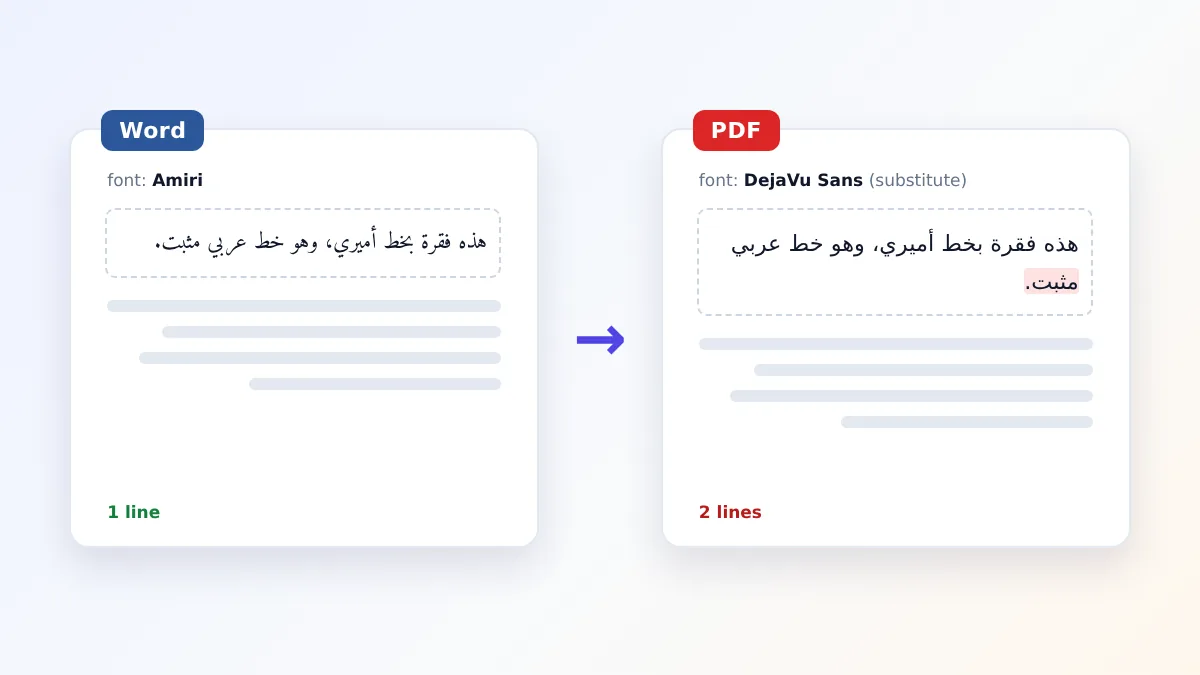
- It broke numbers and Arabic words in the wide sheet. To fit sixteen columns it narrowed the cells, so 2,097.08 wrapped onto two lines and month names fell apart into separate letters. Numbers and words now stay on one line, and the whole table is scaled down instead of its cells being squeezed.
- It forced one look on every table: a purple first row and centred text. The styling is now neutral, and numbers are aligned to one side of the cell so they're easier to compare.
After the fix we repeated the test on all three files and checked every page by eye.
Results: three ways to convert the same workbook
| What we checked | Tool before the fix | Tool after the fix | LibreOffice Calc, default settings |
|---|---|---|---|
| Full five-sheet workbook | Stopped with an error, no file | 6 pages | 6 pages |
| Hidden sheet | Printed | Not printed | Not printed |
| Sales sheet (122 rows) | One unreadable page | 4 pages, header row on every page | 3 pages, header row on the first only |
| Date column | Present but too small to read | Shown in the file's own date format | ### because the column is narrower than the date |
| Budget sheet (16 columns) | Landscape page, broken numbers and words | One landscape page, every column readable | Two pages: the first months on one, the rest on another |
| Selecting and copying text | Not possible | Not possible, pages are images | Possible |
| File size | 2.3 MB (4 pages) | 1.7 MB | 51 KB |
In the other two tests, the English CSV came out as a single left-to-right page, and the large workbook produced 29 pages in about 15 seconds without any group of vertically merged cells being split between pages.
Three things stand out from the table:
- No method wins everywhere. The spreadsheet program gives a light file with searchable text, but its defaults broke the wide table and hid the dates. The tool gives a readable table with no setup, but its pages are images and much heavier.
- ### is not an error in your data. It appears when a column is narrower than its value, and the program prints it exactly as it shows it on screen. Widen the column before exporting.
- Columns split across pages make a table hardest to follow. The recipient sees October to December figures on a page with none of the item names they belong to.
If you need the original formatting
"Convert Excel to PDF with the same formatting" means the colours, fonts and column widths you designed. The tool doesn't carry these over, because it redraws the values in a plain table. The most faithful route is to export from the program that made the file, after three settings that prevent what we saw in the test:
- Fit all columns to one page wide. In Excel's print settings choose "Fit All Columns on One Page". In LibreOffice Calc, open the page style, go to the Sheet tab, and choose the scaling mode that fits the print range to a width of one page.
- Repeat the header row. In Excel go to Page Layout, Print Titles, and set the first row under "Rows to repeat at top". In LibreOffice Calc use Format, Print Ranges, Edit.
- Widen any column showing ###, then check the print preview before saving as PDF.
Remember that hidden sheets are usually not printed by spreadsheet programs, but they are still inside the .xlsx file. If you send the workbook itself instead of the PDF, the recipient can unhide them.
Which method should you use?
- Our tool when you're on a phone or a computer without a spreadsheet program, or you want a readable table quickly without touching print settings. It suits a short statement, a price list or a timetable.
- Exporting from Excel or LibreOffice when colours and fonts matter, the recipient needs to search or copy the numbers, or an upload portal limits the file size.
- If the tool's output is too large to email, run it through Compress PDF. To combine several converted tables into one file, use Merge PDF.
Before you send a converted table
- Delete what the recipient shouldn't see rather than hiding it, especially if you'll also send the Excel file.
- Put column headings in the first row. The tool repeats it at the top of each page when it looks like a header row. A merged title spanning the whole table is not repeated.
- Open and save files exported by automated systems in a spreadsheet program first. Some of them don't store formula results, so those cells show up empty in any tool that doesn't recalculate.
- Check the preview. Make sure the page count makes sense and that the last row on each page is followed by the first row on the next.
- Choose the orientation yourself when needed. "Auto" uses landscape when the table doesn't fit a portrait page at its normal size. Choose "Portrait" if you prefer a smaller table on portrait pages.
Frequently asked questions
Can I convert an xlsx file to PDF on my phone?
Yes. Open the Excel to PDF tool in your phone's browser and pick the file from your downloads or files app. It reads .xlsx, .xls and CSV files, and nothing needs to be installed.
Why can't I copy the numbers from the PDF?
The tool places each page of the table as an image, so it looks the same on every device but the text can't be selected. If the recipient needs to copy figures, export from your spreadsheet program, or send the Excel file along with the PDF.
Do charts and pictures in the workbook appear?
No. The tool carries over cell values only, with the number and date formats stored in the file, and keeps merged cells. Charts, pictures and comments are not included.
Is my Excel file uploaded to a server during conversion?
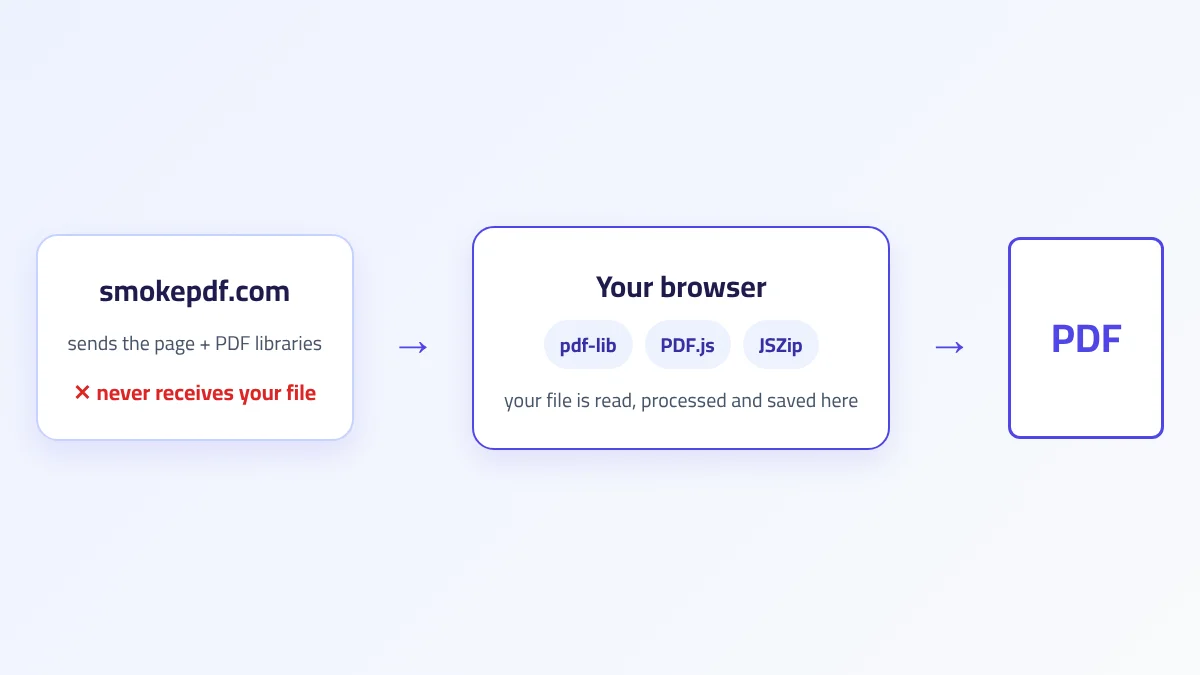
No. Reading the workbook, drawing the tables and building the PDF all happen in your browser, so your figures never leave your device. We explain how in How browser-based PDF processing works. If you need the reverse, getting a table out of a PDF into Excel, see our PDF to Excel guide.
The takeaway
Tables break when converting Excel to PDF for three reasons, and we saw all of them in our test: a long sheet squeezed onto one page, columns split across two pages, and columns narrower than their values. Worse than any of these is a hidden sheet that gets printed without you noticing. We fixed our tool so it no longer prints hidden sheets or squeezes tables, and it now produces readable pages with no setup. If you need your original formatting and searchable text, export from your spreadsheet program after fitting the columns to the page and repeating the header row. Either way, check the preview before you send.