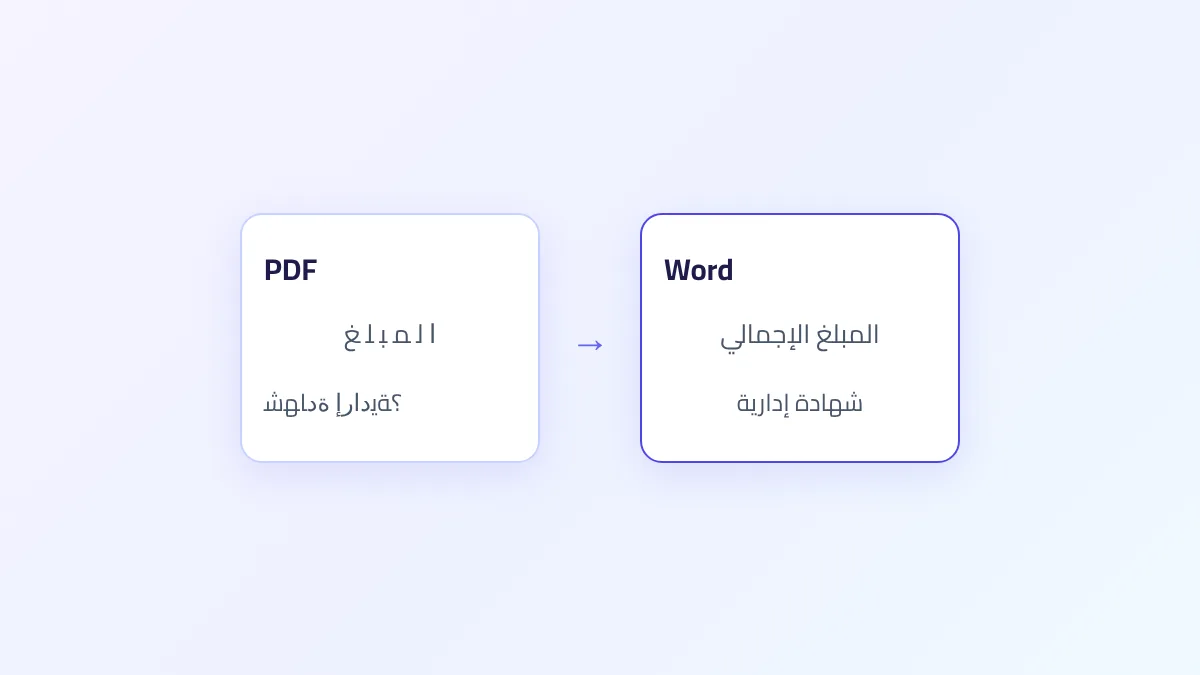
You write a report or a thesis in an Arabic font you chose with care, convert it to PDF, and the font has changed: lines run longer, a paragraph has dropped to the next page, a heading has shrunk, or a word has lost its bold. This isn't random. Three things decide how Arabic text looks in a PDF, and knowing them tells you where the problem is and how to avoid it. This article explains them, shows the result of a test on a Word file we built for the purpose, and gives you the conversion route that keeps the font as it is.
Quick answer
A PDF needs the font file itself to draw the letters. The program doing the conversion takes the font from the device it runs on, or from inside the Word file if the font is embedded there. If it can't find it, it puts a different font in its place, with a different width, so lines and pages shift. The safest fix: save the PDF from Word itself on the computer where you wrote the document, or embed the fonts in the Word file before you send it or convert it anywhere else.
Why does the font change at all?
A Word file usually doesn't carry its fonts, only their names: "this paragraph is in Traditional Arabic, size 16". When Word opens the file, it looks for a font with that name on your computer and draws with it. A PDF, on the other hand, is meant to open the same way on any device, so the program that creates it puts the shapes of the letters it uses inside the file. This is called "embedding" the font.
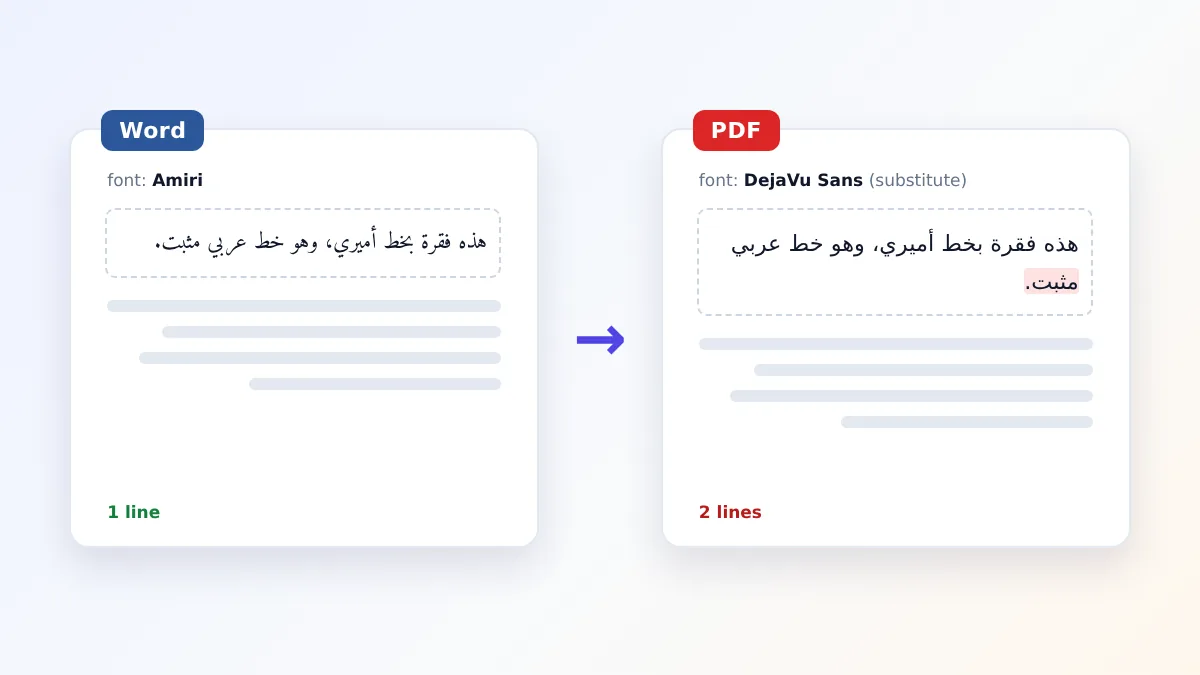
The trouble starts when the conversion happens on a device that doesn't have the font. The program can't embed a font it doesn't have, so it picks a substitute that supports Arabic and draws the same words with it. A substitute is rarely the same width, so lines get longer or shorter, a line moves from one page to another, and every page break after it moves too.
Arabic has one more cause that few people know about: Word stores two fonts and two sizes for every piece of text. One slot is for Latin text, and another, called "Complex scripts", is used for Arabic. You can see it as a separate section, with its own font, size and style, in the Font dialog (Ctrl+D) when Arabic is one of your editing languages. So Latin text can be Calibri 11 and Arabic text Arial 14 in the same paragraph. A converter that doesn't read the complex-script slot draws Arabic in the Latin font and size.
Our test: one file, three ways to convert
We built a Word file of nine Arabic paragraphs, each testing one case, with 2 cm page margins all round. We converted it three ways: LibreOffice 24.2, SmokePDF's Word to PDF tool as it was, and the same tool after we fixed it (more on the fix below the table). The converting machine had the Amiri font installed and did not have Traditional Arabic.
| Case in the Word file | LibreOffice | Tool before the fix | Tool after the fix |
|---|---|---|---|
| Amiri in the Arabic slot, installed | Amiri | The Latin slot's font | Amiri |
| Traditional Arabic, not installed | Substitute font; the line wrapped onto two | Substitute font; the line wrapped onto two | Substitute font; the line wrapped onto two |
| Arabic size 20, Latin size 12 | 20 | 12 | 20 |
| Bold set for Latin only | Regular, as in Word | Bold | Regular, as in Word |
| Font embedded in the Word file, not installed | The embedded font | Substitute font | The embedded font |
| Numbers 154 and 1250 typed as 123 | Stayed 123 | Stayed 123 | Stayed 123 |
The second case is the one most people run into. We measured the same sentence at 16 points: in Amiri it takes 388 points, and in the substitute font (DejaVu Sans) 491 points, about 27% wider. The usable line width on an A4 page with 2 cm margins is about 482 points. So the sentence fits on one line in the original font and wraps onto two in the substitute. No converter can avoid this as long as the font is neither on its device nor embedded in the file.
To be upfront: before we wrote this article, our tool read only the Latin font slot, so Arabic was drawn in a font other than the one you chose, at a size other than the one you set, and fonts embedded in the file were ignored. We changed it to read the complex-script font, size and bold the way Word does, including the document template's fonts, and to use embedded fonts. Then we reran the test; the last column of the table is the result after the change.
What you see in the PDF, the cause, and the fix
| What you see | Likely cause | Fix |
|---|---|---|
| A completely different font from the one you chose | The font isn't installed on the converting device or embedded in the file | Convert from Word on your computer, or embed the fonts |
| Longer lines and more pages | The substitute font is wider than the original | The same fix, then check the page breaks |
| Arabic text smaller or larger than expected | The converter used the Latin size, not the Arabic one | Make both sizes match in the Font dialog, or use a converter that reads both slots |
| Bold appeared or vanished on Arabic words | Bold is on in one slot and not the other | Select the text, remove bold, then apply it again with the bold button so it covers both slots |
| Diacritics have shifted | The substitute font places the marks differently | Use a font with good diacritic support and embed it |
| Numbers ١٢٣ became 123 | Word displays numbers according to a setting, but the file stores 123 | See the section on numbers below |
The safest route: save the PDF from Word itself
When you save as PDF from Word on the computer where you wrote the document, Word uses the same fonts you saw on screen and embeds them in the file. Go to File, Save As, choose PDF in the file type list, and click "Options". Two options there matter for fonts:
- "ISO 19005-1 compliant (PDF/A)": the archiving format. It requires every font to be embedded, so it suits official documents that will be kept for a long time.
- "Bitmap text when fonts may not be embedded": some fonts are licensed in a way that forbids embedding. This option turns text in those fonts into an image so it keeps its look, but that text can no longer be selected or searched.
To check after saving, open the file in Adobe Acrobat Reader, then File, Properties, and the Fonts tab. Every font marked "Embedded Subset" is stored inside the file. If you see the name of a font you didn't use, it's a substitute.
If you're sending the Word file itself: embed the fonts
Sometimes you need to send the Word file to someone who will convert it, or you'll convert it on your phone or on a website. In that case, embed the fonts in the Word file before sending it. In Word for Windows: File, Options, Save, then turn on "Embed fonts in the file". Below it are two options:
- "Embed only the characters used in the document": keeps the file smaller, but the recipient won't be able to type new text in that font if they want to edit.
- "Do not embed common system fonts": turn this off if the recipient uses a phone or a Mac, because common Windows fonts aren't necessarily there.
Some commercial fonts are licensed so that they can't be embedded, and Word won't embed them even with the option on. In that case, or if you want the document to look the same everywhere, choose a free Arabic font with an open licence, such as Amiri or Noto Naskh Arabic; their licences allow embedding and redistribution.
Why did the numbers change from ١٢٣ to 123?
If you type numbers on a normal keyboard, Word stores them in the file as 123, then displays them according to the "Numeral" setting in its advanced options. The setting has four values: Arabic (123), Hindi (١٢٣), Context (١٢٣ inside Arabic text), or System. If it's set to Context or Hindi, you see ١٢٣ in Word, but a converter that reads the file as it is writes 123.
If the document needs Arabic-Indic digits, type them as the actual characters (٠١٢٣٤٥٦٧٨٩) instead of relying on the display setting, or save the PDF from Word itself, which draws them as you see them. In the Maghreb, where 123 is the usual form, you're unlikely to run into this.
What SmokePDF's tool does exactly
- It reads the .docx file and lays out its pages in your browser, so the fonts it uses are the ones installed on your device or embedded in the file. The file isn't uploaded to any server.
- For Arabic text it uses the font, size, bold and italic set in the complex-script slot, like Word, including the document template's fonts.
- If a font is neither installed nor embedded, the browser draws the text in another Arabic font from your device. No converter can avoid this; embedding is the fix.
- The direct download saves pages as images, so the font's look stays fixed in any reader, but the text can't be selected. The "Save with selectable text" button prints the document through your browser, which embeds the fonts it used.
- Headers and footers aren't shown, and Word's numeral display setting isn't applied.
Frequently asked questions
Why does the file look right on my computer but different for the person I send it to?
If you sent a Word file, they see their own device's fonts. If you sent a PDF and they see a different font, the font wasn't embedded during conversion. Save the PDF from Word on your computer, and check the Fonts tab in the file's properties.
I picked an Arabic font from the list but the Arabic text didn't change. Why?
The font may have been applied to the Latin slot only. Open the Font dialog with Ctrl+D and choose the font in the "Complex scripts" section; that's the one used for Arabic.
Does converting Word to PDF on a phone change the font?
Usually yes, if you used Windows fonts such as Traditional Arabic or Sakkal Majalla. Phones don't normally have them, so the system's Arabic font is used instead. Embed the fonts in the file before moving it to your phone, or convert it on the computer.
What's the best Arabic font for a document that goes to many people?
No font is installed on every device. The safest approach is to convert to PDF yourself, so the font is embedded whatever it is. If you must send a Word file, pick a free font that allows embedding, such as Amiri or Noto Naskh Arabic, and embed it in the file.
Does PDF/A guarantee the font will never change?
It guarantees that the fonts used at the moment of saving are embedded, so the file opens the same in any reader. It doesn't fix a problem that happened before saving: if Word itself is showing a substitute because the font isn't installed, that substitute is what gets embedded.
The bottom line
Arabic text in a PDF gets its font from one of two places: the device that converted the file, or the Word file itself if its fonts are embedded. If the font is in neither, another one takes its place and lines and pages shift. So save the PDF from Word on your computer whenever you can, embed the fonts when you send a Word file to someone else, and choose the Arabic font in the "Complex scripts" section of the Font dialog. Then check the Fonts tab in the file's properties before you send it.