A supplier sends a price list, the bank sends a statement, the school sends a list of grades, and all of them are PDFs. You want to total a column, sort the names or compare two months, so you convert the file to Excel, and then find numbers in the wrong columns, rows split in two, and a SUM that won't work because the numbers arrived as text. This article explains why that happens, shows what came out of a test on four real files, and gives you the fix for each problem inside Excel.
Quick answer
A PDF doesn't store a "table"; it stores pieces of text at positions, with lines drawn around them, and a converter rebuilds the table by guessing from where the text sits. So conversion works well on a file exported from software and fails completely on a scan. After any conversion, check three things: cells whose text wraps onto two lines, numbers that arrived as text, and tables that run over several pages. If the file is a bank statement, ask the bank for a CSV or Excel export first; it is more accurate than any conversion.
Why is it hard to get a table out of a PDF?
When you open a table in Excel, the program knows that 245.50 sits in row 4, column C. A PDF knows something quite different: that the text "245.50" is drawn at a certain horizontal point and height on the page, and that there are lines drawn elsewhere. Nothing in the file says this text is a "cell" or those lines are "table borders".
So every PDF to Excel converter guesses. It groups text at the same height into a row and tries to infer columns from horizontal positions. The guess fails in well-known cases: an empty cell that nothing marks, text wrapping onto two lines that looks like two rows, a title above the table that looks like part of it, and a table that continues on the next page with its header repeated.
Before converting: know which kind of file you have
| Kind of file | How to tell | What to expect |
|---|---|---|
| Exported from Excel or accounting software | You can select the numbers with the mouse, and Ctrl+F finds them | Usually a good result with light tidying |
| Statement or invoice downloaded from a website | Selectable text, sometimes with no lines between cells | A good result if the columns are clearly spaced |
| Scanned or photographed with a phone | You can't select a single character, and search finds nothing | Can't be converted directly; needs OCR first |
This check takes ten seconds and saves pointless attempts. A scanned file is a picture: its table is a drawing, not text, and any converter without optical character recognition will return nothing. We cover OCR and its limits in our OCR guide.
Our test on four files
We prepared four files representing the common cases, ran them through SmokePDF's PDF to Excel, and opened the results in Excel:
- An office supplies order in English: a bordered table with 6 items and 5 columns, exported from a spreadsheet to PDF. One item has a long name that wraps onto two lines, and the Note column is empty in most rows.
- A statement without ruling lines: 6 transactions with Debit, Credit and Balance columns. Each transaction fills either Debit or Credit, so there are many empty cells. Printed from a web page to PDF.
- An expenses table in Arabic: 5 items with date, amount and payment method, exported from a right-to-left spreadsheet.
- The same order, scanned: the first page turned into an image at 200 dpi.
| File | Columns | Empty cells | Numbers | Needed fixing by hand |
|---|---|---|---|---|
| English order | 5 of 5 correct | Stayed in place | All numbers; the six items add up to the total row, 4,197.90 | The long item name came in two rows |
| Statement | 5 of 5 correct | Stayed in place | All numbers | Nothing |
| Arabic expenses | 5 of 5, right to left | Stayed in place | All numbers; dates as text | The title split across two cells, and 3 words had letter errors |
| Scanned order | No text in the file; the tool said so and created no file | |||
The letter errors in the Arabic file deserve a word. «ملاحظة» came out as «مالحظة», «الإنترنت» as «الإنرتنت», and «مؤجلة» as «م4وجلة». We opened the same file with the independent pdftotext tool, which gave the same first two errors and «مؤ جلة» with a stray space. So these errors come from how the file describes joined Arabic letter shapes, not from the converter alone. Our article on Arabic PDF to Word explains the cause, and the same applies to Excel.
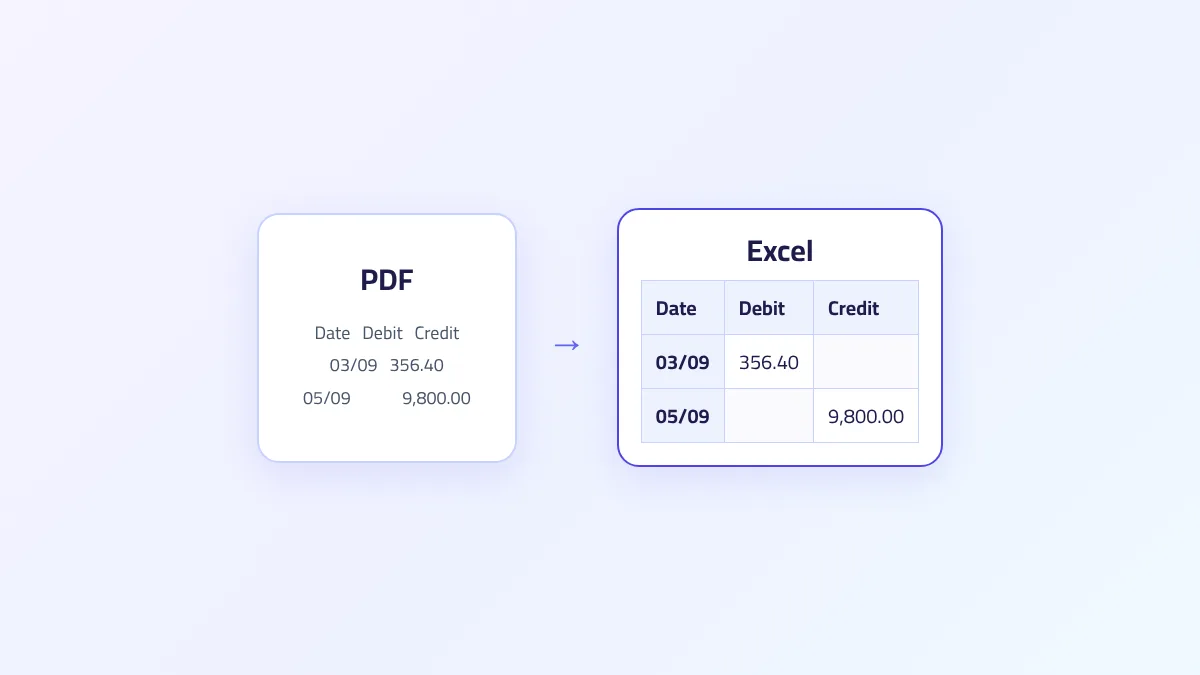
To be upfront: before we prepared this article, our tool placed cells one after another in each row, so an empty cell in the table made every value after it slide one column over. In the statement, a credit amount would have landed in the Debit column. We changed the tool to work out columns from where text sits on the page, then reran the test; the table above shows the result after that change.
Common problems after converting, and their causes
| What you see in Excel | Cause | Fix |
|---|---|---|
| One cell became two rows | The text wrapped onto two lines inside the cell | Move the second line up into the cell above, then delete the row |
| SUM gives zero or an error | Numbers arrived as text because of a currency word or a hidden character | Remove the currency with Find and Replace, then "Convert to Number" |
| Dates don't sort correctly | Dates arrived as text, or were read as month/day | Text to Columns with the day/month/year format |
| The leading zero of a phone number vanished | The converter treated it as a number | Set the column to Text before pasting, or use a converter that keeps it |
| Column headers repeated mid-data | The table runs over several pages | Combine the sheets, then filter out and delete the repeated headers |
| Arabic table columns reversed | Different page direction in the original and the converter | Change the sheet direction on the Page Layout tab |
Fixing it in Excel, step by step
Turn text numbers into numbers
Text numbers usually hug the left edge of the cell and show a small green triangle in the corner. Select the column, click the warning icon and choose "Convert to Number". If they contain a word such as MAD or USD, remove it first with Ctrl+H: type the word in Find and leave Replace empty. If a value is still text after that, it may contain a hidden character: try =VALUE(TRIM(A2)) in a helper column.
Fix the dates
Excel reads dates according to your computer's settings, so "05/09/2026" may become 5 September or 9 May. Select the date column, go to Data, choose Text to Columns, and in the last step pick Date with the DMY format, day then month then year. That way you set the format instead of letting Excel guess.
Combine a table that runs over several pages
Most converters, ours included, put each page on its own sheet. Paste the data of each sheet under the previous one on a single sheet, turn on Filter on the first row, pick the repeated header value (such as "Date") in the header column, and delete the visible rows. You are left with one continuous table.
Review Arabic words
Search the sheet for ال and لا inside words, since these swap most often in Arabic files. If the table is long and there are many errors, compare a sample of rows with the original before relying on the names for sorting or lookups.
Sometimes there is a better route than converting
- Ask for the original file: many banks let you download a statement as CSV or Excel from online banking, and suppliers will send a price list as Excel if you ask. That file is always the most accurate, because no guessing was involved.
- Import the PDF in Excel itself: in Microsoft 365 versions of Excel on Windows, go to Data, then Get Data, From File, From PDF. It detects tables and lets you pick one, runs on your computer inside the program, and helps with complex tables if you have that version.
- For scanned files: you need OCR software first, then conversion. OCR results in tables need a closer check, because similar digits such as 1 and 7, or 5 and 6, can get mixed up.
What SmokePDF's tool does exactly
- It reads the file's text layer inside your browser, so your statement or price list isn't uploaded to any server.
- It groups text at the same height into a row and works out the columns from each piece's horizontal extent, so empty cells stay in place.
- It turns numbers into real numbers, including the European style such as
1 250,00, and leaves numbers that start with a zero as text so the zero isn't lost. - It puts each page on its own sheet. If most pages are Arabic, it reverses the column order and opens the workbook right to left.
- It doesn't see ruling lines, so a two-line cell arrives as two rows. It doesn't carry over colours, merged cells or formatting.
- It has no OCR: for a scanned file it tells you there is no text instead of handing you an empty file.
Frequently asked questions
Can I convert a PDF to Excel and keep the formatting and colours?
Rarely in full. A PDF doesn't store cells or their styles, so a converter rebuilds the data, not the look. What matters most is that the numbers land in the right columns; formatting the table in Excel then takes two minutes.
Why won't Excel add up the numbers after converting?
Because they arrived as text, usually because of a currency word or an invisible space. Remove the currency with Find and Replace, then use "Convert to Number" or the VALUE function.
Is converting a bank statement safe?
It depends on the converter. Tools that upload the file keep it on their servers for some time. SmokePDF's tool runs in your browser, and the file doesn't leave your device. The safest and most accurate option is still to download the statement as CSV from your bank's website.
My file is a table photographed with a phone. What can I do?
First use software with optical character recognition to turn the image into text, then convert the result to Excel. Check the numbers one by one, because OCR mistakes in digits are hard to spot by eye.
Why did the Arabic columns come out in reverse order?
An Arabic table reads from the right, while a converter may read it from the left. Our tool reverses the order when most of a page's text is Arabic; if your Arabic table was laid out left to right, change the sheet direction on the Page Layout tab.
The bottom line
Converting a PDF to Excel is a rebuild by guesswork, not a direct copy. Check your file first: selectable text usually converts well, while a scan needs OCR. After converting, review two-line cells, text numbers, dates, and tables spread over several pages. And when you can get the original as CSV or Excel, that is always the shorter road.