You get a study booklet, a textbook or a set of worksheets as a colour PDF and want to print it in black and white, because colour printing costs more or because the printer at home or at the copy shop only prints black. So you look for a way to convert the PDF to black and white before printing. But does converting actually save ink? Which mode should you pick, grayscale or pure black and white? And what happens to light-coloured text, tables and charts? We answered these questions with a test on a booklet we built for the purpose, measuring file size, ink and text clarity in each case.
Quick answer
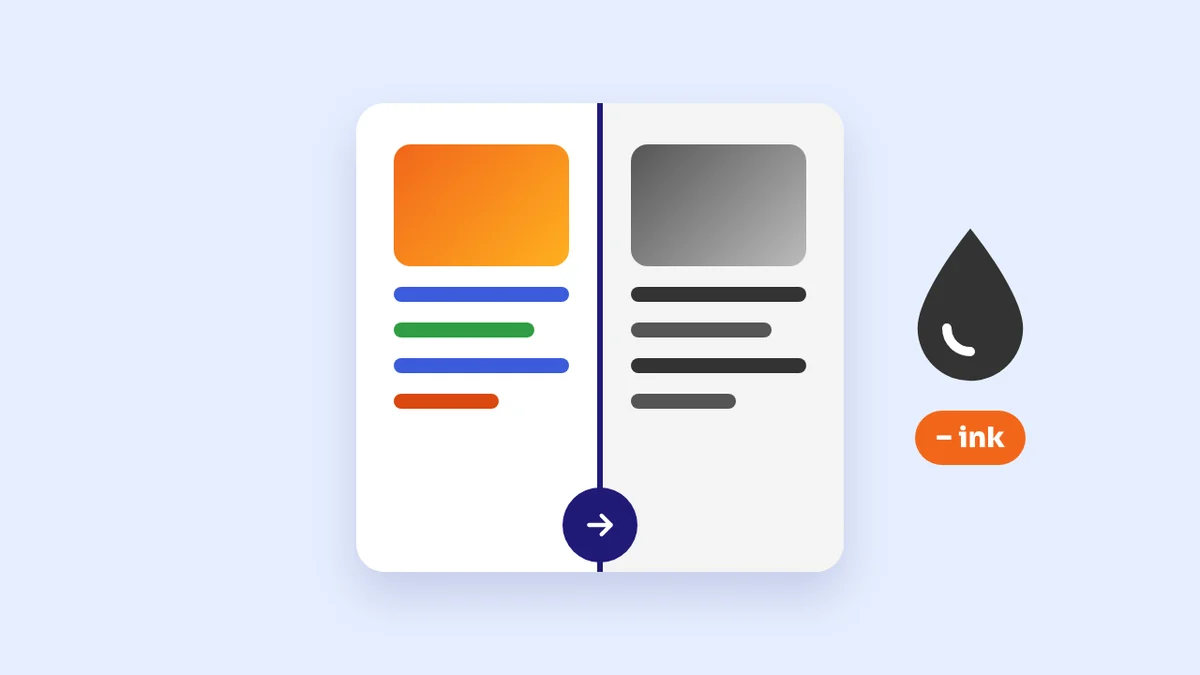
Converting a colour PDF to grayscale doesn't save ink by itself: a printer that prints in black uses the same amount whether you send it the colour file or the gray one. What converting gives you is a preview of how the pages will print, and a guarantee that no page is printed in colour by mistake. Choose grayscale for pages with photos and pure black and white for text pages, and watch out for charts that tell their lines apart by colour, since they can all turn into similar grays.
What happens to the file when you convert it?
Browser-based converters, including SmokePDF's PDF to black and white tool, redraw each page as an image, then turn every colour into a shade of gray according to its brightness. That means three things you should know before you start: text becomes part of an image, so it can't be selected or searched; the file size changes; and different colours with the same brightness become the same gray. The third point is behind most of the surprises at the printer, as the test shows.
You choose between two modes:
- Grayscale: keeps every shade of gray, from white to black.
- Pure black and white (monochrome): every dot is either black ink or white paper, with nothing in between.
Our test on a colour study booklet
We built a two-page Arabic chemistry booklet with what such booklets usually contain: a title on a dark blue band, definitions in boxes with light yellow and light green backgrounds, important text in red, a note in yellow and a line in light green, a table with an orange header and tinted rows, a chart with red, green and blue lines, a photo with colour gradients, and a footnote in 8-point type. We then repeated it to 20 pages and ran it through the tool in both modes.
| What we measured | Colour original | Grayscale | Pure black and white |
|---|---|---|---|
| Size of the 20-page file | 713 KB | 2.27 MB | 513 KB |
| Conversion time on the test computer | — | 3 seconds | 6 seconds |
| Yellow and light green text | Clear on screen | Very faint | Clear black |
| Orange table header | White on orange | White on gray | White on black |
| The chart's three lines | Red, green and blue | Three similar grays | Three black lines |
| Colour photo | Gradients | Gray gradients | A black patch |
| 8-point footnote | Readable | Readable, slightly softer | Readable, slightly heavier |
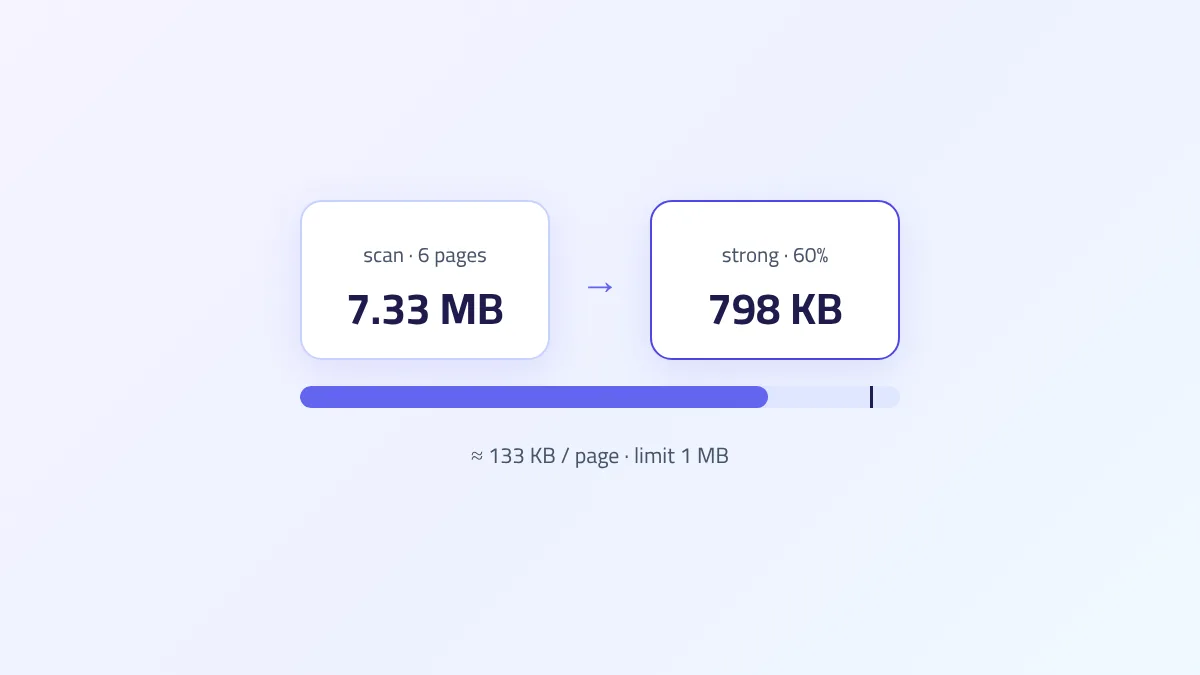
Two things stand out about size. First, the grayscale file is about 3 times larger than the original, because the text has become images. Second, pure black and white produced a file smaller even than the original, because a two-colour page compresses well. If you're going to send the converted file by WhatsApp or email, pure black and white is much lighter.
As for time, the figures above are for a simple file on a computer. In our site's logs, a conversion takes our visitors about 45 seconds on average, because real booklets are longer, include scanned images, and many people convert on a phone. Keep the page open until the page counter finishes.
Does converting to grayscale actually save ink?
We measured ink coverage, the share of the page covered in black estimated from the brightness of every dot, in three cases: the colour original printed on a black-only printer, the grayscale file, and the pure black-and-white file.
| Page | Original printed in black | Grayscale file | Pure black and white |
|---|---|---|---|
| Page 1: text, boxes, table | 8.0% | 8.0% | 11.1% |
| Page 2: chart and photo | 7.8% | 7.9% | 15.0% |
The result is clear: the grayscale file uses the same ink a printer uses when it prints the colour original in black, because the printer turns colours into gray in much the same way. Pure black and white used more ink in our booklet, because it turns the blue band, the table header and the photo into solid black instead of gray.
So when does converting help?
- With a colour printer at home: if you print a colour file without changing settings, the printer uses its colour inks. A gray file prevents that. Some inkjet printers also mix colour inks to make gray, so look in the printer's properties for an option such as "print in grayscale" or "black ink only" if it has one.
- At a copy shop: a gray file makes sure no page is printed in colour by mistake, so you pay the black-and-white price you agreed on.
- To preview before printing dozens of pages: you see faint text and charts that lose their meaning on screen, before you find them on paper.
Four problems that show up after converting, and their fixes
1. Chart lines become alike
In our booklet, red became gray level 92 out of 255, blue 96 and green 111. On paper the eye can't tell red from blue, so the chart's legend becomes useless. No conversion fixes this, because the information was in the colour itself. The fix: print the chart pages alone in colour. Separate them first with Extract pages from PDF, and convert the rest to black and white.
2. Light-coloured text almost vanishes in grayscale
Yellow became gray level 197 and light green 200, very close to white (255). On screen it's hard to read, and on paper from a printer low on toner it may not show at all. For these pages choose pure black and white, which turns coloured text black.
3. Photos turn into patches in pure black and white
The pure mode knows only black and white, so a colour photo or a picture of an experiment becomes a black block that wastes ink and shows nothing. Convert pages with photos in grayscale.
4. Red text loses its emphasis
The phrase written in dark red became a medium gray in grayscale, and black like the rest of the text in pure black and white. It stays readable but no longer stands out. If the booklet is yours to edit, use bold or underline for emphasis rather than colour alone.
To be upfront: during this test we found that our tool's pure black-and-white mode turned every colour lighter than mid-gray into white. The yellow note and the light green line disappeared completely, and so did the table header and the table lines. We changed the tool to treat coloured text and table lines as black ink while keeping light backgrounds white, and to store pages as PNG instead of JPEG so letter edges stay sharp. The figures in the tables above are the results after that change.
Which mode for which page?
| Kind of page | Best mode | Why |
|---|---|---|
| Text, exercises and tables | Pure black and white | Clear black text and a small file |
| Text with notes in light colours | Pure black and white | Light colours turn black instead of fading |
| Photos of experiments or shaded shapes | Grayscale | Keeps the gradients instead of black patches |
| Charts with coloured lines | Print these pages alone in colour | The colours become similar grays |
| Faded scanned page | Pure black and white | Raises contrast and turns yellowed paper white |
The tool applies one mode to the whole file. If your booklet is mixed, separate the photo pages from the text pages with the extract tool, convert each part in its mode, then combine them with Merge PDF.
Before you print the whole booklet
- Convert the file, press "Preview result", and look through at least three different pages: a text page, a page with a table, and a page with a photo or chart.
- Zoom in on coloured notes and small footnotes and make sure they're readable.
- Print one test page before printing the whole file, because a printer low on ink shows light gray fainter than you see on screen.
- If you're printing at a copy shop, send them the converted file rather than the original, and ask for double-sided printing if the booklet is long, which saves half the paper.
"The file is password-protected or carries permission restrictions"
Many booklets and books come with restrictions that block printing or copying, even when they open without a password. The converter doesn't accept these files and shows a message asking you to open them first. We tried this on a copy of our booklet with printing restricted: the converter refused it as expected, then Unlock PDF opened it without asking for a password, and the conversion worked on the unlocked copy. If the file asks for a password when you open it, you'll need that password from its owner. Use this route only for files you have the right to print, such as a booklet you bought or one your teacher handed out.
Frequently asked questions
How do I convert a colour PDF to black and white for free?
Open the black-and-white converter, choose your file, then choose the mode: grayscale for pages with photos, or pure black and white for text pages. Press "Convert", then preview the result and download it. The conversion runs in your browser, and the file isn't uploaded to any server.
Do I need to convert the file if my printer only prints in black?
Just for printing, no: the printer turns colours into gray itself, and the ink used is about the same. Converting helps you preview the result before printing, or send a gray file to a copy shop or an office that asks for one.
Why did the file get bigger after converting?
Because the pages became images, and an image weighs more than text. In our test the grayscale file was about 3 times larger. Pure black and white gives a much smaller file, and you can also run the file through Compress PDF.
Can I copy text from the file after converting?
No, because each page is now an image. Keep the original file if you need the text, or run optical character recognition on the converted copy.
Why won't the site convert my booklet?
Because it carries permission restrictions or a password. Open it first with Unlock PDF, then convert the unlocked copy. If it asks for a password, you'll need it from the file's owner.
The bottom line
Converting a PDF to black and white doesn't save ink by itself, but it prevents accidental colour printing and shows you the pages as they'll print before you pay for paper and ink. Use grayscale for pages with photos, pure black and white for text and coloured notes, and print coloured charts in colour. Before printing a whole booklet, preview three pages and print one test page.